# Director Web Portal

# Overview

##### **Events**

1\. Organization events section. Create or modify all your events from this section.

[![Organization Events.png](https://support.odience.com/uploads/images/gallery/2024-03/scaled-1680-/organization-events.png)](https://support.odience.com/uploads/images/gallery/2024-03/organization-events.png)
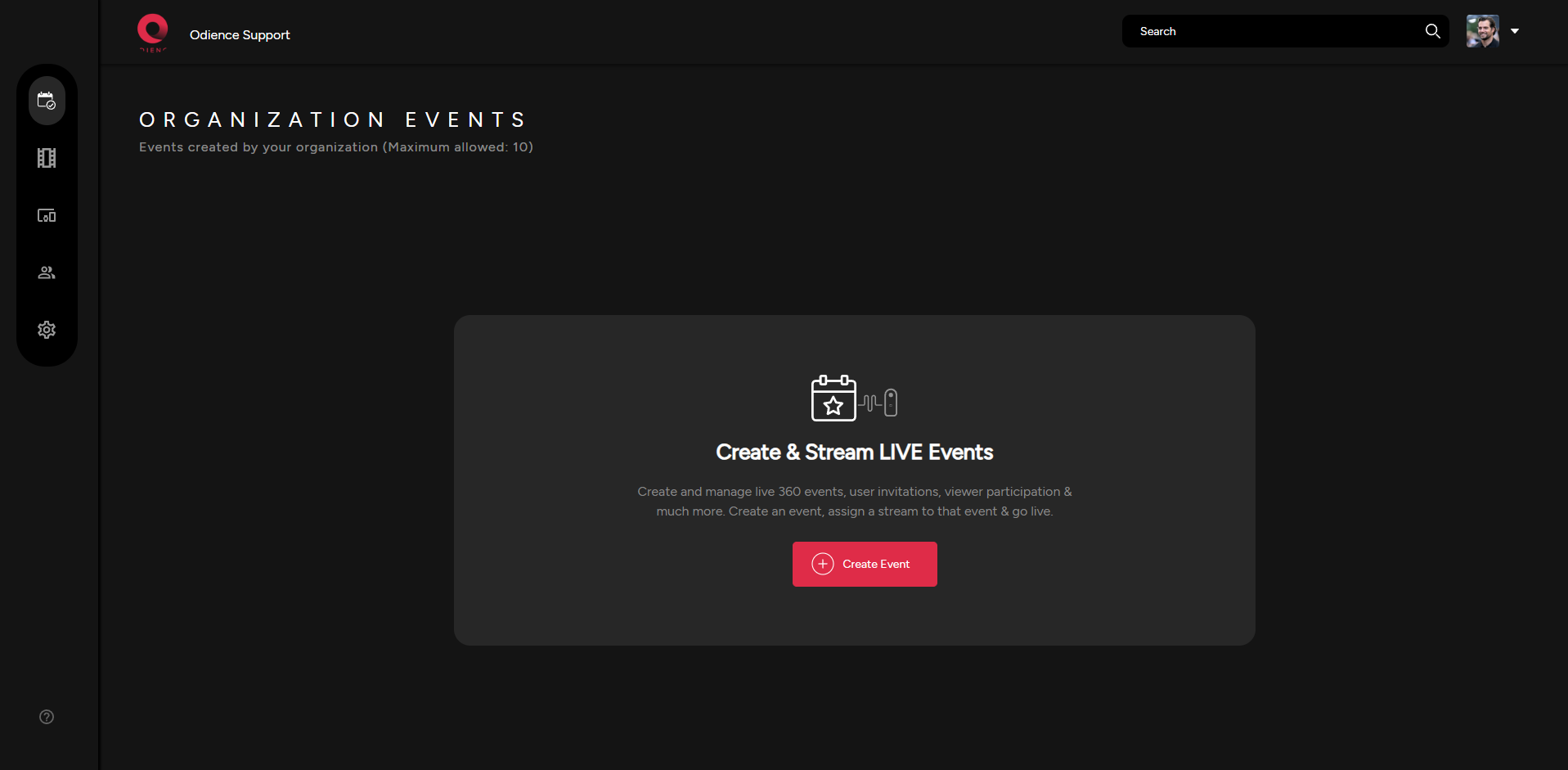
- For more information, see our guide on how to [**Create an Event.**](https://support.odience.com/books/director-web-portal/chapter/create-event-start-streaming "Create Event")

##### **Streams**

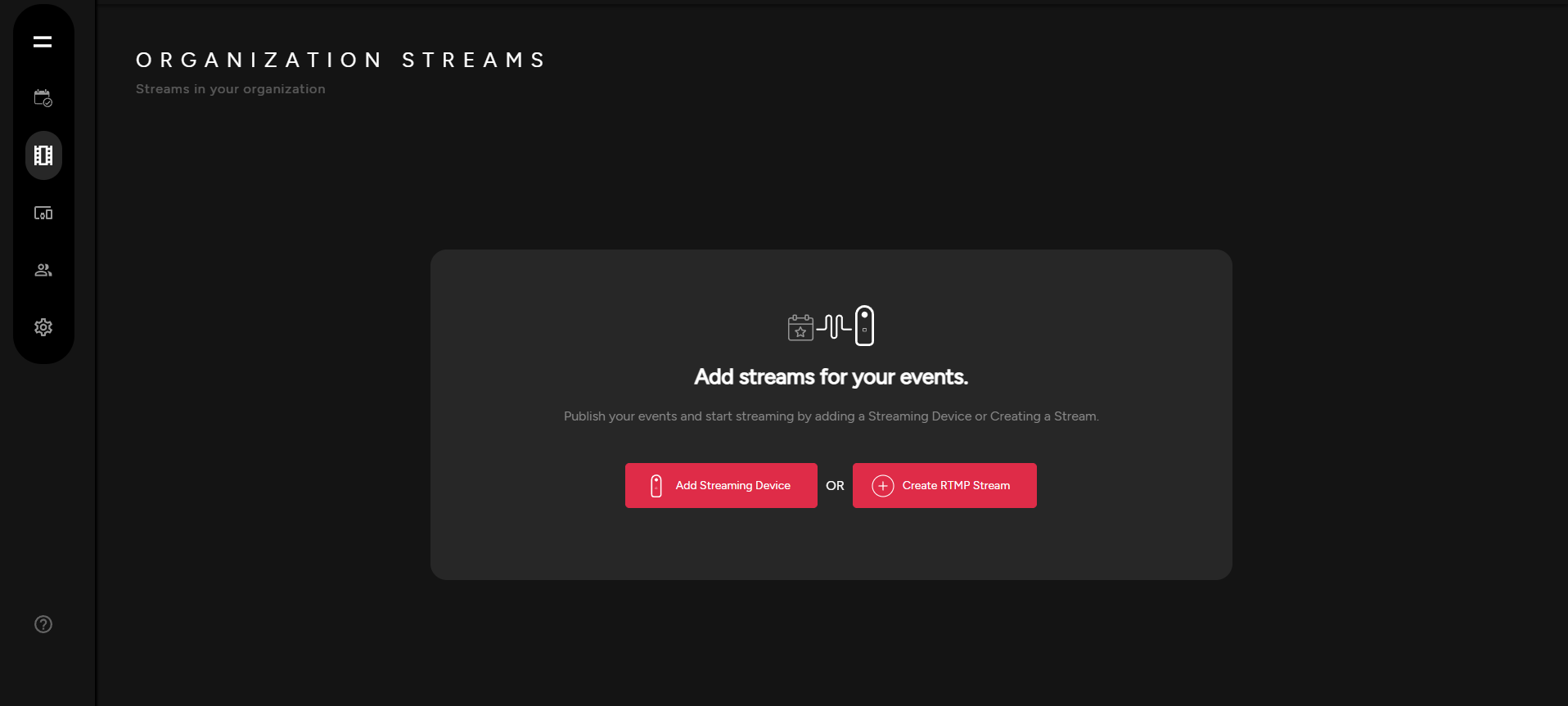
2\. Create and manage your Organization Streams.

[![Organization Streams.png](https://support.odience.com/uploads/images/gallery/2024-03/scaled-1680-/organization-streams.png)](https://support.odience.com/uploads/images/gallery/2024-03/organization-streams.png)
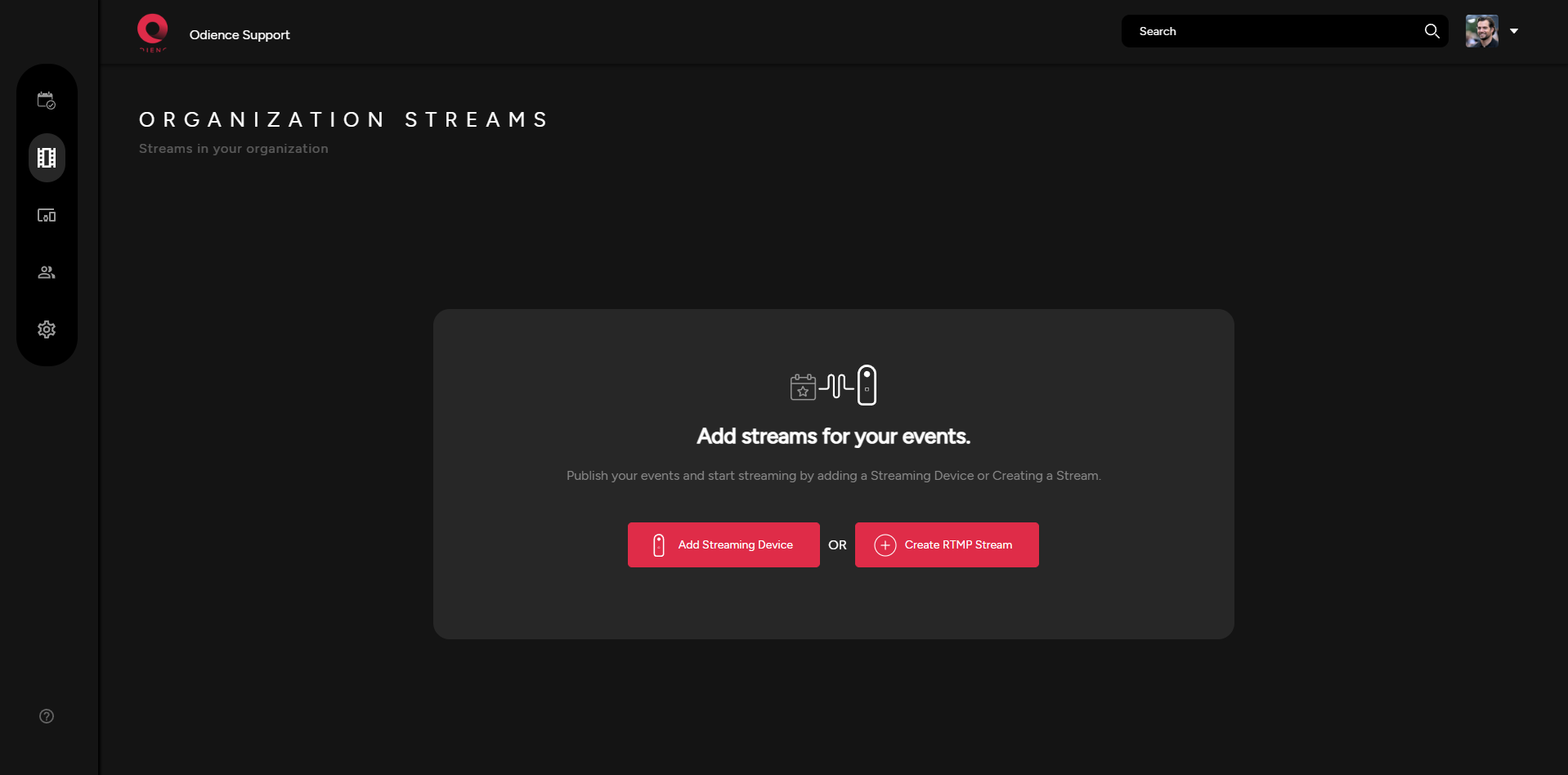
- For more information, see our guide on how to [**Create a Stream.**](https://support.odience.com/books/director-web-portal/page/create-rtmp-stream "Create RTMP Stream")

##### **Devices**

3\. Create devices for your events.

[![Organization Devices.png](https://support.odience.com/uploads/images/gallery/2024-03/scaled-1680-/organization-devices.png)](https://support.odience.com/uploads/images/gallery/2024-03/organization-devices.png)
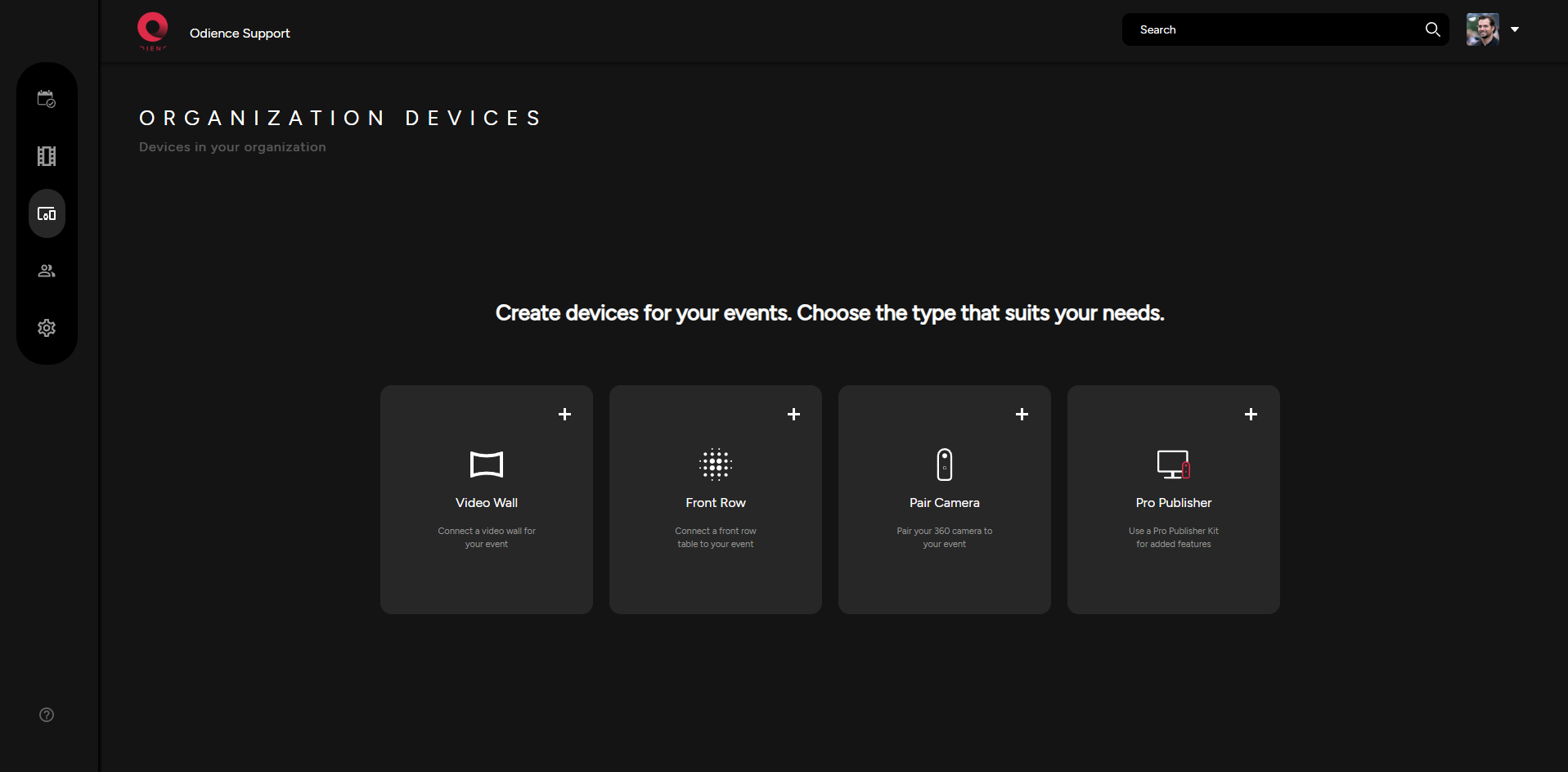
- For more information, see our guide on how to [**Create a Device**. ](https://support.odience.com/books/web-portal/chapter/devices "Devices")

##### **Users**

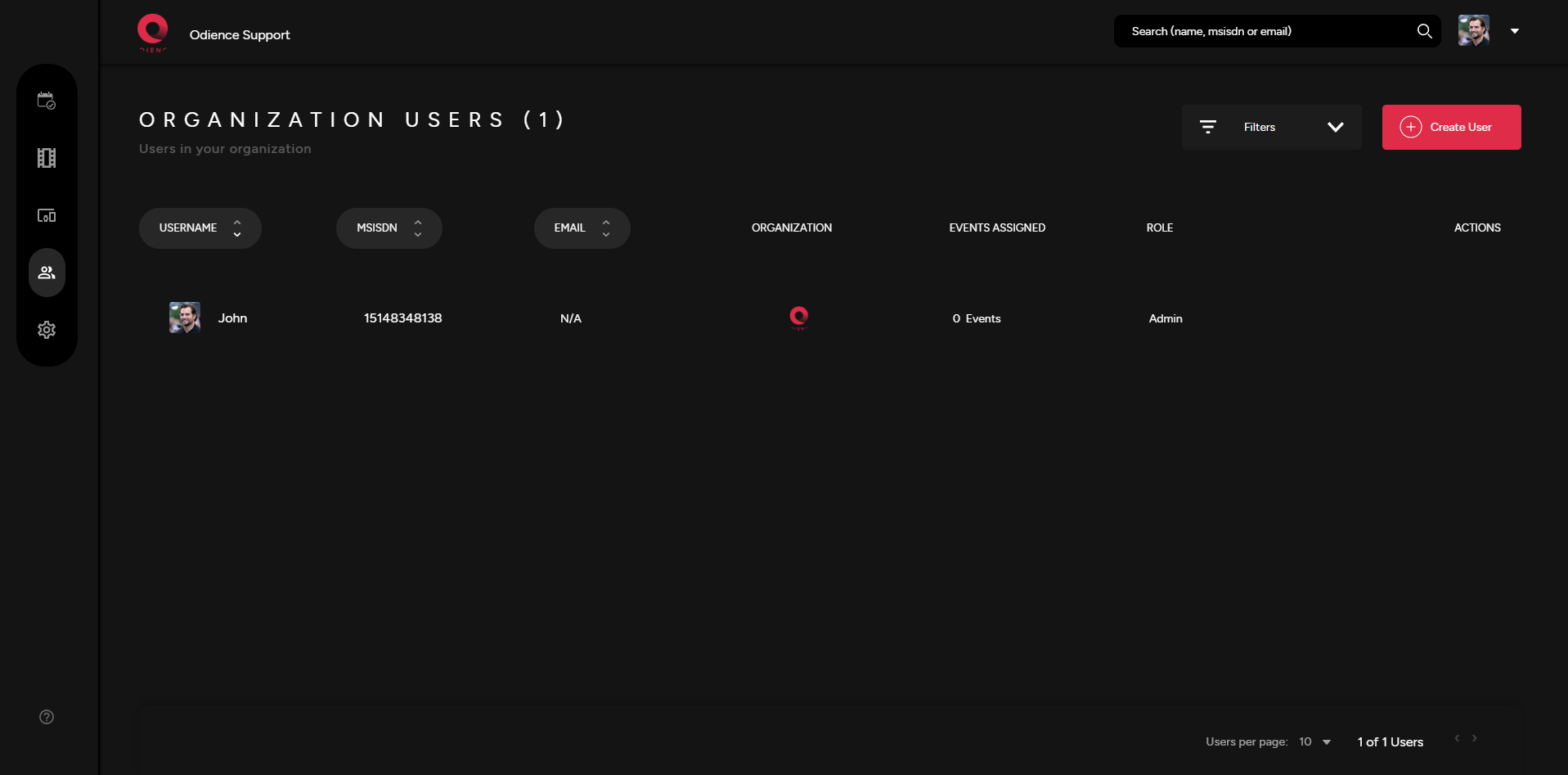
4\. Create Users &amp; manage User Roles.

[![Organization Users.png](https://support.odience.com/uploads/images/gallery/2024-03/scaled-1680-/organization-users.png)](https://support.odience.com/uploads/images/gallery/2024-03/organization-users.png)

- For more information, see our guides on how to [**Create Users**](https://support.odience.com/books/web-portal/page/create-new-user "Create New User") and manage [**User Roles**](https://support.odience.com/books/web-portal/page/user-roles-permissions "User Roles & Permissions").

##### **Organization Settings**

5\. Manage Organization Settings as well as other areas of your Organization such as Invitation Templates &amp; Guest Lists.

[![Organization Settings Tab.png](https://support.odience.com/uploads/images/gallery/2024-03/scaled-1680-/organization-settings-tab.png)](https://support.odience.com/uploads/images/gallery/2024-03/organization-settings-tab.png)

- For more information, see our guides on **[Organization Settings](https://support.odience.com/books/web-portal/chapter/organization "Organization").**

# Create Account

##### **Register**

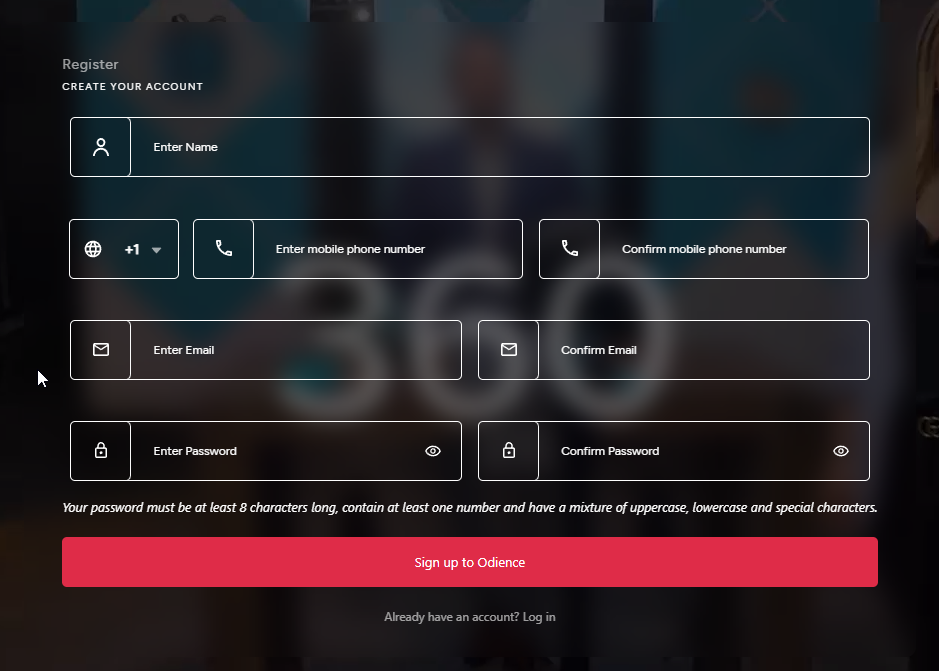
Register an account by entering your information in all the fields. Upon clicking sign up, you will receive an email or SMS to confirm your registration.

[![Creating an account.png](http://support.odience.com/uploads/images/gallery/2023-12/scaled-1680-/iEqcreating-an-account.png)](http://support.odience.com/uploads/images/gallery/2023-12/iEqcreating-an-account.png)
# Create Event & Start Streaming


# Event Creation

##### **Details**

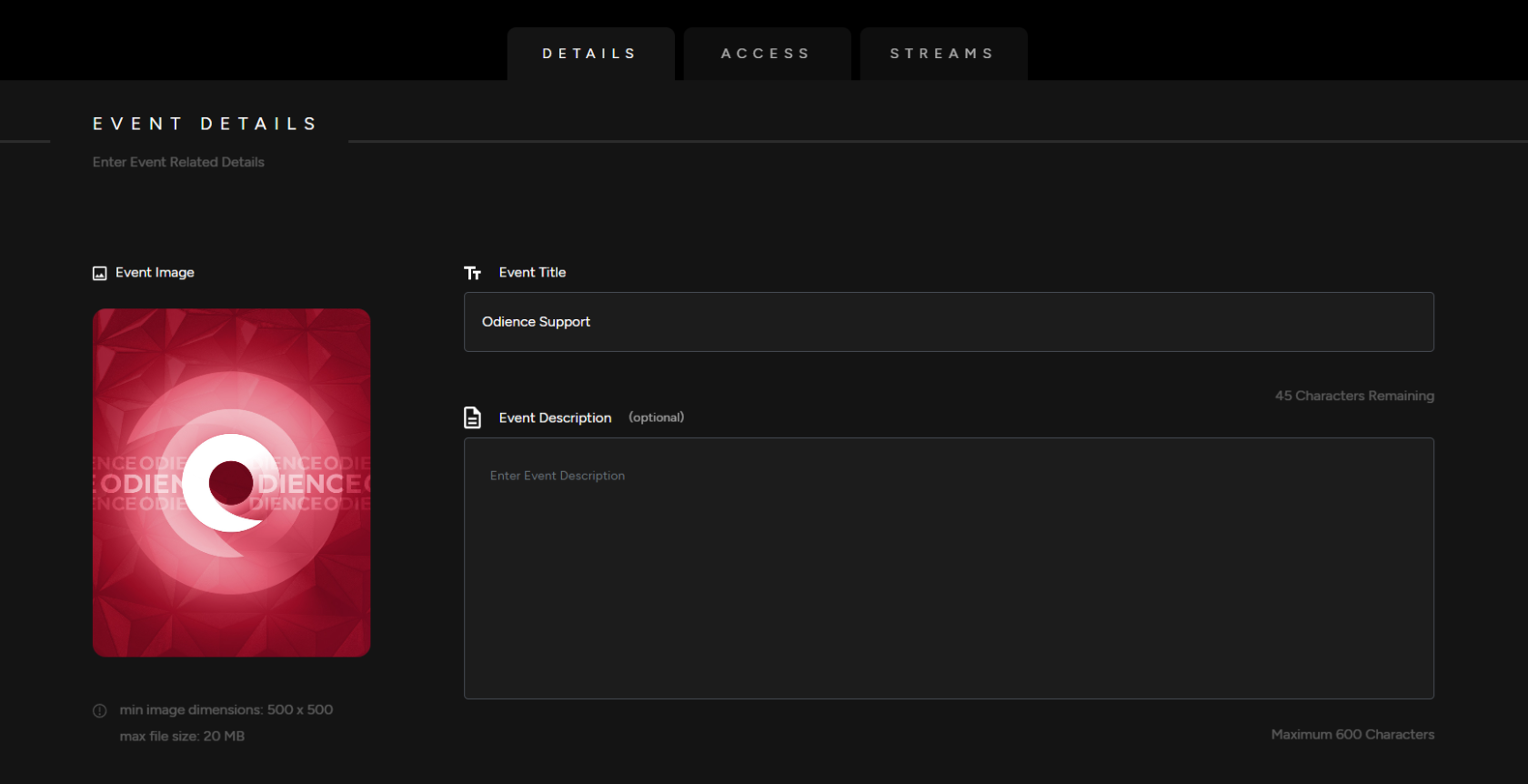
<span class="TextRun SCXW111589681 BCX0" data-contrast="none" lang="EN-CA" xml:lang="EN-CA"><span class="NormalTextRun SCXW111589681 BCX0">1.</span></span><span class="TextRun SCXW111589681 BCX0" data-contrast="none" lang="EN-CA" xml:lang="EN-CA"><span class="NormalTextRun SCXW111589681 BCX0"> Enter your your Event Details, Add a Title, Event Image &amp; Description (optional). </span></span>

[![Event Details.png](https://support.odience.com/uploads/images/gallery/2024-03/scaled-1680-/event-details.png)](https://support.odience.com/uploads/images/gallery/2024-03/event-details.png)

##### <span class="TextRun SCXW111589681 BCX0" data-contrast="none" lang="EN-CA" xml:lang="EN-CA"><span class="NormalTextRun SCXW111589681 BCX0">**Event Type**</span></span>**<span class="EOP SCXW111589681 BCX0" data-ccp-props="{"134233117":false,"134233118":false,"201341983":0,"335551550":1,"335551620":1,"335559685":0,"335559737":0,"335559738":0,"335559739":160,"335559740":259}"> </span>**

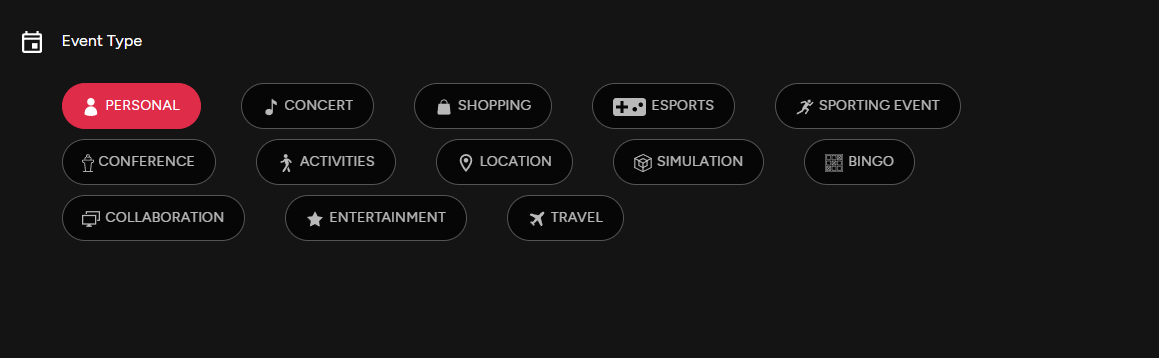
<span class="TextRun SCXW111589681 BCX0" data-contrast="none" lang="EN-CA" xml:lang="EN-CA"><span class="NormalTextRun SCXW111589681 BCX0">2. Pick an Event Type. </span></span>

[![Event Type.png](http://support.odience.com/uploads/images/gallery/2023-12/scaled-1680-/event-type.png)](http://support.odience.com/uploads/images/gallery/2023-12/event-type.png)<span class="EOP SCXW111589681 BCX0" data-ccp-props="{"201341983":0,"335551550":1,"335551620":1,"335559685":0,"335559737":0,"335559739":160,"335559740":259}"> </span>

##### **<span class="TextRun SCXW111589681 BCX0" data-contrast="none" lang="EN-US" xml:lang="EN-US"><span class="NormalTextRun SCXW111589681 BCX0">Listing Add Ons</span></span>**

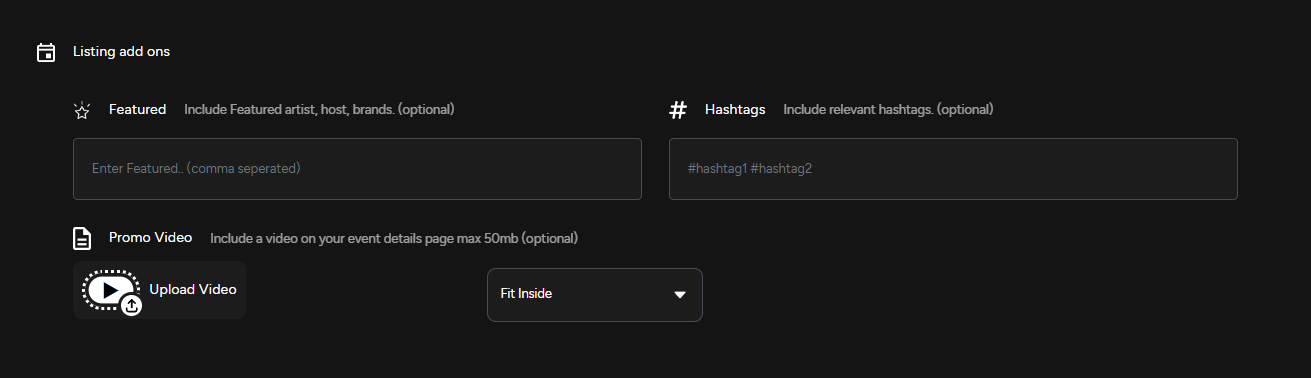
<span class="TextRun SCXW111589681 BCX0" data-contrast="none" lang="EN-US" xml:lang="EN-US"><span class="NormalTextRun SCXW111589681 BCX0">**Note**:</span></span> <span class="TextRun SCXW111589681 BCX0" data-contrast="none" lang="EN-US" xml:lang="EN-US"><span class="NormalTextRun SCXW111589681 BCX0">All Listing Add Ons are optional.</span></span>

**<span class="TextRun SCXW111589681 BCX0" data-contrast="none" lang="EN-US" xml:lang="EN-US"><span class="NormalTextRun SCXW111589681 BCX0">[![Listing Add Ons.png](https://support.odience.com/uploads/images/gallery/2024-03/scaled-1680-/listing-add-ons.png)](https://support.odience.com/uploads/images/gallery/2024-03/listing-add-ons.png)</span></span>**

<span class="TextRun SCXW111589681 BCX0" data-contrast="none" lang="EN-US" xml:lang="EN-US"><span class="NormalTextRun SCXW111589681 BCX0">3. </span></span><span class="TextRun SCXW111589681 BCX0" data-contrast="none" lang="EN-US" xml:lang="EN-US"><span class="NormalTextRun SCXW111589681 BCX0">Include featured artists, host and brands. Use</span></span><span class="TextRun SCXW111589681 BCX0" data-contrast="none" lang="EN-US" xml:lang="EN-US"><span class="NormalTextRun SCXW111589681 BCX0"> relevant hashtags &amp; upload a promo video to engage your audience. </span></span>

##### **<span class="TextRun SCXW111589681 BCX0" data-contrast="none" lang="EN-CA" xml:lang="EN-CA"><span class="NormalTextRun SCXW111589681 BCX0">Access</span></span>**

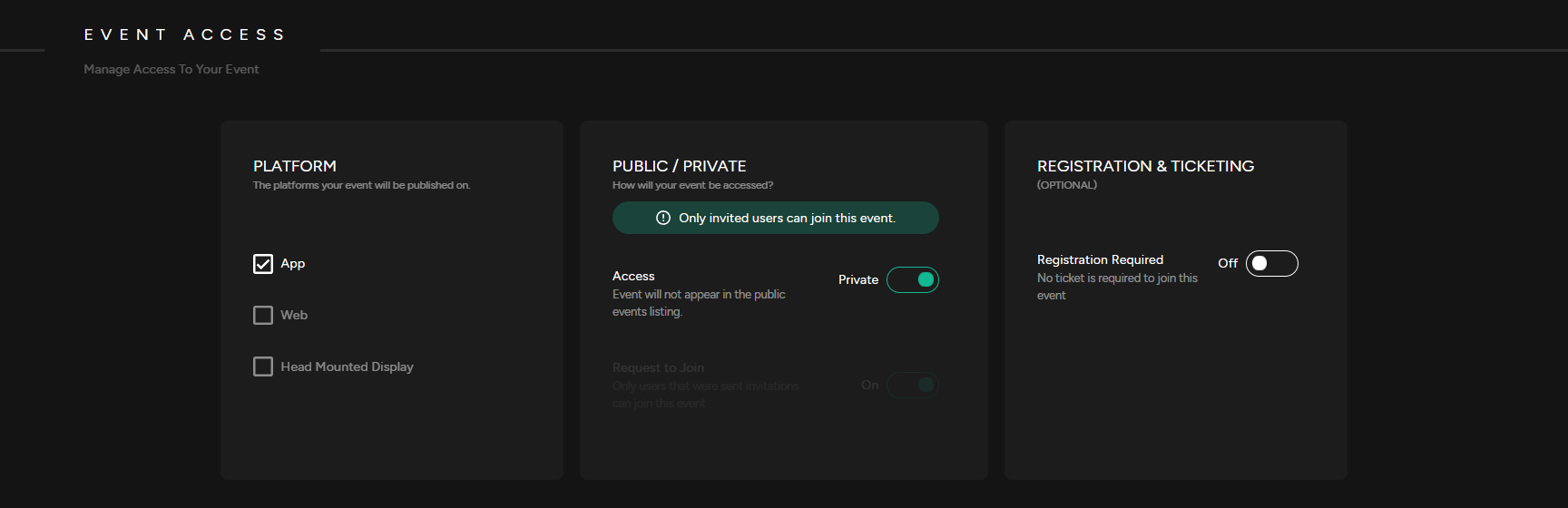
<span class="TextRun SCXW111589681 BCX0" data-contrast="none" lang="EN-CA" xml:lang="EN-CA"><span class="NormalTextRun SCXW111589681 BCX0">4. </span></span><span class="TextRun SCXW111589681 BCX0" data-contrast="none" lang="EN-CA" xml:lang="EN-CA"><span class="NormalTextRun SCXW111589681 BCX0">Select which Platform your event will be published on. Publishing options include our<span class="TextRun SCXW213872495 BCX0" data-contrast="none" lang="EN-CA" xml:lang="EN-CA"><span class="NormalTextRun SCXW213872495 BCX0"> mobile app, the web client</span><span class="NormalTextRun SCXW213872495 BCX0">, or </span><span class="NormalTextRun SCXW213872495 BCX0">using a</span><span class="NormalTextRun SCXW213872495 BCX0"> head mounted display (Supported on all VR headsets, including Vision Pro). </span></span></span></span>

[![Event Access.png](https://support.odience.com/uploads/images/gallery/2024-03/scaled-1680-/event-access.png)](https://support.odience.com/uploads/images/gallery/2024-03/event-access.png)

<span class="TextRun SCXW213872495 BCX0" data-contrast="none" lang="EN-US" xml:lang="EN-US"><span class="NormalTextRun SCXW213872495 BCX0">5. Public or Private</span></span><span class="EOP SCXW213872495 BCX0" data-ccp-props="{"134233117":false,"134233118":false,"201341983":0,"335551550":1,"335551620":1,"335559685":0,"335559737":0,"335559738":0,"335559739":160,"335559740":259}"> </span>

- <span class="EOP SCXW213872495 BCX0" data-ccp-props="{"134233117":false,"134233118":false,"201341983":0,"335551550":1,"335551620":1,"335559685":0,"335559737":0,"335559738":0,"335559739":160,"335559740":259}">Private Event: A Private</span><span class="TextRun SCXW213872495 BCX0" data-contrast="none" lang="EN-US" xml:lang="EN-US"><span class="NormalTextRun SCXW213872495 BCX0"> Event does not appear in the public events listing. Users will need to be invited to access the event. </span></span>
- <span class="NormalTextRun SCXW213872495 BCX0">Public Event: A Public Event is listed in the public directory and visible to everyone</span><span class="EOP SCXW213872495 BCX0" data-ccp-props="{"134233117":false,"134233118":false,"201341983":0,"335551550":1,"335551620":1,"335559737":0,"335559738":0,"335559739":160,"335559740":259}"> .</span>
- <span class="EOP SCXW213872495 BCX0" data-ccp-props="{"134233117":false,"134233118":false,"201341983":0,"335551550":1,"335551620":1,"335559737":0,"335559738":0,"335559739":160,"335559740":259}">Request to Join: If enabled, users will need to request to join the event. </span>

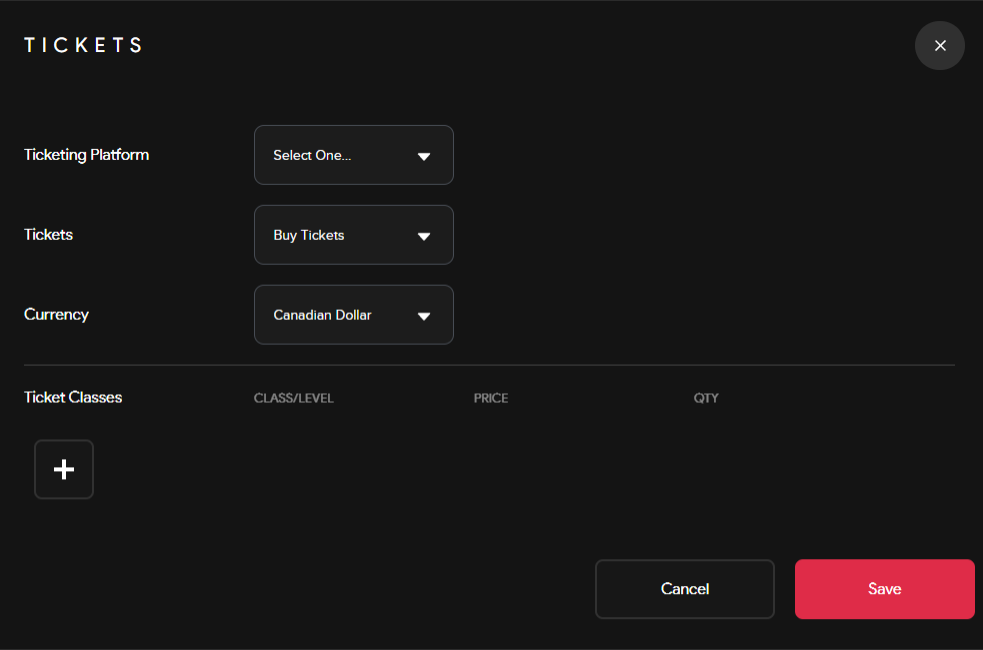
<span class="TextRun SCXW213872495 BCX0" data-contrast="none" lang="EN-US" xml:lang="EN-US"><span class="NormalTextRun SCXW213872495 BCX0">6. Registration &amp; Ticketing (*optional*): Enable registration before joining your event. Set-up a ticketing system that allows you to administer free or paid tickets. Select a platform to distribute your tickets, pick a currency &amp; include ticket classes to sell different types of tickets.</span></span>
<span class="TextRun SCXW213872495 BCX0" data-contrast="none" lang="EN-US" xml:lang="EN-US"><span class="NormalTextRun SCXW213872495 BCX0"><span class="SCXW213872495 BCX0"><span class="WACImageContainer NoPadding DragDrop BlobObject SCXW213872495 BCX0" role="presentation">![](http://support.odience.com/uploads/images/gallery/2023-12/embedded-image-pc4chvyw.png)</span></span></span></span>

<span class="TextRun SCXW213872495 BCX0" data-contrast="none" lang="EN-CA" xml:lang="EN-CA"><span class="NormalTextRun SCXW213872495 BCX0"><span class="TextRun SCXW213872495 BCX0" data-contrast="none" lang="EN-CA" style="outline-color: var(--color-primary); font-style: normal; font-variant-ligatures: normal; font-variant-caps: normal; font-size: 14px; font-family: -apple-system, BlinkMacSystemFont, 'Segoe UI', Oxygen, Ubuntu, Roboto, Cantarell, 'Fira Sans', 'Droid Sans', 'Helvetica Neue', sans-serif;" xml:lang="EN-CA"><span class="NormalTextRun SCXW213872495 BCX0" style="outline-color: var(--color-primary);">7. </span></span></span></span><span class="TextRun SCXW213872495 BCX0" data-contrast="none" lang="EN-CA" style="outline-color: var(--color-primary);" xml:lang="EN-CA"><span class="NormalTextRun SCXW213872495 BCX0" style="outline-color: var(--color-primary);">Select the Start/End date of your event, set a capacity &amp; add an event location (*optional*)</span></span>

##### **<span class="EOP SCXW213872495 BCX0" data-ccp-props="{"201341983":0,"335551550":1,"335551620":1,"335559737":0,"335559739":160,"335559740":259}"><span class="SCXW213872495 BCX0"><span class="WACImageContainer NoPadding DragDrop BlobObject SCXW213872495 BCX0" role="presentation">Streams</span></span></span>**

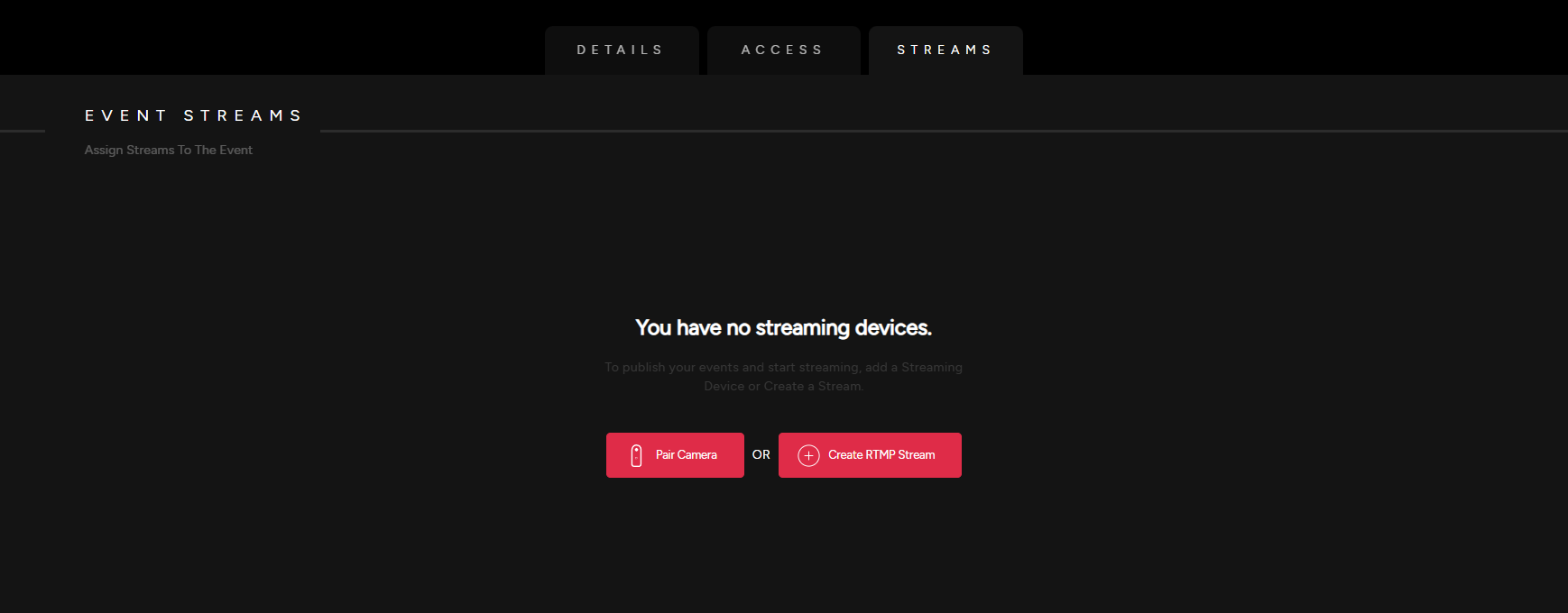
<span class="TextRun SCXW247573221 BCX0" data-contrast="auto" lang="EN-US" xml:lang="EN-US"><span class="NormalTextRun SCXW247573221 BCX0">8. Pair a Camera by scanning QR code pop up or create and assign an RTMP stream to your event.</span></span>

[![Streams.png](https://support.odience.com/uploads/images/gallery/2024-03/scaled-1680-/streams.png)](https://support.odience.com/uploads/images/gallery/2024-03/streams.png)


<div class="SCXW247573221 BCX0" id="bkmrk-select-%E2%80%9Ccreate-strea"><div class="ListContainerWrapper SCXW247573221 BCX0">- See our detailed guide on how to [**Create an RTMP Stream**](https://support.odience.com/books/director-web-portal/page/create-rtmp-stream "Create RTMP Stream").

</div><div class="OutlineElement Ltr SCXW247573221 BCX0">  
</div></div><span class="EOP SCXW247573221 BCX0" data-ccp-props="{"134233117":false,"134233118":false,"201341983":0,"335551550":1,"335551620":1,"335559737":0,"335559738":0,"335559739":160,"335559740":259}"> </span>

<span class="EOP SCXW247573221 BCX0" data-ccp-props="{"134233117":false,"134233118":false,"201341983":0,"335551550":1,"335551620":1,"335559737":0,"335559738":0,"335559739":160,"335559740":259}"> </span>

# Create RTMP Stream

##### **Create Stream**

Create a 2D planar video stream or a 360 videos stream in less than a minute, it's that easy.

[![Create RTMP Streams.png](https://support.odience.com/uploads/images/gallery/2024-03/scaled-1680-/create-rtmp-streams.png)](https://support.odience.com/uploads/images/gallery/2024-03/create-rtmp-streams.png)
##### **Stream Details**

- Give your stream a name and select the resolution of your preference.

##### **Stream Options**

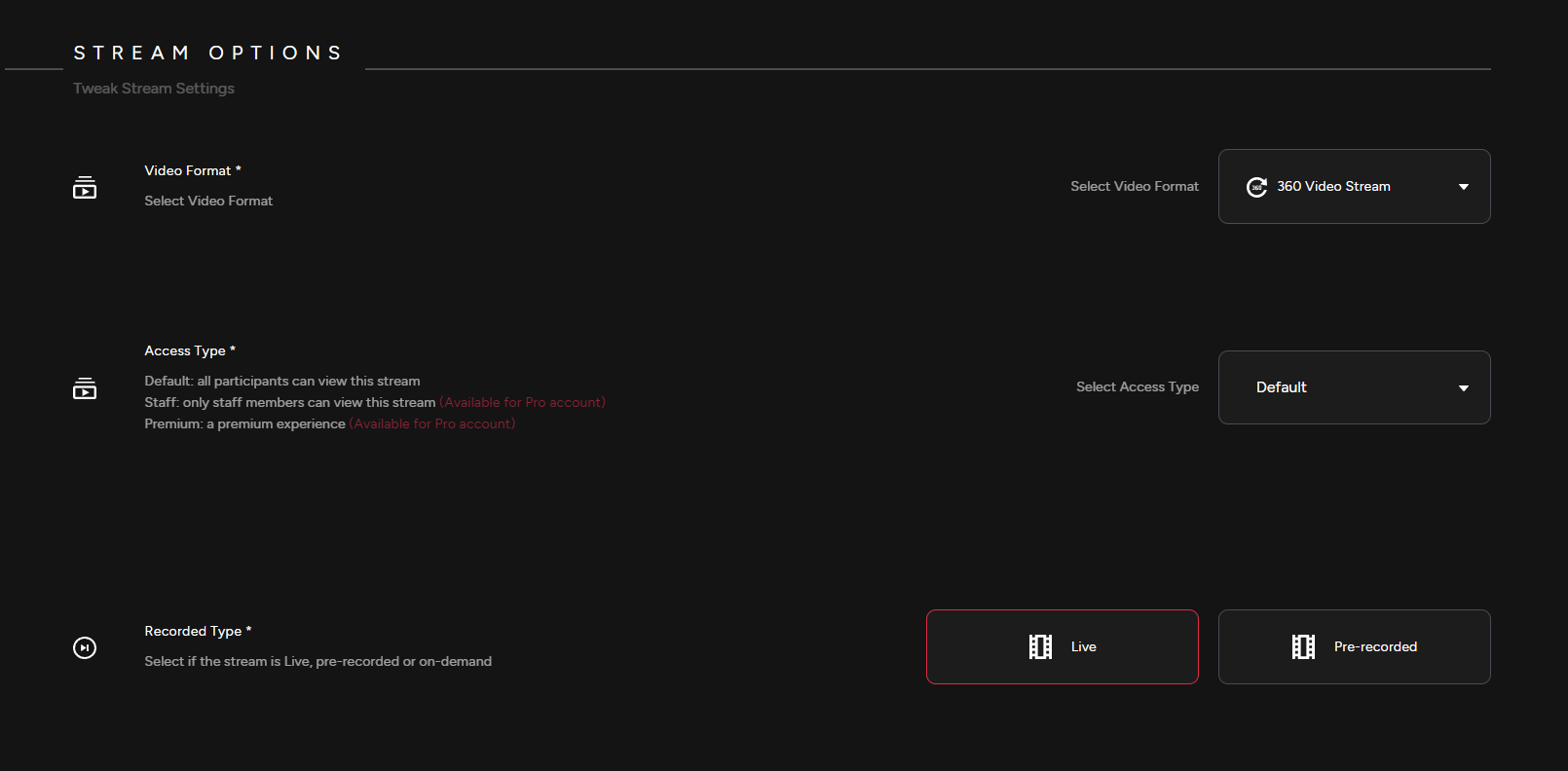
- Pick your preferred video format, access type and recorded type depending if it will be a live stream or a pre-recorded one.

[![Stream Options.png](https://support.odience.com/uploads/images/gallery/2024-03/scaled-1680-/stream-options.png)](https://support.odience.com/uploads/images/gallery/2024-03/stream-options.png)
##### **Events Assigned**

- Assign your stream to an event. Click Create Stream to confirm.

# Pair 360 Camera

**Note:** Only select cameras are currently supported through Bluetooth pairing. For all other cameras, see our [**Create RTMP URL**](https://support.odience.com/books/director-web-portal/page/create-rtmp-stream "Create RTMP Stream") section.

##### **Add 360 Camera** 

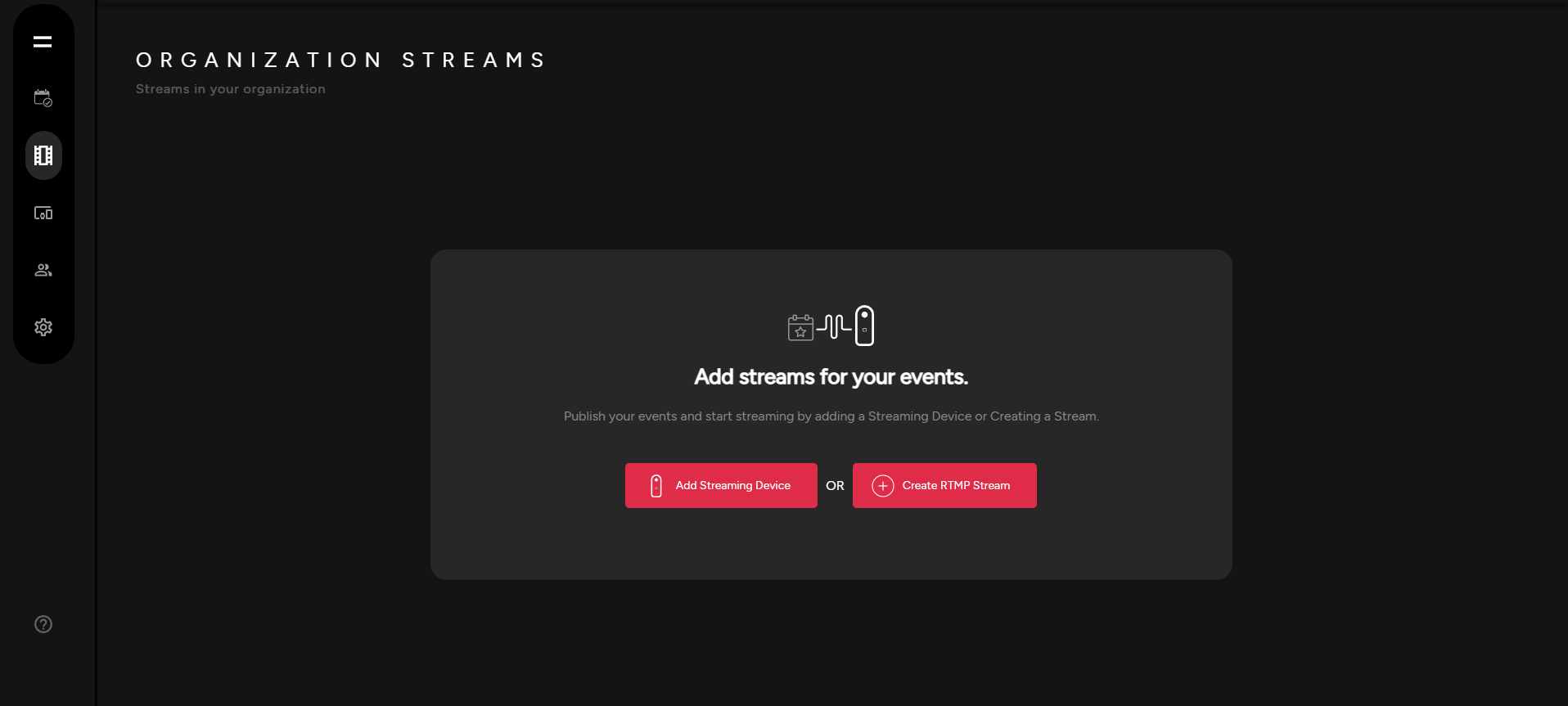
- Select Add Streaming Device. You will be directed to your devices options, select Pair Camera.

[![Create Stream.png](https://support.odience.com/uploads/images/gallery/2024-03/scaled-1680-/create-stream.png)](https://support.odience.com/uploads/images/gallery/2024-03/create-stream.png)
##### **Pair Your 360 Camera**

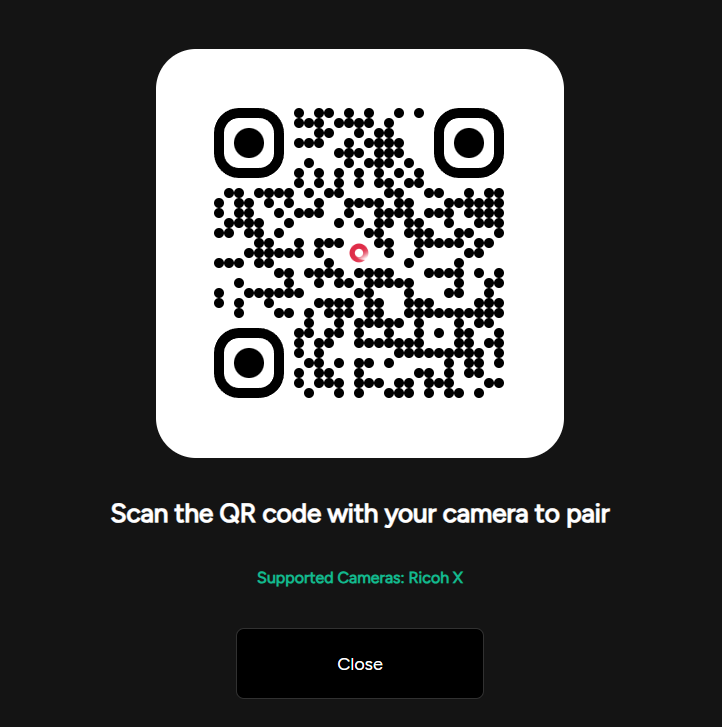
- Scan QR code to pair device.

[![Pair Camera.png](https://support.odience.com/uploads/images/gallery/2024-03/scaled-1680-/pair-camera.png)](https://support.odience.com/uploads/images/gallery/2024-03/pair-camera.png)
# Profile Settings

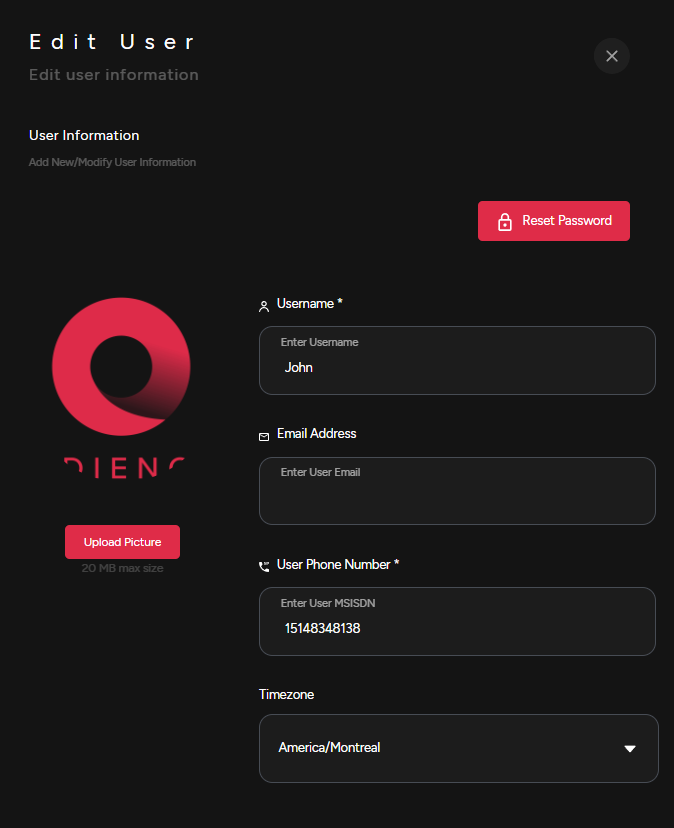
##### **Edit Information**

- Add new information or modify user information.

[![Edit Profile.png](https://support.odience.com/uploads/images/gallery/2024-03/scaled-1680-/edit-profile.png)](https://support.odience.com/uploads/images/gallery/2024-03/edit-profile.png)
##### **User Roles**

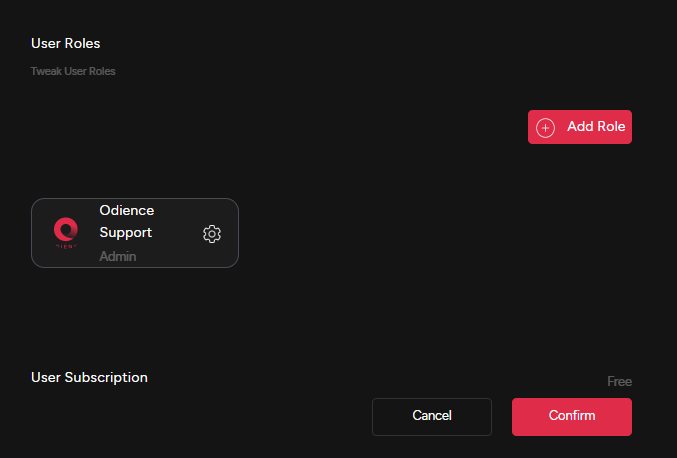
- Adjust your role within your organization. Click Confirm to apply changes.

[![User Roles.png](https://support.odience.com/uploads/images/gallery/2024-03/scaled-1680-/KdVuser-roles.png)](https://support.odience.com/uploads/images/gallery/2024-03/KdVuser-roles.png)