Create Event & Start Streaming
Create Event
Details
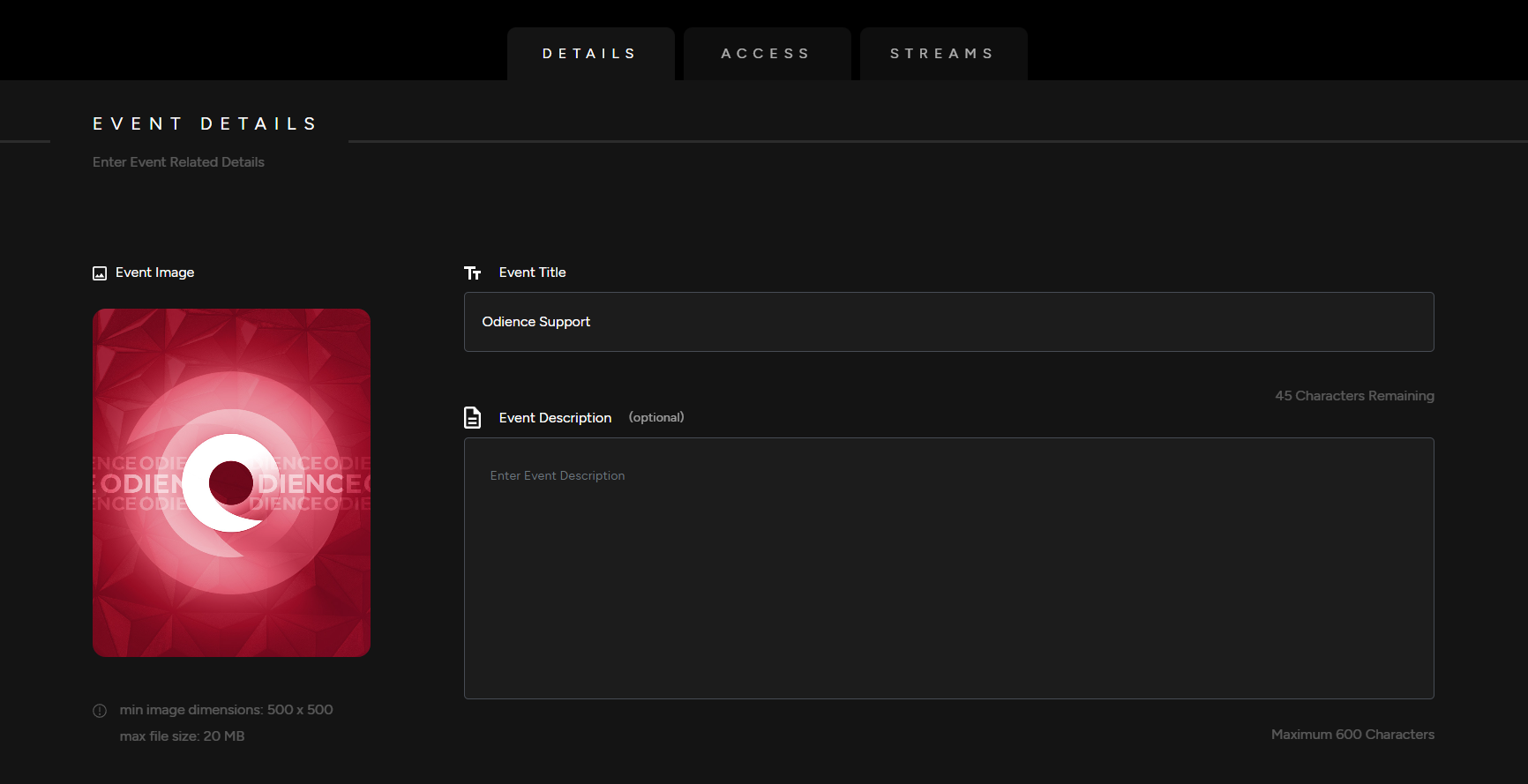
1. Enter your your Event Details, Add a Title, Event Image & Description (description is optional).
Event Type
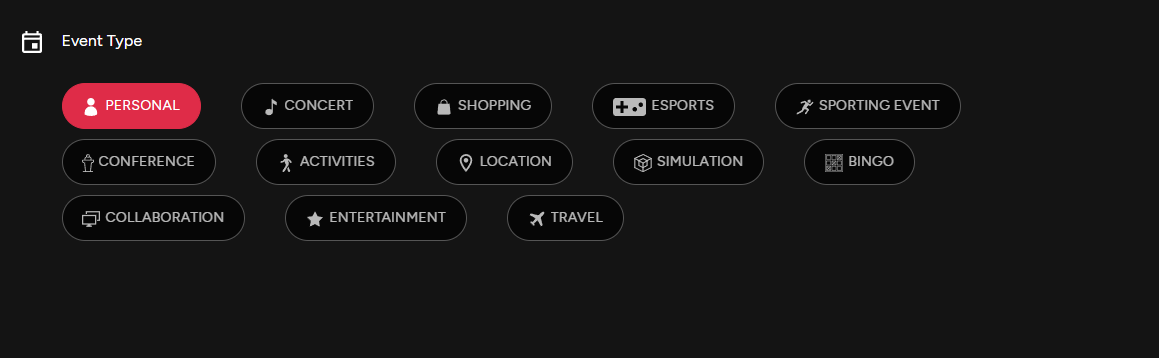
2. Select from the variety of Event Types offered.
Listing Add Ons
3. Include featured artists, host and brands. Use relevant hashtags & upload a promo video to engage your audience.
Note: All Listing Add Ons are optional.
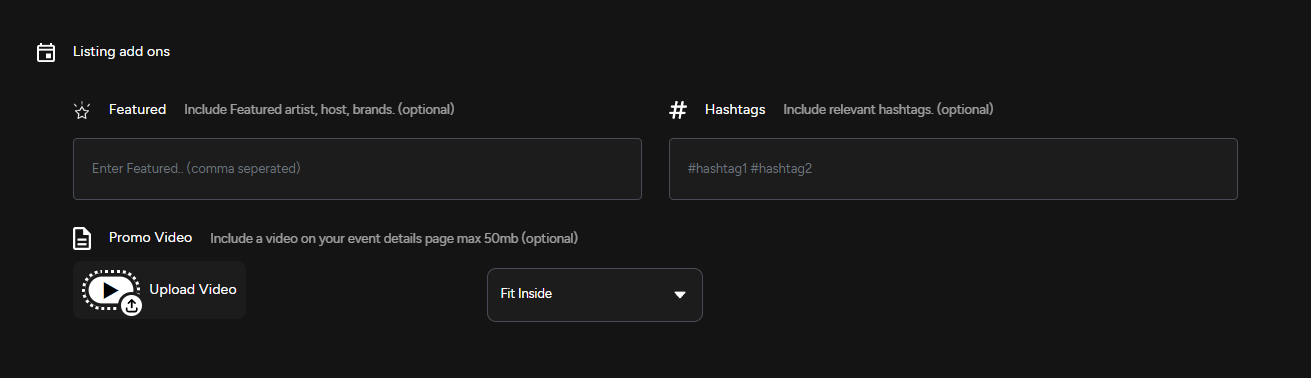
3. Include featured artists, host and brands. Use relevant hashtags & upload a promo video to engage your audience.
Access
4. Select which Platform your event will be published on. Publishing options include our mobile app, the web client, or using a VR head mounted display. Odience supports all VR headsets, including Vision Pro
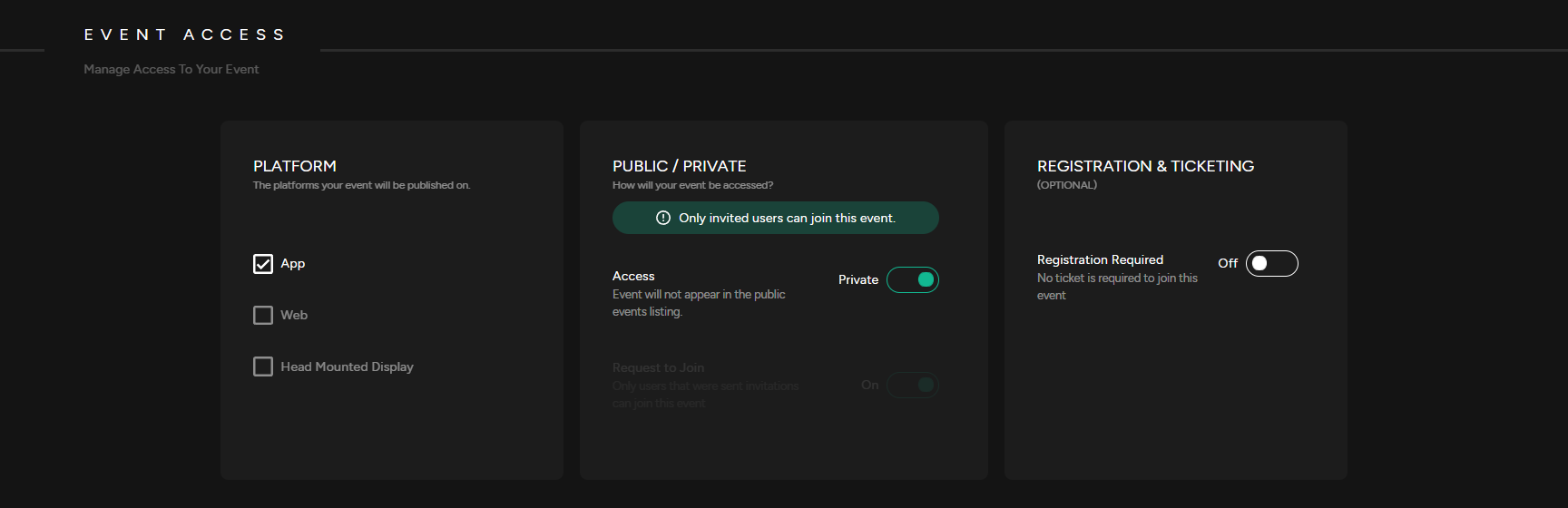
5. Public / Private
- Private Event: A Private Event does not appear in the public events listing. Users will need to be invited to access the event.
- Public Event: A Public Event is listed in the public directory and visible to everyone.
- Request to Join: If enabled, users will need to request to join the event.
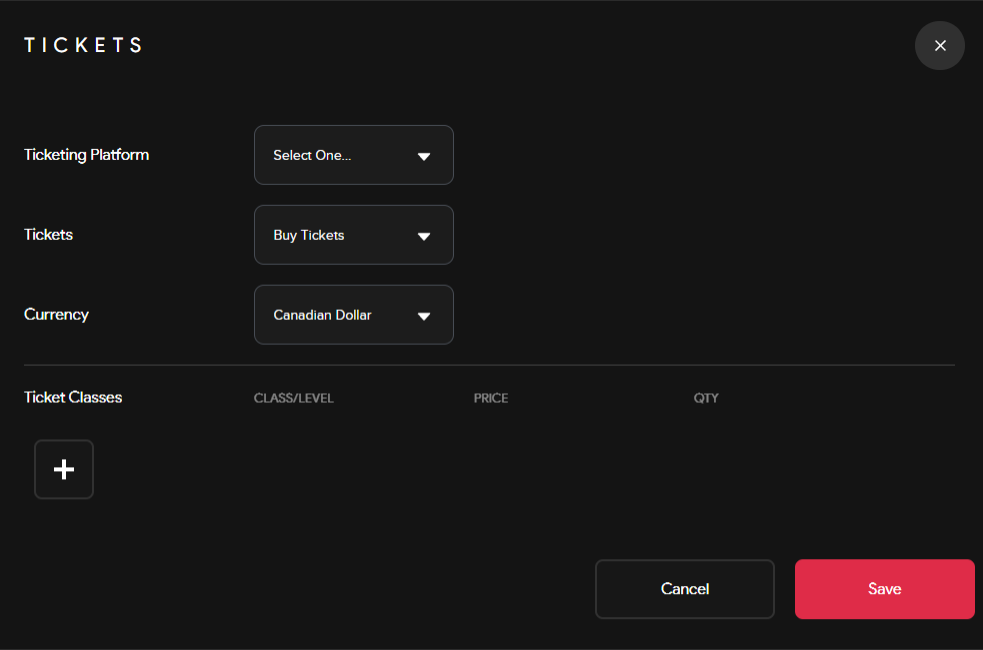
6. Registration & Ticketing (optional): Enable registration before joining your event. Set-up a ticketing system that allows you to administer free or paid tickets. Select a platform to distribute your tickets, pick a currency & include ticket classes to sell different types of tickets.
7. Select the Start/End date of your event, set a capacity & add an event location.
Streams
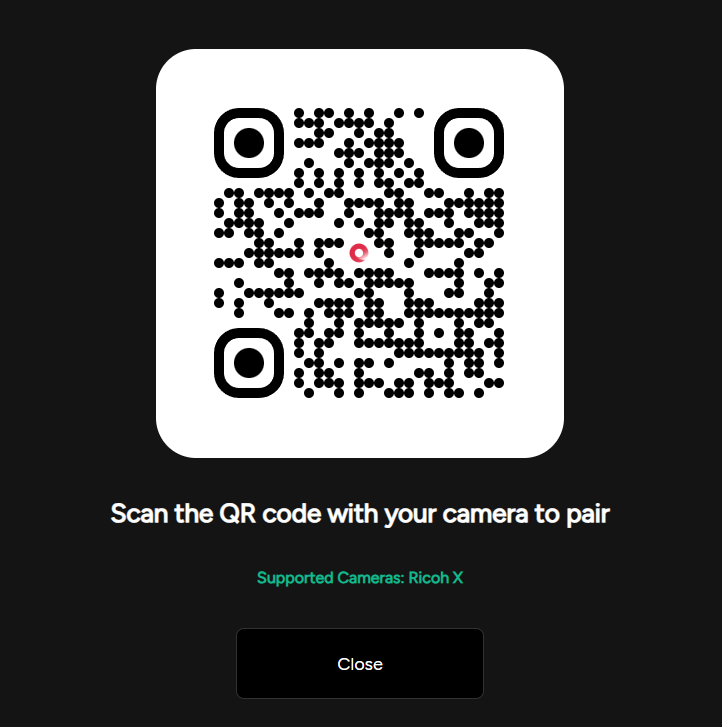
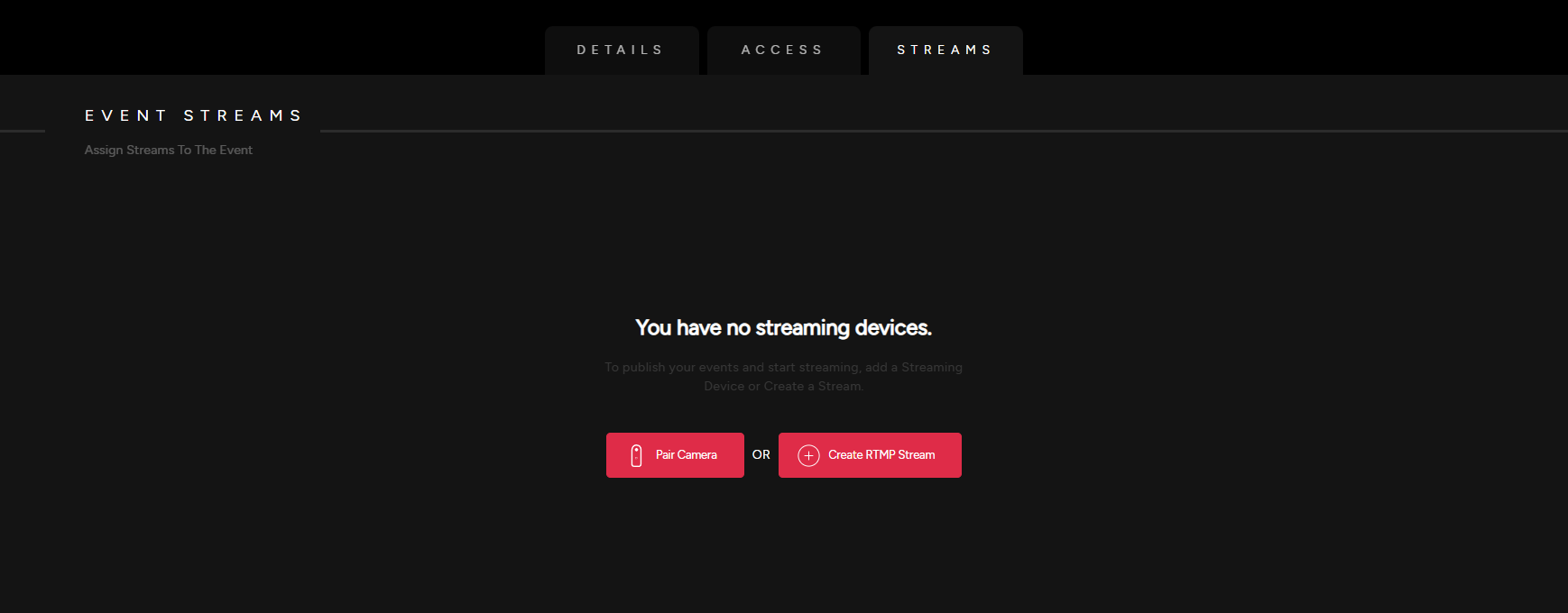
8. Pair a 360 Camera by scanning QR code in the pop up screen or create and then assign an RTMP stream to your event.
- See our detailed guide on how to Pair a 360 Camera or how to Create an RTMP Stream.
Already assigned a stream to your event? Invite an audience to join your event.
Create RTMP Stream
Create a Planar video stream or a 360 video stream in less than a minute, it's that easy.
Create Stream
- Click Create RTMP Stream.
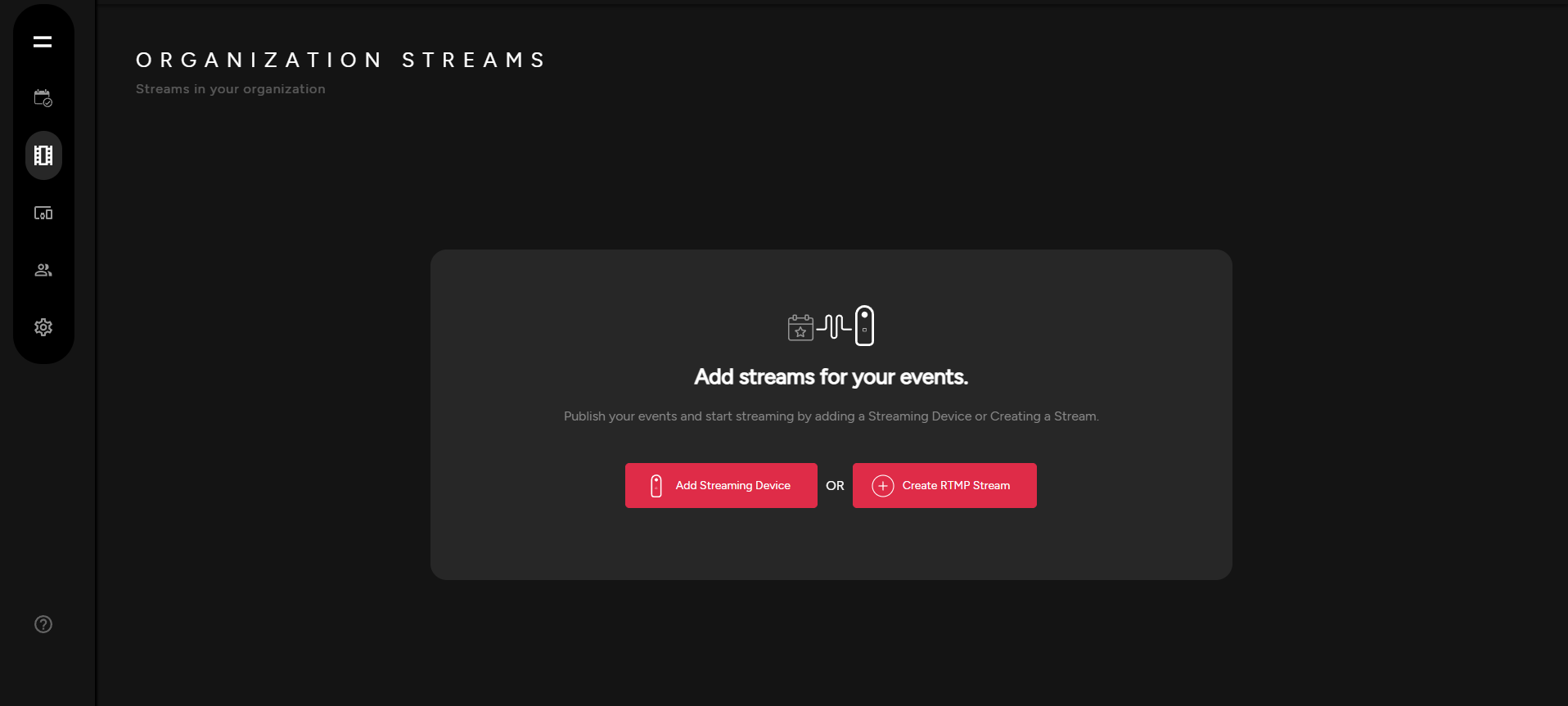
Stream Details
- Give your stream a name and select the resolution.
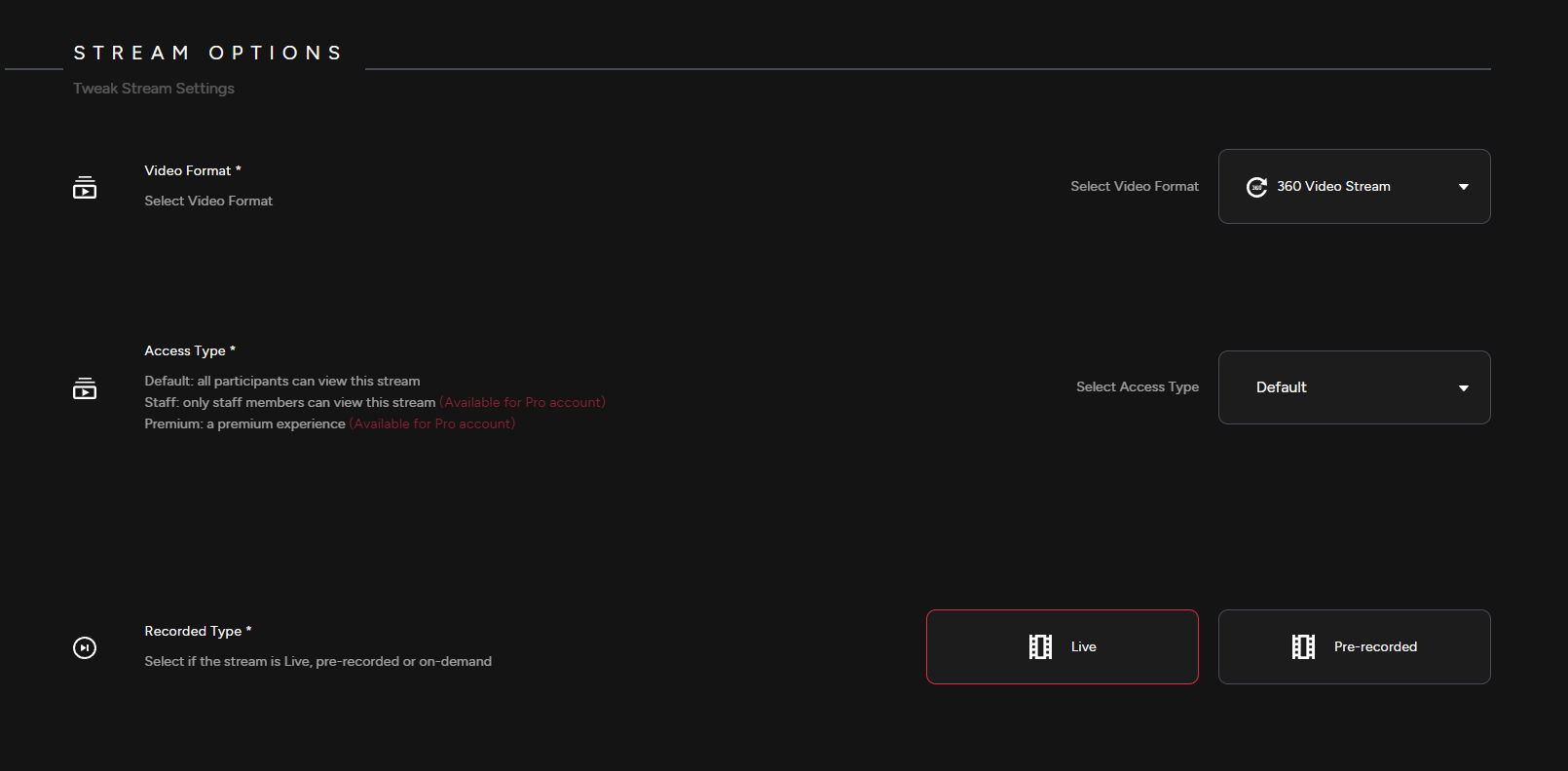
Stream Options
- Pick your preferred video format, access type and recorded type depending if it will be a live stream or a pre-recorded stream.
Events Assigned
- Assign your stream to an event. Click Create Stream to confirm.
Looking to pair your 360 camera? See our guide on how to pair your device.
Pair 360 Camera
Note: Only select cameras are currently supported through Bluetooth pairing. For all other cameras, see our Create RTMP URL section.
Add 360 Camera
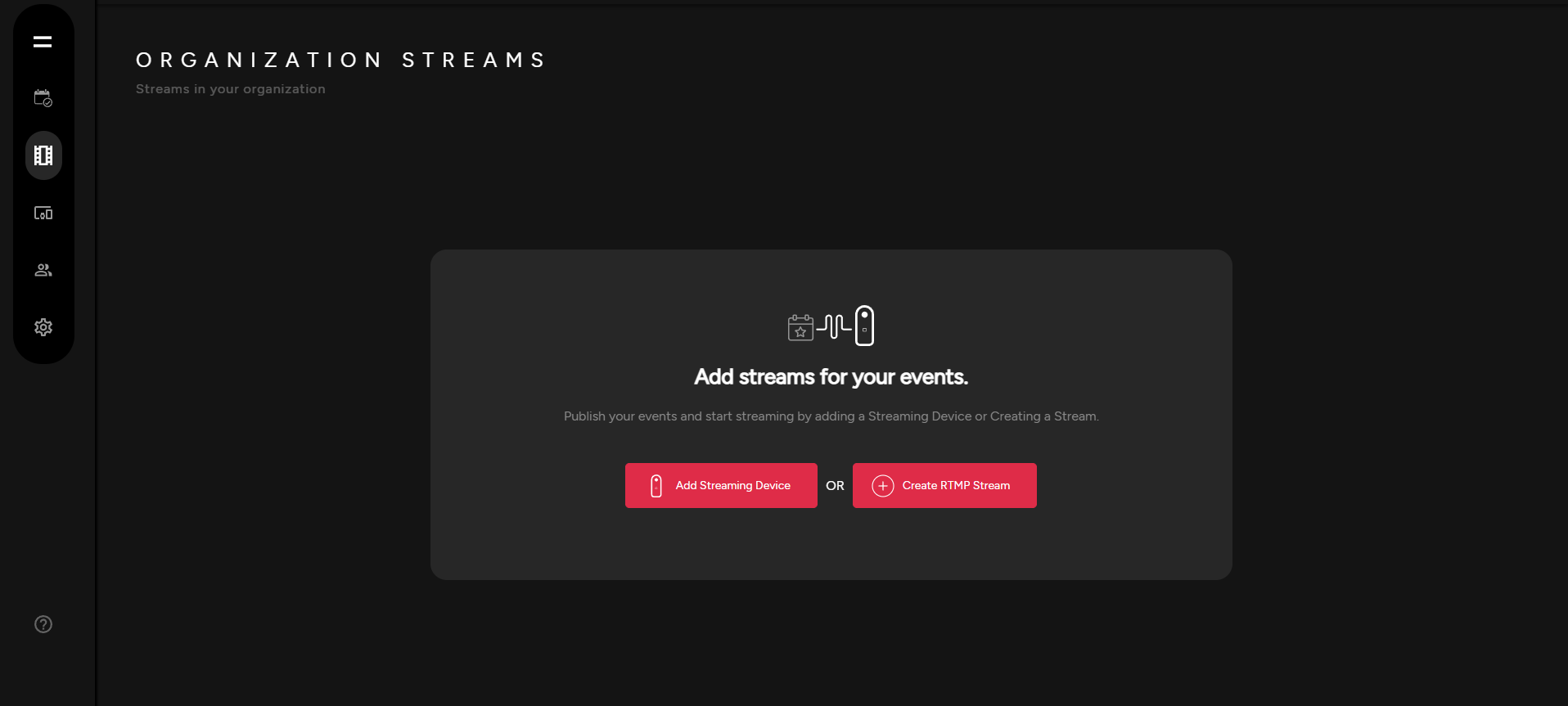
- Select Add Streaming Device. You will be directed to your devices options, select Pair Camera.
Pair Your 360 Camera
- Scan QR code to pair device.