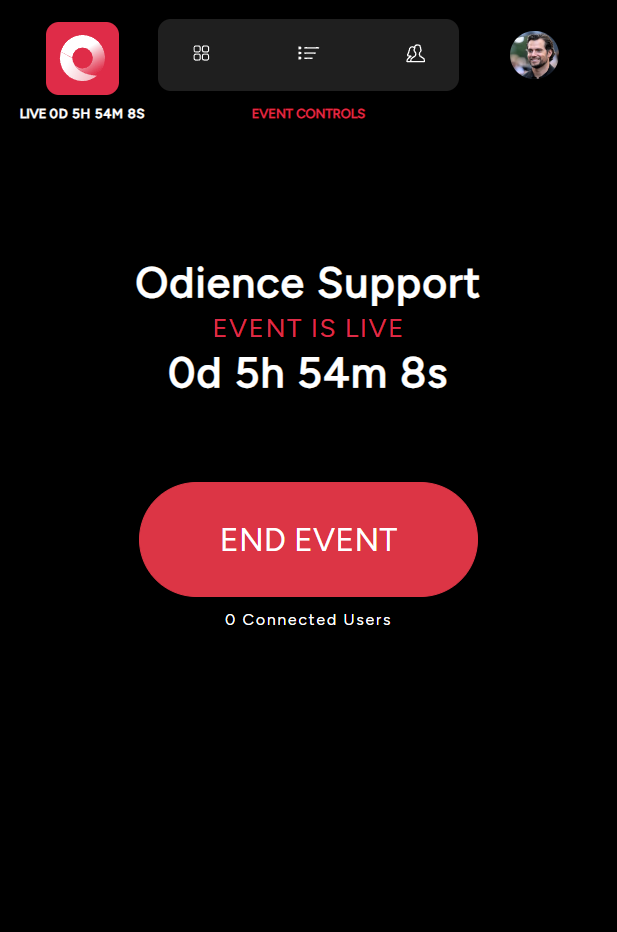
Dashboard (Manage Live Event)
- Intro
- Dashboard Moderation
- Guest Management
- Content Moderation
- Video Wall Management
- Control Room
- Poll Bot Management
- Presenter Control Hub
Intro
Dashboard
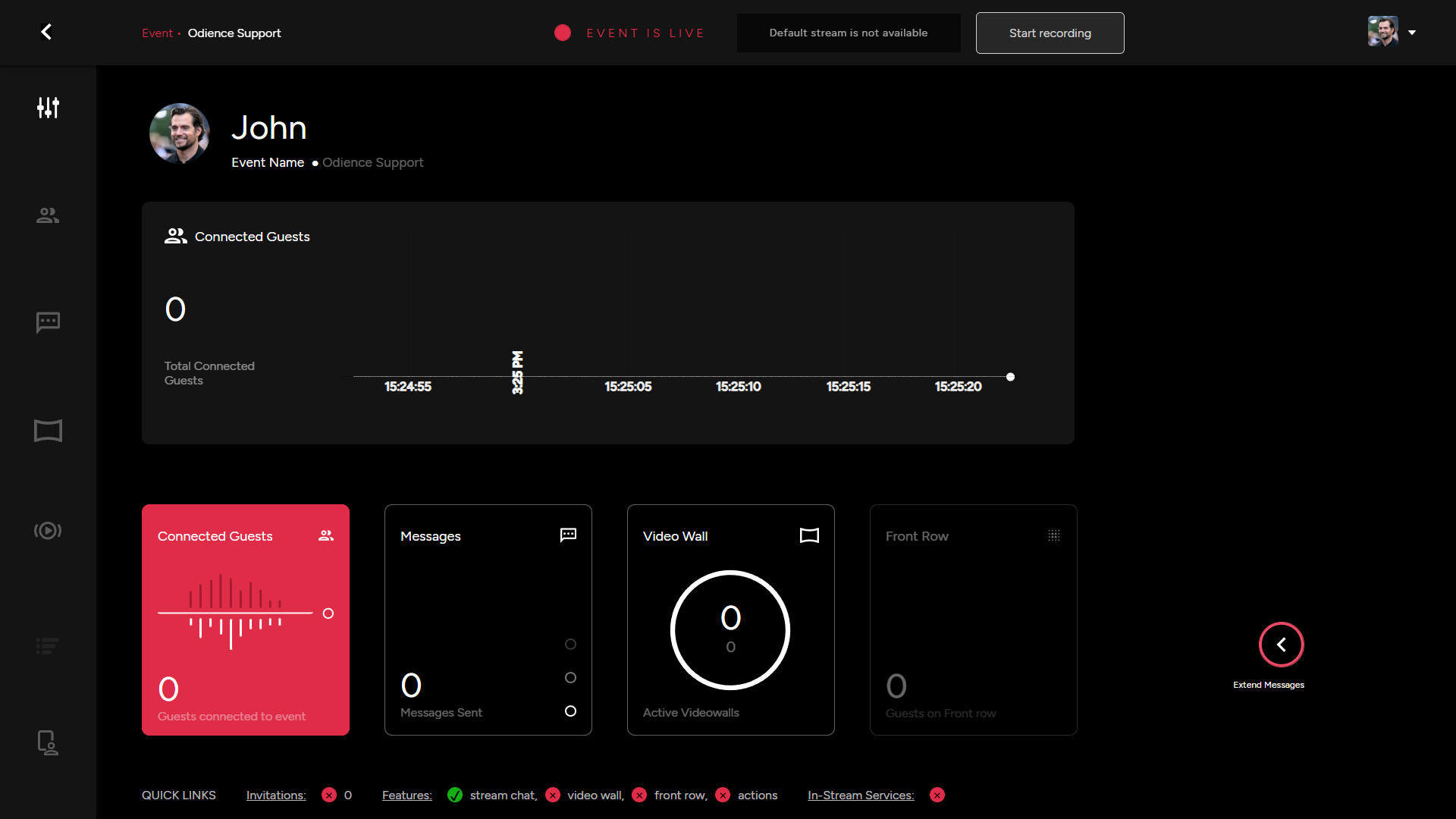
Manage Connected Guests, Messages, Video Walls and much more in real-time.
- For more details, see Dashboard guide.
Guests
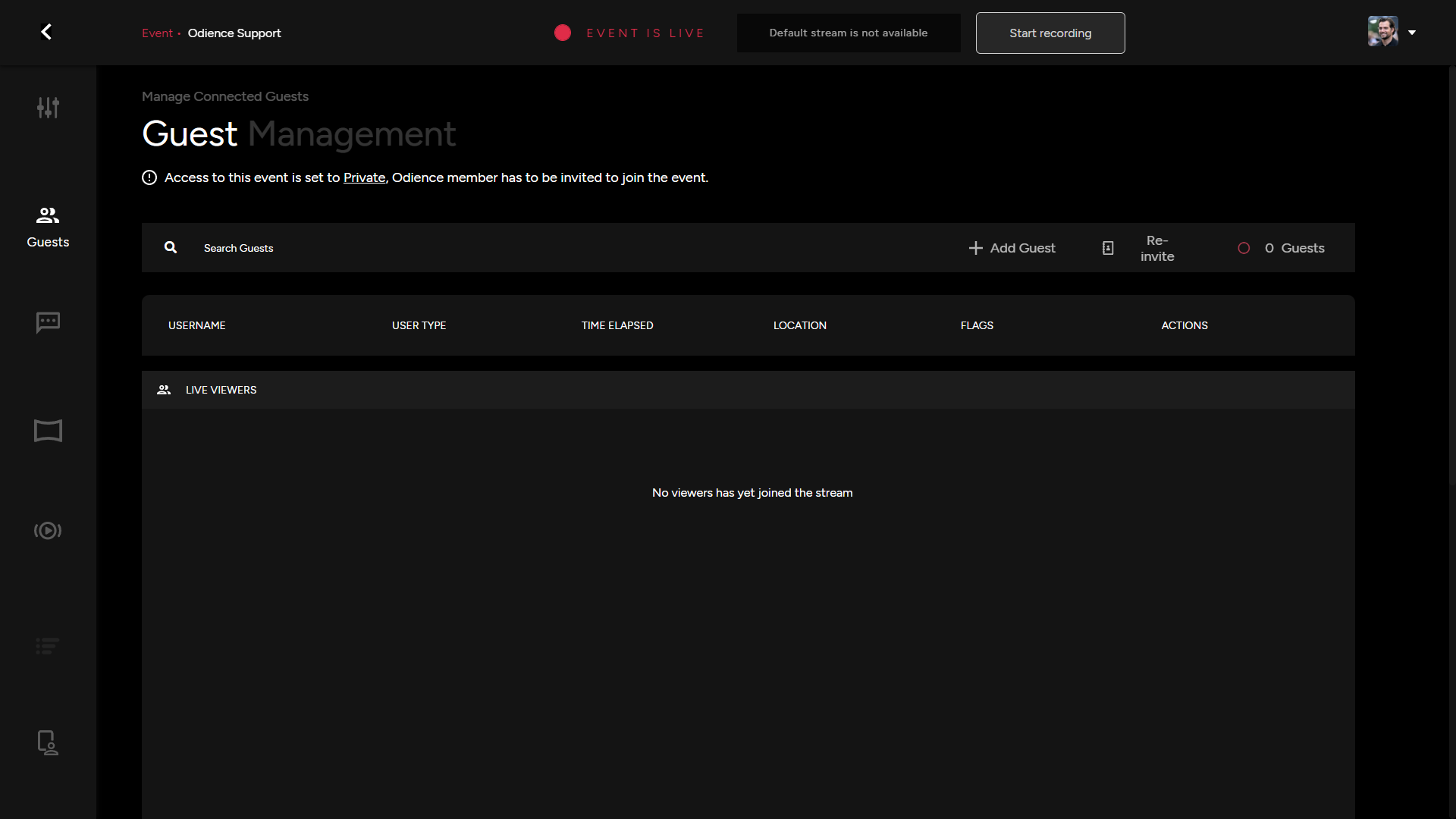
Manage guests, Extend more invitations and initiate Action for specific Users.
- For more details, see Guests guide.
Moderation
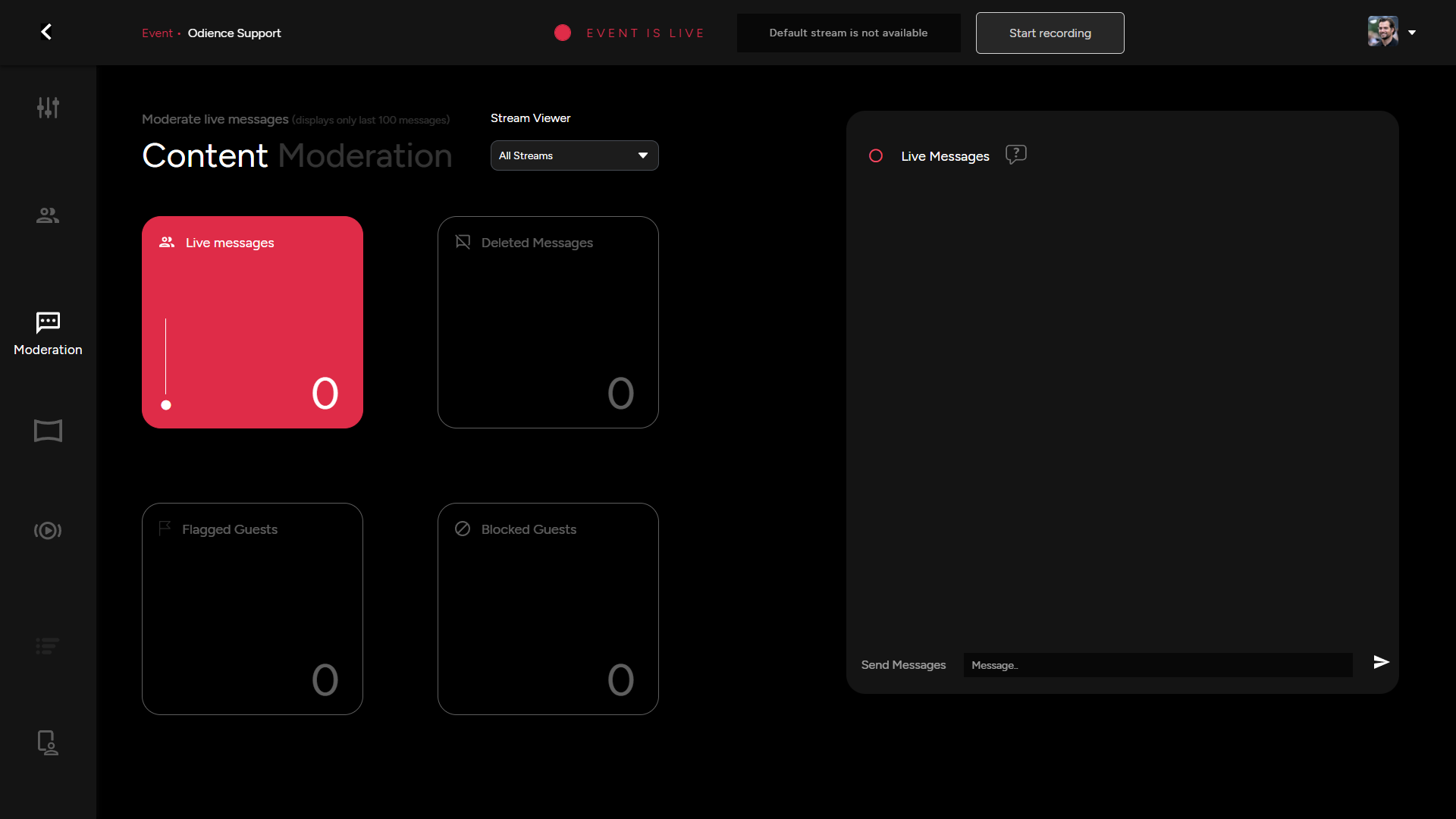
- Moderate Live Messages circulating the chat and manage other chat as well as user related actions.
- For more details, see Moderation guide.
Video Wall
- Manage all areas of your video wall, from Spectators, Invitations, Front Row, Settings and so forth.
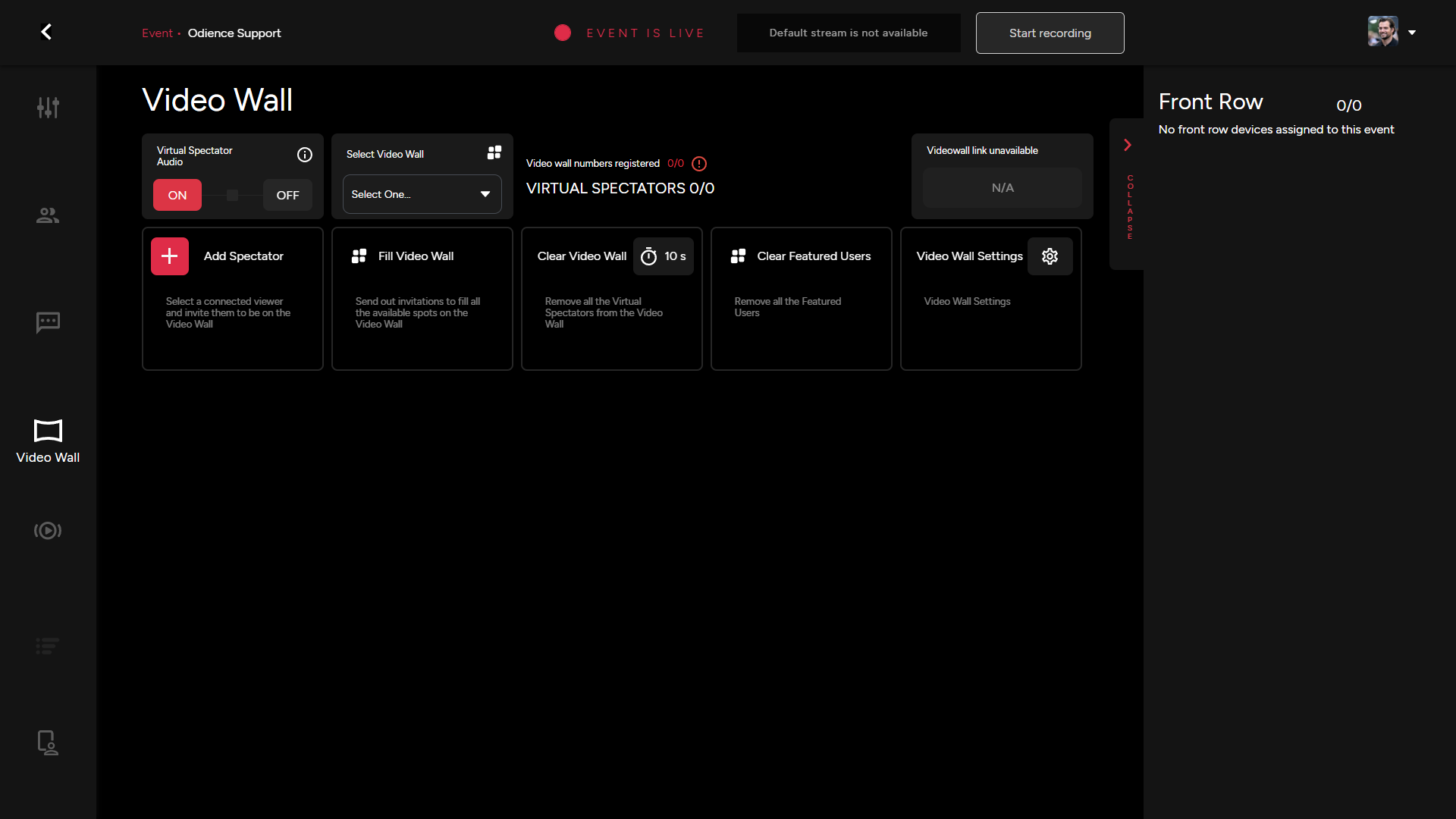
- For more details, see Video Wall guide.
Control Room
- Enable Live Switching to allow users access to switch between different streams within your event.
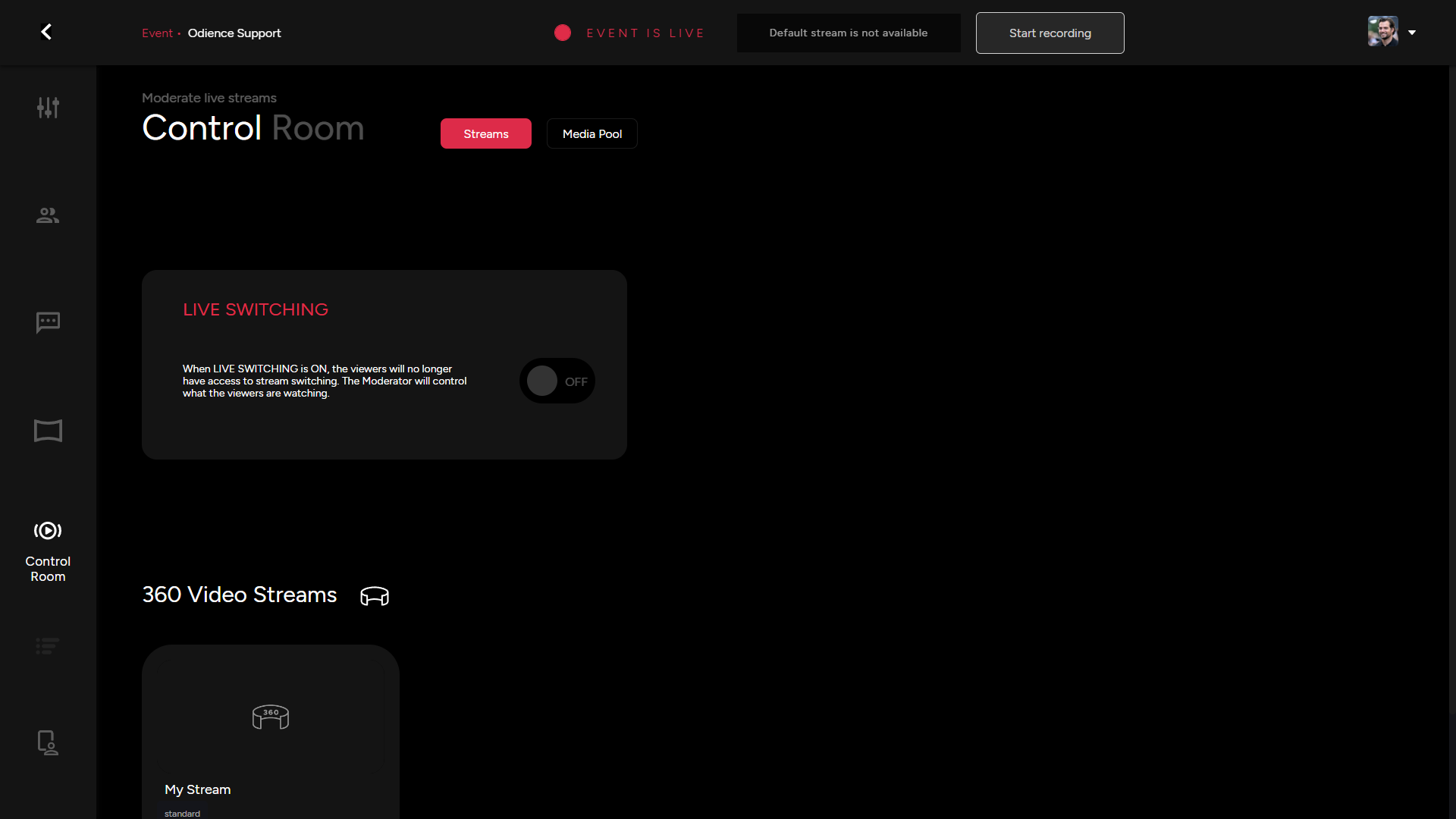
- For more details, see Control Room guide.
Media Pool
- Manage event and video wall content from your media control hub. Add new content or modify how it appears in your live event.
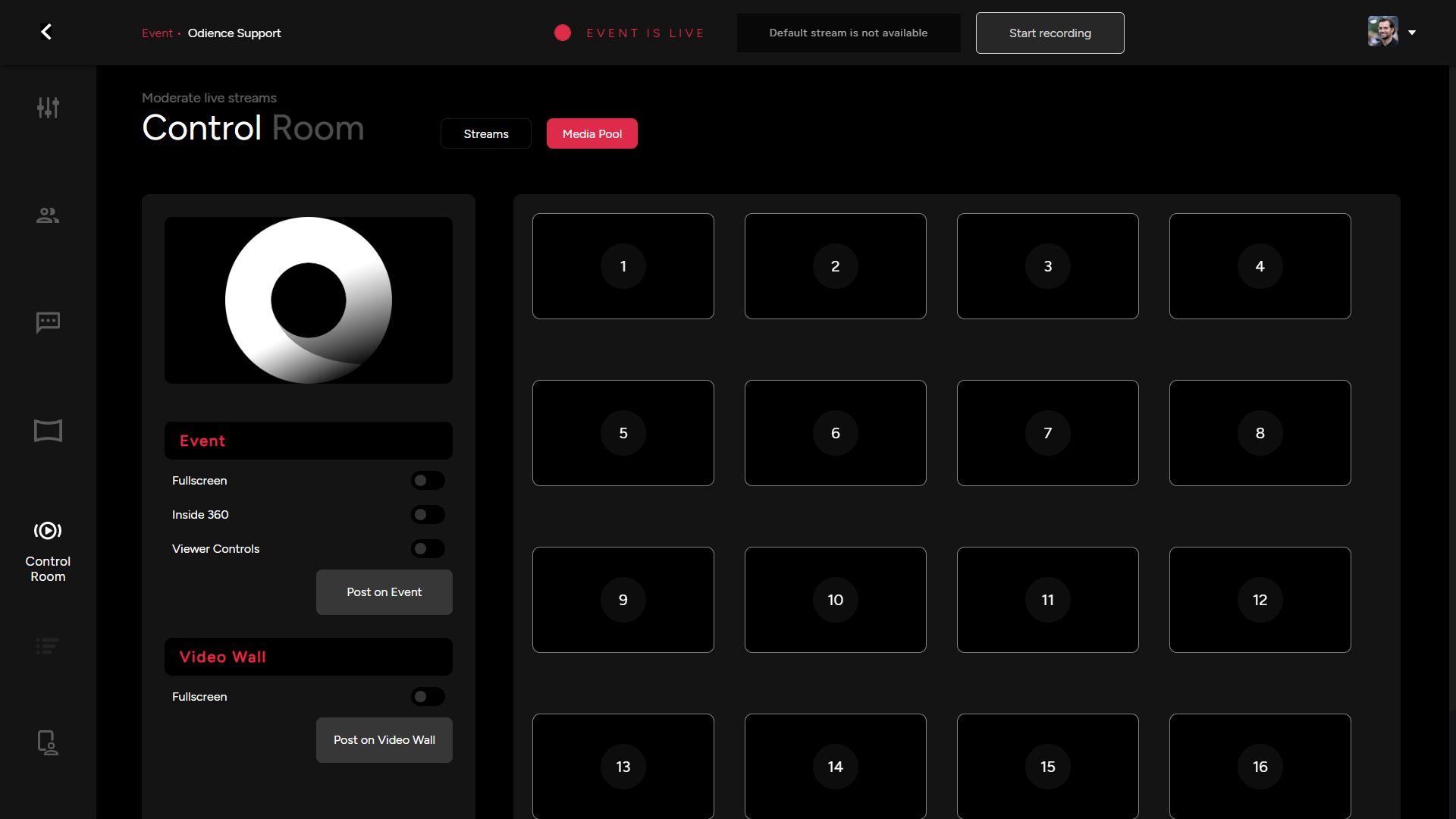
- For more details, see Control Room guide.
Poll Bot
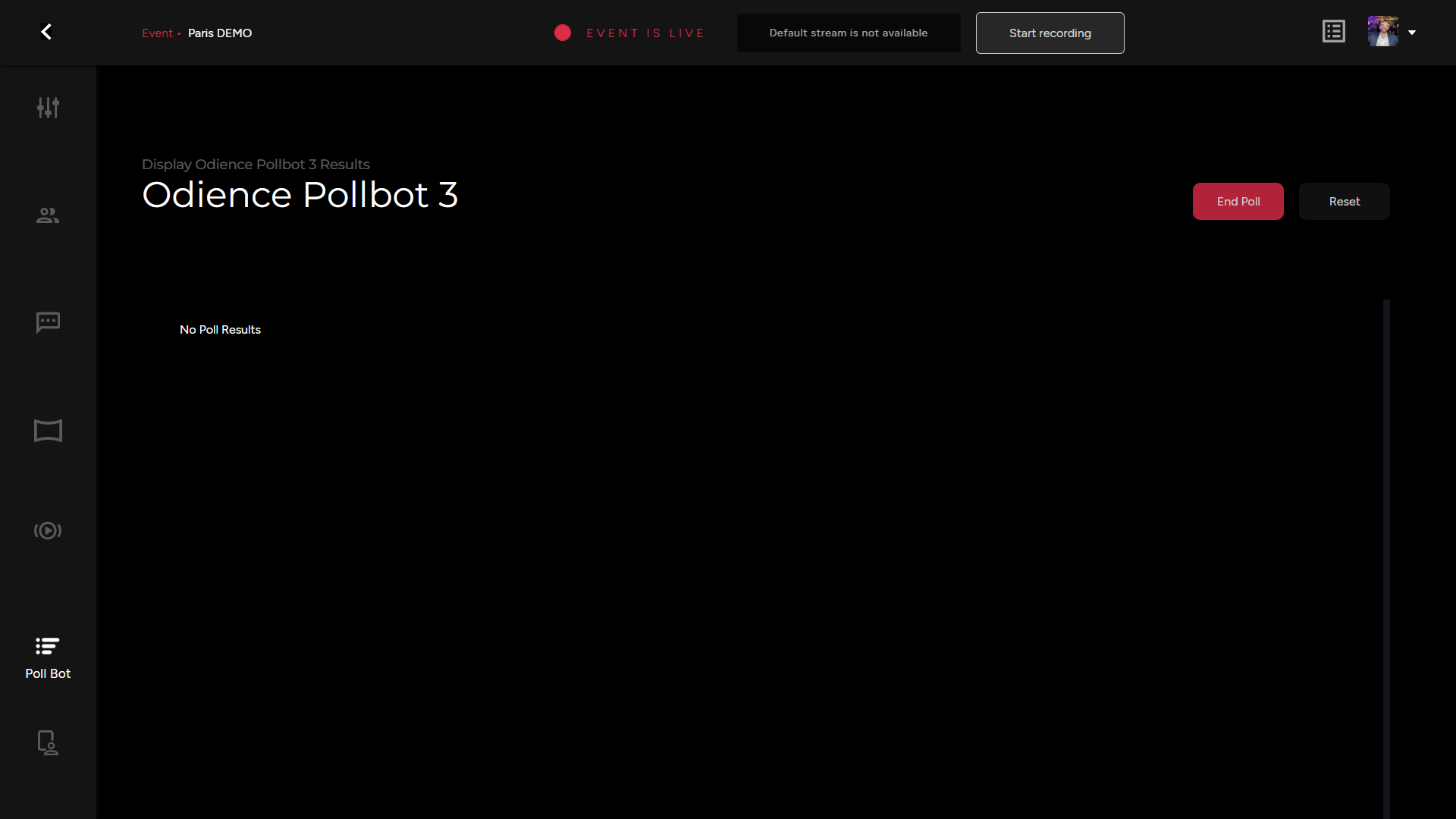
- Start & End Poll, the results will be displayed here.
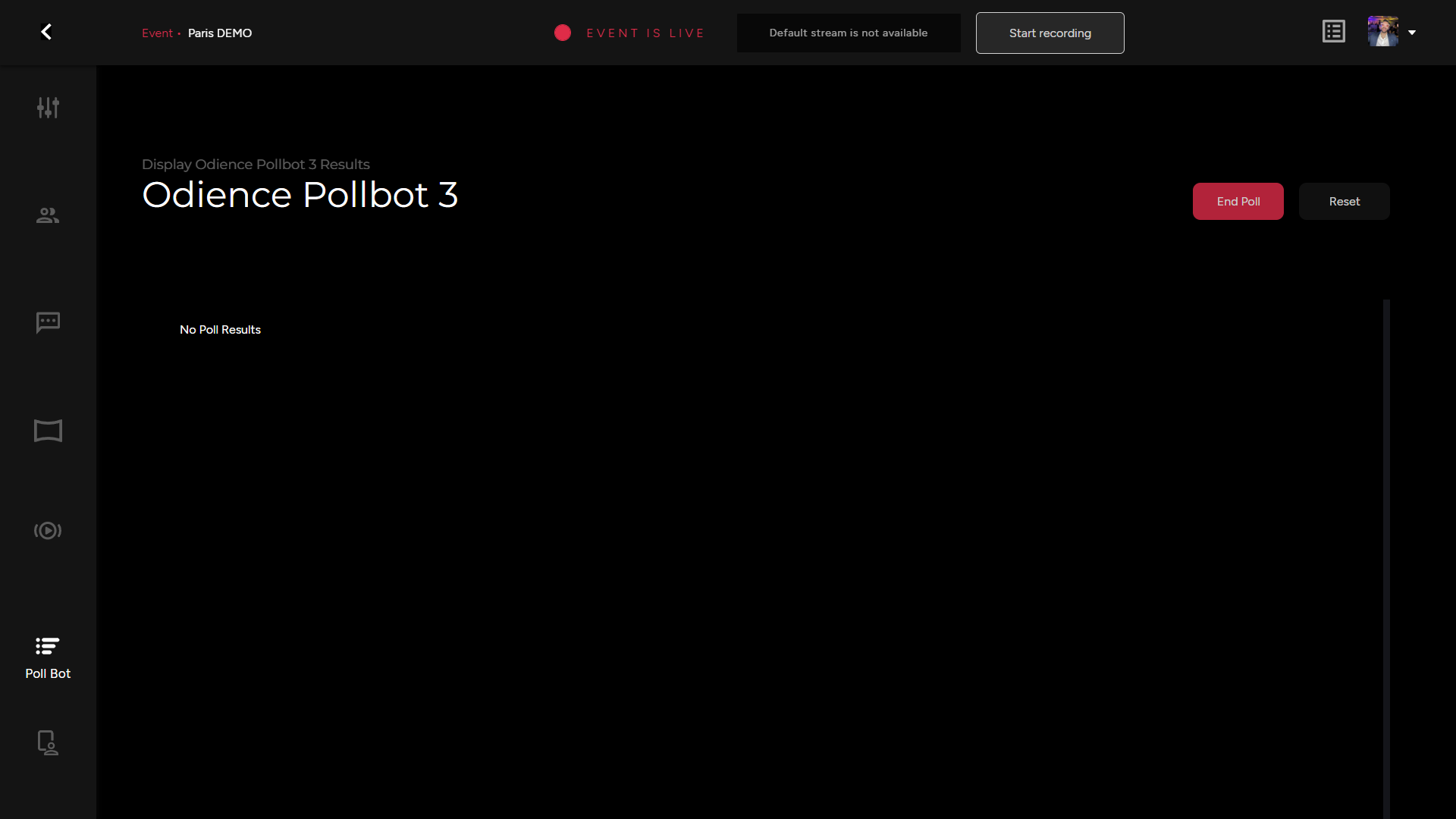
- For more details, see Poll Bot guide.
Presenter
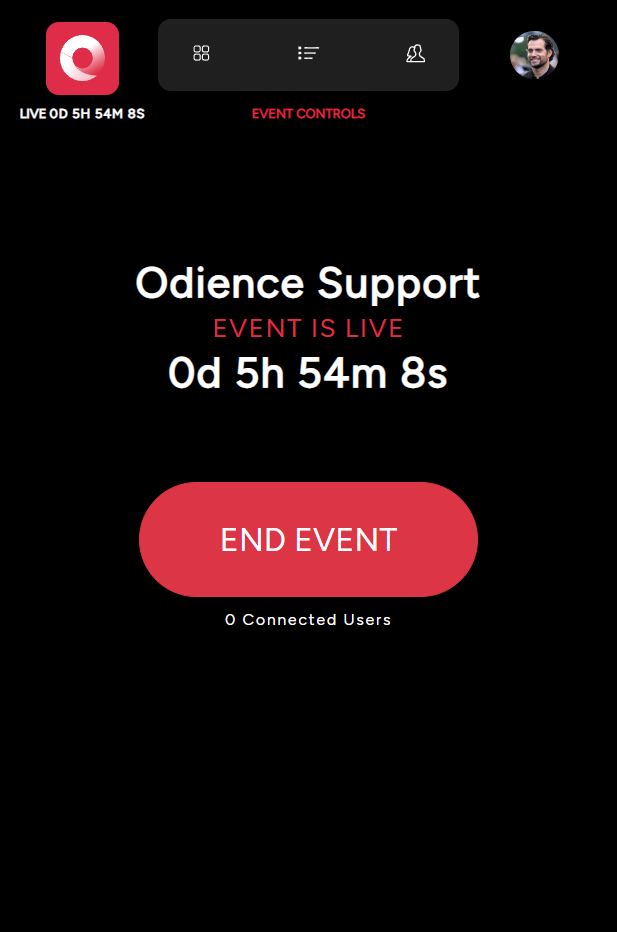
- Access all presenter controls from your Moderation Dashboard. This is also where you can set-up a host tablet to manage the event.
- For more details, see Presenter guide.
Dashboard Moderation
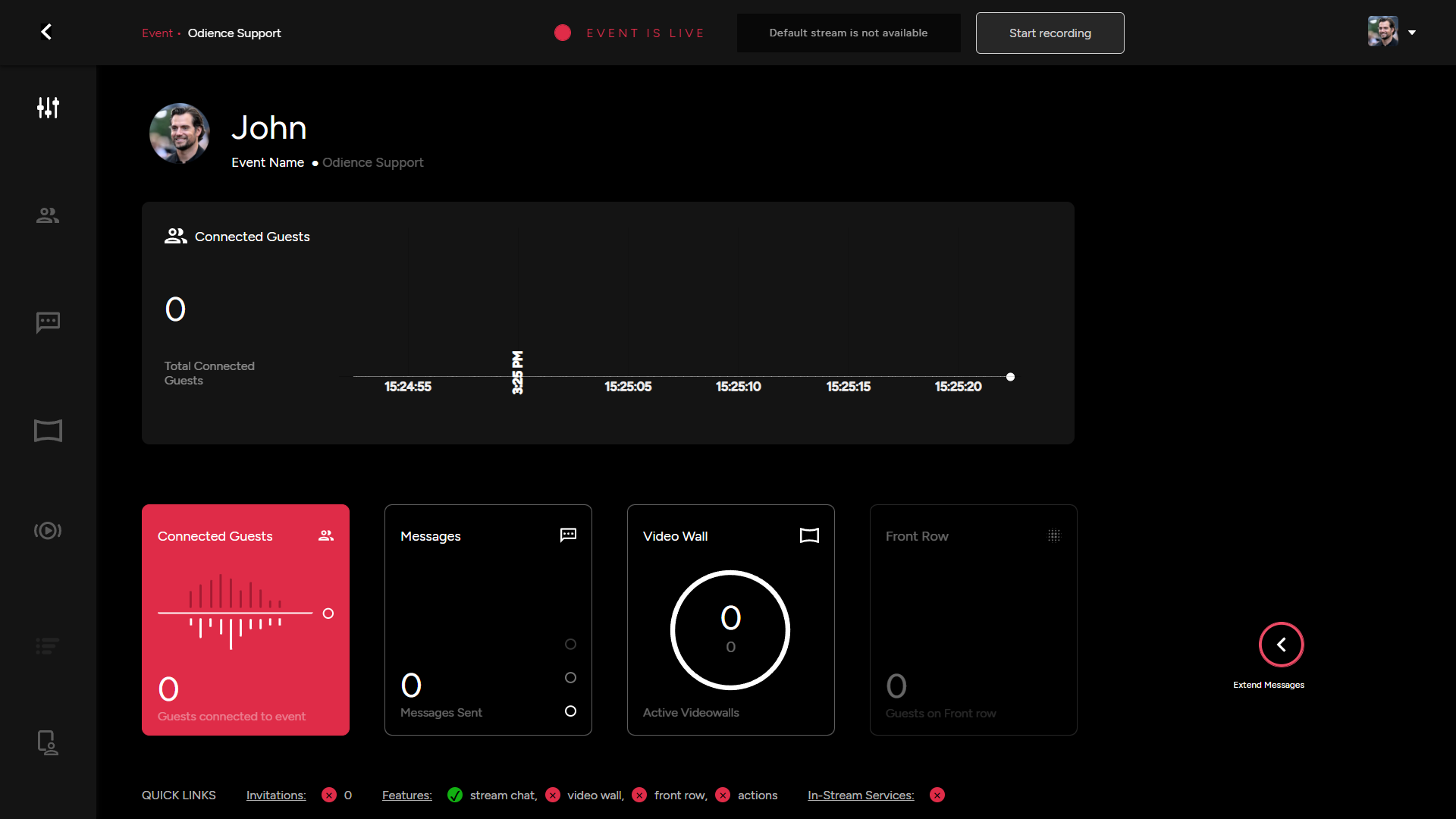
- Manage and track the activity of several interactive components within your event in real-time. See connected guest, number of messages, video wall connections, the amount of guest in Front Row, & last extend messages to see the live feed of your chat.
Guest Management
General
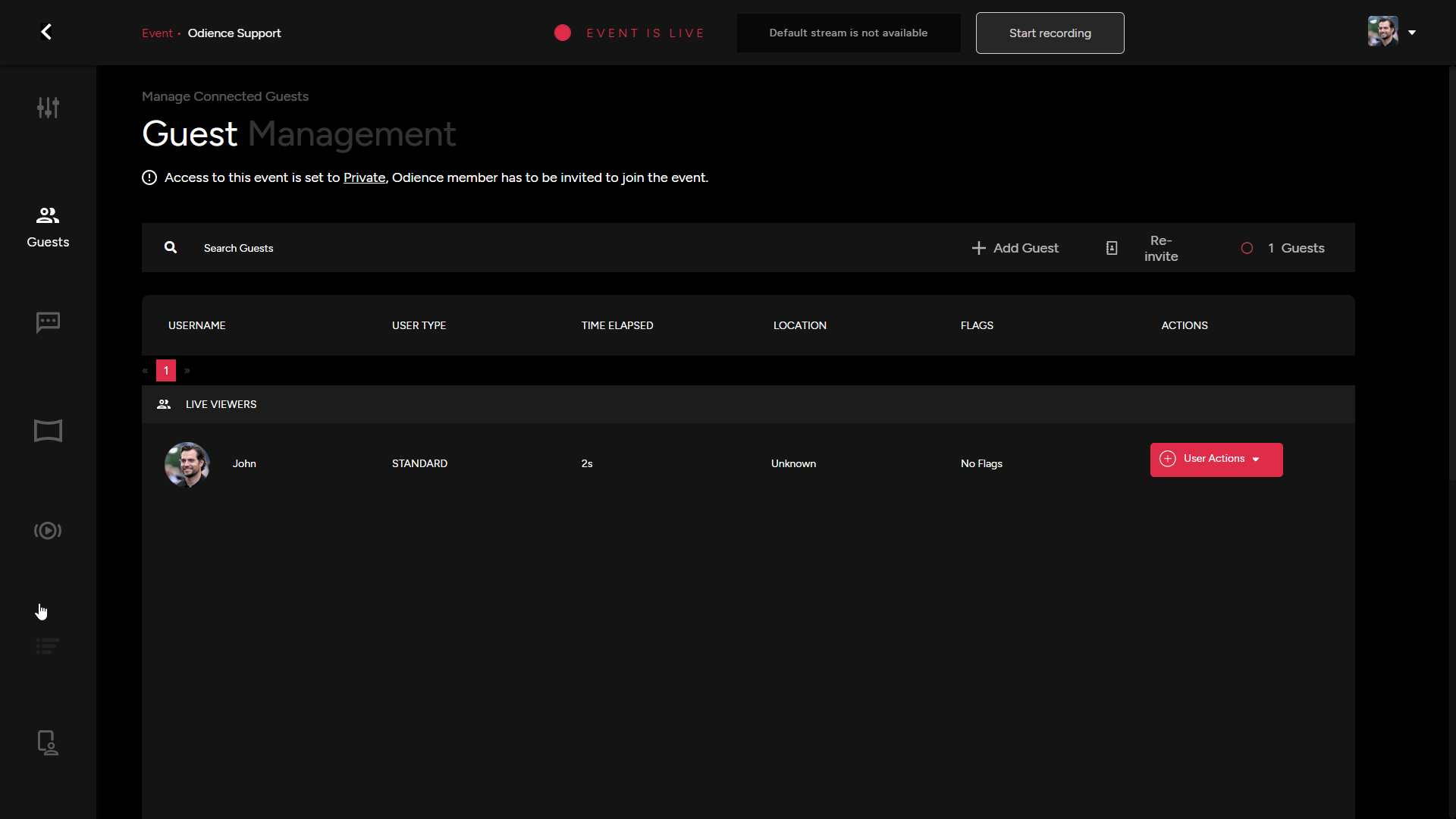
- The guest dashboard allows you to invite new guests after the event has gone live or re-invite guests who have already been invited to your event.
User Actions
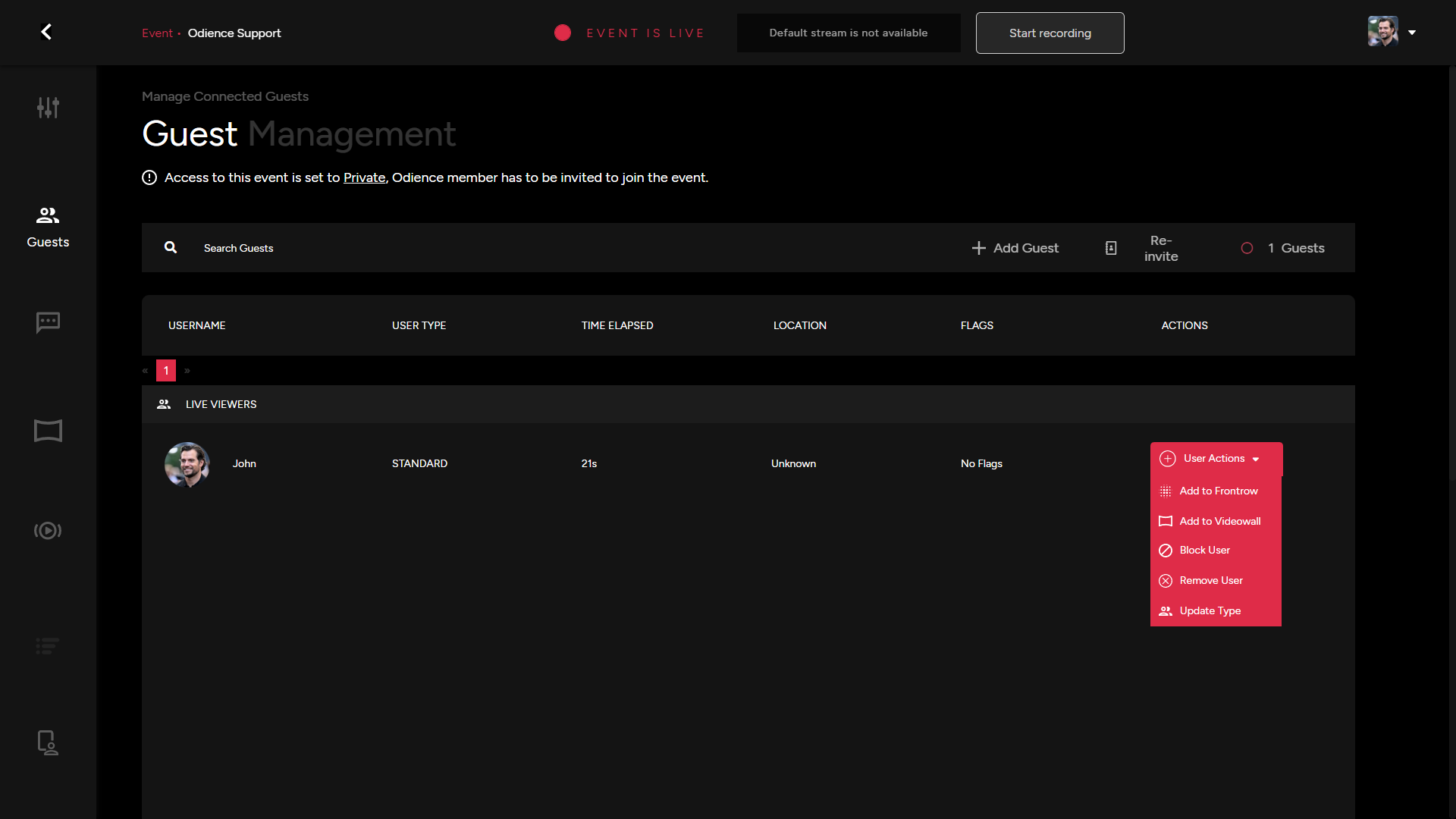
- There are several individual actions you can utilize for individual users.
- Add user to Front Row. This will send them an invitation to join Front Row.
- Add user to Video Wall, this will send the user an invitation to be a featured guest on the Video Wall.
- Blocking a user will prevent them from engaging in the stream chat
- Removing a user will remove them from the event entirely & will therefore be blocked from rejoining.
- Updating a user type... (TBD)
Content Moderation
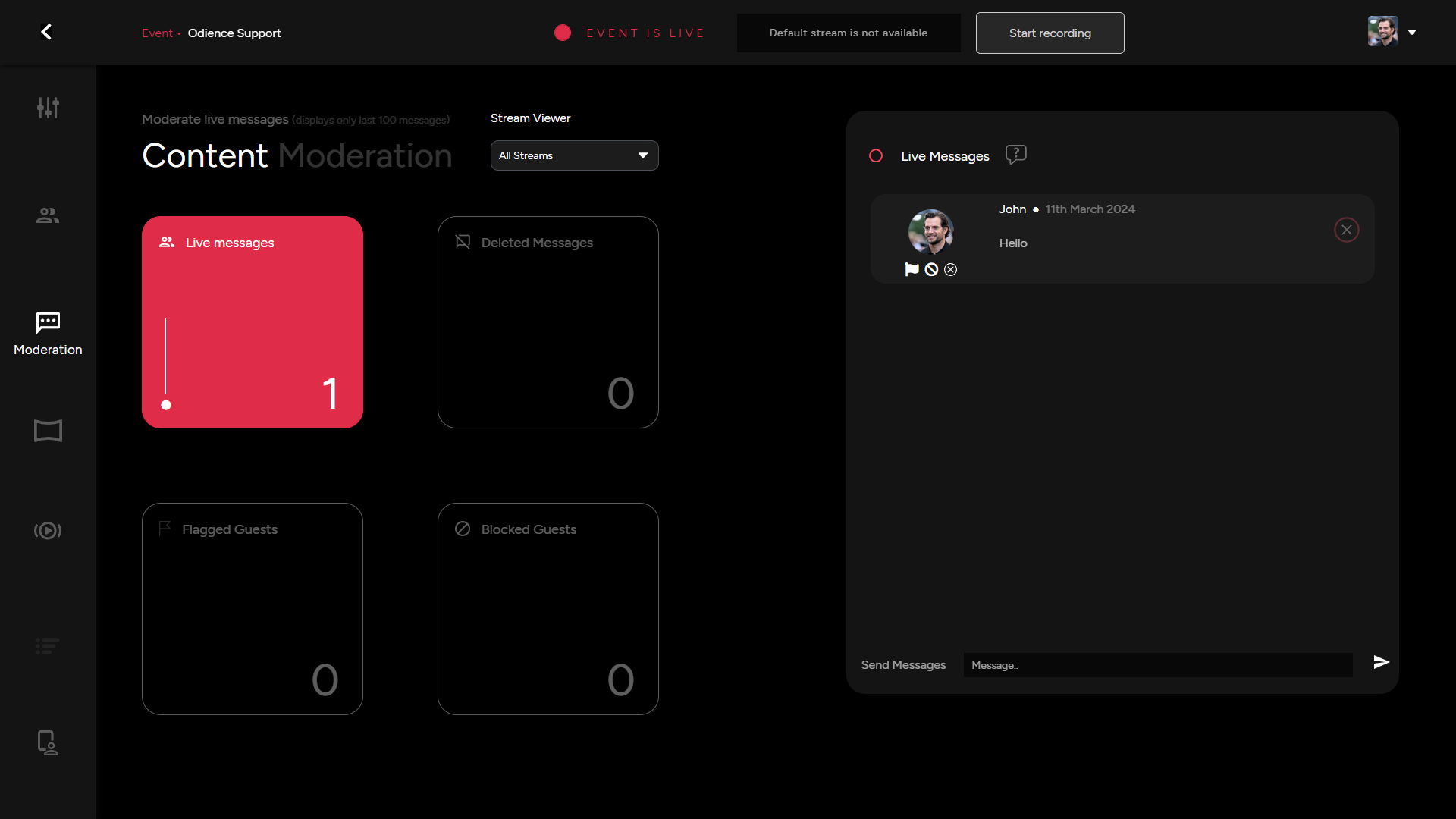
Content Moderation
Manage the live messages running through the chat. Delete messages, flag guests, block guests or save messages to reference later in your event for a Q&A session.
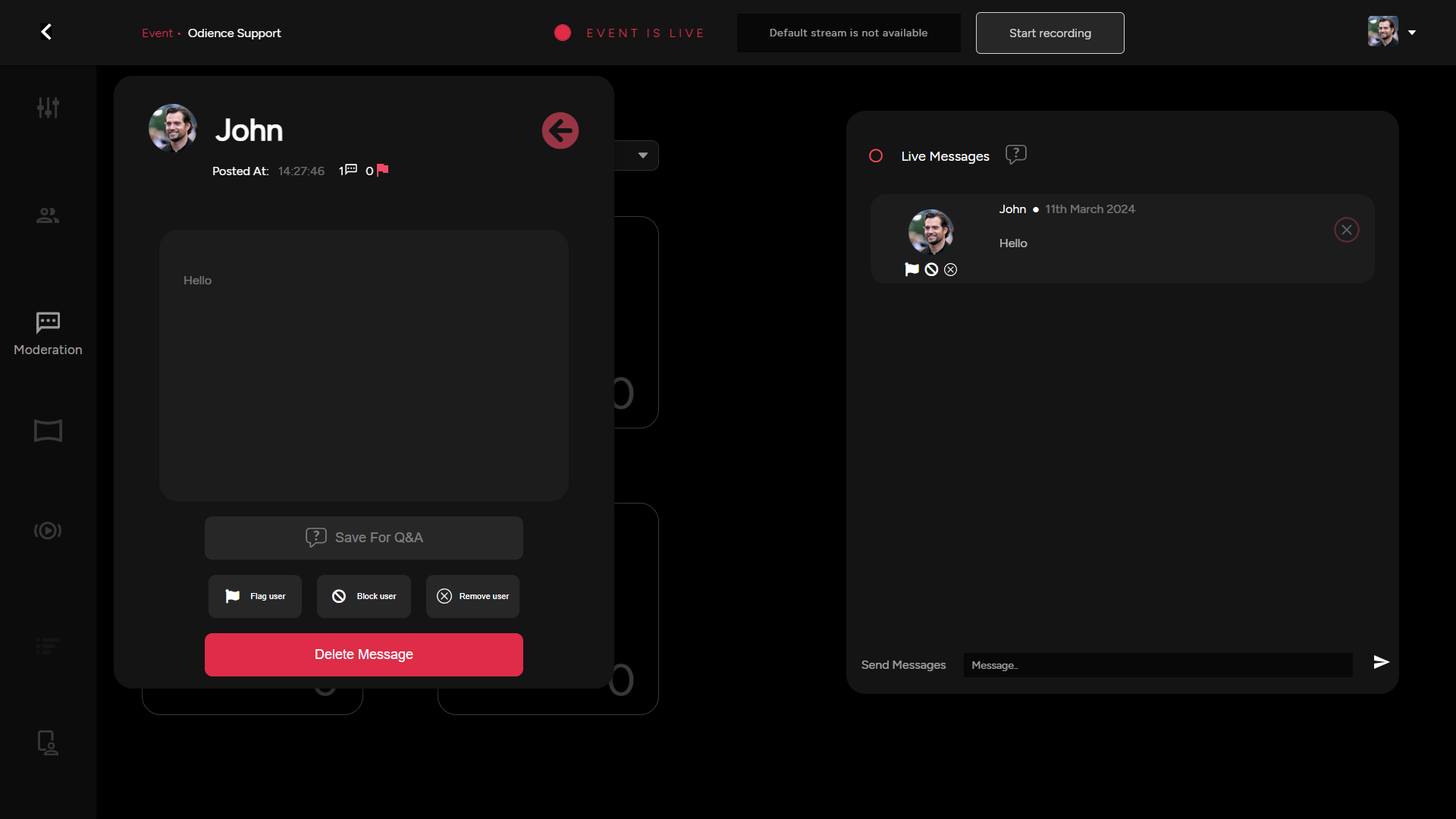
Guest Message Options
Different view to access all features outlined above, except this area has the Save for Q&A option.
Video Wall Management
Virtual Spectator Audio
- Turn on or off the virtual spectator audio
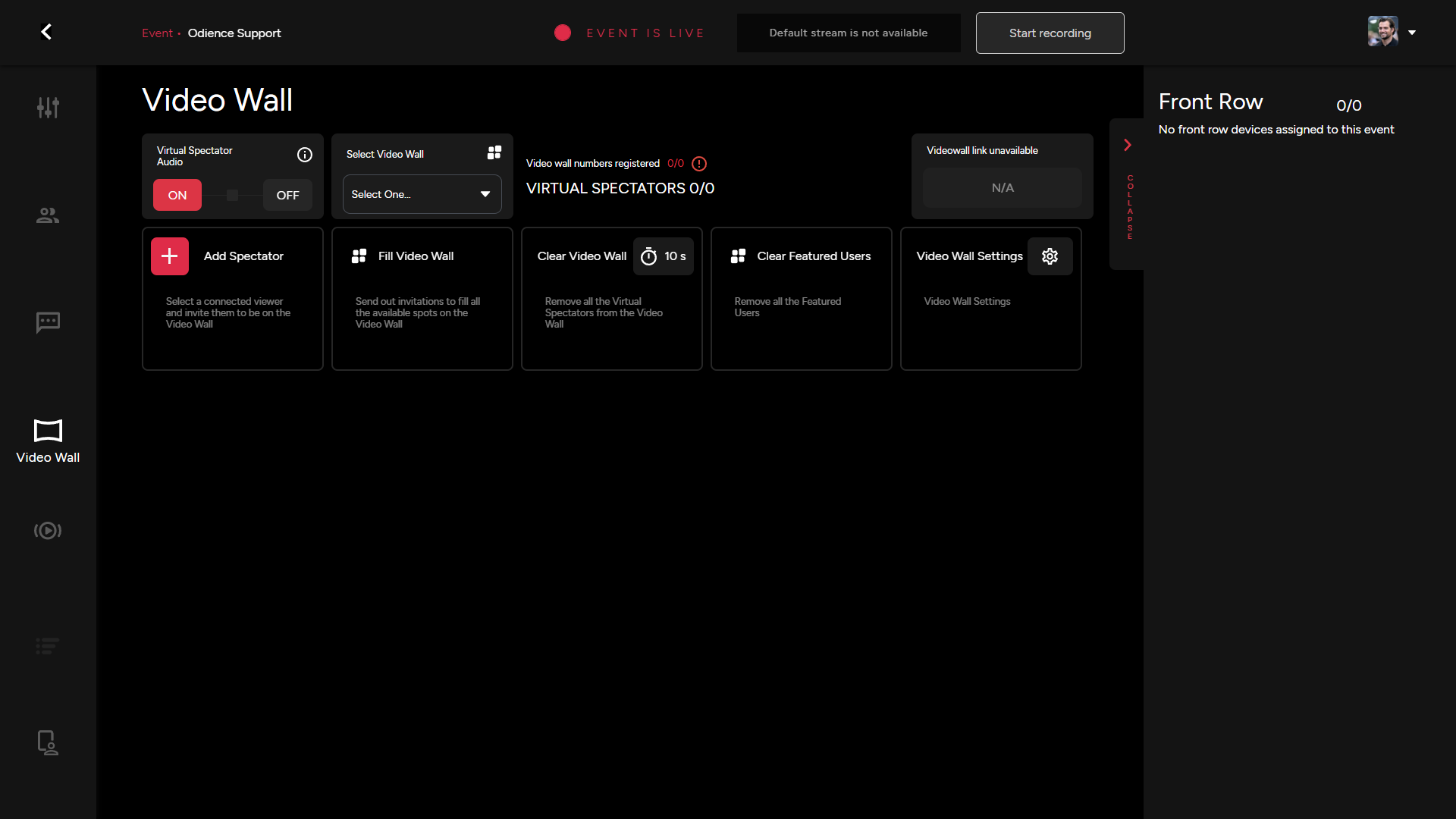
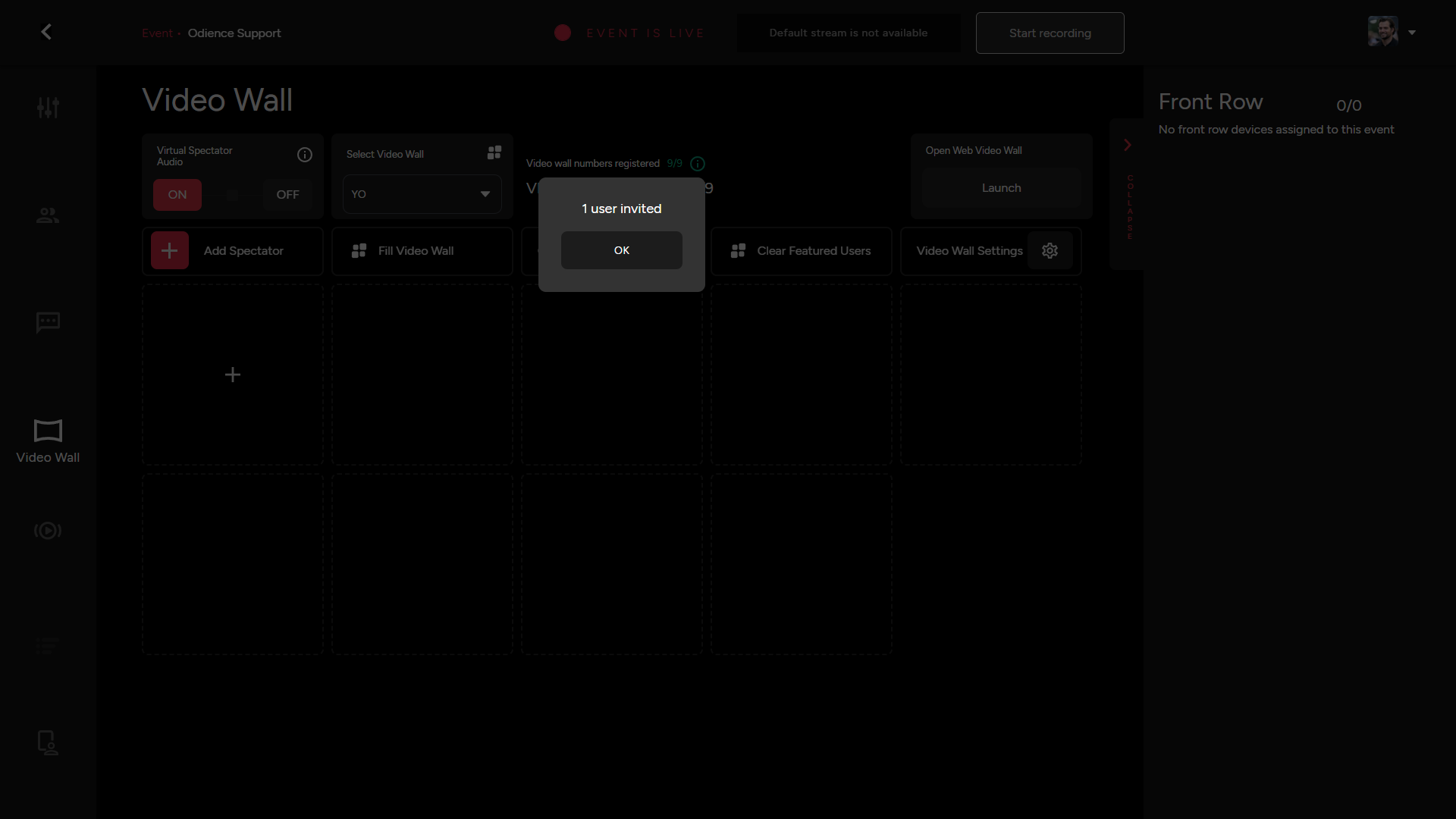
Add Spectator
- Select a connected viewer and invite them to be on the Video Wall

Fill Video Wall
- Quick access to remove all the virtual spectators from the video wall
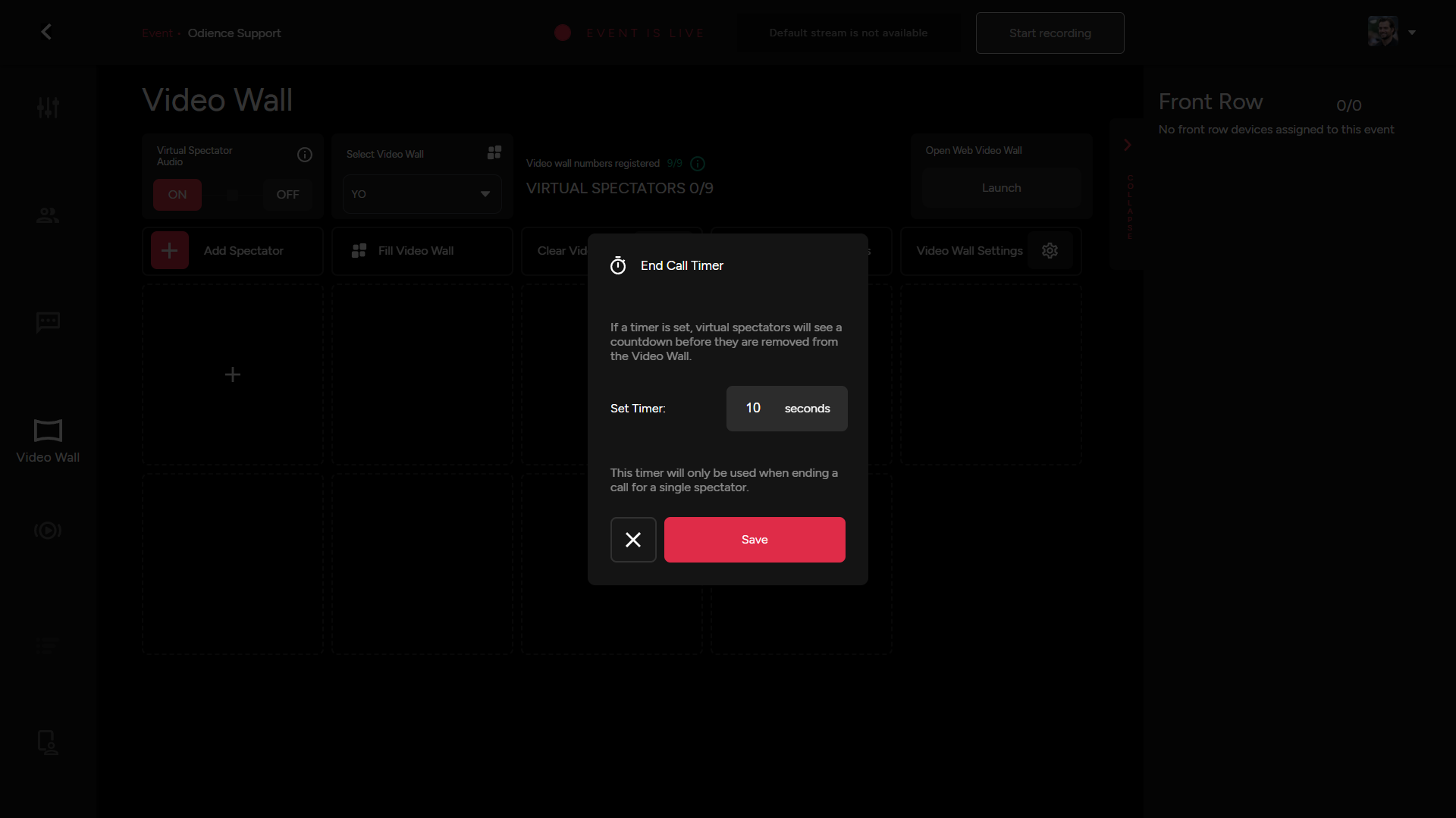
Clear Video Wall & Set End Call Timer
- Remove all the Virtual Spectators from the video with the click of a button. Set a Call Time, this will only be used when ending a call for a single spectator.
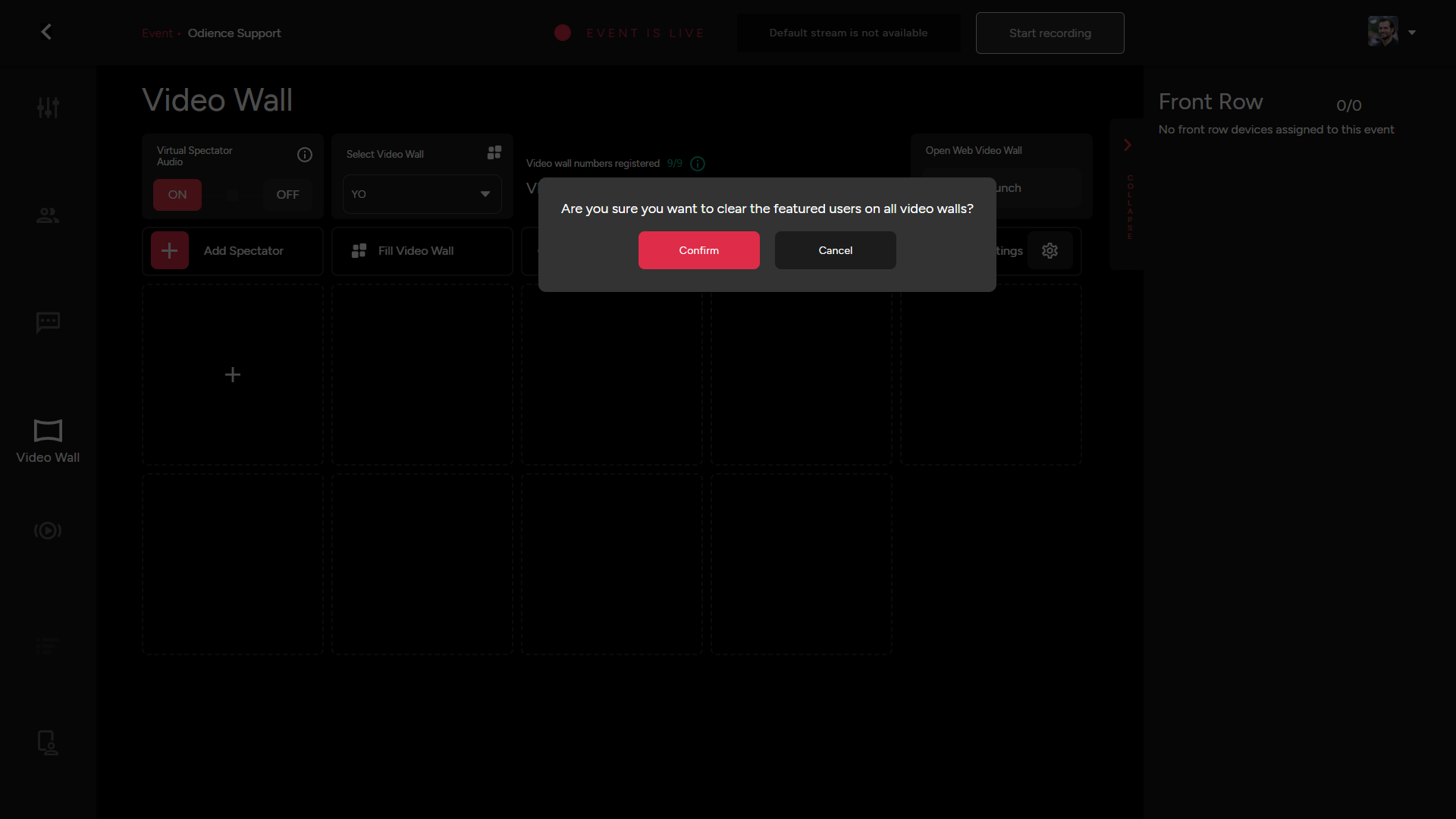
Clear Featured Users
- Remove all the Featured Users with the click of a button
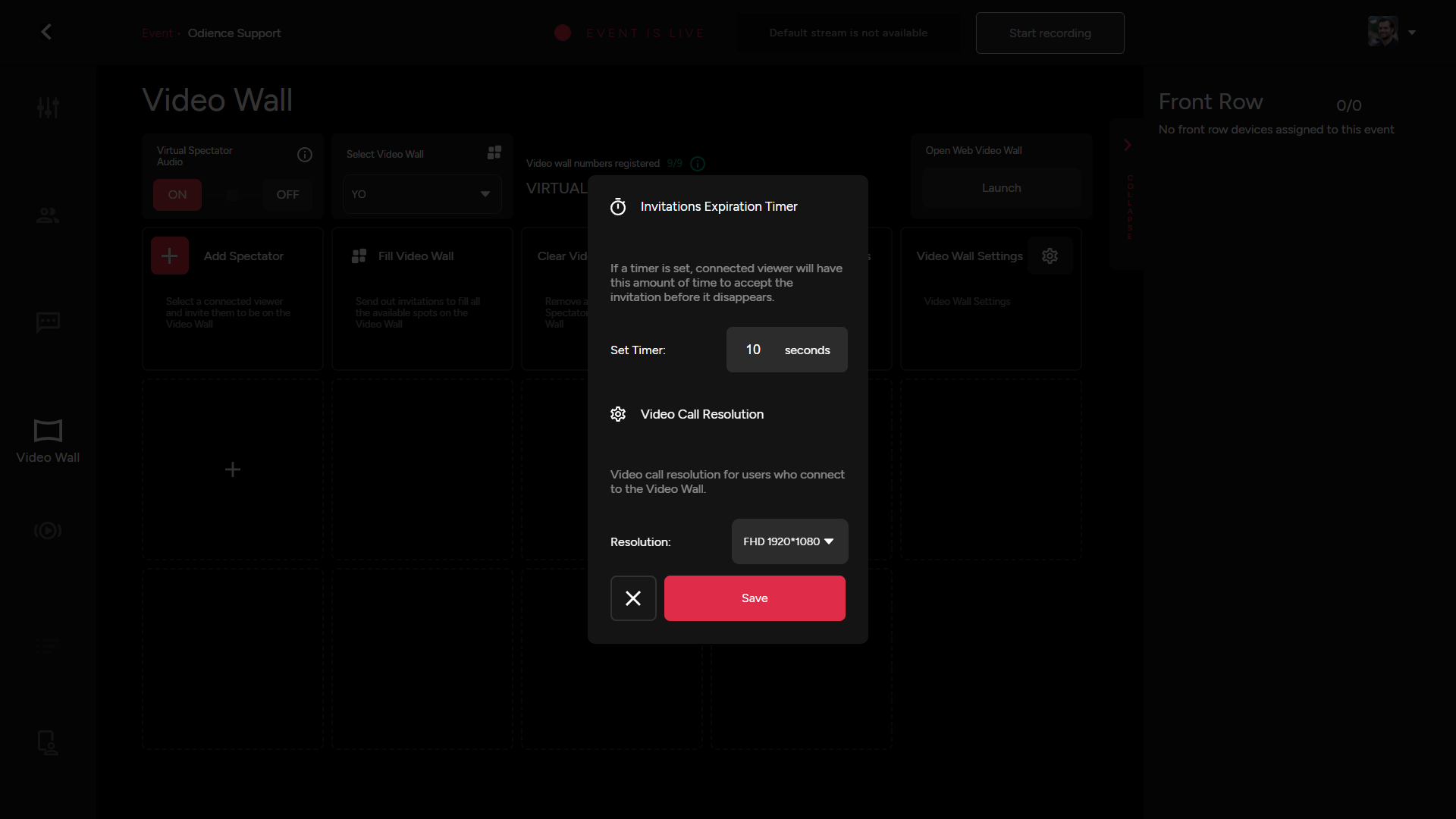
Video Wall Settings
- Set the amount of time a connected viewer will have to accept an invitation before it disappears. Set video resolution, we support from SD 640x480 all the way to FHD 1920x1080.
Video Wall Link
- Launch Web Video Wall from this section.
Note: Will include sample of Web Video Wall when it starts working.
Front Row
- TBA
Control Room
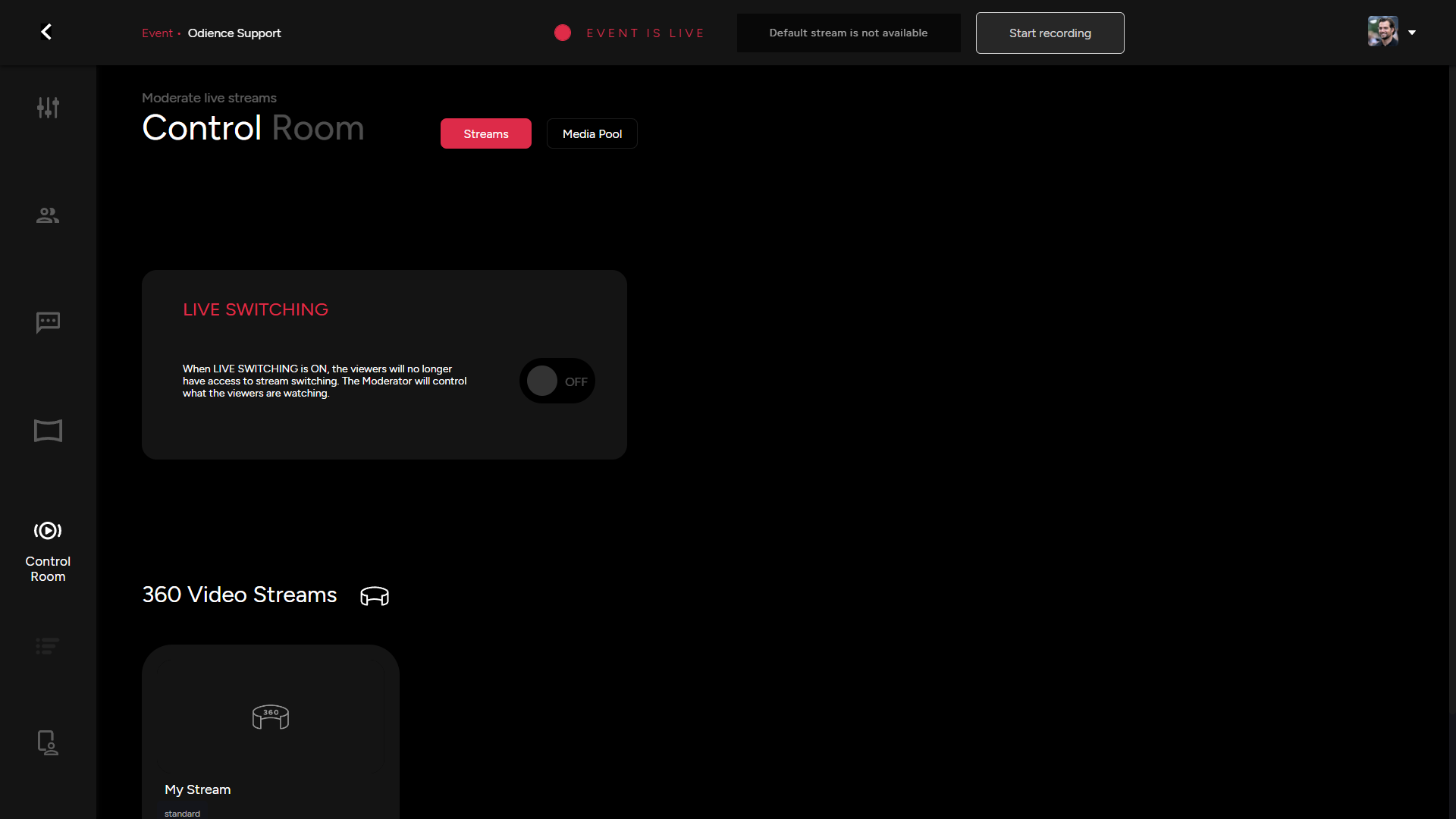
Control Streams
- Live Switching is a feature that allows viewers to switch between different streams assigned to an event. Note, if Live Switching is ON, the Moderator will control what the viewers are watching. In the section right below, you may activate or deactivate streams assigned to your event.
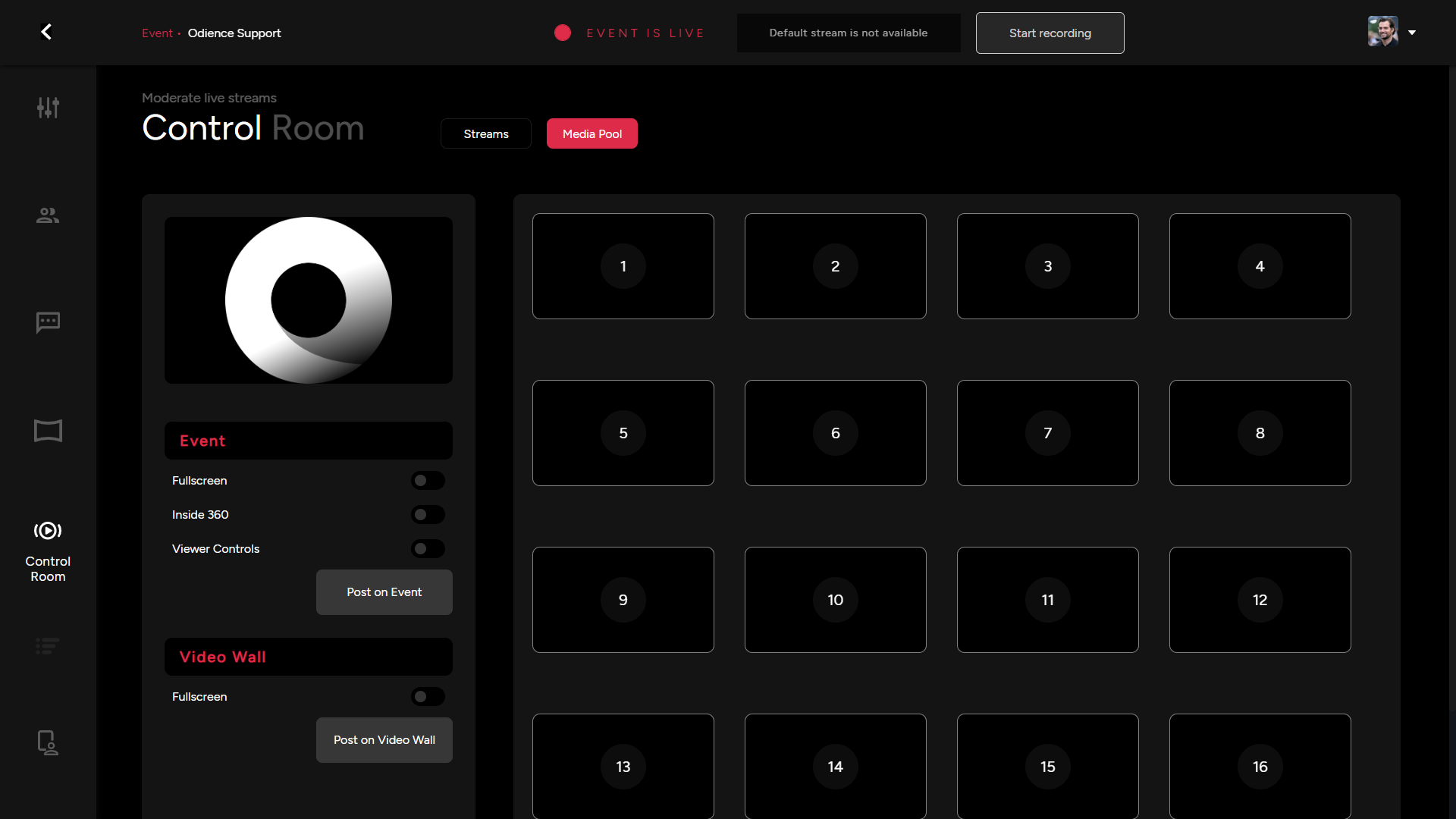
Media Pool
- Manage all media elements attached to your event or video wall. Feel free to import new media from your PC or via a URL.
Poll Bot Management
- Start and end your event poll from this section. This is also where Poll results will appear before being featured to the audience. This will only be available for events that have a Poll bot assigned to them.
Presenter Control Hub
The Presenter tab is the control hub for the event host. The host can start & end the event, Control product carousel appearance, Start poll, manage participants and a variety of interactions associated the participants such as Featured Message, Front Row, Featured Spectator and much more.