Event Features
Stream Chat
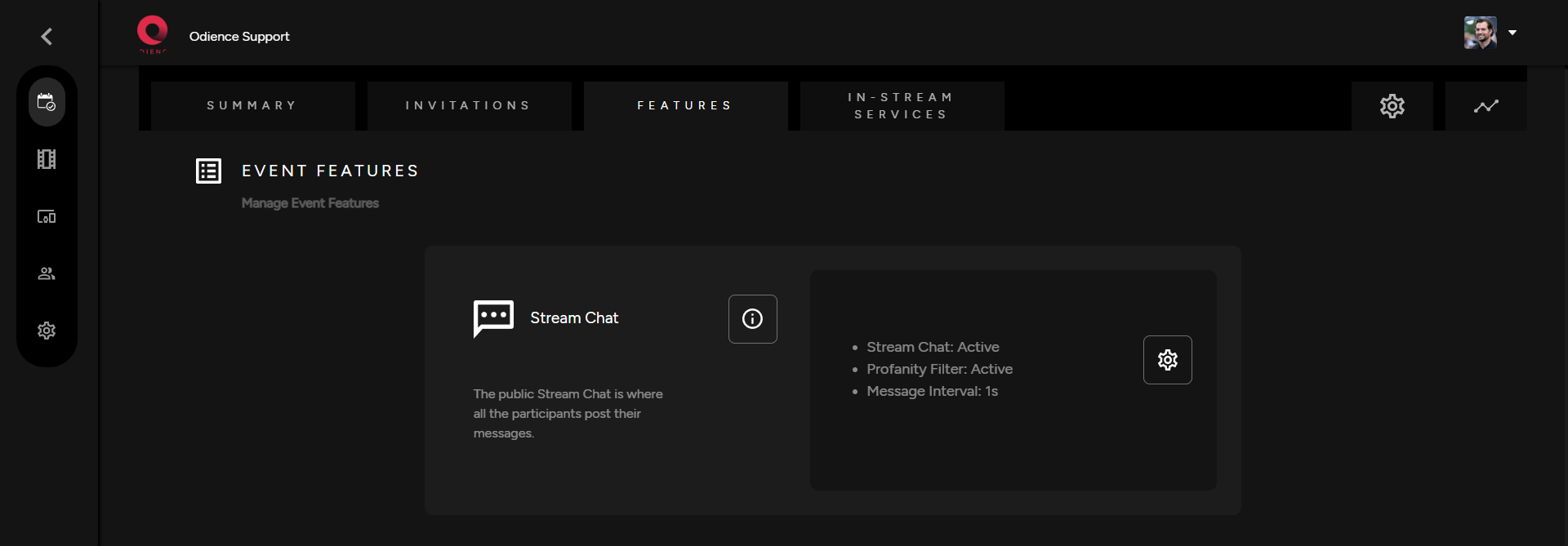
1. The stream chat is an optional feature. Click the gear icon to to customize settings.
2. Adjust Stream Chat settings. Activate or Deactivate chat, adjust message interval & enable a profanity filter .
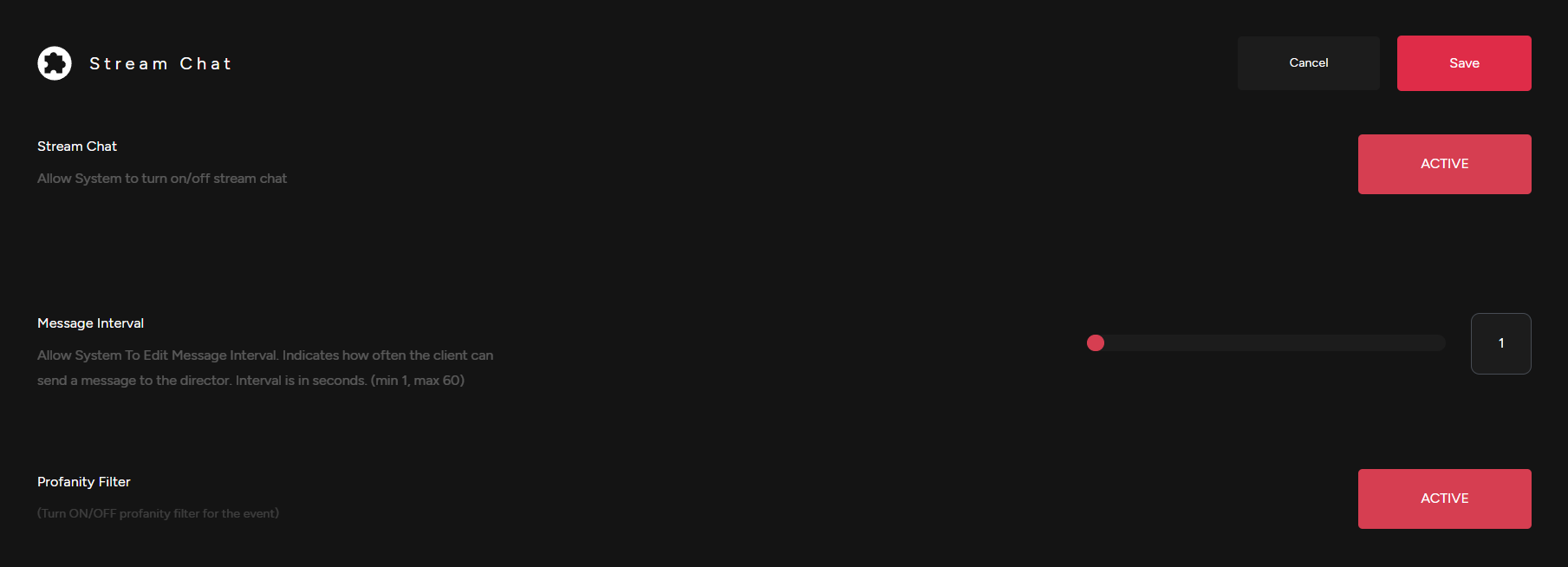
3. Click save to apply changes to your Stream Chat.
Assign a Video Wall
What is a Video Wall?
- Video Walls elevate your event by allowing you to display products and communicate with event participants.
- Click the "i" icon to see get a glimpse of what you can achieve with Odience Video Walls.
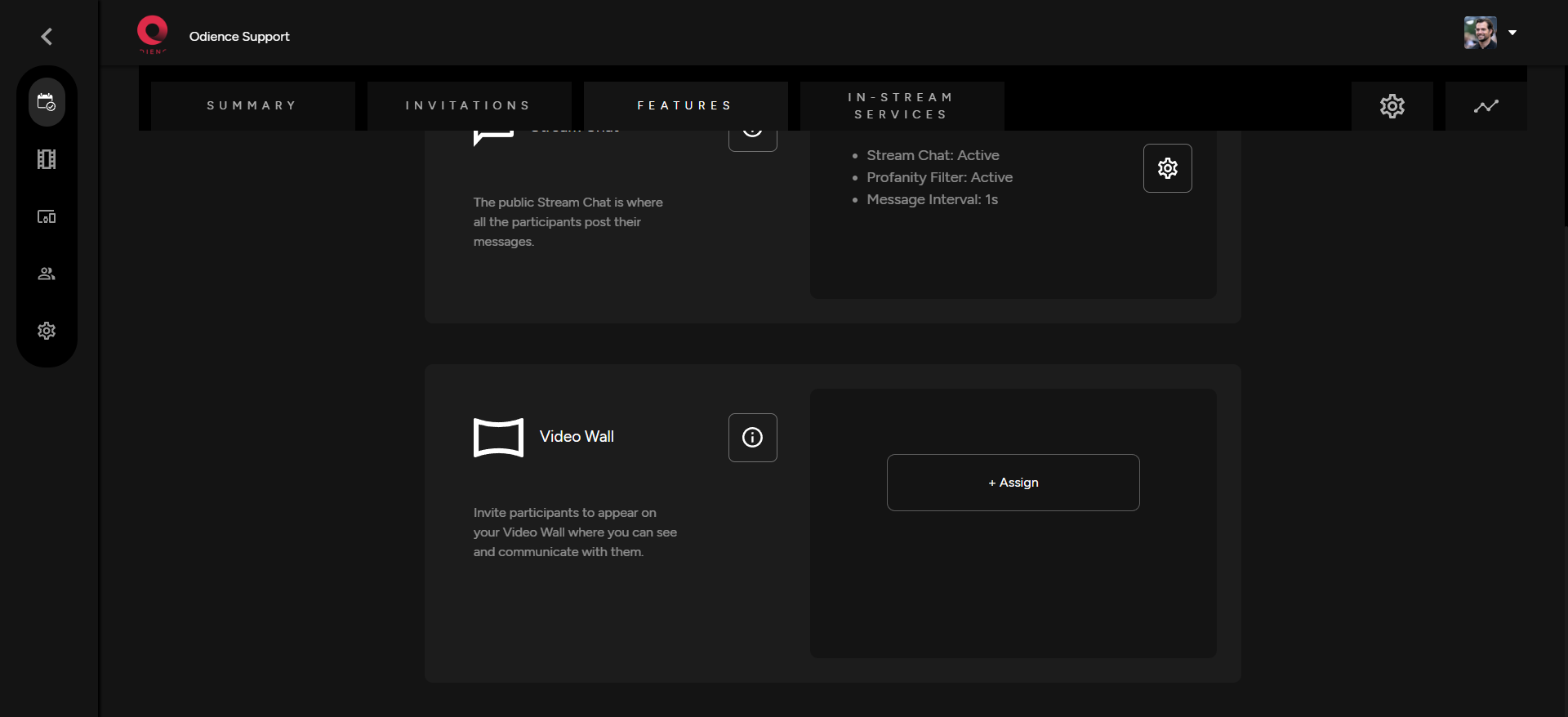
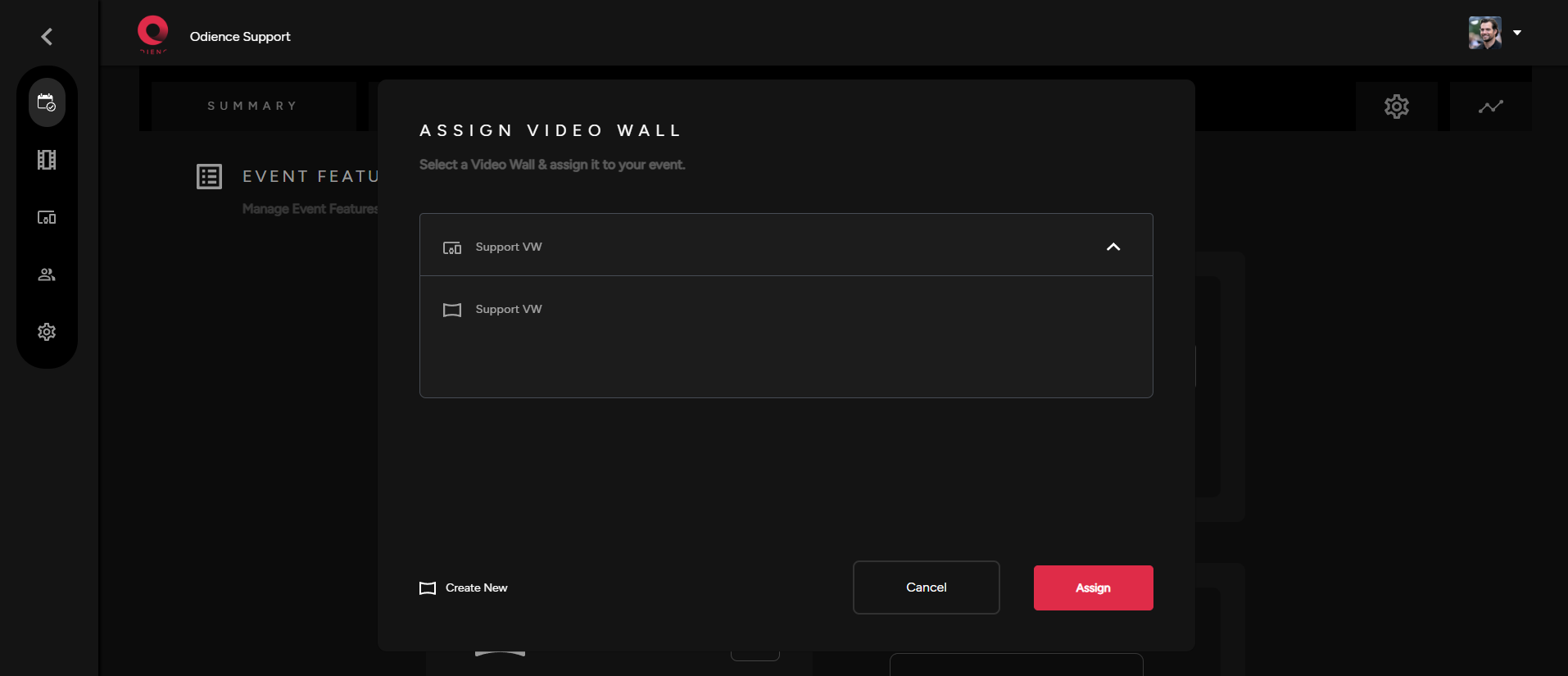
Assign a Video Wall
- Create or assign an existing video by selecting one from the options in your dropdown. Click Assign and you are good to go.
- To create your very own custom Video Wall, click here to see our Create Video Wall guide.
Assign Front Row Device
Front Row allows a lucky viewer to get closer to the event via a 1 on 1 video call with the host, artist, etc.
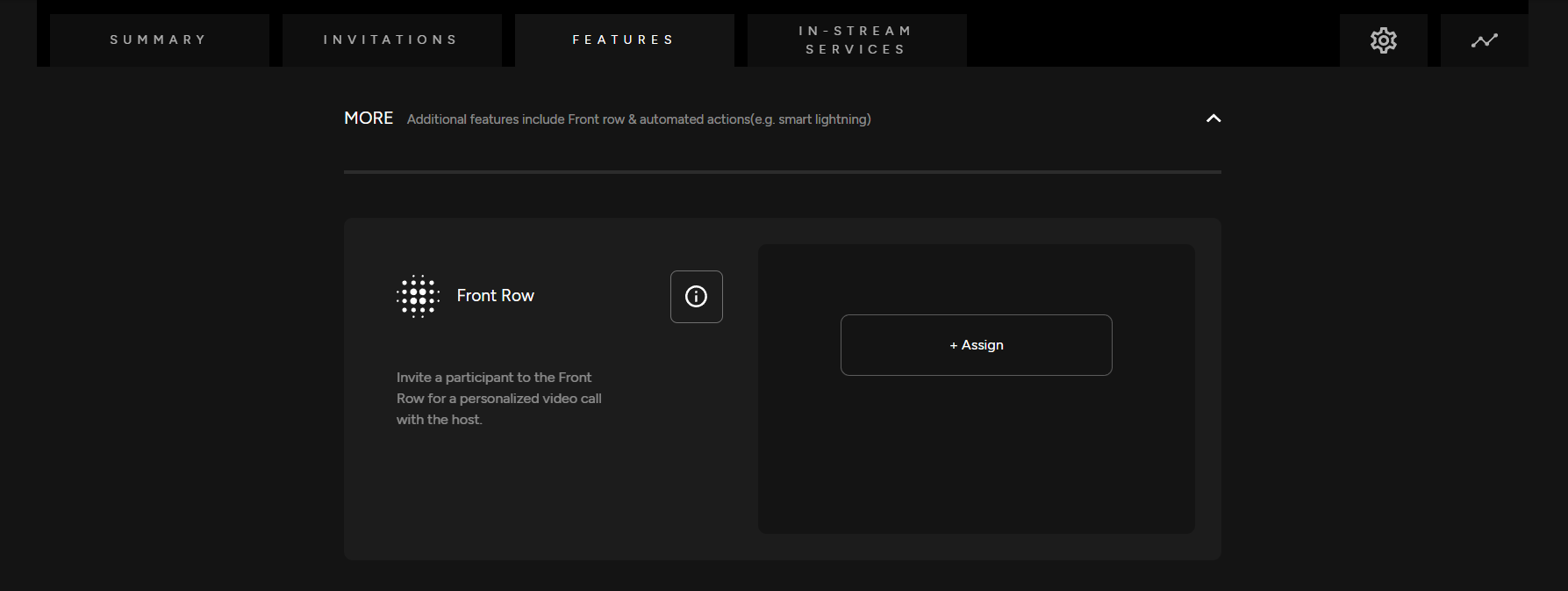
Assign Front Row Device
Assign a Front Row device. You can enable or disable this feature. If there is not a Front Row device created, you will need to first create one.
- For more information, see our guide on how to Create a Front Row Device.
Automated Actions
Actions (Need more info on how to use/configure)
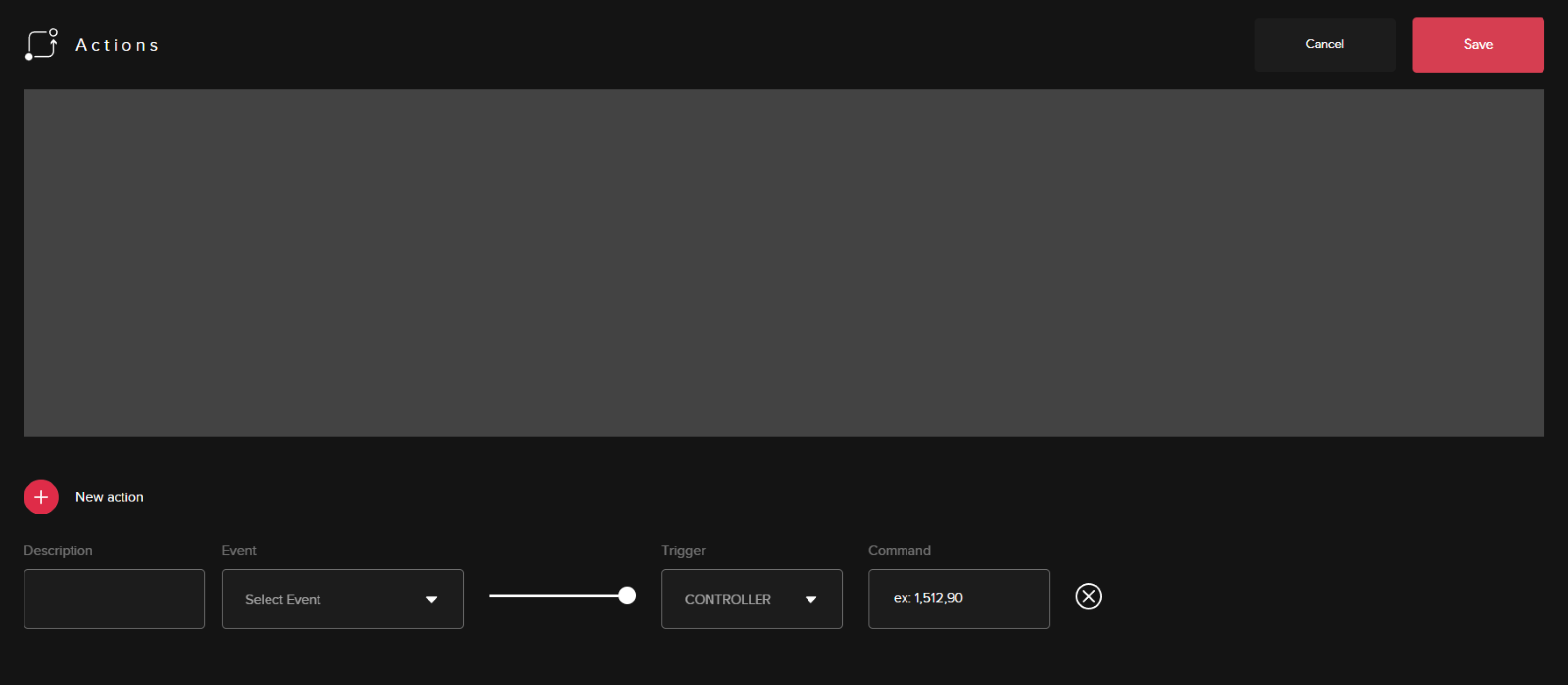
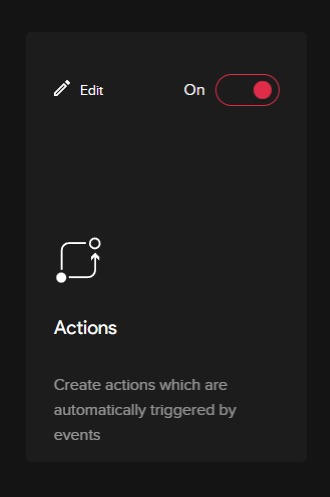
-Create actions which are automatically triggered by certain events. The specific event/action will have to be programmed in the edit section of the actions section.
-
The main part of the editing panel will be setting up the actions trigger than initiating a command.