# Event Creation & Management

# Create Event & Start Streaming


# Create Event

##### **Details**

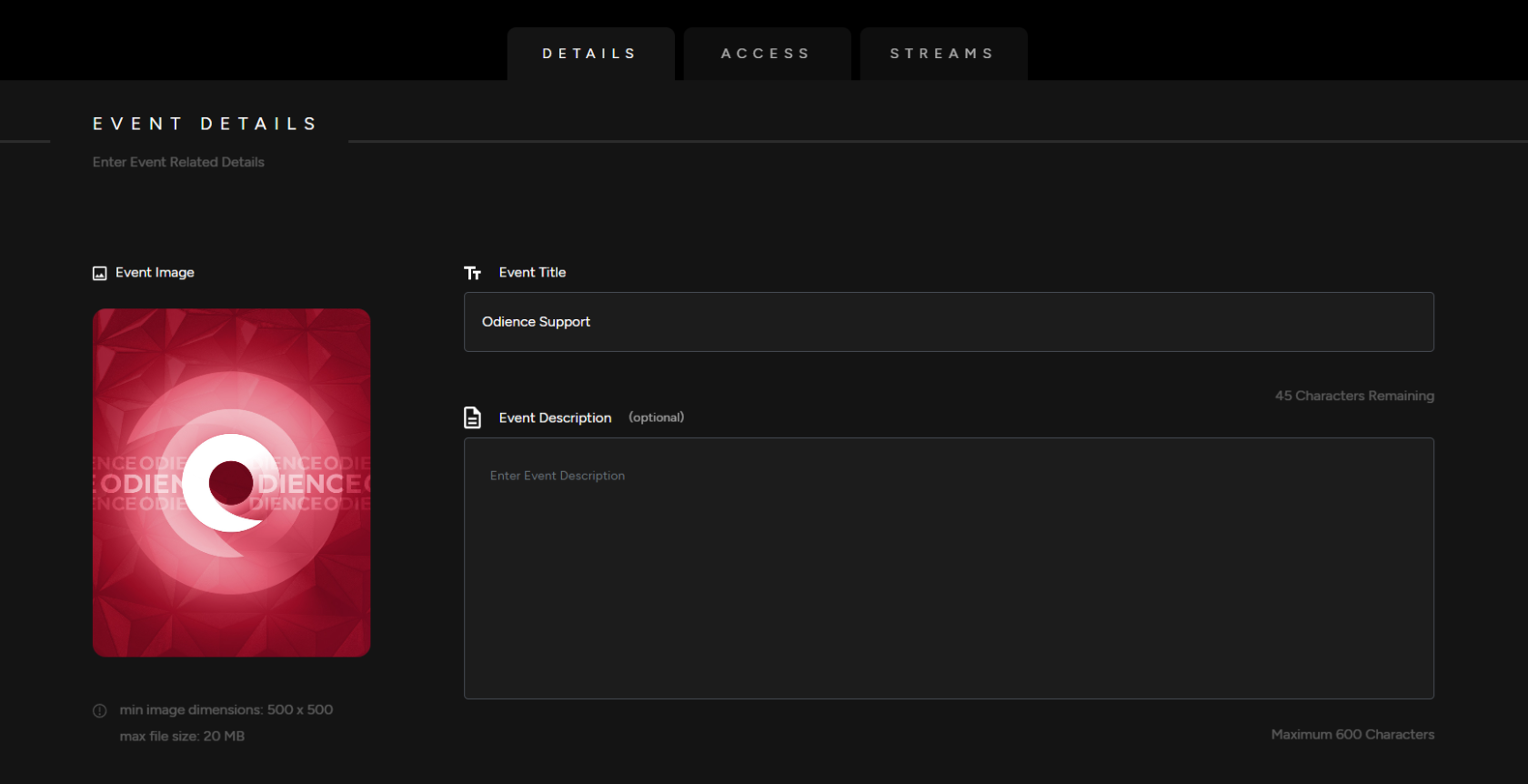
<span class="TextRun SCXW111589681 BCX0" data-contrast="none" lang="EN-CA" xml:lang="EN-CA"><span class="NormalTextRun SCXW111589681 BCX0">1.</span></span><span class="TextRun SCXW111589681 BCX0" data-contrast="none" lang="EN-CA" xml:lang="EN-CA"><span class="NormalTextRun SCXW111589681 BCX0"> Enter your your Event Details, Add a Title, Event Image &amp; Description (description is optional). </span></span>

[![Event Details.png](https://support.odience.com/uploads/images/gallery/2024-03/scaled-1680-/event-details.png)](https://support.odience.com/uploads/images/gallery/2024-03/event-details.png)

##### <span class="TextRun SCXW111589681 BCX0" data-contrast="none" lang="EN-CA" xml:lang="EN-CA"><span class="NormalTextRun SCXW111589681 BCX0">**Event Type**</span></span>**<span class="EOP SCXW111589681 BCX0" data-ccp-props="{"134233117":false,"134233118":false,"201341983":0,"335551550":1,"335551620":1,"335559685":0,"335559737":0,"335559738":0,"335559739":160,"335559740":259}"> </span>**

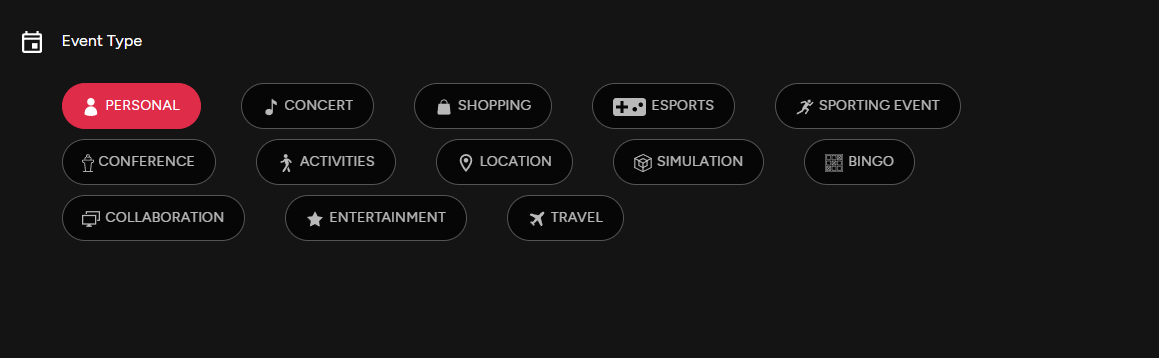
<span class="TextRun SCXW111589681 BCX0" data-contrast="none" lang="EN-CA" xml:lang="EN-CA"><span class="NormalTextRun SCXW111589681 BCX0">2. Select from the variety of Event Types offered.</span></span>

[![Event Type.png](http://support.odience.com/uploads/images/gallery/2023-12/scaled-1680-/event-type.png)](http://support.odience.com/uploads/images/gallery/2023-12/event-type.png)<span class="EOP SCXW111589681 BCX0" data-ccp-props="{"201341983":0,"335551550":1,"335551620":1,"335559685":0,"335559737":0,"335559739":160,"335559740":259}"> </span>

##### **<span class="TextRun SCXW111589681 BCX0" data-contrast="none" lang="EN-US" xml:lang="EN-US"><span class="NormalTextRun SCXW111589681 BCX0">Listing Add Ons</span></span>**

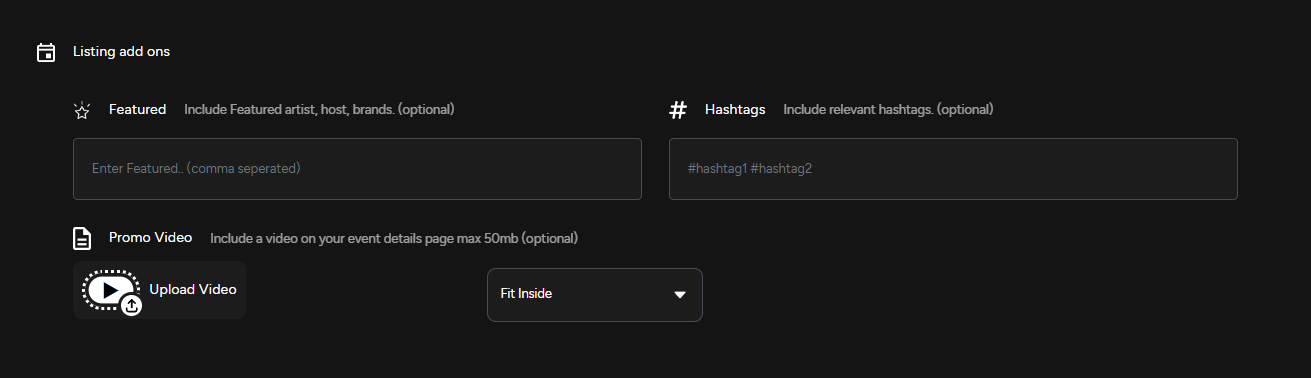
<span class="TextRun SCXW111589681 BCX0" data-contrast="none" lang="EN-US" xml:lang="EN-US"><span class="NormalTextRun SCXW111589681 BCX0">3. Include featured artists, host and brands. Use relevant hashtags &amp; upload a promo video to engage your audience. </span></span>

<span class="TextRun SCXW111589681 BCX0" data-contrast="none" lang="EN-US" xml:lang="EN-US"><span class="NormalTextRun SCXW111589681 BCX0">**Note**:</span></span> <span class="TextRun SCXW111589681 BCX0" data-contrast="none" lang="EN-US" xml:lang="EN-US"><span class="NormalTextRun SCXW111589681 BCX0">All Listing Add Ons are optional.</span></span>

**<span class="TextRun SCXW111589681 BCX0" data-contrast="none" lang="EN-US" xml:lang="EN-US"><span class="NormalTextRun SCXW111589681 BCX0">[![Listing Add Ons.png](https://support.odience.com/uploads/images/gallery/2024-03/scaled-1680-/listing-add-ons.png)](https://support.odience.com/uploads/images/gallery/2024-03/listing-add-ons.png)</span></span>**

<span class="TextRun SCXW111589681 BCX0" data-contrast="none" lang="EN-US" xml:lang="EN-US"><span class="NormalTextRun SCXW111589681 BCX0">3. </span></span><span class="TextRun SCXW111589681 BCX0" data-contrast="none" lang="EN-US" xml:lang="EN-US"><span class="NormalTextRun SCXW111589681 BCX0">Include featured artists, host and brands. Use</span></span><span class="TextRun SCXW111589681 BCX0" data-contrast="none" lang="EN-US" xml:lang="EN-US"><span class="NormalTextRun SCXW111589681 BCX0"> relevant hashtags &amp; upload a promo video to engage your audience. </span></span>

##### **<span class="TextRun SCXW111589681 BCX0" data-contrast="none" lang="EN-CA" xml:lang="EN-CA"><span class="NormalTextRun SCXW111589681 BCX0">Access</span></span>**

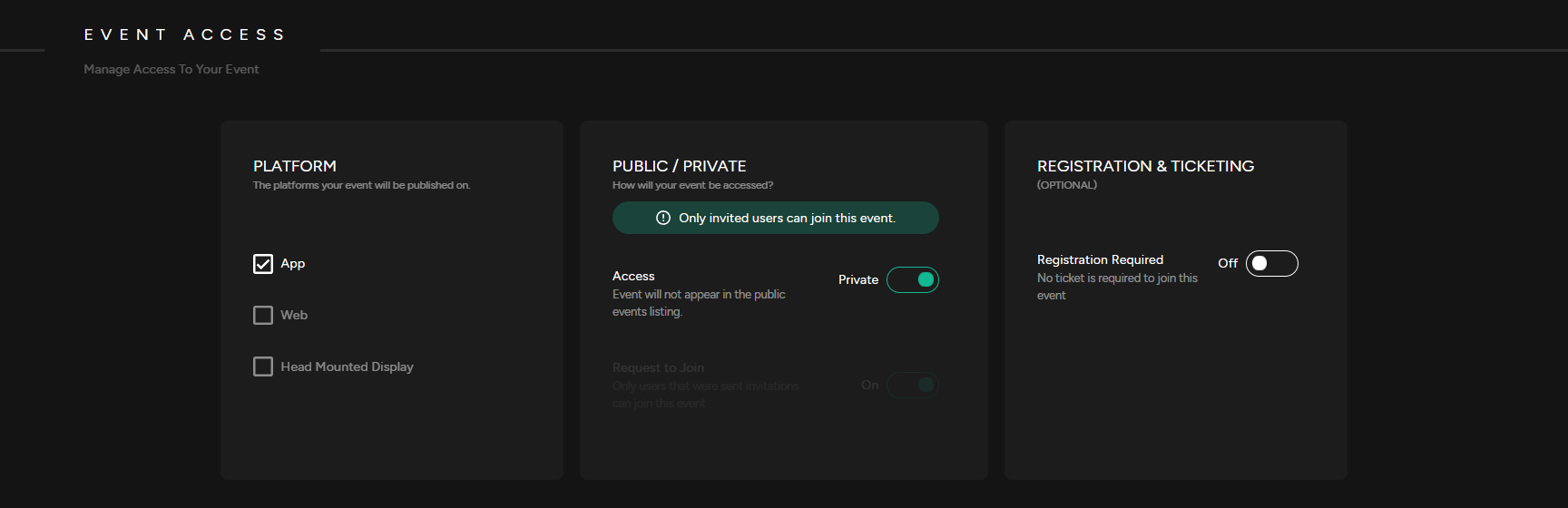
<span class="TextRun SCXW111589681 BCX0" data-contrast="none" lang="EN-CA" xml:lang="EN-CA"><span class="NormalTextRun SCXW111589681 BCX0">4. </span></span><span class="TextRun SCXW111589681 BCX0" data-contrast="none" lang="EN-CA" xml:lang="EN-CA"><span class="NormalTextRun SCXW111589681 BCX0">Select which Platform your event will be published on. Publishing options include our<span class="TextRun SCXW213872495 BCX0" data-contrast="none" lang="EN-CA" xml:lang="EN-CA"><span class="NormalTextRun SCXW213872495 BCX0"> mobile app, the web client</span><span class="NormalTextRun SCXW213872495 BCX0">, or </span><span class="NormalTextRun SCXW213872495 BCX0">using a</span><span class="NormalTextRun SCXW213872495 BCX0"> VR head mounted display. Odience supports all VR headsets, including Vision Pro</span></span></span></span>

[![Event Access.png](https://support.odience.com/uploads/images/gallery/2024-03/scaled-1680-/event-access.png)](https://support.odience.com/uploads/images/gallery/2024-03/event-access.png)

<span class="TextRun SCXW213872495 BCX0" data-contrast="none" lang="EN-US" xml:lang="EN-US"><span class="NormalTextRun SCXW213872495 BCX0">5. Public / Private</span></span><span class="EOP SCXW213872495 BCX0" data-ccp-props="{"134233117":false,"134233118":false,"201341983":0,"335551550":1,"335551620":1,"335559685":0,"335559737":0,"335559738":0,"335559739":160,"335559740":259}"> </span>

- <span class="EOP SCXW213872495 BCX0" data-ccp-props="{"134233117":false,"134233118":false,"201341983":0,"335551550":1,"335551620":1,"335559685":0,"335559737":0,"335559738":0,"335559739":160,"335559740":259}">Private Event: A Private</span><span class="TextRun SCXW213872495 BCX0" data-contrast="none" lang="EN-US" xml:lang="EN-US"><span class="NormalTextRun SCXW213872495 BCX0"> Event does not appear in the public events listing. Users will need to be invited to access the event. </span></span>
- <span class="NormalTextRun SCXW213872495 BCX0">Public Event: A Public Event is listed in the public directory and visible to everyone</span><span class="EOP SCXW213872495 BCX0" data-ccp-props="{"134233117":false,"134233118":false,"201341983":0,"335551550":1,"335551620":1,"335559737":0,"335559738":0,"335559739":160,"335559740":259}">.</span>
- <span class="EOP SCXW213872495 BCX0" data-ccp-props="{"134233117":false,"134233118":false,"201341983":0,"335551550":1,"335551620":1,"335559737":0,"335559738":0,"335559739":160,"335559740":259}">Request to Join: If enabled, users will need to request to join the event. </span>

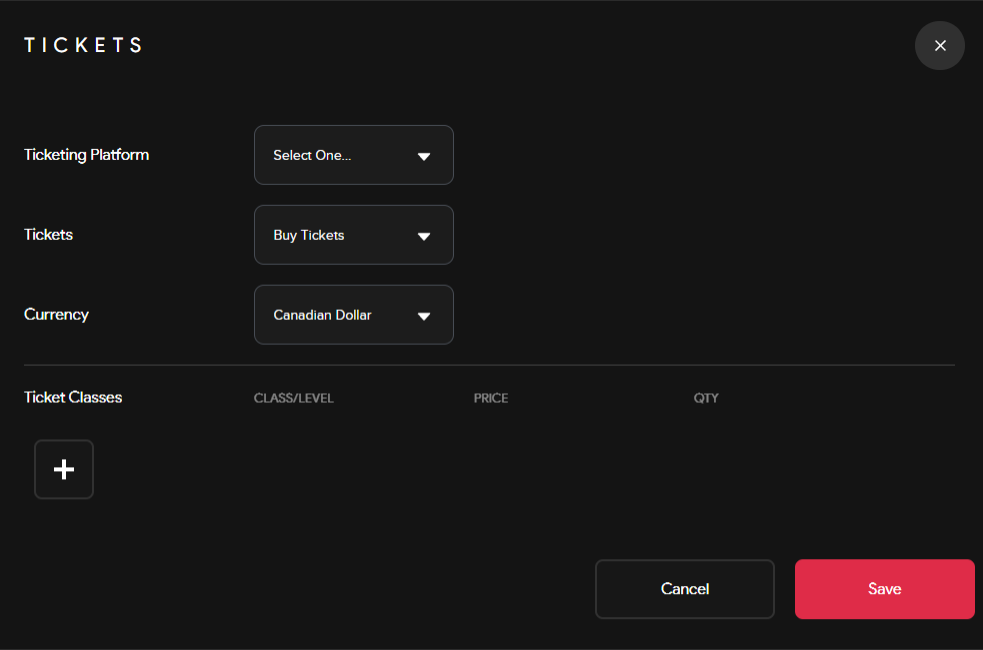
<span class="TextRun SCXW213872495 BCX0" data-contrast="none" lang="EN-US" xml:lang="EN-US"><span class="NormalTextRun SCXW213872495 BCX0">6. Registration &amp; Ticketing (*optional*): Enable registration before joining your event. Set-up a ticketing system that allows you to administer free or paid tickets. Select a platform to distribute your tickets, pick a currency &amp; include ticket classes to sell different types of tickets.</span></span>

<span class="TextRun SCXW213872495 BCX0" data-contrast="none" lang="EN-US" xml:lang="EN-US"><span class="NormalTextRun SCXW213872495 BCX0"><span class="SCXW213872495 BCX0"><span class="WACImageContainer NoPadding DragDrop BlobObject SCXW213872495 BCX0" role="presentation">![](http://support.odience.com/uploads/images/gallery/2023-12/embedded-image-pc4chvyw.png)</span></span></span></span>

<span class="TextRun SCXW213872495 BCX0" data-contrast="none" lang="EN-CA" xml:lang="EN-CA"><span class="NormalTextRun SCXW213872495 BCX0"><span class="TextRun SCXW213872495 BCX0" data-contrast="none" lang="EN-CA" style="outline-color: var(--color-primary); font-style: normal; font-variant-ligatures: normal; font-variant-caps: normal; font-size: 14px; font-family: -apple-system, BlinkMacSystemFont, 'Segoe UI', Oxygen, Ubuntu, Roboto, Cantarell, 'Fira Sans', 'Droid Sans', 'Helvetica Neue', sans-serif;" xml:lang="EN-CA"><span class="NormalTextRun SCXW213872495 BCX0" style="outline-color: var(--color-primary);">7. </span></span></span></span><span class="TextRun SCXW213872495 BCX0" data-contrast="none" lang="EN-CA" style="outline-color: var(--color-primary);" xml:lang="EN-CA"><span class="NormalTextRun SCXW213872495 BCX0" style="outline-color: var(--color-primary);">Select the Start/End date of your event, set a capacity &amp; add an event location. </span></span>

##### **<span class="EOP SCXW213872495 BCX0" data-ccp-props="{"201341983":0,"335551550":1,"335551620":1,"335559737":0,"335559739":160,"335559740":259}"><span class="SCXW213872495 BCX0"><span class="WACImageContainer NoPadding DragDrop BlobObject SCXW213872495 BCX0" role="presentation">Streams</span></span></span>**

<span class="TextRun SCXW247573221 BCX0" data-contrast="auto" lang="EN-US" xml:lang="EN-US"><span class="NormalTextRun SCXW247573221 BCX0">8. Pair a 360 Camera by scanning QR code in the pop up screen or create and then assign an RTMP stream to your event.</span></span>

- See our detailed guide on how to [**Pair a 360 Camera** ](https://support.odience.com/books/director-web-portal/page/pair-360-camera "Pair 360 Camera")or how to [**Create an RTMP Stream**](https://support.odience.com/books/director-web-portal/page/create-rtmp-stream "Create RTMP Stream").

[![Streams.png](https://support.odience.com/uploads/images/gallery/2024-03/scaled-1680-/streams.png)](https://support.odience.com/uploads/images/gallery/2024-03/streams.png)
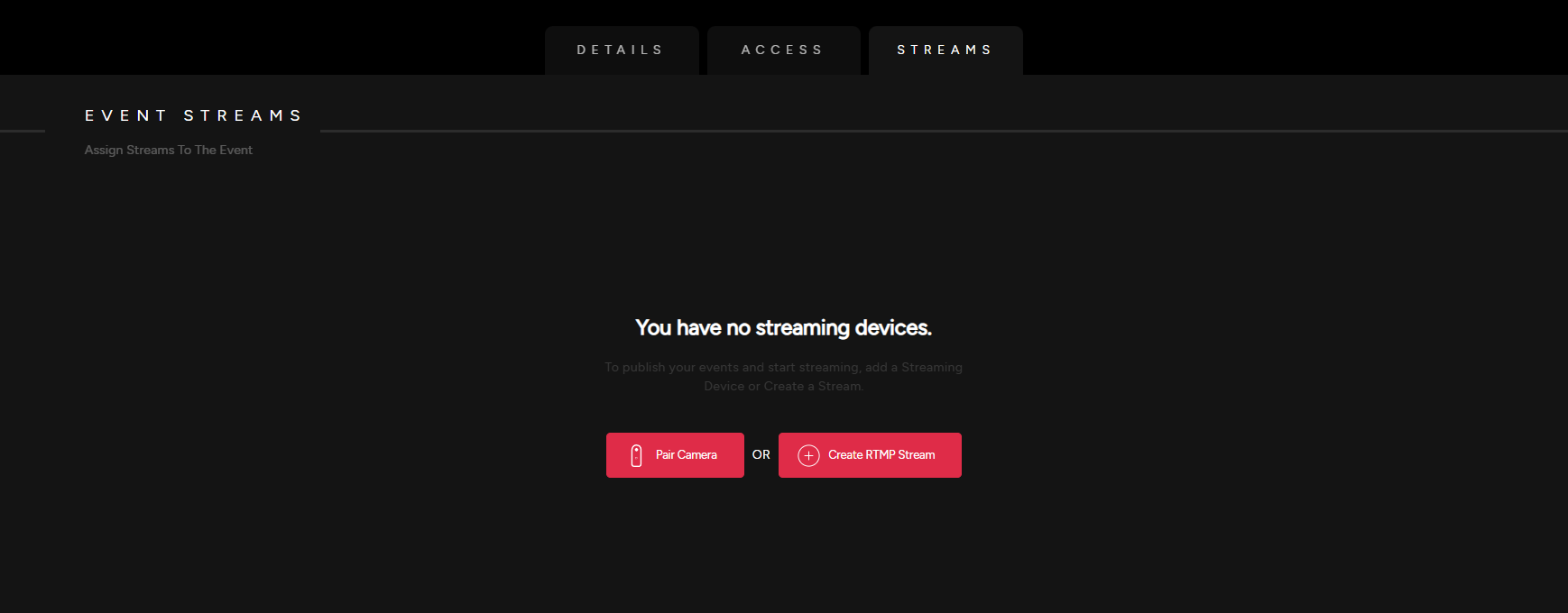

Already assigned a stream to your event? [**Invite an audience**](https://support.odience.com/books/web-portal/page/invitations-guest-lists "Invitations & Guest Lists") to join your event.

# Create RTMP Stream

Create a Planar video stream or a 360 video stream in less than a minute, it's that easy.

##### **Create Stream**

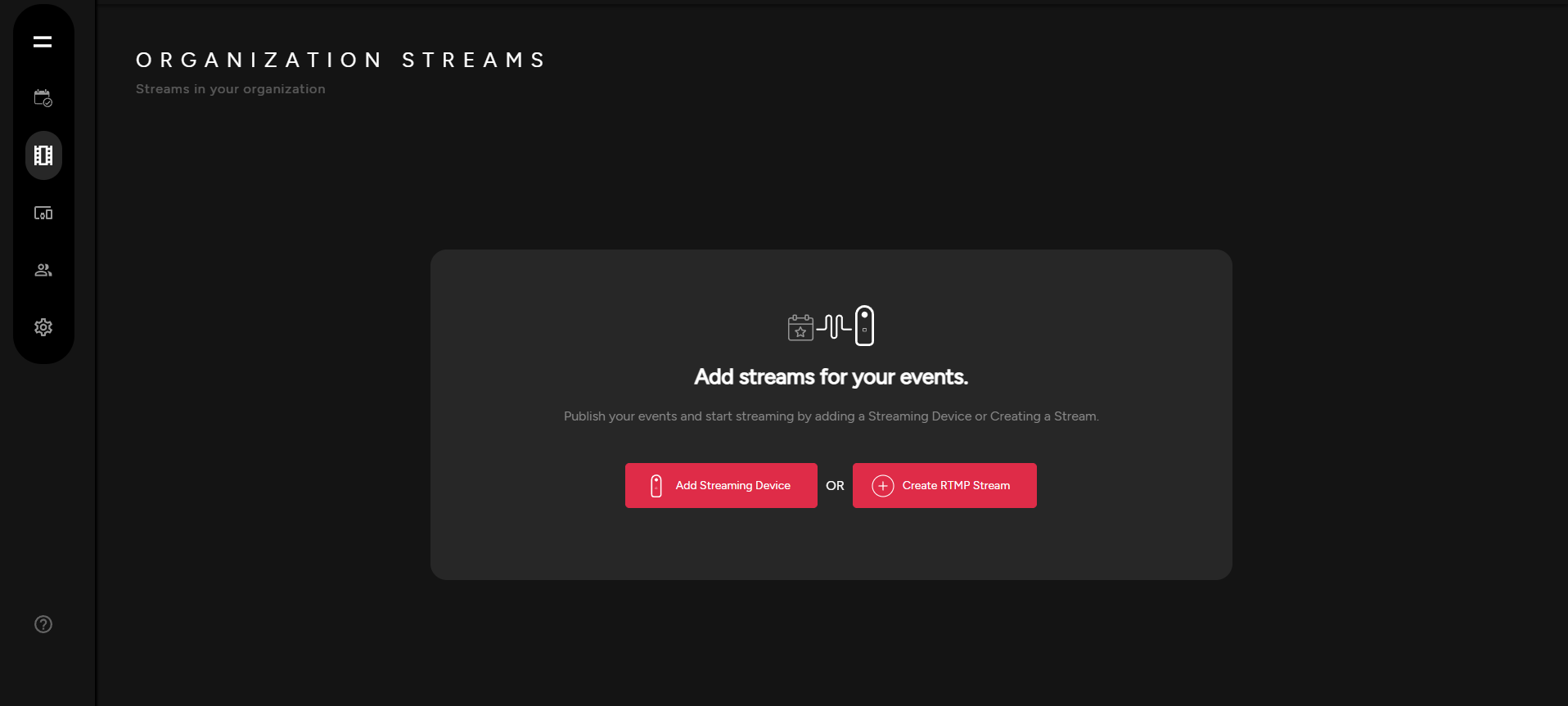
- Click Create RTMP Stream.

[![Create RTMP Streams.png](https://support.odience.com/uploads/images/gallery/2024-03/scaled-1680-/create-rtmp-streams.png)](https://support.odience.com/uploads/images/gallery/2024-03/create-rtmp-streams.png)
##### **Stream Details**

- Give your stream a name and select the resolution.

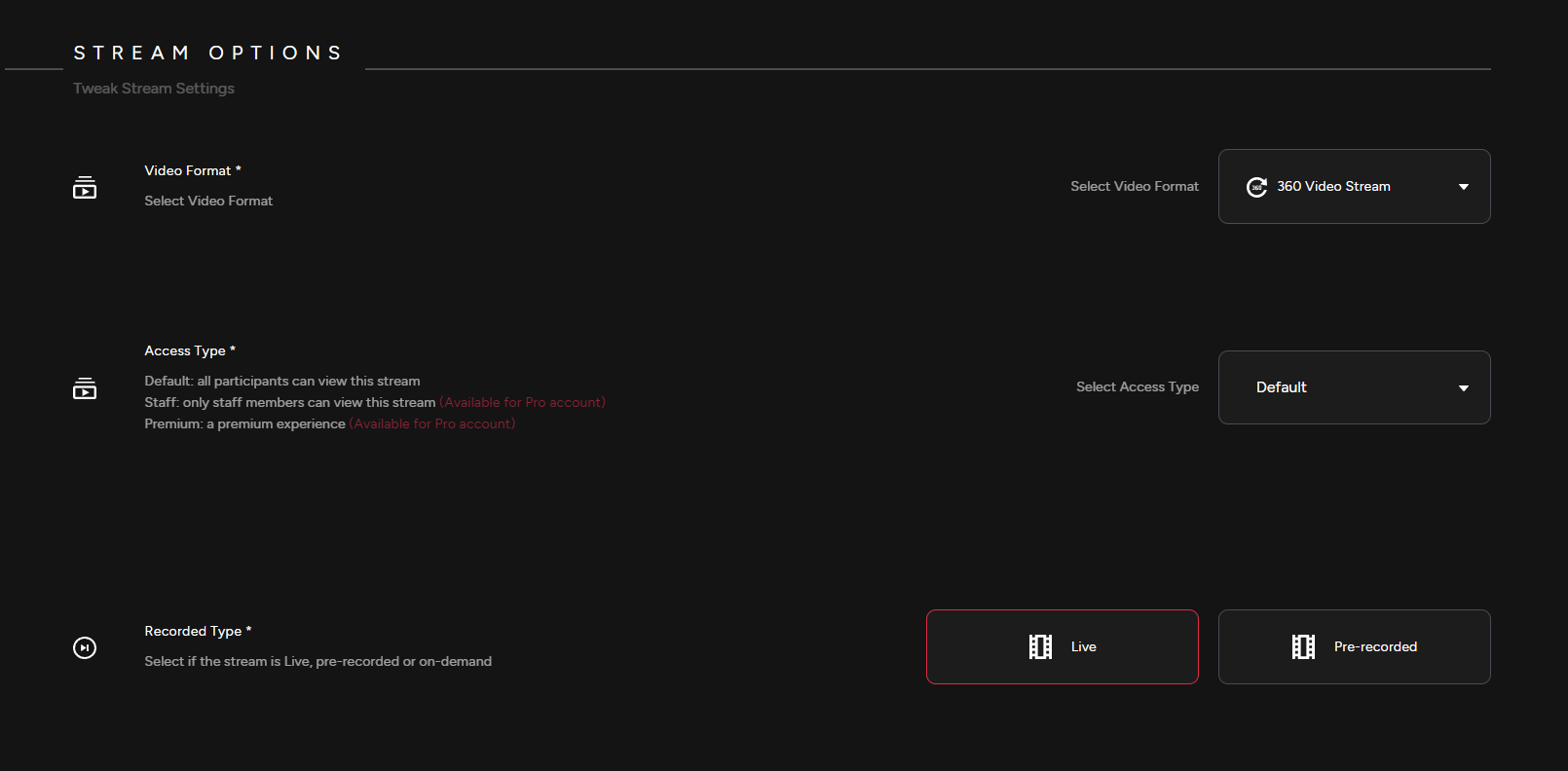
##### **Stream Options**

- Pick your preferred video format, access type and recorded type depending if it will be a live stream or a pre-recorded stream.

[![Stream Options.png](https://support.odience.com/uploads/images/gallery/2024-03/scaled-1680-/stream-options.png)](https://support.odience.com/uploads/images/gallery/2024-03/stream-options.png)
##### **Events Assigned**

- Assign your stream to an event. Click Create Stream to confirm.

Looking to pair your 360 camera? See our guide on [**how to pair your device**](https://support.odience.com/books/streams/page/pair-360-camera "Pair 360° Camera").

# Pair 360 Camera

**Note:** Only select cameras are currently supported through Bluetooth pairing. For all other cameras, see our [**Create RTMP URL**](https://support.odience.com/books/director-web-portal/page/create-rtmp-stream "Create RTMP Stream") section.

##### **Add 360 Camera** 

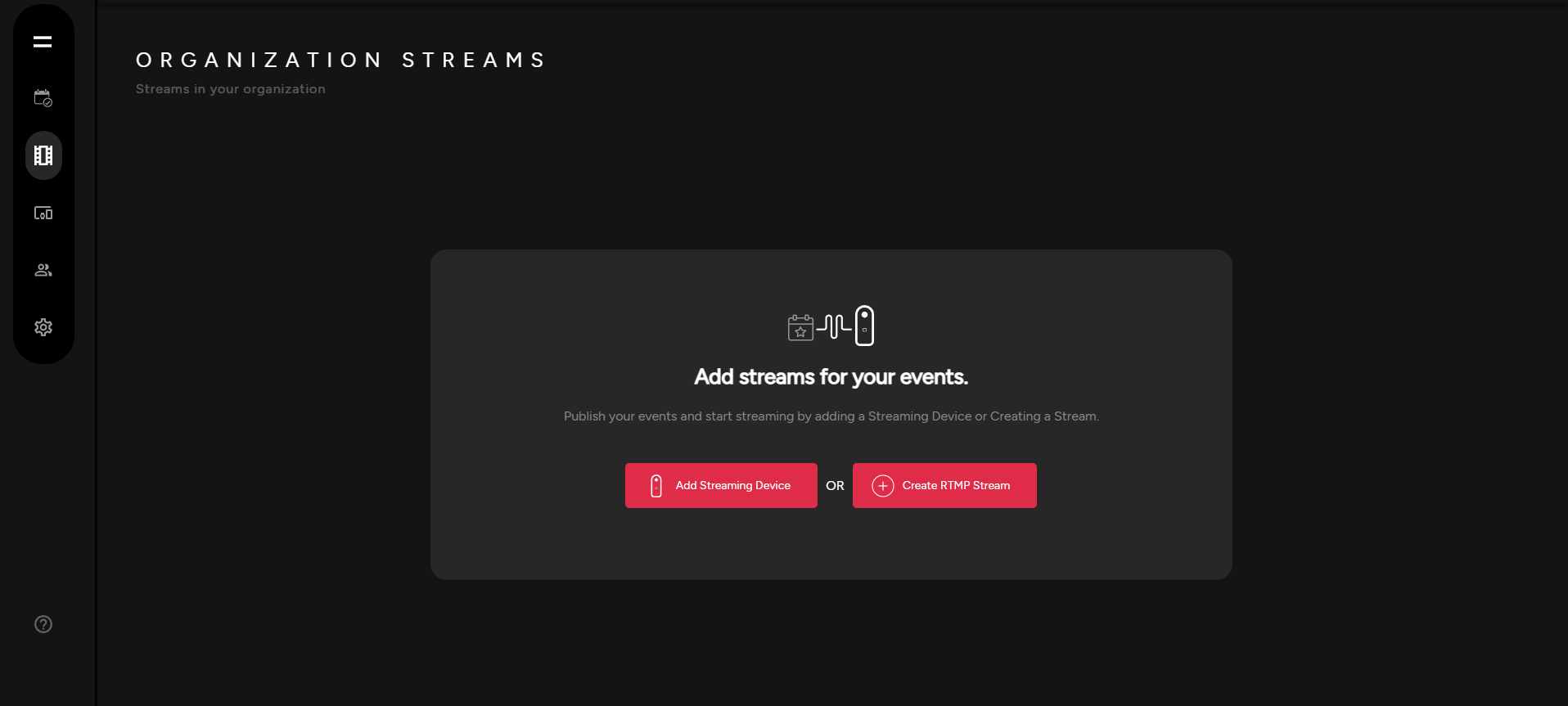
- Select Add Streaming Device. You will be directed to your devices options, select Pair Camera.

[![Create Stream.png](https://support.odience.com/uploads/images/gallery/2024-03/scaled-1680-/create-stream.png)](https://support.odience.com/uploads/images/gallery/2024-03/create-stream.png)
##### **Pair Your 360 Camera**

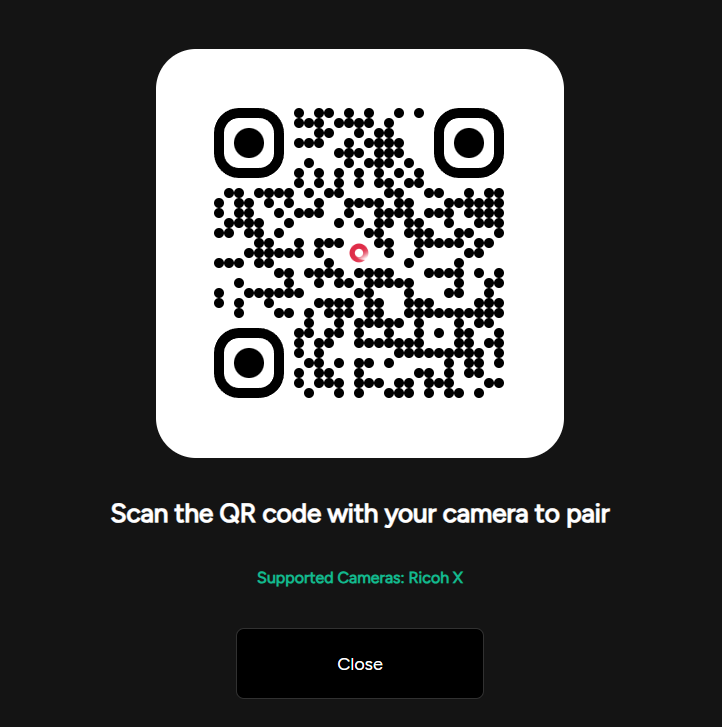
- Scan QR code to pair device.

[![Pair Camera.png](https://support.odience.com/uploads/images/gallery/2024-03/scaled-1680-/pair-camera.png)](https://support.odience.com/uploads/images/gallery/2024-03/pair-camera.png)
# Event Features


# Stream Chat

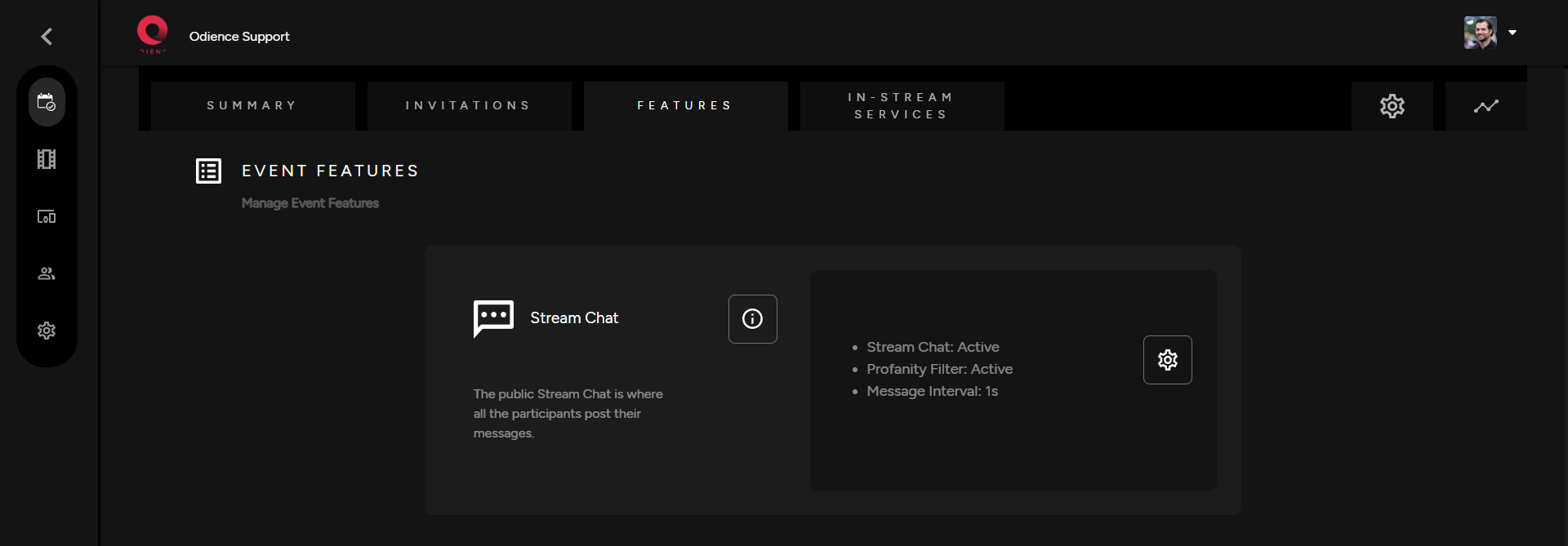
<span class="TextRun SCXW242685648 BCX0" data-contrast="none" lang="EN-US" xml:lang="EN-US"><span class="NormalTextRun SCXW242685648 BCX0">1. The stream chat is an optional feature.</span><span class="NormalTextRun SCXW242685648 BCX0"> Click the gear icon to to customize settings.</span></span>

[![Stream Chat.png](https://support.odience.com/uploads/images/gallery/2024-03/scaled-1680-/stream-chat.png)](https://support.odience.com/uploads/images/gallery/2024-03/stream-chat.png)

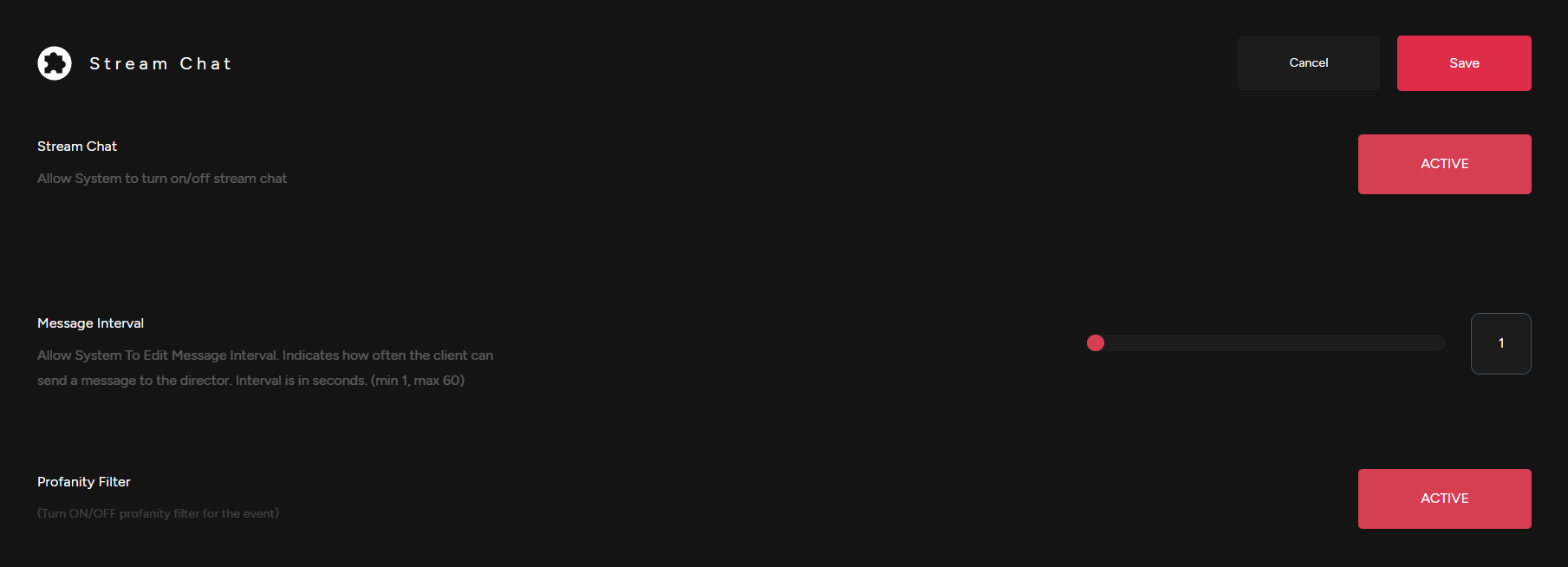
2\. Adjust Stream Chat settings. Activate or Deactivate chat, adjust message interval &amp; enable a profanity filter .

[![Stream Chat Settings.png](https://support.odience.com/uploads/images/gallery/2024-03/scaled-1680-/stream-chat-settings.png)](https://support.odience.com/uploads/images/gallery/2024-03/stream-chat-settings.png)

<span class="TextRun SCXW242685648 BCX0" data-contrast="none" lang="EN-US" xml:lang="EN-US"><span class="NormalTextRun SCXW242685648 BCX0">3. Click save to apply changes to your Stream Chat.</span></span>

<span class="EOP SCXW242685648 BCX0" data-ccp-props="{"201341983":0,"335559739":160,"335559740":259}"></span>

# Assign a Video Wall

##### **What is a Video Wall?**

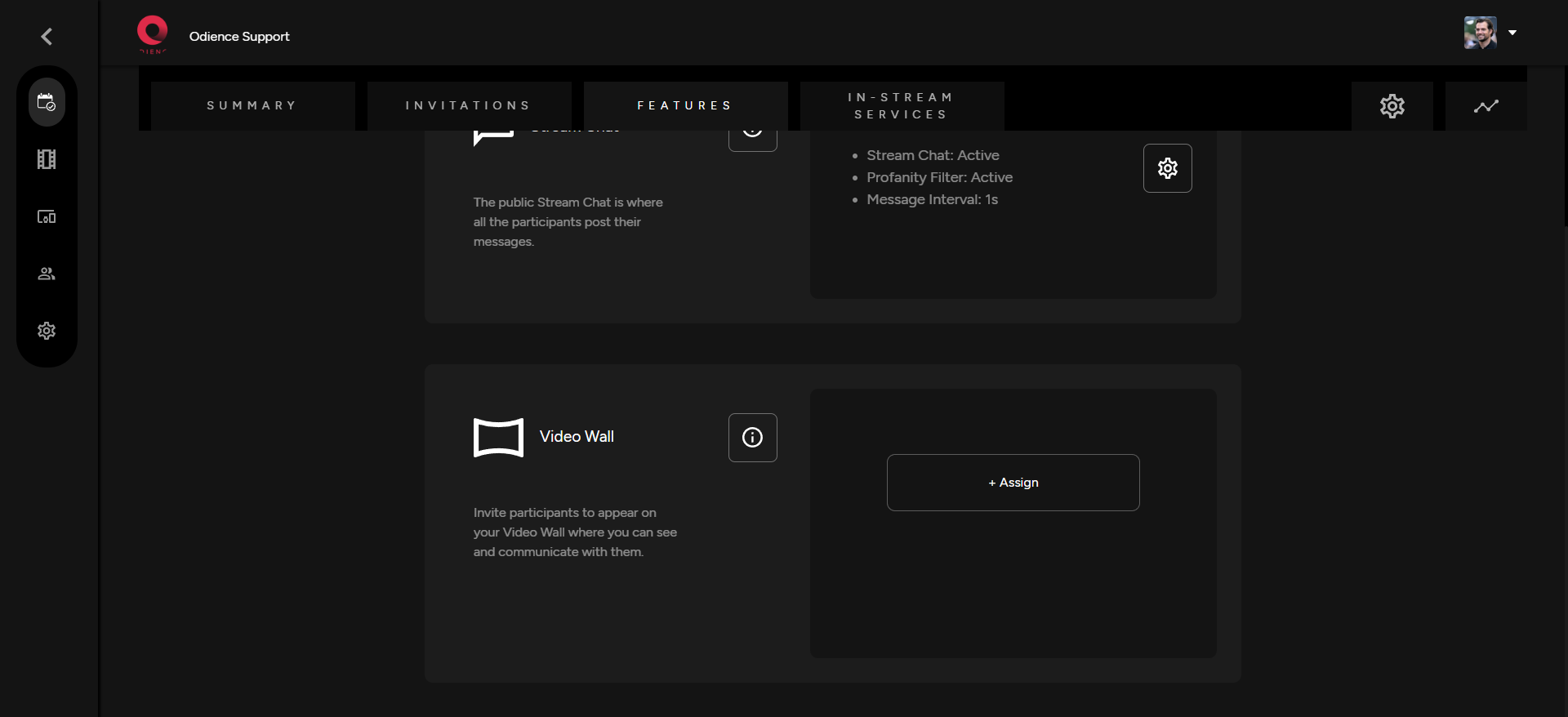
\- Video Walls elevate your event by allowing you to display products and communicate with event participants.

- Click the "**i**" icon to see get a glimpse of what you can achieve with Odience Video Walls.

[![Video Wall Feature.png](https://support.odience.com/uploads/images/gallery/2024-03/scaled-1680-/1y8video-wall-feature.png)](https://support.odience.com/uploads/images/gallery/2024-03/1y8video-wall-feature.png)
##### **Assign a Video Wall**

\- Create or assign an existing video by selecting one from the options in your dropdown. Click Assign and you are good to go.

[![Assign Video Wall.png](https://support.odience.com/uploads/images/gallery/2024-03/scaled-1680-/Gjiassign-video-wall.png)](https://support.odience.com/uploads/images/gallery/2024-03/Gjiassign-video-wall.png)
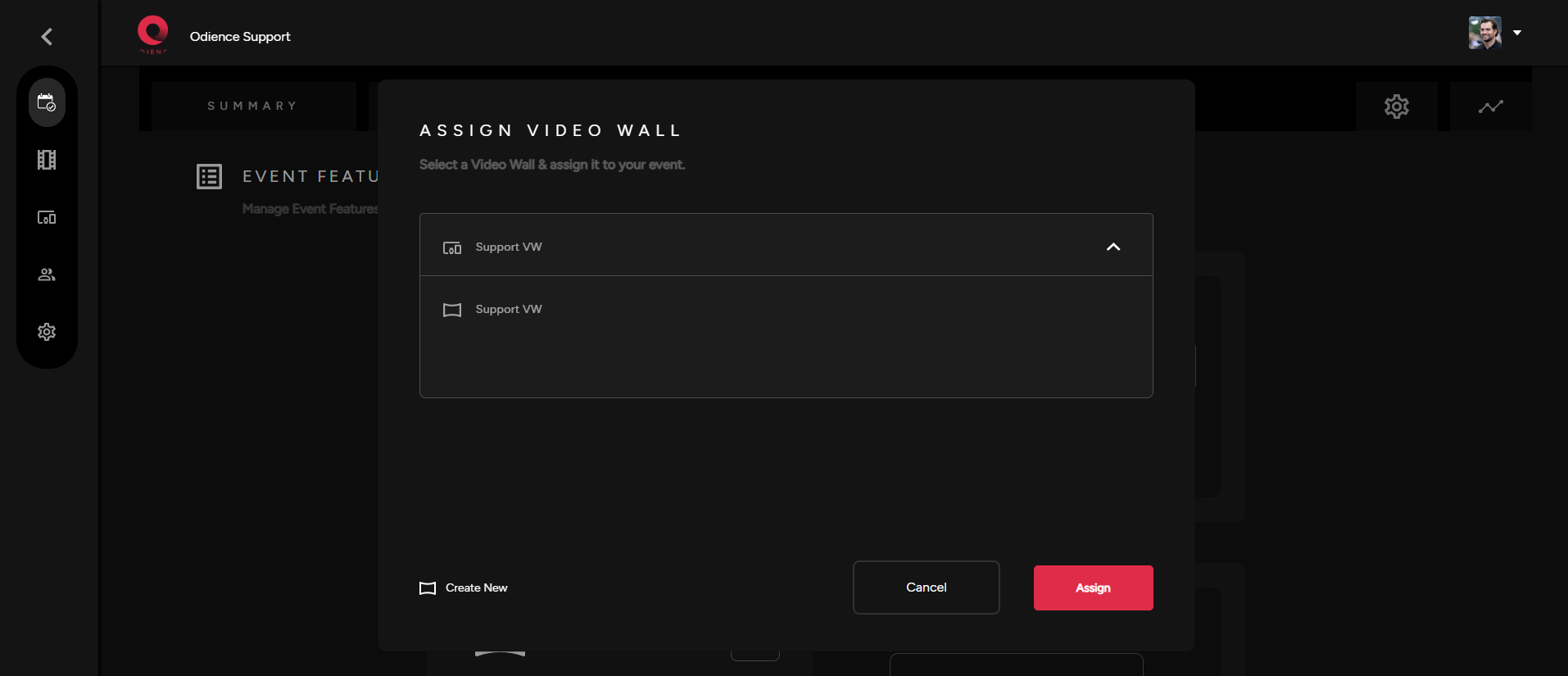
- To create your very own custom Video Wall, click here to see our [**Create Video Wall** ](https://support.odience.com/books/video-walls-other-devices/chapter/video-wall)guide.

# Assign Front Row Device

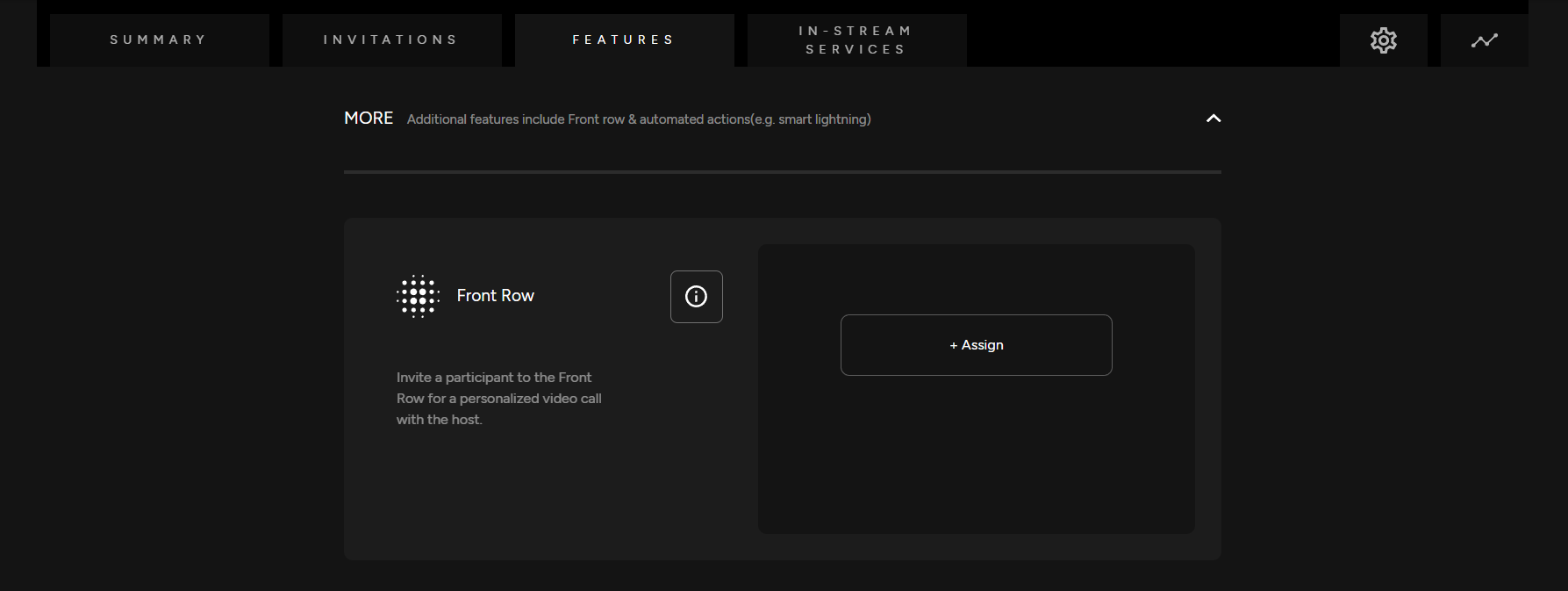
<span class="TextRun SCXW202545178 BCX0" data-contrast="none" lang="EN-US" xml:lang="EN-US"><span class="NormalTextRun SpellingErrorV2Themed SCXW202545178 BCX0">Front Row</span><span class="NormalTextRun SCXW202545178 BCX0"> allows a lucky viewer to get </span><span class="NormalTextRun SCXW202545178 BCX0">closer to the event </span><span class="NormalTextRun SCXW202545178 BCX0">via</span><span class="NormalTextRun SCXW202545178 BCX0"> a</span> <span class="NormalTextRun SCXW202545178 BCX0">1 on 1 </span><span class="NormalTextRun SCXW202545178 BCX0">video call </span><span class="NormalTextRun SCXW202545178 BCX0">with the </span><span class="NormalTextRun SCXW202545178 BCX0">host, artist, etc</span><span class="NormalTextRun SCXW202545178 BCX0">.</span></span><span class="TextRun SCXW202545178 BCX0" data-contrast="none" lang="EN-US" xml:lang="EN-US"><span class="NormalTextRun SCXW202545178 BCX0"> </span></span>

##### **<span class="TextRun SCXW202545178 BCX0" data-contrast="none" lang="EN-US" xml:lang="EN-US"><span class="NormalTextRun SCXW202545178 BCX0">Assign Front Row Device</span></span>**

<span class="TextRun SCXW202545178 BCX0" data-contrast="none" lang="EN-US" xml:lang="EN-US"><span class="NormalTextRun SCXW202545178 BCX0">Assign a Front Row device. You can enable or disable this feature</span><span class="NormalTextRun SCXW202545178 BCX0">. If there is not a Front Row device created, you will need to first create one.</span></span>

[![Front Row.png](https://support.odience.com/uploads/images/gallery/2024-03/scaled-1680-/front-row.png)](https://support.odience.com/uploads/images/gallery/2024-03/front-row.png)

- <span class="TextRun SCXW202545178 BCX0" data-contrast="none" lang="EN-US" xml:lang="EN-US"><span class="NormalTextRun SCXW202545178 BCX0">For more information, see our guide on how to [**Create a Front Row Device**](https://support.odience.com/books/video-walls-other-devices/page/create-front-row-device "Front Row").</span></span>

# Automated Actions

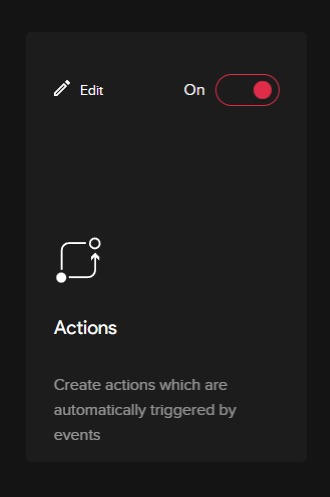
<span class="TextRun SCXW61442626 BCX0" data-contrast="none" lang="EN-US" xml:lang="EN-US"><span class="NormalTextRun SCXW61442626 BCX0">Actions</span></span><span class="TextRun SCXW61442626 BCX0" data-contrast="none" lang="EN-US" xml:lang="EN-US"><span class="NormalTextRun SCXW61442626 BCX0"> (</span></span><span class="TextRun SCXW61442626 BCX0" data-contrast="none" lang="EN-US" xml:lang="EN-US"><span class="NormalTextRun SCXW61442626 BCX0">Need more info on how to use/configure</span></span><span class="TextRun SCXW61442626 BCX0" data-contrast="none" lang="EN-US" xml:lang="EN-US"><span class="NormalTextRun SCXW61442626 BCX0">)</span></span><span class="EOP SCXW61442626 BCX0" data-ccp-props="{"201341983":0,"335559739":160,"335559740":259}"> </span>

<span class="TextRun SCXW61442626 BCX0" data-contrast="none" lang="EN-US" xml:lang="EN-US"><span class="NormalTextRun SCXW61442626 BCX0">-Create actions which are automatically triggered by certain events. The specific event/action will have to be programmed in the edit section of the actions section. </span></span><span class="EOP SCXW61442626 BCX0" data-ccp-props="{"201341983":0,"335559739":160,"335559740":259}"> </span>
<span class="SCXW61442626 BCX0"><span class="WACImageContainer NoPadding DragDrop BlobObject SCXW61442626 BCX0" role="presentation">![](http://support.odience.com/uploads/images/gallery/2023-12/embedded-image-k67ldgrr.png)</span></span><span class="EOP SCXW61442626 BCX0" data-ccp-props="{"201341983":0,"335559739":160,"335559740":259}"> </span>

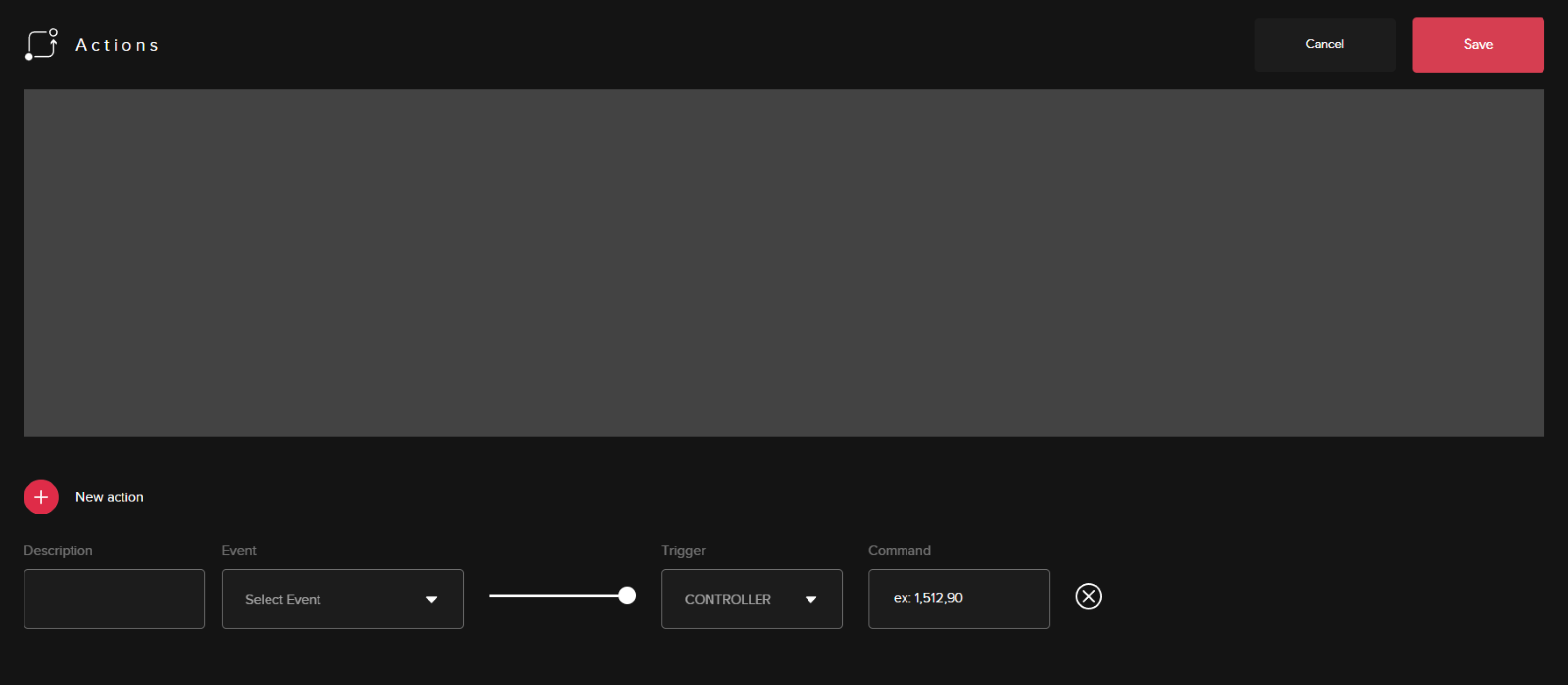
<div class="ListContainerWrapper SCXW61442626 BCX0" id="bkmrk-the-main-part-of-the">- <span class="TextRun SCXW61442626 BCX0" data-contrast="none" lang="EN-US" xml:lang="EN-US"><span class="NormalTextRun SCXW61442626 BCX0">The main part of the editing panel will be setting up the actions trigger than initiating a command. </span></span><span class="EOP SCXW61442626 BCX0" data-ccp-props="{"201341983":0,"335559739":160,"335559740":259}"> </span>
</div><span class="SCXW61442626 BCX0"><span class="WACImageContainer NoPadding DragDrop BlobObject SCXW61442626 BCX0" role="presentation">![](http://support.odience.com/uploads/images/gallery/2023-12/embedded-image-glb23yap.png)</span></span><span class="EOP SCXW61442626 BCX0" data-ccp-props="{"201341983":0,"335559685":0,"335559739":160,"335559740":259}"> </span>

<span class="EOP SCXW61442626 BCX0" data-ccp-props="{"201341983":0,"335559739":160,"335559740":259}"></span>

# Shopping & Other In-Stream Services


# Branding

##### **<span class="TextRun SCXW216009248 BCX0" data-contrast="auto" lang="EN-US" xml:lang="EN-US"><span class="NormalTextRun SCXW216009248 BCX0">Customize Your Branding</span></span>**

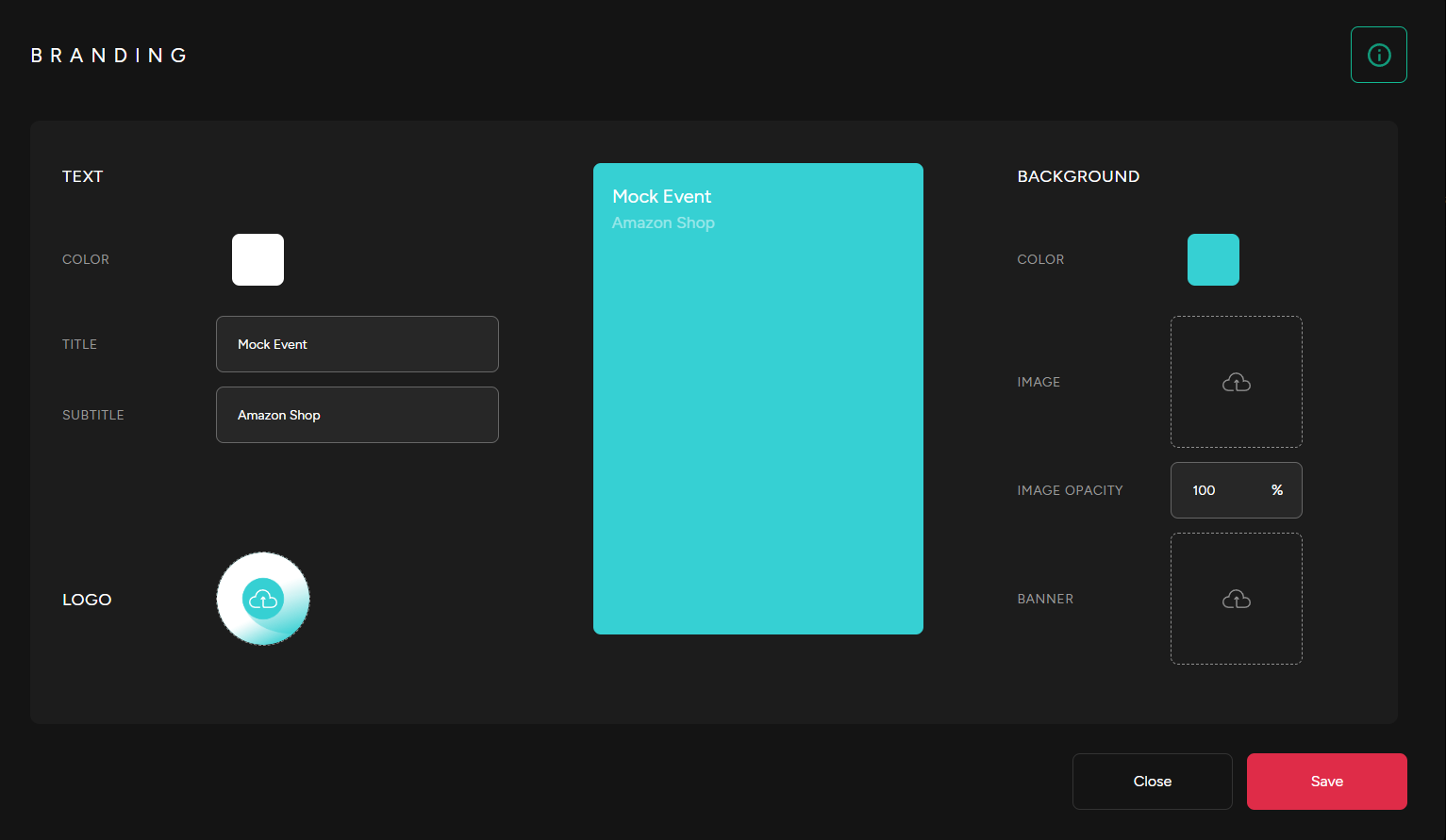
<span class="TextRun SCXW216009248 BCX0" data-contrast="auto" lang="EN-US" xml:lang="EN-US"><span class="NormalTextRun SCXW216009248 BCX0">- Customize the design in your branding section where all in-stream/micro-services can be accessed.</span><span class="NormalTextRun SCXW216009248 BCX0"> You can see a preview at the center get an accurate sense of how it will look in your live event. </span></span>
<span class="SCXW216009248 BCX0"><span class="WACImageContainer NoPadding DragDrop BlobObject SCXW216009248 BCX0" role="presentation">![](http://support.odience.com/uploads/images/gallery/2023-12/embedded-image-zbhdjuux.png)</span></span>

# Shopping Chatbot

#### **<span class="TextRun SCXW133643410 BCX0" data-contrast="auto" lang="EN-US" xml:lang="EN-US"><span class="NormalTextRun SCXW133643410 BCX0">Create Shopping Chatbot</span></span>**

**<span class="TextRun SCXW133643410 BCX0" data-contrast="auto" lang="EN-US" xml:lang="EN-US"><span class="NormalTextRun SCXW133643410 BCX0">Connect to a Shopify, Magento &amp; other stores or to a Merchant Product Feed.</span></span>**

<span class="TextRun SCXW133643410 BCX0" data-contrast="auto" lang="EN-US" xml:lang="EN-US"><span class="NormalTextRun SCXW133643410 BCX0"><span class="EOP SCXW133643410 BCX0" data-ccp-props="{"201341983":0,"335559739":160,"335559740":259}">**Note:** Creating a Shopping Chabot with an Ecommerce platform or with a Merchant Product Feed is identical. Only difference is in the product links you will need to provide. Follow steps below for more details...</span></span></span>

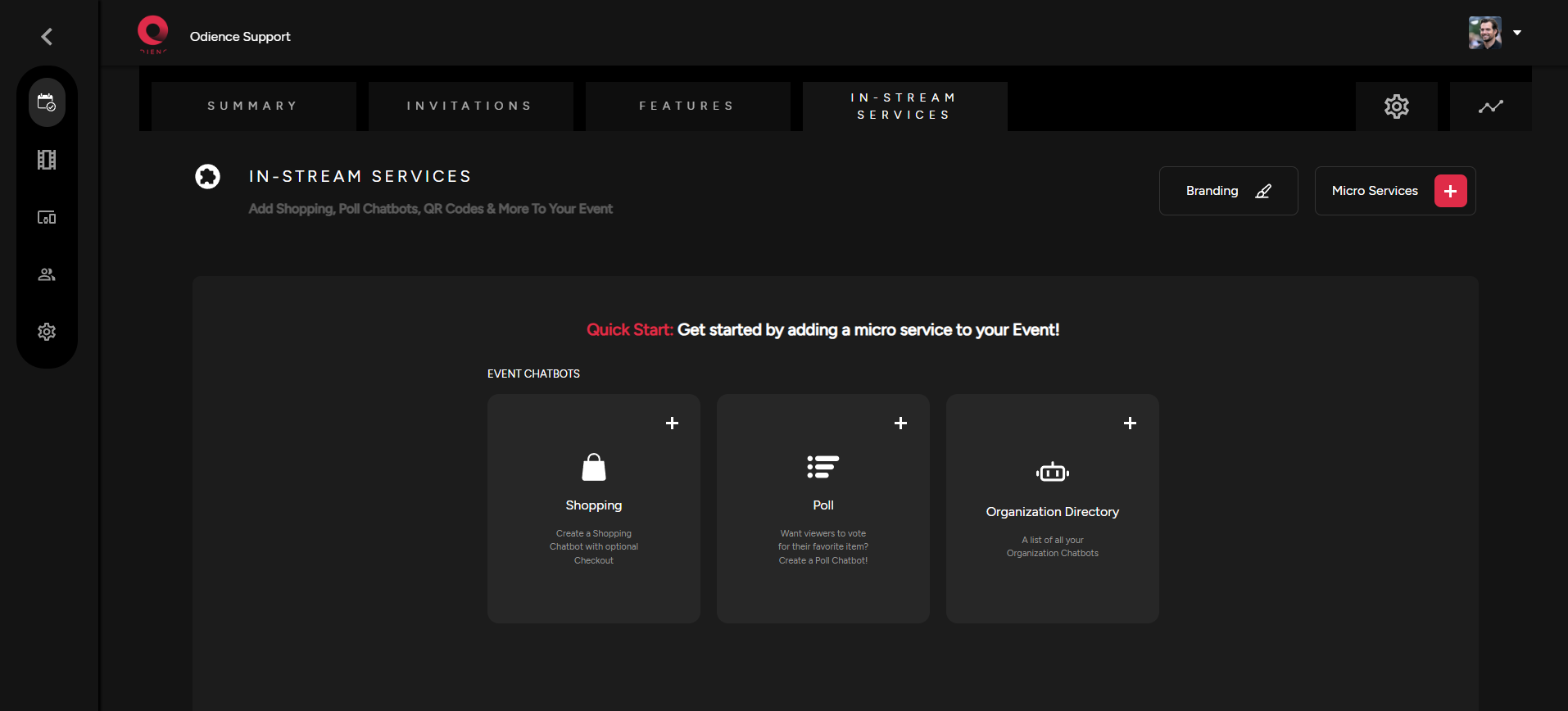
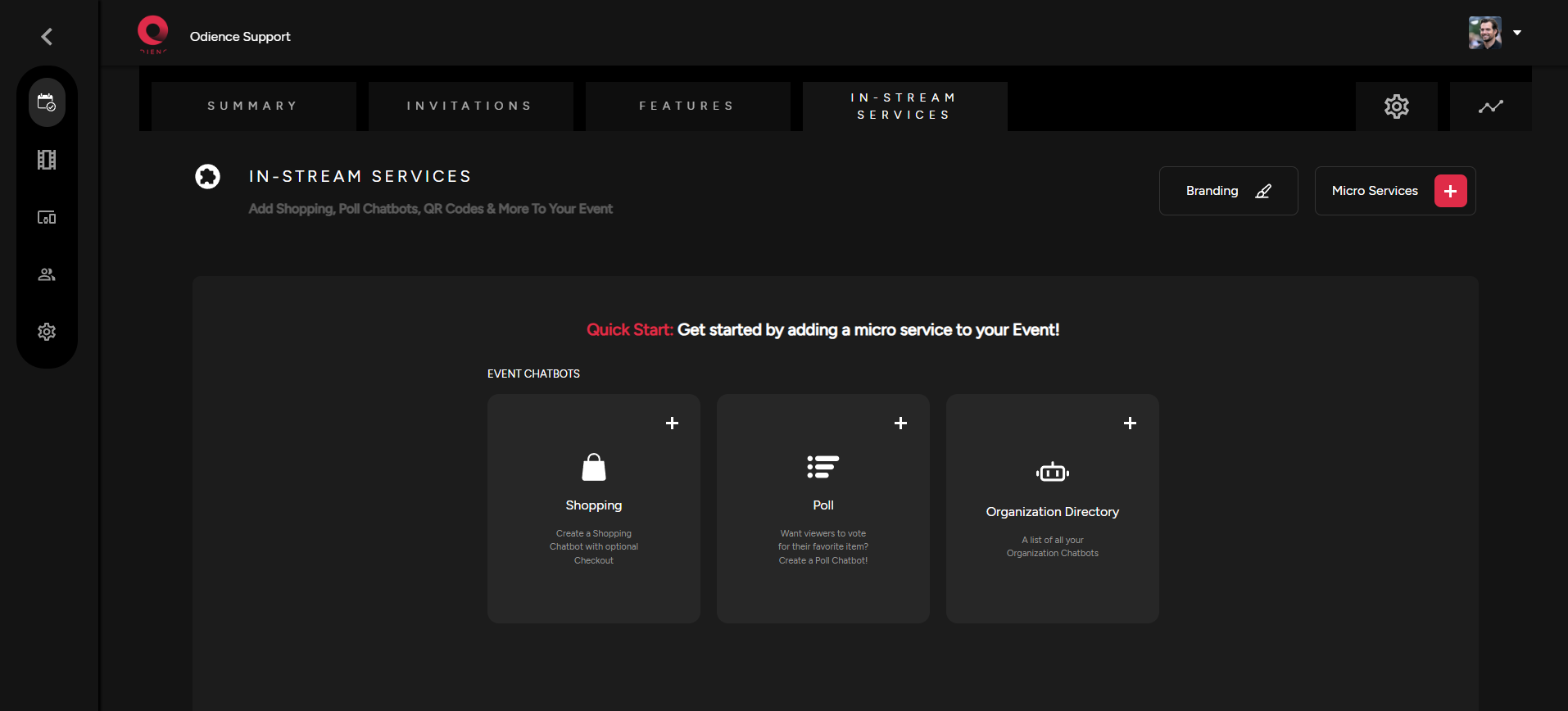
<span class="TextRun SCXW133643410 BCX0" data-contrast="auto" lang="EN-US" xml:lang="EN-US"><span class="NormalTextRun SCXW133643410 BCX0">1. Select Shopping in your Quick Start or by selecting Add Chatbot in your Micro Services dropdown.</span></span>

[![Shopping Quick Start.png](https://support.odience.com/uploads/images/gallery/2024-03/scaled-1680-/shopping-quick-start.png)](https://support.odience.com/uploads/images/gallery/2024-03/shopping-quick-start.png)

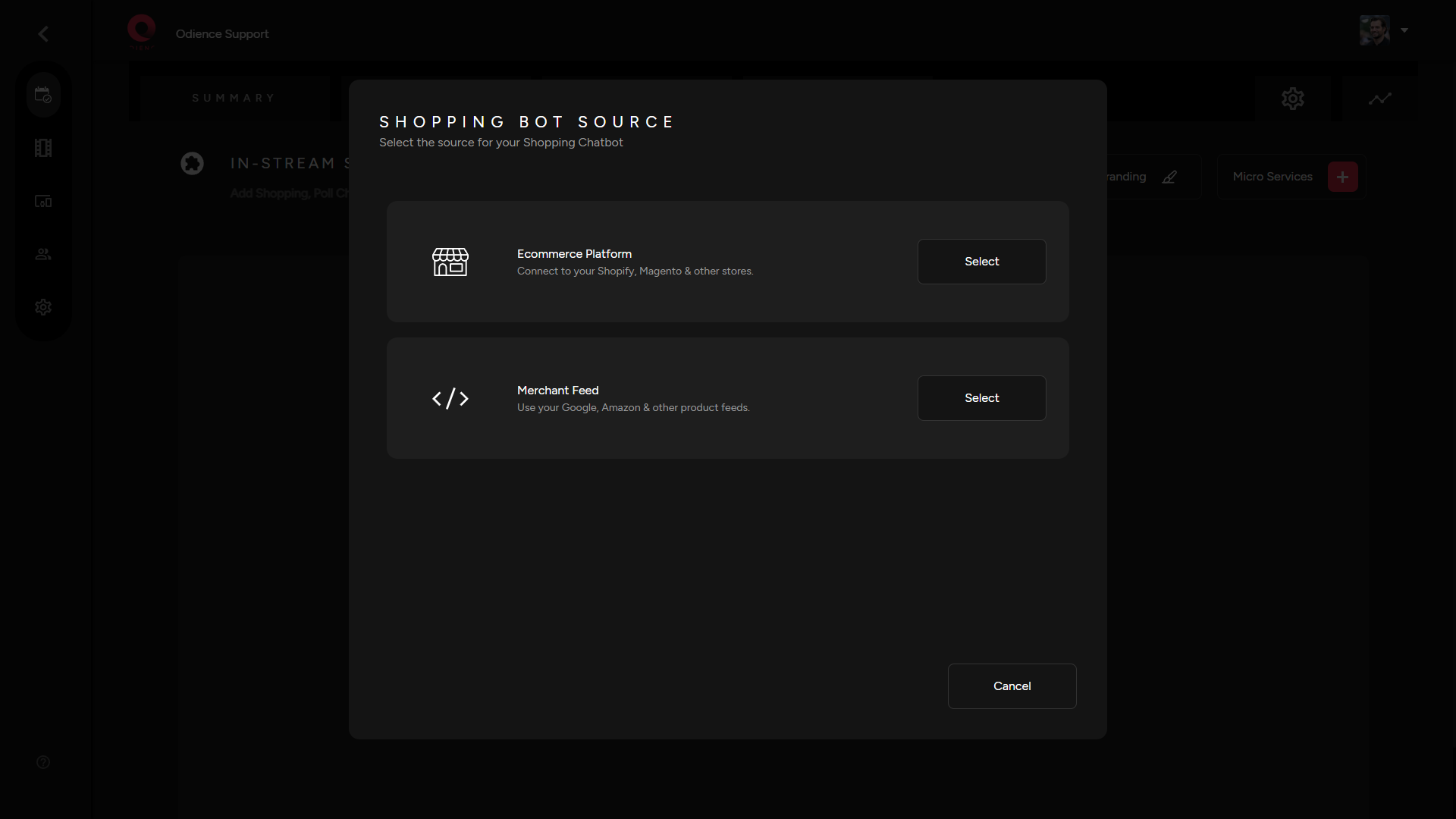
<span class="TextRun SCXW133643410 BCX0" data-contrast="auto" lang="EN-US" xml:lang="EN-US"><span class="NormalTextRun SCXW133643410 BCX0">2. Select </span><span class="NormalTextRun SCXW133643410 BCX0">“</span><span class="NormalTextRun SCXW133643410 BCX0">Ecommer</span><span class="NormalTextRun SCXW133643410 BCX0">ce</span><span class="NormalTextRun SCXW133643410 BCX0"> plat</span><span class="NormalTextRun SCXW133643410 BCX0">form</span><span class="NormalTextRun SCXW133643410 BCX0">”</span><span class="NormalTextRun SCXW133643410 BCX0">.</span></span>

<span class="EOP SCXW133643410 BCX0" data-ccp-props="{"201341983":0,"335559739":160,"335559740":259}">**Note:** Odience supports Ecommerce Platforms such as Shopify, Magento and others. Odience also support the use of Google, Amazon &amp; other XML merchant feeds. </span>

[![Shopping Bot Source.png](https://support.odience.com/uploads/images/gallery/2024-03/scaled-1680-/shopping-bot-source.png)](https://support.odience.com/uploads/images/gallery/2024-03/shopping-bot-source.png)

<span class="TextRun SCXW133643410 BCX0" data-contrast="auto" lang="EN-US" xml:lang="EN-US"><span class="NormalTextRun SCXW133643410 BCX0">3. Select the platform you will be transferring your items from.</span></span>

[![Shopping Bot Set Up.png](https://support.odience.com/uploads/images/gallery/2024-03/scaled-1680-/shopping-bot-set-up.png)](https://support.odience.com/uploads/images/gallery/2024-03/shopping-bot-set-up.png)

<span class="TextRun SCXW133643410 BCX0" data-contrast="auto" lang="EN-US" xml:lang="EN-US"><span class="NormalTextRun SCXW133643410 BCX0">4. Link your Store to connect products to your chatbot. Referral Codes can also be created but is optional. </span></span>

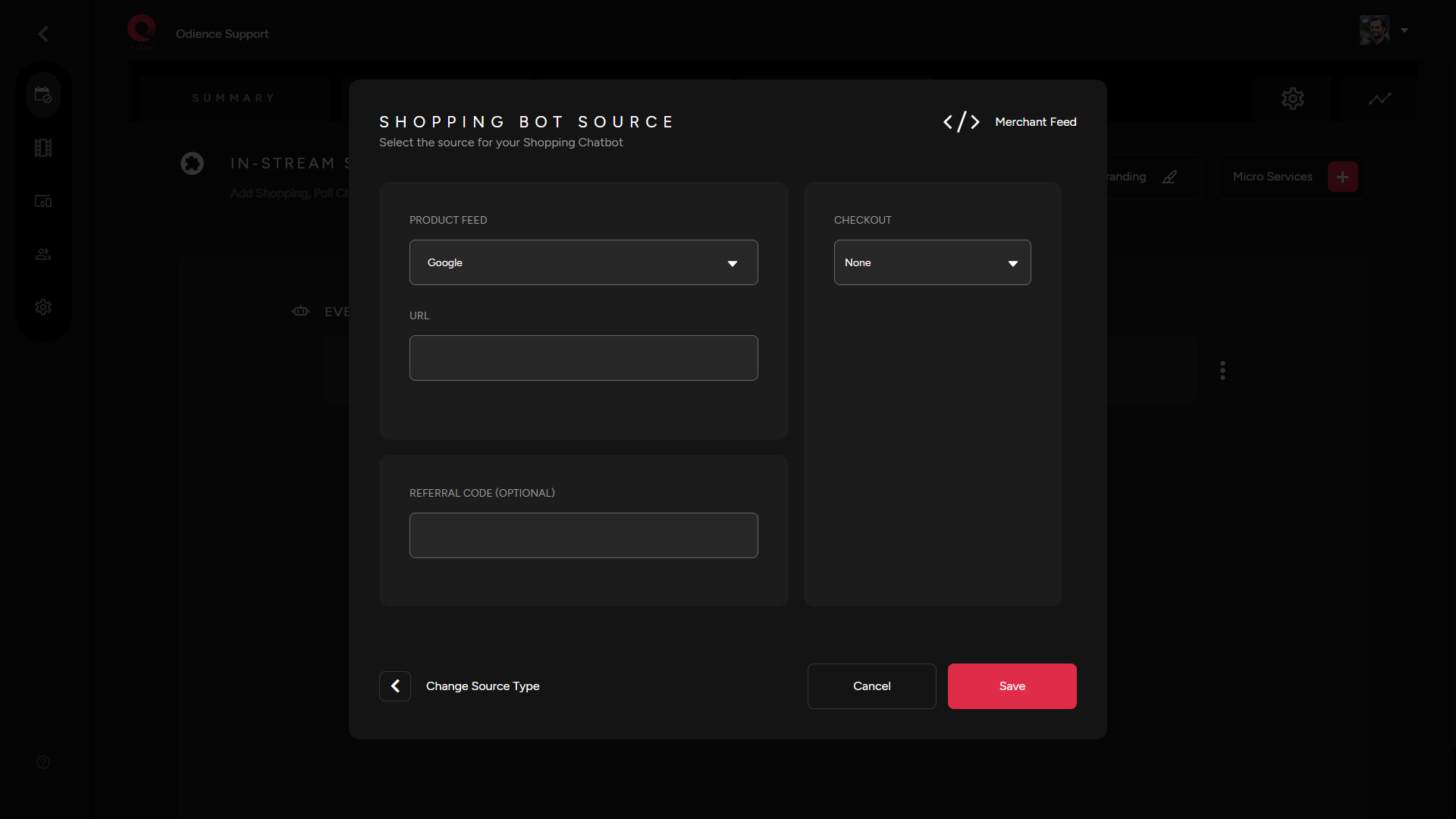
<span class="TextRun SCXW133643410 BCX0" data-contrast="auto" lang="EN-US" xml:lang="EN-US"><span class="NormalTextRun SCXW133643410 BCX0">4.1. If Merchant Feed was selected over Ecommerce, you will need to provide an XML product feed URL (see screenshot below for reference). All steps before and after stay the same regardless of the shopping source. </span></span>

<span class="TextRun SCXW133643410 BCX0" data-contrast="auto" lang="EN-US" xml:lang="EN-US"><span class="NormalTextRun SCXW133643410 BCX0">[![Shopping Bot Source - Merchant Feed.png](https://support.odience.com/uploads/images/gallery/2024-03/scaled-1680-/shopping-bot-source-merchant-feed.png)](https://support.odience.com/uploads/images/gallery/2024-03/shopping-bot-source-merchant-feed.png)</span></span>

- <span class="TextRun SCXW133643410 BCX0" data-contrast="auto" lang="EN-US" xml:lang="EN-US"><span class="NormalTextRun SCXW133643410 BCX0"><span class="EOP SCXW133643410 BCX0" data-ccp-props="{"201341983":0,"335559739":160,"335559740":259}">**Note**: Odience supports the use of Google, Amazon &amp; other XML merchant feeds. </span></span></span>

<span class="TextRun SCXW133643410 BCX0" data-contrast="auto" lang="EN-US" xml:lang="EN-US"><span class="NormalTextRun SCXW133643410 BCX0">5. Select checkout</span><span class="NormalTextRun SCXW133643410 BCX0"> platform &amp; Click Save.</span></span>

<span class="TextRun SCXW133643410 BCX0" data-contrast="auto" lang="EN-US" xml:lang="EN-US"><span class="NormalTextRun SCXW133643410 BCX0">6. Add a Chatbot Logo, Name, Description (optional) &amp; then select which products from your source you want to include in your Odience shopping chatbot.</span></span>

[![Shopping Bot Feed.png](https://support.odience.com/uploads/images/gallery/2024-03/scaled-1680-/shopping-bot-feed.png)](https://support.odience.com/uploads/images/gallery/2024-03/shopping-bot-feed.png)

<span class="TextRun SCXW133643410 BCX0" data-contrast="auto" lang="EN-US" xml:lang="EN-US"><span class="NormalTextRun SCXW133643410 BCX0">8. Click save to add Chabot to your event. The information can be edited. </span></span>

##### **<span class="TextRun SCXW133643410 BCX0" data-contrast="auto" lang="EN-US" xml:lang="EN-US"><span class="NormalTextRun SCXW133643410 BCX0">Edit Chatbot</span></span>**

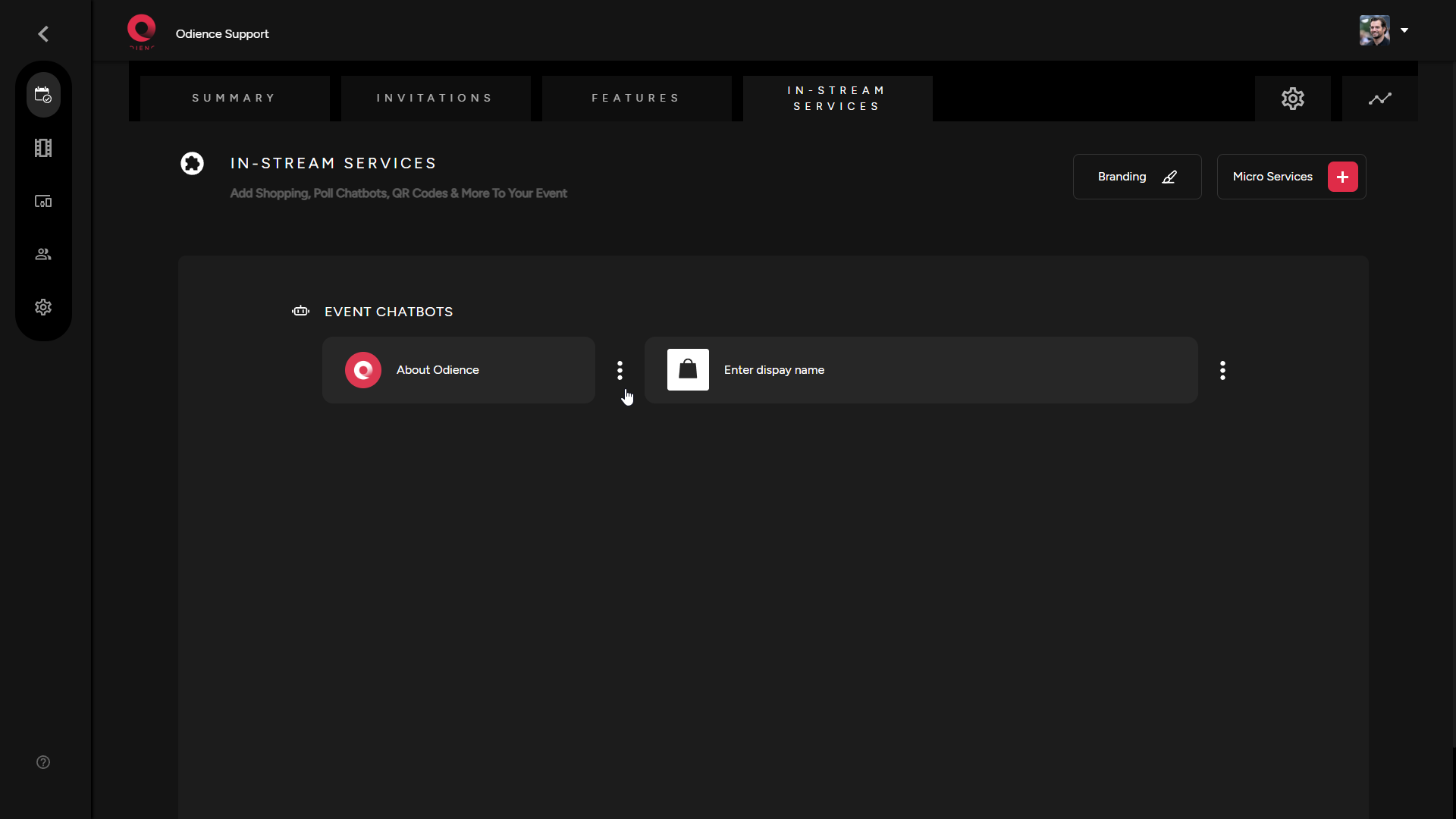
<span class="TextRun SCXW133643410 BCX0" data-contrast="auto" lang="EN-US" xml:lang="EN-US"><span class="NormalTextRun SCXW133643410 BCX0">1. Select the stacked bullets for more options and click Edit.</span></span>

[![Edit Shopping Bot.png](https://support.odience.com/uploads/images/gallery/2024-03/scaled-1680-/edit-shopping-bot.png)](https://support.odience.com/uploads/images/gallery/2024-03/edit-shopping-bot.png)

<span class="TextRun SCXW133643410 BCX0" data-contrast="auto" lang="EN-US" xml:lang="EN-US"><span class="NormalTextRun SCXW133643410 BCX0">2. Edit Chatbot Name, Description and Products used in your chatbot. Click Save to confirm changes. </span></span>

[![Edit Chatbot.png](https://support.odience.com/uploads/images/gallery/2024-03/scaled-1680-/edit-chatbot.png)](https://support.odience.com/uploads/images/gallery/2024-03/edit-chatbot.png)

##### **<span class="TextRun SCXW133643410 BCX0" data-contrast="auto" lang="EN-US" xml:lang="EN-US"><span class="NormalTextRun SCXW133643410 BCX0">Customize Appearance</span></span>**

<span class="TextRun SCXW133643410 BCX0" data-contrast="auto" lang="EN-US" xml:lang="EN-US"><span class="NormalTextRun SCXW133643410 BCX0">1. Select the three stacked bullets on the right side of your chatbot.</span></span>

[![Edit Apperance.png](https://support.odience.com/uploads/images/gallery/2024-03/scaled-1680-/edit-apperance.png)](https://support.odience.com/uploads/images/gallery/2024-03/edit-apperance.png)

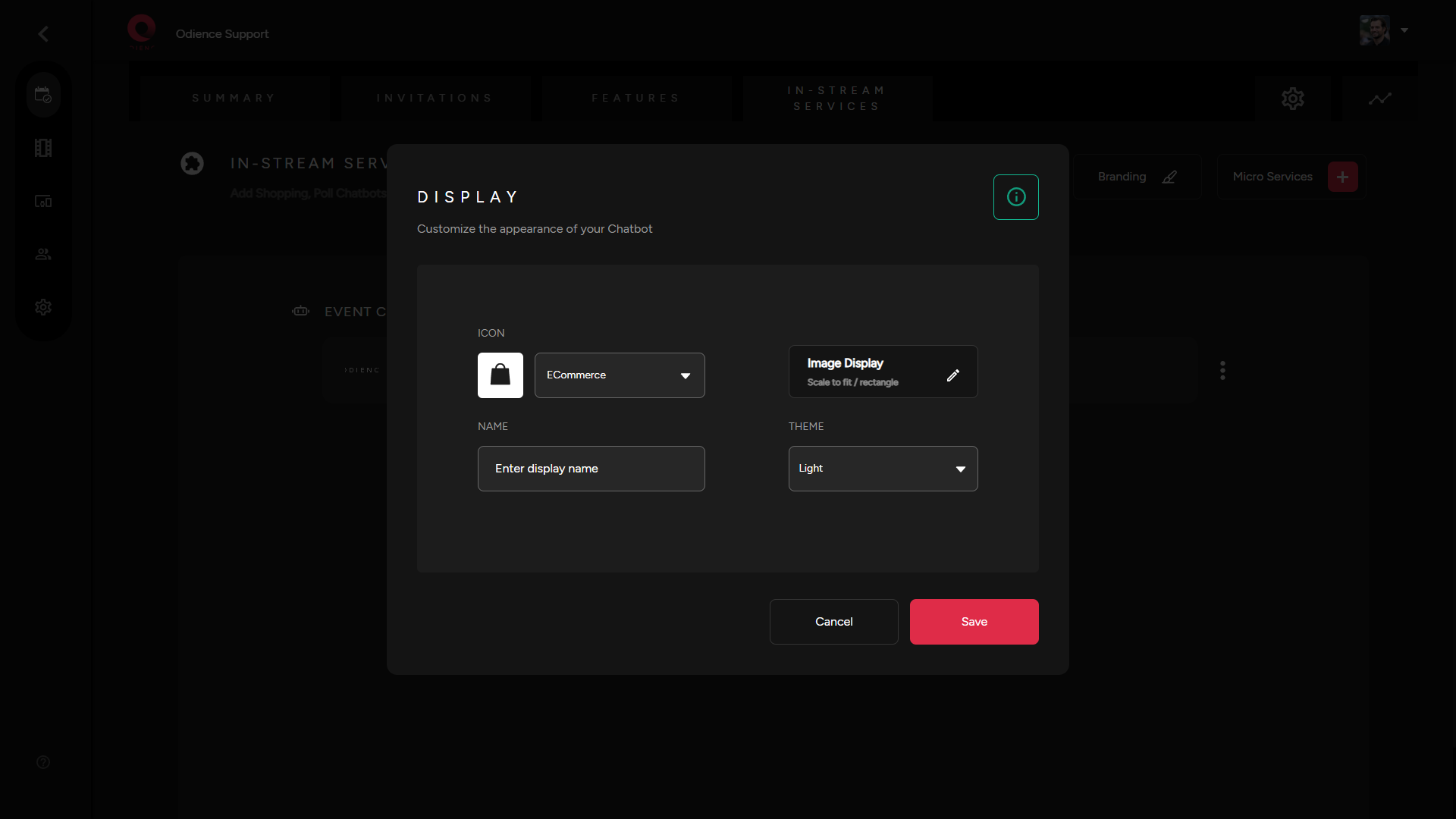
<span class="TextRun SCXW133643410 BCX0" data-contrast="auto" lang="EN-US" xml:lang="EN-US"><span class="NormalTextRun SCXW133643410 BCX0">2. Customize the appearance of your chatbot. Click Save to confirm changes. </span></span>

[![Chatbot Apperance.png](https://support.odience.com/uploads/images/gallery/2024-03/scaled-1680-/chatbot-apperance.png)](https://support.odience.com/uploads/images/gallery/2024-03/chatbot-apperance.png)

<div class="SCXW133643410 BCX0" id="bkmrk-select-the-three-sta"></div>

# Poll Bot

##### **Create Poll Bot**

<span class="TextRun SCXW133643410 BCX0" data-contrast="auto" lang="EN-US" xml:lang="EN-US"><span class="NormalTextRun SCXW133643410 BCX0">1. Start by selecting Poll in your Quick Start or by selecting Add Chatbot in your Micro Services dropdown.</span></span>

[![Shopping Quick Start.png](https://support.odience.com/uploads/images/gallery/2024-03/scaled-1680-/huxshopping-quick-start.png)](https://support.odience.com/uploads/images/gallery/2024-03/huxshopping-quick-start.png)

2\. Add a chatbot from your Organization.

[![Add Poll Bot.png](https://support.odience.com/uploads/images/gallery/2024-03/scaled-1680-/Rqqadd-poll-bot.png)](https://support.odience.com/uploads/images/gallery/2024-03/Rqqadd-poll-bot.png)
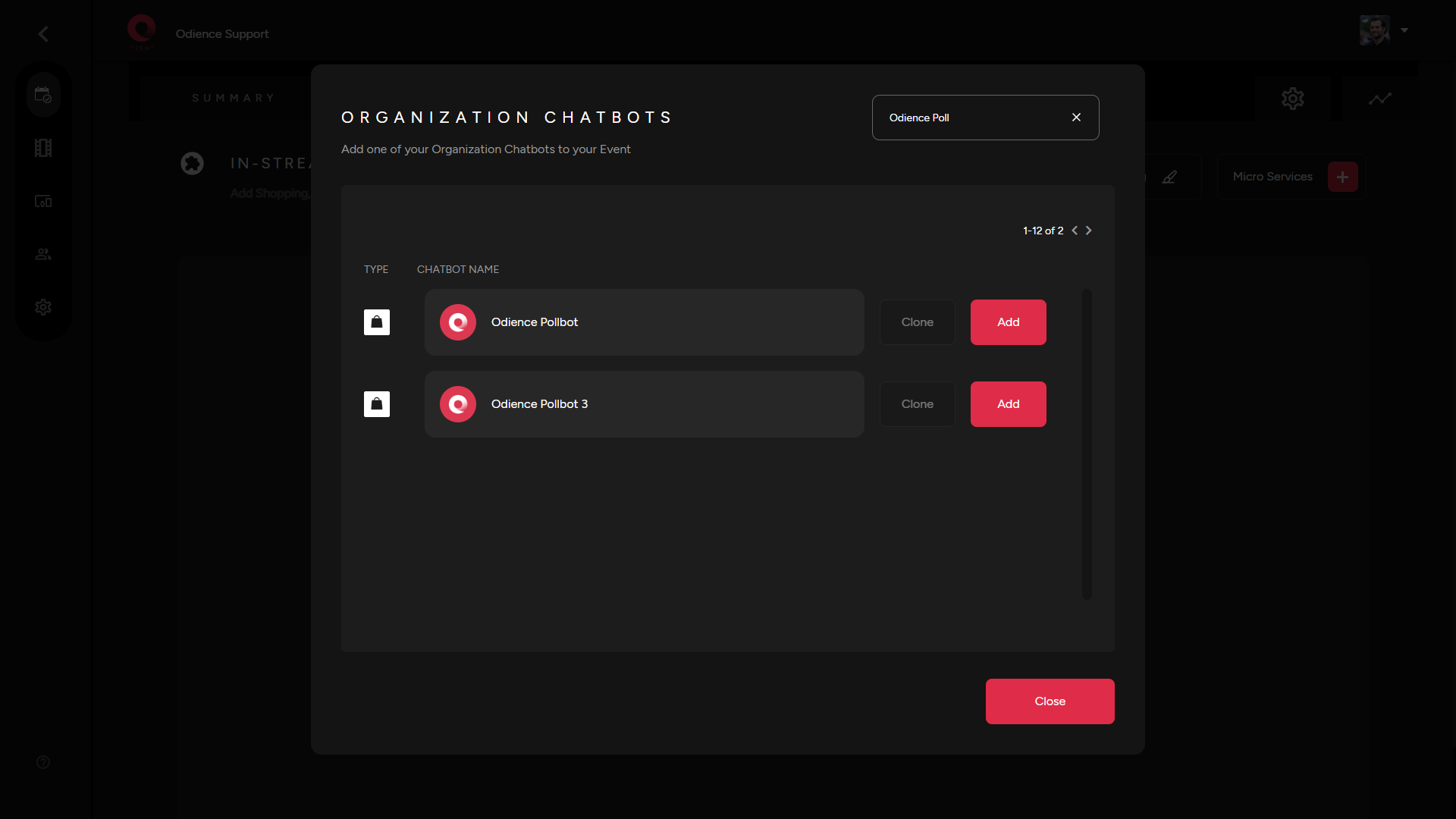
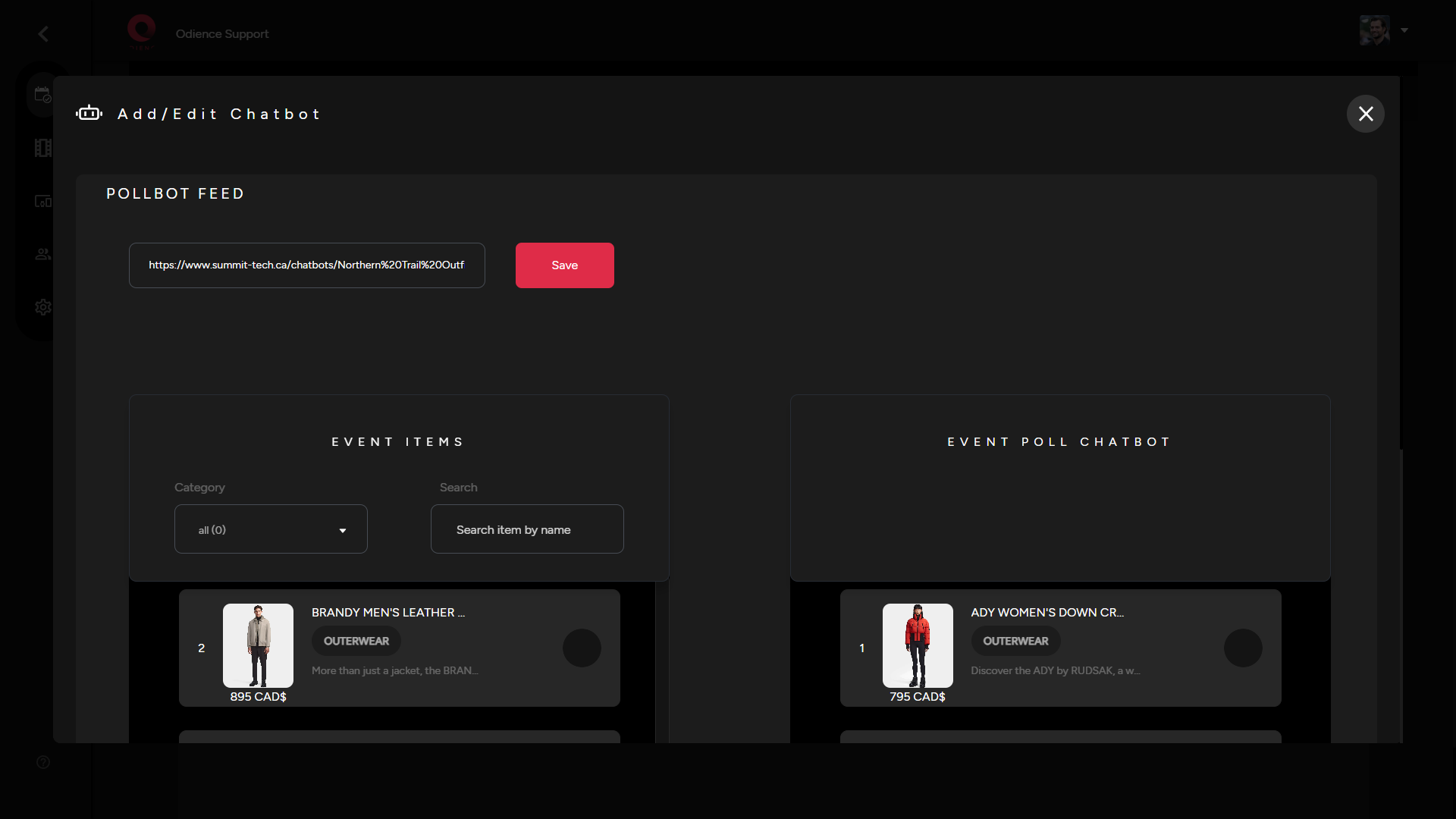
3\. Add or edit Poll Feed by selecting the extra options right beside your Poll Bot. Select which products you want to include &amp; then click Save

[![Add or Edit Pollbot Feed.png](https://support.odience.com/uploads/images/gallery/2024-03/scaled-1680-/add-or-edit-pollbot-feed.png)](https://support.odience.com/uploads/images/gallery/2024-03/add-or-edit-pollbot-feed.png)

##### **Customize Appearance**

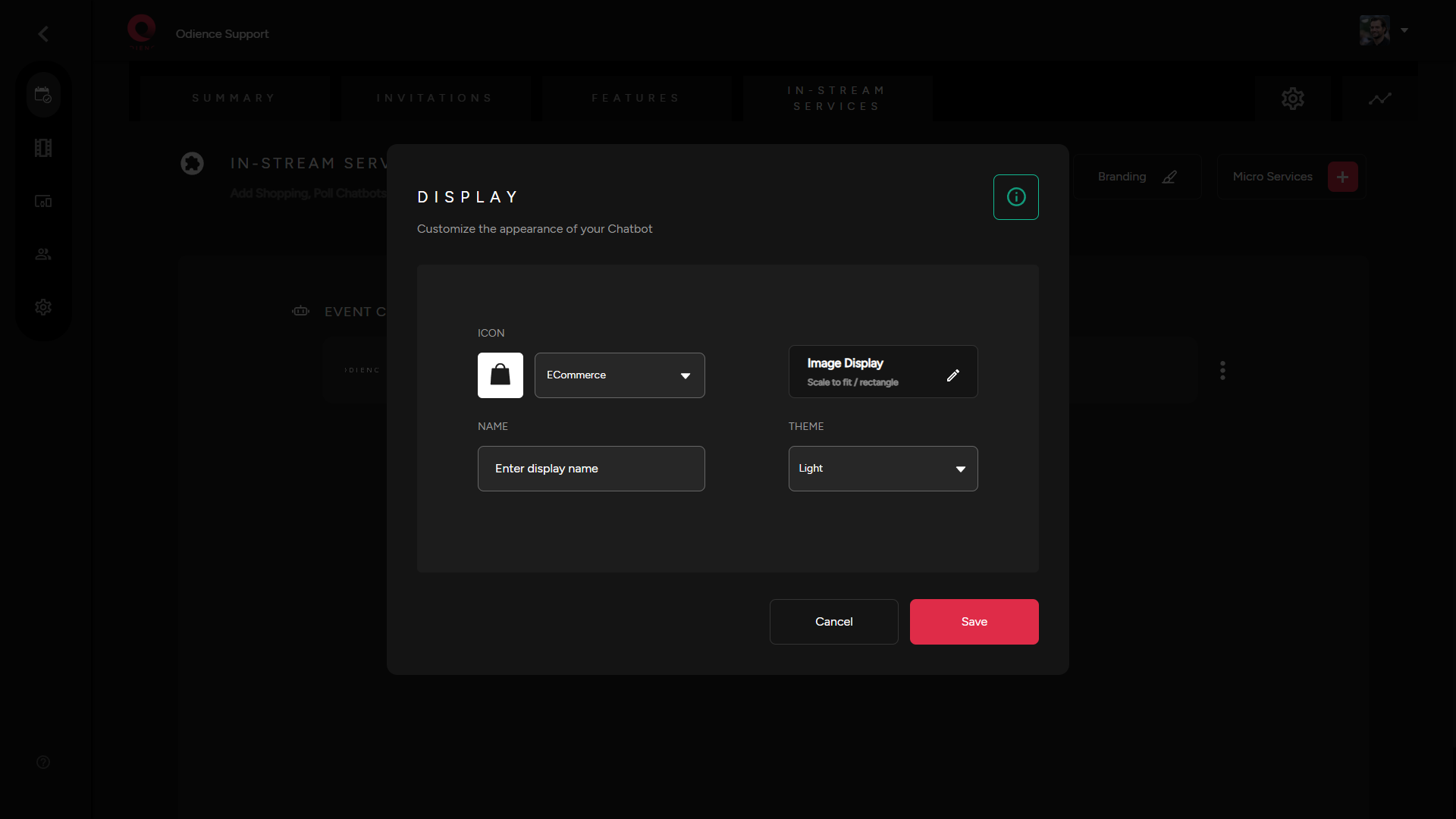
<span class="TextRun SCXW133643410 BCX0" data-contrast="auto" lang="EN-US" xml:lang="EN-US"><span class="NormalTextRun SCXW133643410 BCX0">- Select the three stacked bullets toward the right side to customize the appearance of your chatbot. Click Save to confirm changes. </span></span>

[![Chatbot Apperance.png](https://support.odience.com/uploads/images/gallery/2024-03/scaled-1680-/ffIchatbot-apperance.png)](https://support.odience.com/uploads/images/gallery/2024-03/ffIchatbot-apperance.png)

# Featured Catalog

##### **<span class="TextRun SCXW128034242 BCX0" data-contrast="auto" lang="EN-US" xml:lang="EN-US"><span class="NormalTextRun SCXW128034242 BCX0">Create Featured Catalog</span></span>**

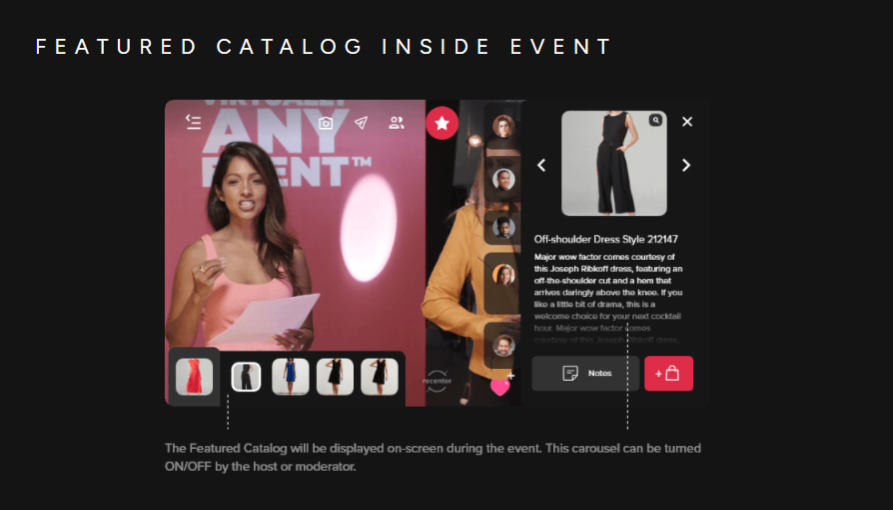
**<span class="TextRun SCXW128034242 BCX0" data-contrast="auto" lang="EN-US" xml:lang="EN-US"><span class="NormalTextRun SCXW128034242 BCX0">Note: </span></span>**<span class="TextRun SCXW128034242 BCX0" data-contrast="auto" lang="EN-US" xml:lang="EN-US"><span class="NormalTextRun SCXW128034242 BCX0">If you don't have a shopping chatbot, you will need to create one first. Refer to our step-by-step guide on how to a</span></span><span class="TextRun SCXW128034242 BCX0" data-contrast="auto" lang="EN-US" xml:lang="EN-US"><span class="NormalTextRun SCXW128034242 BCX0"> **[Create a shopping chatbot.](http://support.odience.com/books/odience-director/page/shopping-chatbot)** </span></span>
<span class="SCXW128034242 BCX0"><span class="WACImageContainer NoPadding DragDrop BlobObject SCXW128034242 BCX0" role="presentation">![](http://support.odience.com/uploads/images/gallery/2023-12/embedded-image-o2dyqemq.png)</span></span>

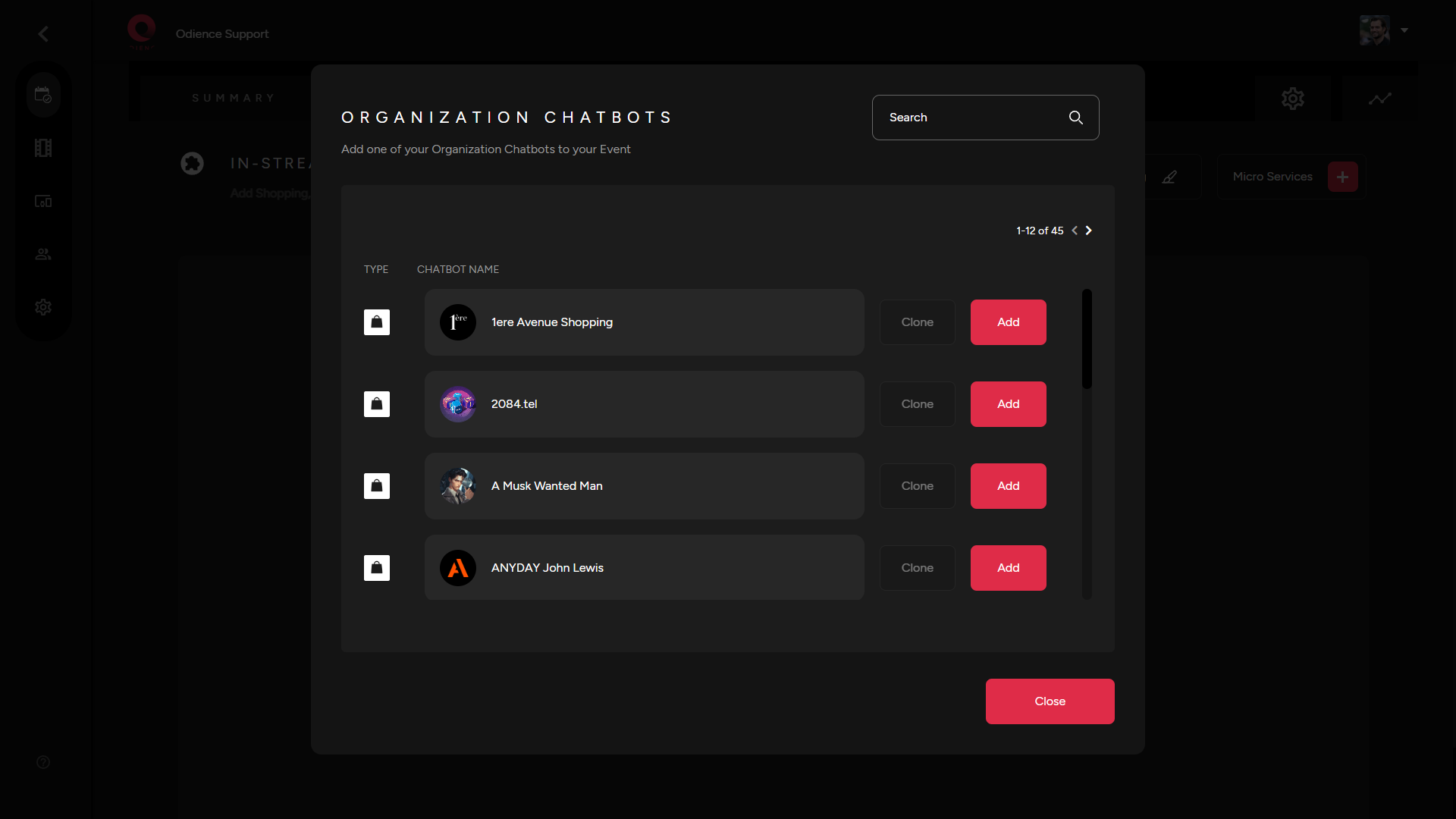
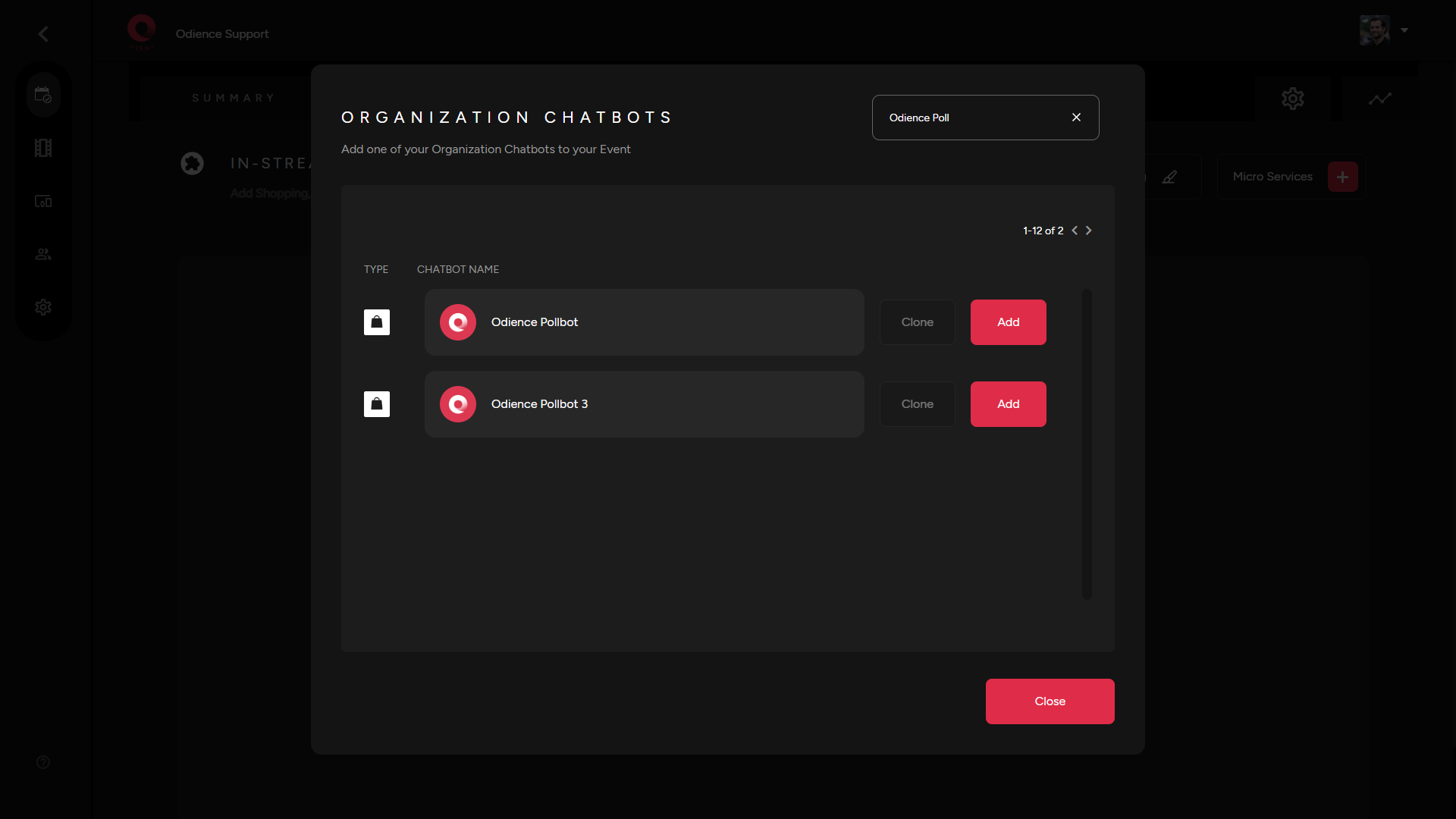
1\. In the "Micro Services" drop down, select "Featured Catalog". Add a shopping chatbot from the Directory as the source.

[![Organization Chatbots.png](https://support.odience.com/uploads/images/gallery/2024-03/scaled-1680-/organization-chatbots.png)](https://support.odience.com/uploads/images/gallery/2024-03/organization-chatbots.png)
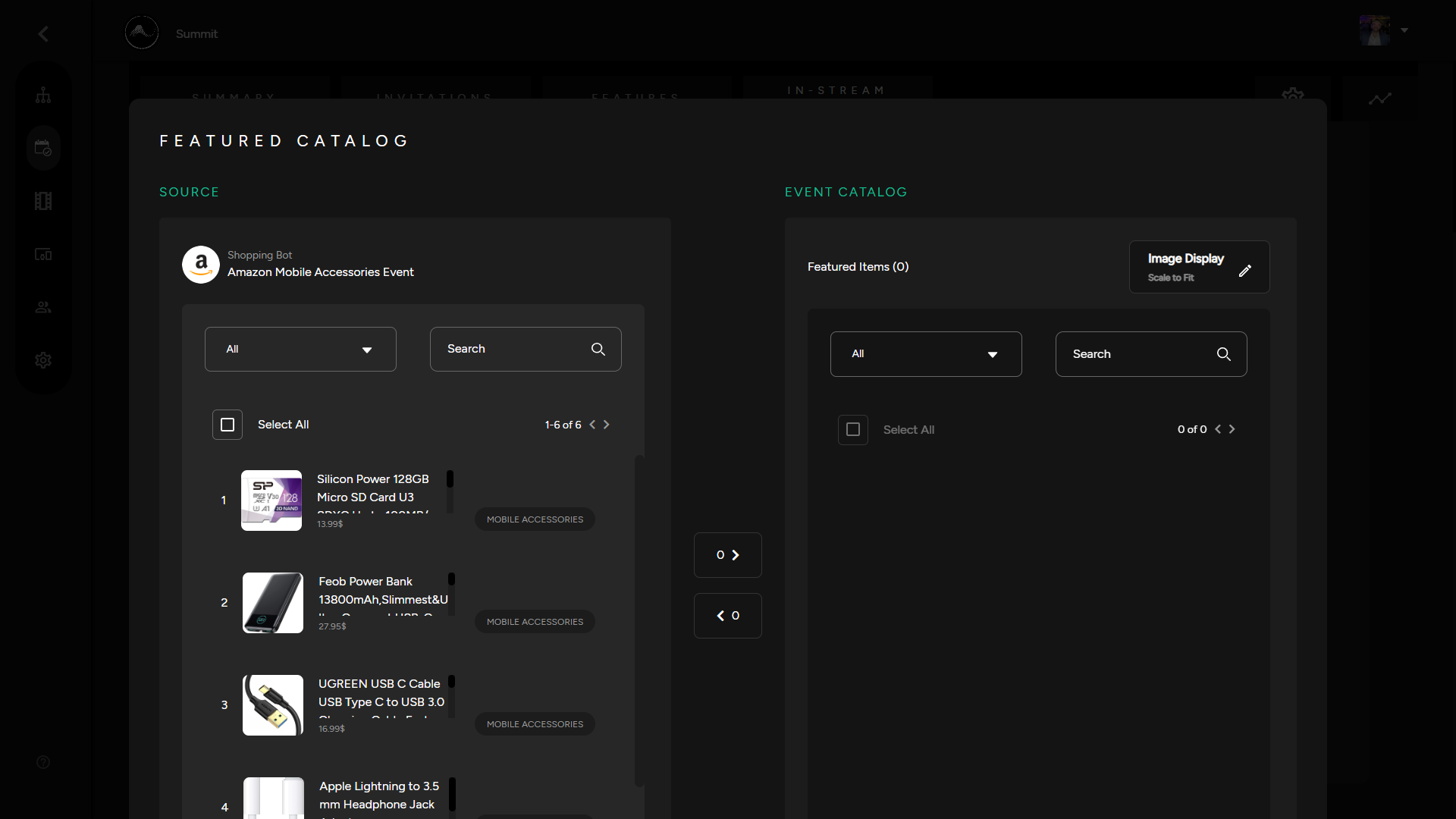
2\. Edit Poll Feed to select which products you would like to be featured in your event catalog.

[![Featured Catalog.png](https://support.odience.com/uploads/images/gallery/2024-03/scaled-1680-/featured-catalog.png)](https://support.odience.com/uploads/images/gallery/2024-03/featured-catalog.png)
##### **<span class="TextRun SCXW128034242 BCX0" data-contrast="auto" lang="EN-US" xml:lang="EN-US"><span class="NormalTextRun SCXW128034242 BCX0">Custom</span></span><span class="EOP SCXW128034242 BCX0" data-ccp-props="{"134233117":false,"134233118":false,"201341983":0,"335551550":1,"335551620":1,"335559737":0,"335559738":0,"335559739":160,"335559740":259}"> Featured Catalog</span>**

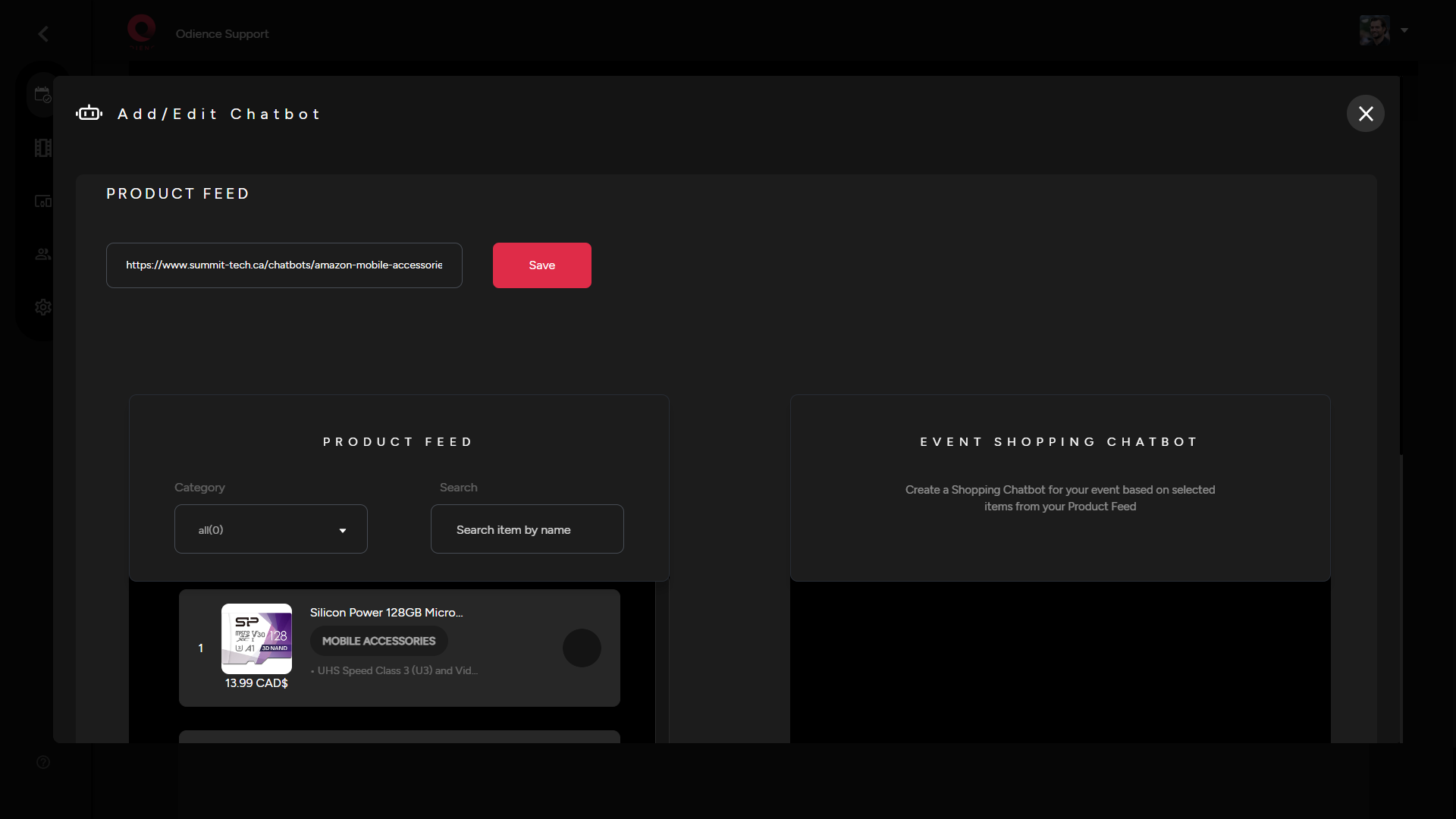
<span class="TextRun SCXW128034242 BCX0" data-contrast="auto" lang="EN-US" xml:lang="EN-US"><span class="NormalTextRun SCXW128034242 BCX0">- You can create a custom Featured Catalog by adding an XML product feed as the source of your Custom Featured Catalog.</span></span>

<span class="TextRun SCXW128034242 BCX0" data-contrast="auto" lang="EN-US" xml:lang="EN-US"><span class="NormalTextRun SCXW128034242 BCX0">1. Add your Product Feed URL, Click Save to add products, then choose which products you would like to include in your catalog. </span></span>

[![Custom Featured Catalog.png](https://support.odience.com/uploads/images/gallery/2024-03/scaled-1680-/custom-featured-catalog.png)](https://support.odience.com/uploads/images/gallery/2024-03/custom-featured-catalog.png)

<span class="TextRun SCXW128034242 BCX0" data-contrast="auto" lang="EN-US" xml:lang="EN-US"><span class="NormalTextRun SCXW128034242 BCX0">2. Click Save to apply your custom Featured Catalog.</span></span>

# Chatbot Directory

##### **Organization Chatbot Directory**

<span class="TextRun SCXW245813415 BCX0" data-contrast="auto" lang="EN-US" xml:lang="EN-US"><span class="NormalTextRun SCXW245813415 BCX0">The organization directory is a list of all your </span><span class="NormalTextRun SCXW245813415 BCX0">organizations</span><span class="NormalTextRun SCXW245813415 BCX0"> chatbots. You can reuse or repurpose any previous chatbots that were created.</span></span>

[![Organization Chatbot Directory.png](https://support.odience.com/uploads/images/gallery/2024-03/scaled-1680-/organization-chatbot-directory.png)](https://support.odience.com/uploads/images/gallery/2024-03/organization-chatbot-directory.png)

- <span class="TextRun SCXW245813415 BCX0" data-contrast="auto" lang="EN-US" xml:lang="EN-US"><span class="NormalTextRun SCXW245813415 BCX0">No chatbots in your organization yet? See our guide on how to create your own custom [**Event Chatbot**](https://support.odience.com/books/event-creation-management/chapter/shopping-other-in-stream-services "Shopping & Other In-Stream Services").</span></span>

# Actionable Items

##### **<span class="TextRun SCXW16777320 BCX0" data-contrast="auto" lang="EN-US" xml:lang="EN-US"><span class="NormalTextRun SCXW16777320 BCX0">Create QR Codes Interactions</span></span>**

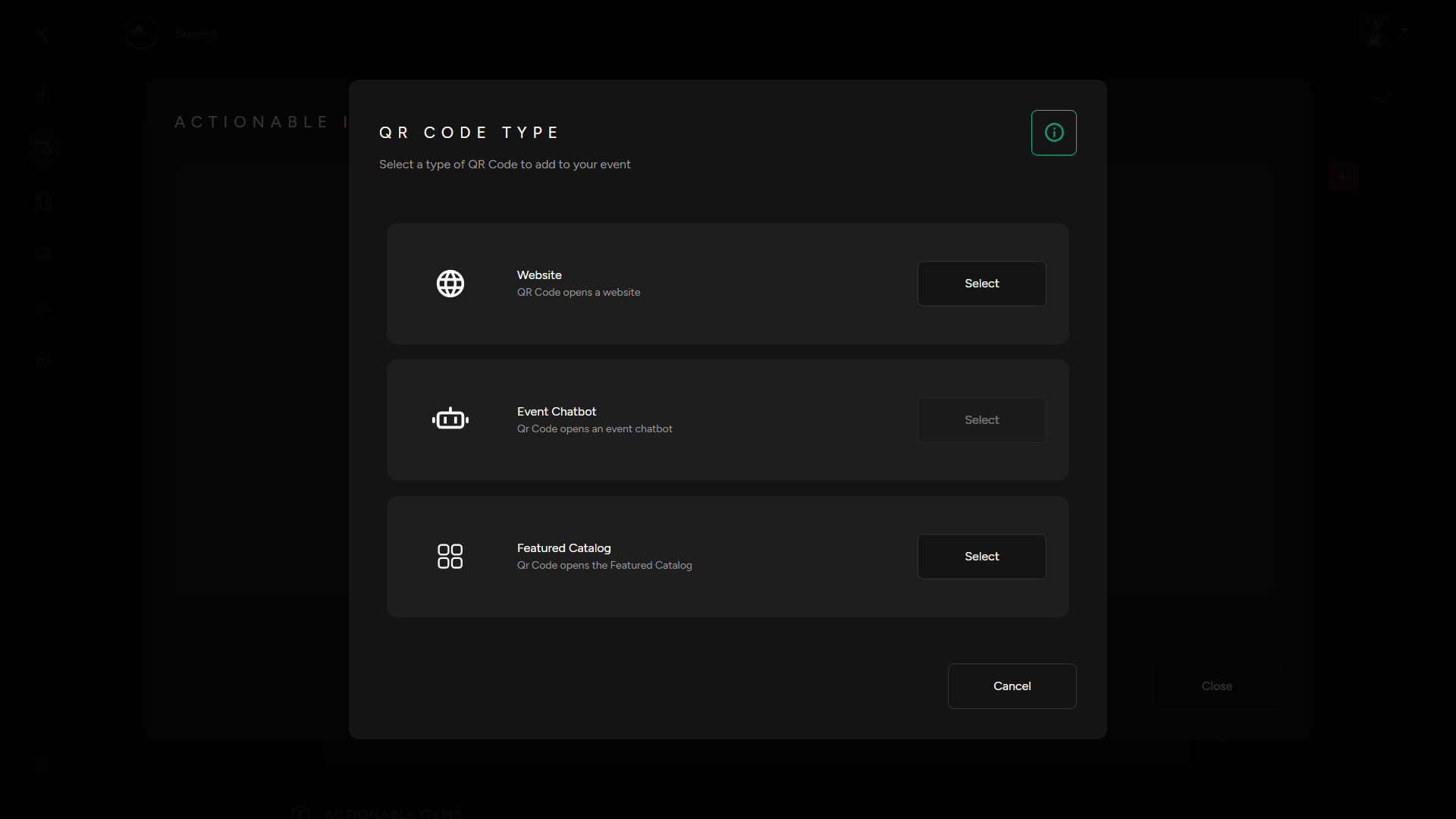
<span class="TextRun SCXW16777320 BCX0" data-contrast="auto" lang="EN-US" xml:lang="EN-US"><span class="NormalTextRun SCXW16777320 BCX0">1. Select "Actionable Items" in your Micro Services drop down. Then Select the QR code type you would like to generate from the three options below. </span></span>

- <span class="TextRun SCXW16777320 BCX0" data-contrast="auto" lang="EN-US" xml:lang="EN-US"><span class="NormalTextRun SCXW16777320 BCX0">QR Code that opens a website </span></span>
- <span class="TextRun SCXW16777320 BCX0" data-contrast="auto" lang="EN-US" xml:lang="EN-US"><span class="NormalTextRun SCXW16777320 BCX0">QR code that opens up an Event Chatbot. See our guide on to create your own [**Event Chatbots**](https://support.odience.com/books/event-creation-management/chapter/shopping-other-in-stream-services "Shopping & Other In-Stream Services").</span></span>
- <span class="TextRun SCXW16777320 BCX0" data-contrast="auto" lang="EN-US" xml:lang="EN-US"><span class="NormalTextRun SCXW16777320 BCX0">Connect a QR code to a Feature Catalog. See our guide on how to create your own [**Featured Catalog**](https://support.odience.com/books/web-portal/page/featured-catalog "Featured Catalog"). </span></span>

[![QR Code Type.png](https://support.odience.com/uploads/images/gallery/2024-03/scaled-1680-/qr-code-type.png)](https://support.odience.com/uploads/images/gallery/2024-03/qr-code-type.png)

##### **Add QR Code Tablets**

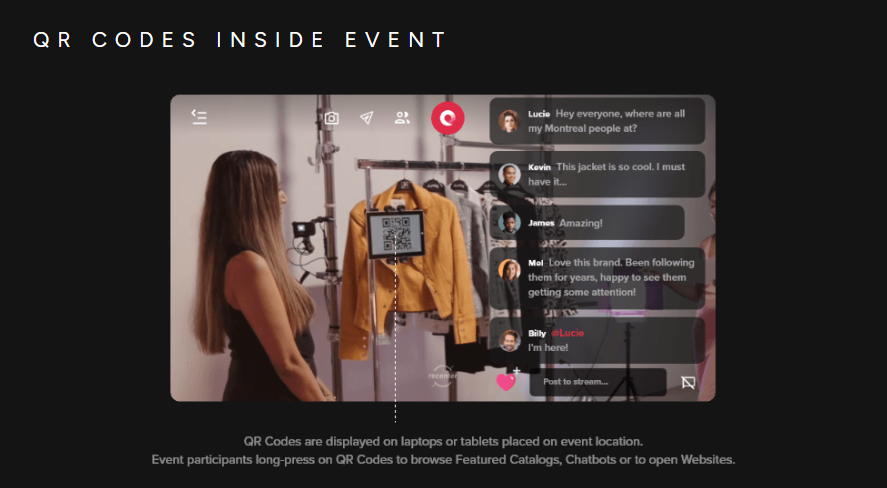
<span class="TextRun SCXW16777320 BCX0" data-contrast="auto" lang="EN-US" xml:lang="EN-US"><span class="NormalTextRun SCXW16777320 BCX0">1. From your instrea</span><span class="NormalTextRun SCXW16777320 BCX0">m </span><span class="NormalTextRun SCXW16777320 BCX0">services </span><span class="NormalTextRun SCXW16777320 BCX0">section, scroll to</span> </span><span class="TextRun SCXW16777320 BCX0" data-contrast="auto" lang="EN-US" xml:lang="EN-US"><span class="NormalTextRun SCXW16777320 BCX0">“Actionable Items</span></span><span class="TextRun SCXW16777320 BCX0" data-contrast="auto" lang="EN-US" xml:lang="EN-US"><span class="NormalTextRun SCXW16777320 BCX0">”</span><span class="NormalTextRun SCXW16777320 BCX0"> then click the QR code icon corresponding to the item you want to set-up a QR code for.</span></span><span class="EOP SCXW16777320 BCX0" data-ccp-props="{"134233117":false,"134233118":false,"201341983":0,"335551550":1,"335551620":1,"335559737":0,"335559738":0,"335559739":160,"335559740":259}"> </span>

<span class="EOP SCXW16777320 BCX0" data-ccp-props="{"134233117":false,"134233118":false,"201341983":0,"335551550":1,"335551620":1,"335559737":0,"335559738":0,"335559739":160,"335559740":259}">[![Qr Codes.png](http://support.odience.com/uploads/images/gallery/2023-12/scaled-1680-/aOAqr-codes.png)](http://support.odience.com/uploads/images/gallery/2023-12/aOAqr-codes.png)</span>

<span class="TextRun SCXW16777320 BCX0" data-contrast="auto" lang="EN-US" xml:lang="EN-US"><span class="NormalTextRun SCXW16777320 BCX0">2. You will now have the QR code open in its own tab, ready to be used and placed within your event environment for viewers to interact with. </span></span><span class="EOP SCXW16777320 BCX0" data-ccp-props="{"134233117":false,"134233118":false,"201341983":0,"335551550":1,"335551620":1,"335559737":0,"335559738":0,"335559739":160,"335559740":259}"> </span>

# Invitations & Management


# Create Invitation

**<span class="TextRun SCXW226095579 BCX0" data-contrast="none" lang="EN-US" xml:lang="EN-US"><span class="NormalTextRun SCXW226095579 BCX0">Note: </span></span>**<span class="TextRun SCXW226095579 BCX0" data-contrast="none" lang="EN-US" xml:lang="EN-US"><span class="NormalTextRun SCXW226095579 BCX0">Custom invitation templates and Guest Lists are only available for Pro and Enterprise accounts. For more information on different accounts, see our guide on</span></span>**<span class="TextRun SCXW226095579 BCX0" data-contrast="none" lang="EN-US" xml:lang="EN-US"><span class="NormalTextRun SCXW226095579 BCX0"> [Account Types](https://support.odience.com/books/account-types "Account Types").</span></span>**

##### **<span class="TextRun SCXW226095579 BCX0" data-contrast="none" lang="EN-US" xml:lang="EN-US"><span class="NormalTextRun SCXW226095579 BCX0">Create Guest List</span></span><span class="EOP SCXW226095579 BCX0" data-ccp-props="{"134233117":false,"134233118":false,"201341983":0,"335551550":1,"335551620":1,"335559685":0,"335559737":0,"335559738":0,"335559739":160,"335559740":257}"> </span>**

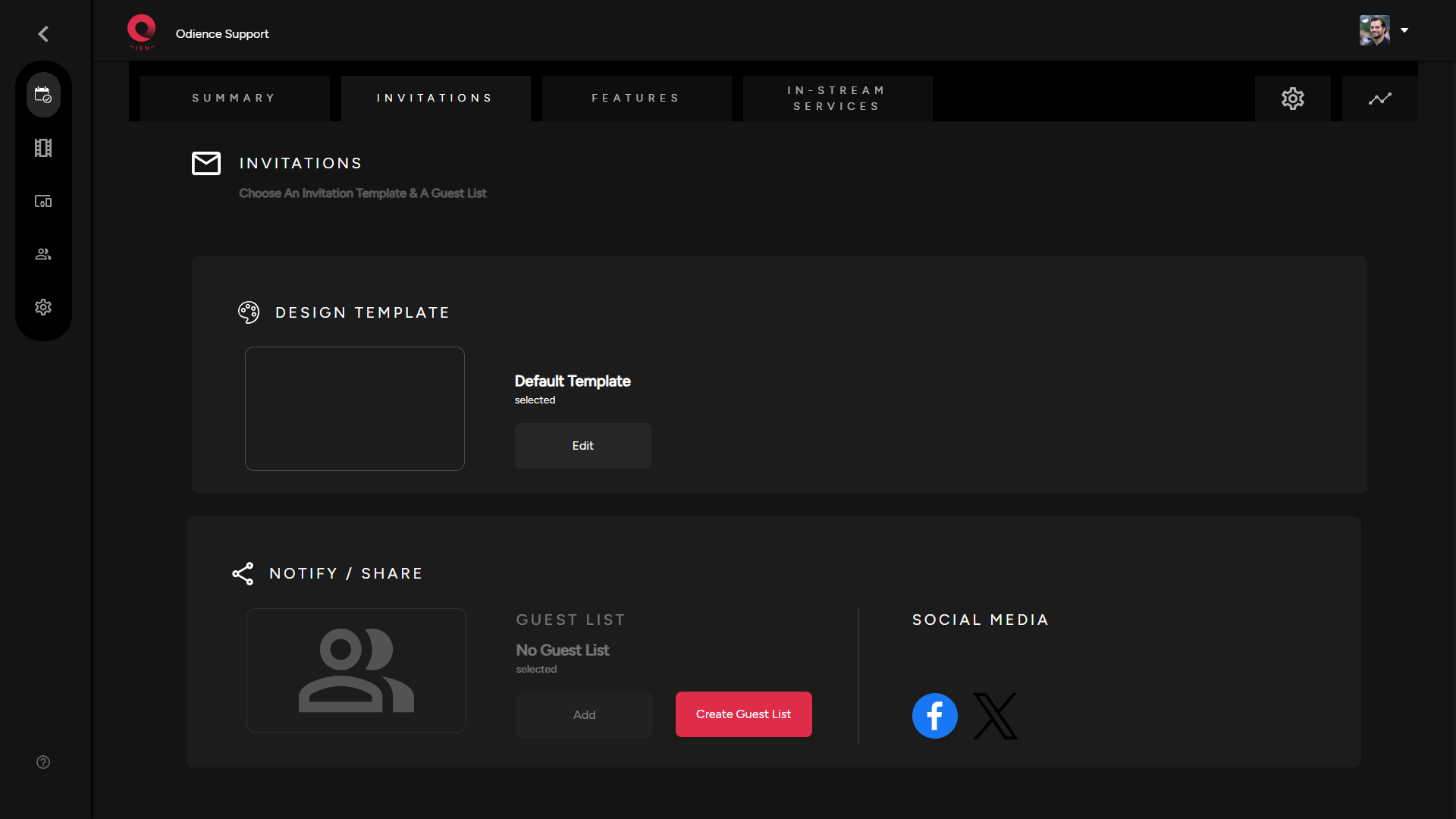
<span class="TextRun SCXW226095579 BCX0" data-contrast="none" lang="EN-US" xml:lang="EN-US"><span class="NormalTextRun SCXW226095579 BCX0">1. Select create Guest List, then click Create New within the guest list window.</span></span>

<span class="TextRun SCXW226095579 BCX0" data-contrast="none" lang="EN-US" xml:lang="EN-US"><span class="NormalTextRun SCXW226095579 BCX0">[![Invitations Section.png](https://support.odience.com/uploads/images/gallery/2024-03/scaled-1680-/invitations-section.png)](https://support.odience.com/uploads/images/gallery/2024-03/invitations-section.png)</span></span>

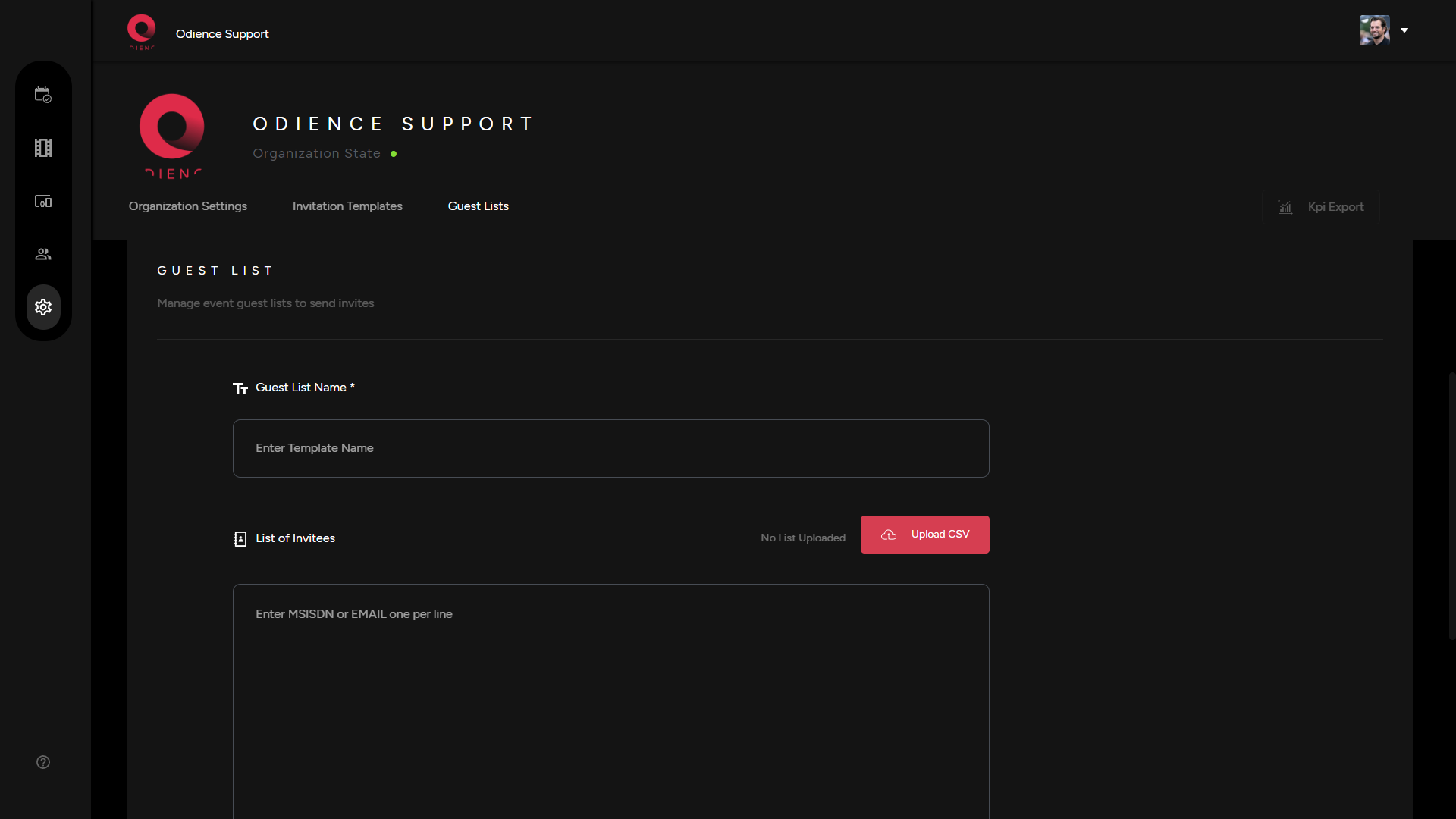
<span class="EOP SCXW226095579 BCX0" data-ccp-props="{"134233117":false,"134233118":false,"201341983":0,"335551550":1,"335551620":1,"335559737":0,"335559738":0,"335559739":160,"335559740":257}">2. Fill out the information to create your guest list. Send invitation using phone numbers or send via email. Click Add Guest List to confirm.</span>

[![Guest Lists Creation.png](https://support.odience.com/uploads/images/gallery/2024-03/scaled-1680-/guest-lists-creation.png)](https://support.odience.com/uploads/images/gallery/2024-03/guest-lists-creation.png)

<span class="TextRun SCXW226095579 BCX0" data-contrast="none" lang="EN-US" xml:lang="EN-US"><span class="NormalTextRun SCXW226095579 BCX0">3. Go back to your event to apply your new guest list.</span></span>


##### **<span class="TextRun SCXW226095579 BCX0" data-contrast="none" lang="EN-US" xml:lang="EN-US"><span class="NormalTextRun SCXW226095579 BCX0">Create New Design Template</span></span><span class="EOP SCXW226095579 BCX0" data-ccp-props="{"134233117":false,"134233118":false,"201341983":0,"335551550":1,"335551620":1,"335559685":0,"335559737":0,"335559738":0,"335559739":160,"335559740":257}"> </span>**

<span class="EOP SCXW226095579 BCX0" data-ccp-props="{"134233117":false,"134233118":false,"201341983":0,"335551550":1,"335551620":1,"335559685":0,"335559737":0,"335559738":0,"335559739":160,"335559740":257}">Your invitation design template allows you to edit the appearance and presentation of your invitations.</span>

<span class="TextRun SCXW226095579 BCX0" data-contrast="none" lang="EN-US" xml:lang="EN-US"><span class="NormalTextRun SCXW226095579 BCX0">1. To create </span><span class="NormalTextRun SCXW226095579 BCX0">a new design</span><span class="NormalTextRun SCXW226095579 BCX0"> template, click Edit to get directed to </span><span class="NormalTextRun SCXW226095579 BCX0">the invitations creation page</span><span class="NormalTextRun SCXW226095579 BCX0">.</span></span>

[![Invitations Section.png](https://support.odience.com/uploads/images/gallery/2024-03/scaled-1680-/invitations-section.png)](https://support.odience.com/uploads/images/gallery/2024-03/invitations-section.png)

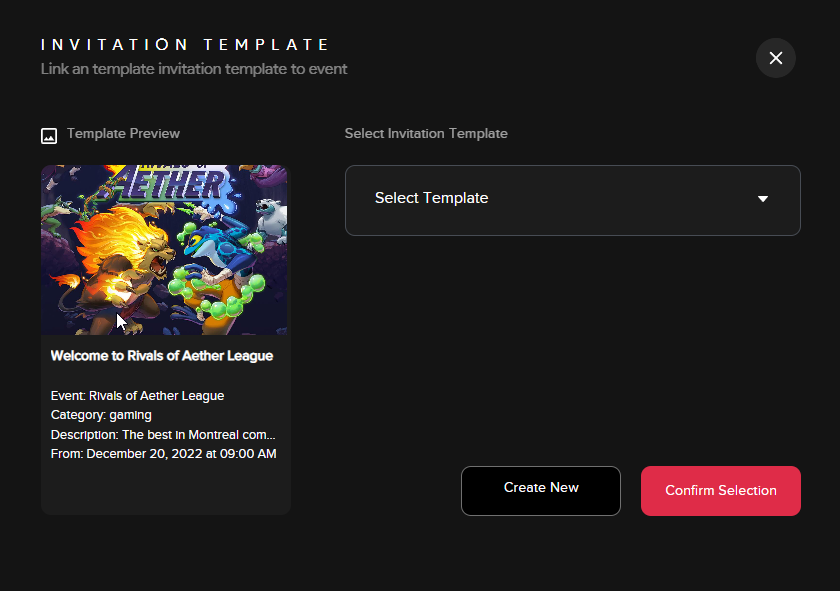
- **<span class="TextRun SCXW226095579 BCX0" data-contrast="none" lang="EN-US" xml:lang="EN-US"><span class="NormalTextRun SCXW226095579 BCX0">Note: </span></span>**<span class="TextRun SCXW226095579 BCX0" data-contrast="none" lang="EN-US" xml:lang="EN-US"><span class="NormalTextRun SCXW226095579 BCX0">If you have templates already created, a small window will open (see below) providing the option to add an existing template or to create a new one.</span></span>

<span class="EOP SCXW226095579 BCX0" data-ccp-props="{"134233117":false,"134233118":false,"201341983":0,"335551550":1,"335551620":1,"335559685":0,"335559737":0,"335559738":0,"335559739":160,"335559740":257}"><span class="SCXW226095579 BCX0"><span class="WACImageContainer NoPadding DragDrop BlobObject SCXW226095579 BCX0" role="presentation">![](http://support.odience.com/uploads/images/gallery/2023-12/embedded-image-41azra6m.png)</span></span></span>

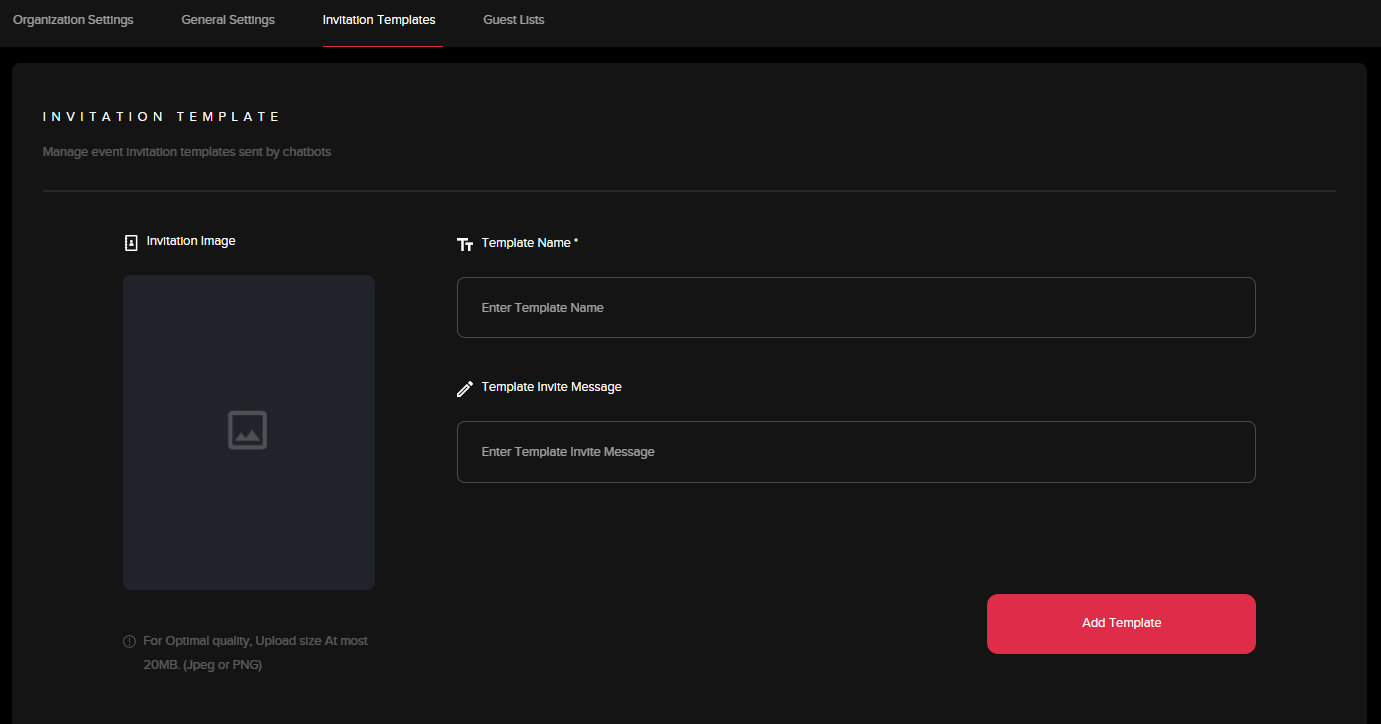
<span class="TextRun SCXW226095579 BCX0" data-contrast="none" lang="EN-US" xml:lang="EN-US"><span class="NormalTextRun SCXW226095579 BCX0">2. In the creation page, fill out the information to create your invitation template. Click "Add Template" to apply template.</span></span>

<span class="SCXW226095579 BCX0"><span class="WACImageContainer NoPadding DragDrop BlobObject SCXW226095579 BCX0" role="presentation">![](http://support.odience.com/uploads/images/gallery/2023-12/embedded-image-6snnzxjt.png)</span></span>


##### **<span class="TextRun SCXW226095579 BCX0" data-contrast="none" lang="EN-US" xml:lang="EN-US"><span class="NormalTextRun SCXW226095579 BCX0">Share via </span><span class="NormalTextRun ContextualSpellingAndGrammarErrorV2Themed SCXW226095579 BCX0">Social Media</span></span><span class="EOP SCXW226095579 BCX0" data-ccp-props="{"134233117":false,"134233118":false,"201341983":0,"335551550":1,"335551620":1,"335559685":0,"335559737":0,"335559738":0,"335559739":160,"335559740":257}"> </span>**

<span class="TextRun SCXW226095579 BCX0" data-contrast="none" lang="EN-US" xml:lang="EN-US"><span class="NormalTextRun SpellingErrorV2Themed SCXW226095579 BCX0">1. Odience can</span> be publicized <span class="NormalTextRun SCXW226095579 BCX0">to platforms like Facebook, Instagram and X</span><span class="NormalTextRun SCXW226095579 BCX0">.</span></span><span class="EOP SCXW226095579 BCX0" data-ccp-props="{"201341983":0,"335559739":160,"335559740":257}"> Simply select the social media platform &amp; go through the steps to publish. </span>

<span class="EOP SCXW226095579 BCX0" data-ccp-props="{"201341983":0,"335559739":160,"335559740":257}">Note: Social Sharing is available to all account types. <span class="TextRun SCXW226095579 BCX0" data-contrast="none" lang="EN-US" xml:lang="EN-US"><span class="NormalTextRun SCXW226095579 BCX0">For more information on different accounts, see our guide on</span></span>**<span class="TextRun SCXW226095579 BCX0" data-contrast="none" lang="EN-US" xml:lang="EN-US"><span class="NormalTextRun SCXW226095579 BCX0"> [Account Types](https://support.odience.com/books/account-types "Account Types").</span></span>**</span>

# Invitation Requests

##### **<span class="TextRun SCXW191933726 BCX0" data-contrast="auto" lang="EN-US" xml:lang="EN-US"><span class="NormalTextRun SCXW191933726 BCX0">Manage Requests</span></span>**

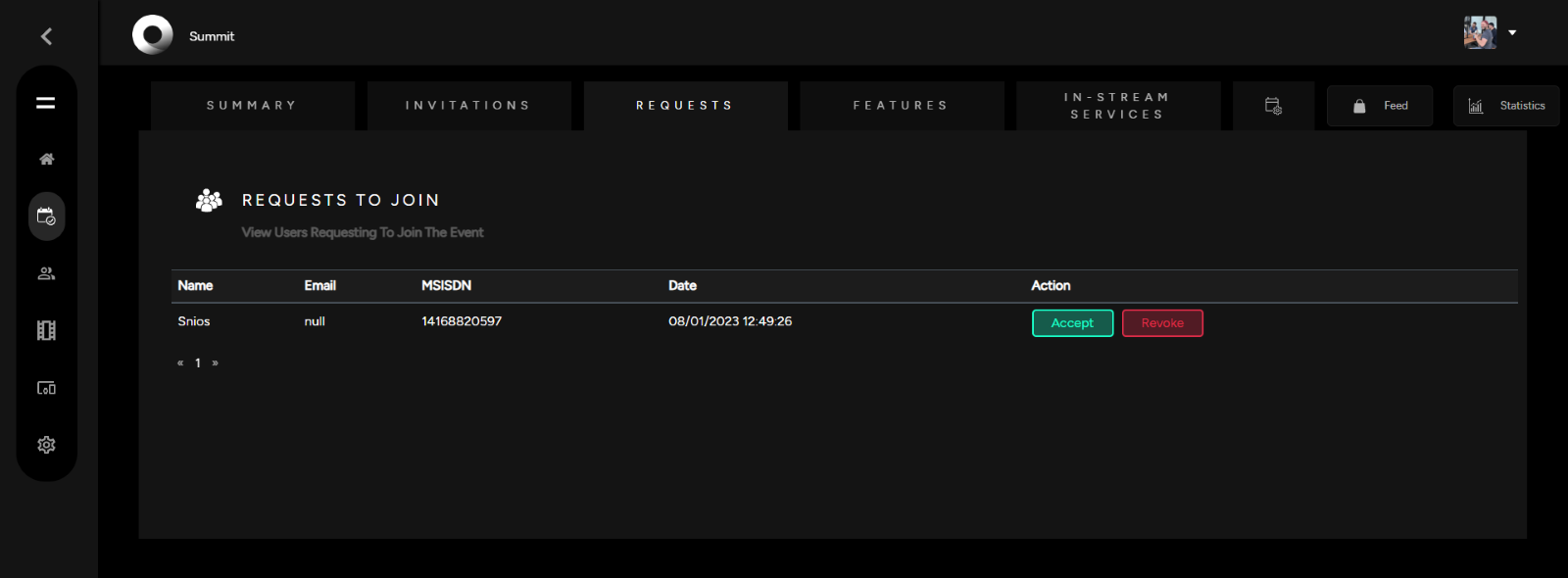
<span class="TextRun SCXW191933726 BCX0" data-contrast="auto" lang="EN-US" xml:lang="EN-US"><span class="NormalTextRun SCXW191933726 BCX0">You will have the option to view requests and decide whether to Accept or Revoke requests to join. </span></span>
<span class="SCXW191933726 BCX0"><span class="WACImageContainer NoPadding DragDrop BlobObject SCXW191933726 BCX0" role="presentation">![](http://support.odience.com/uploads/images/gallery/2023-12/embedded-image-2gdtwd41.png)</span></span>

<span class="EOP SCXW191933726 BCX0" data-ccp-props="{"201341983":0,"335551550":1,"335551620":1,"335559685":0,"335559739":160,"335559740":259}"><span class="TextRun SCXW191933726 BCX0" data-contrast="auto" lang="EN-US" xml:lang="EN-US"><span class="NormalTextRun SCXW191933726 BCX0">**Note**: Managing Requests will only be available if Registration was enabled in the Event Access Settings. See our guide to learn more about [**Registration &amp; Event Access options.**](https://support.odience.com/books/event-creation-management/page/create-event "Event Access")</span></span></span>

# Dashboard (Manage Live Event)


# Intro

##### **Dashboard**

Manage Connected Guests, Messages, Video Walls and much more in real-time.

[![Dashboard.png](https://support.odience.com/uploads/images/gallery/2024-03/scaled-1680-/dashboard.png)](https://support.odience.com/uploads/images/gallery/2024-03/dashboard.png)

- For more details, see [**Dashboard**](https://support.odience.com/books/event-creation-management/page/dashboard-moderation "Dashboard") guide.

##### **Guests**

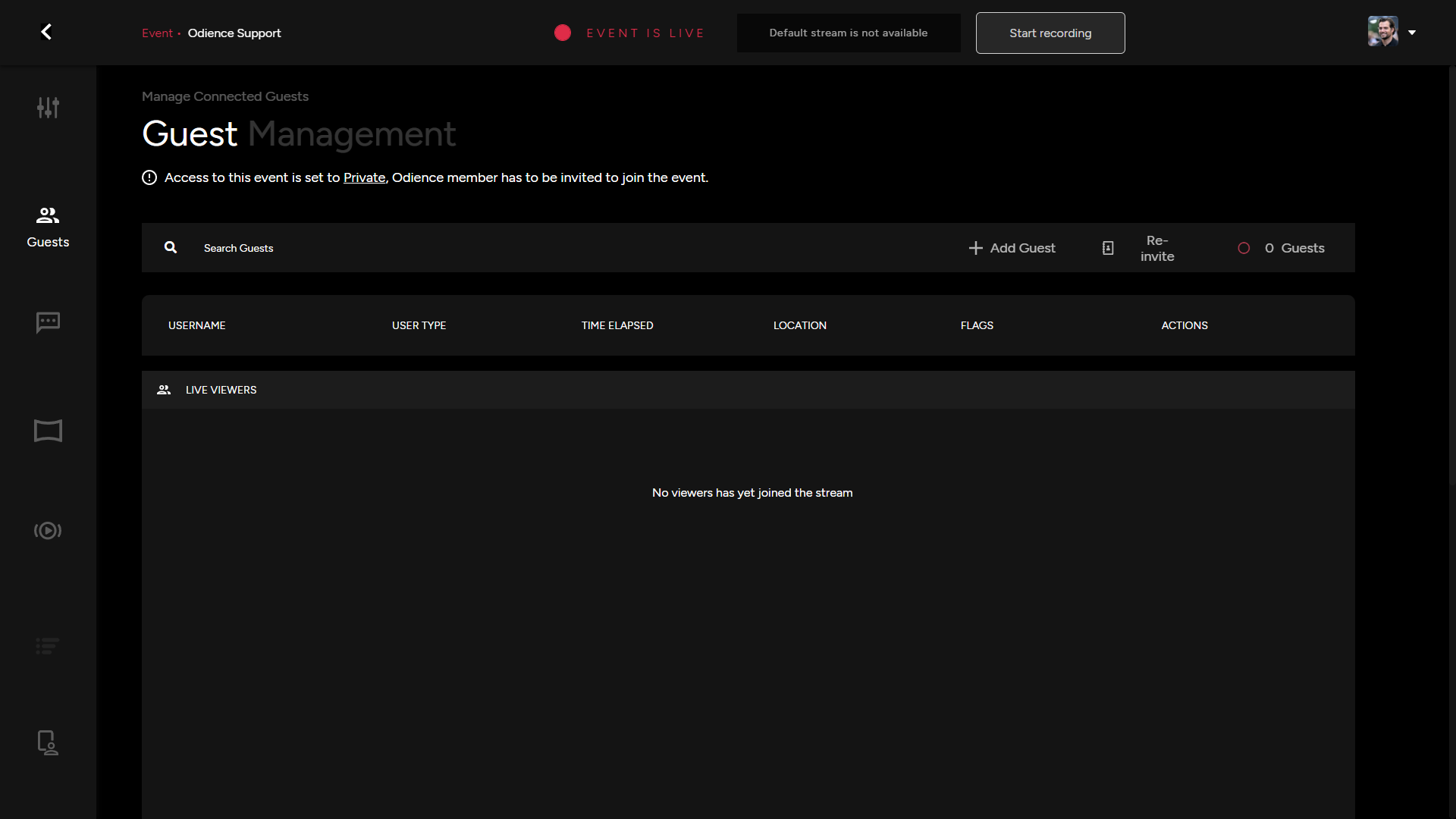
Manage guests, Extend more invitations and initiate Action for specific Users.

[![Guests.png](https://support.odience.com/uploads/images/gallery/2024-03/scaled-1680-/guests.png)](https://support.odience.com/uploads/images/gallery/2024-03/guests.png)
- For more details, see [**Guests**](https://support.odience.com/books/event-creation-management/page/guest-management "Guests") guide.

##### **Moderation**

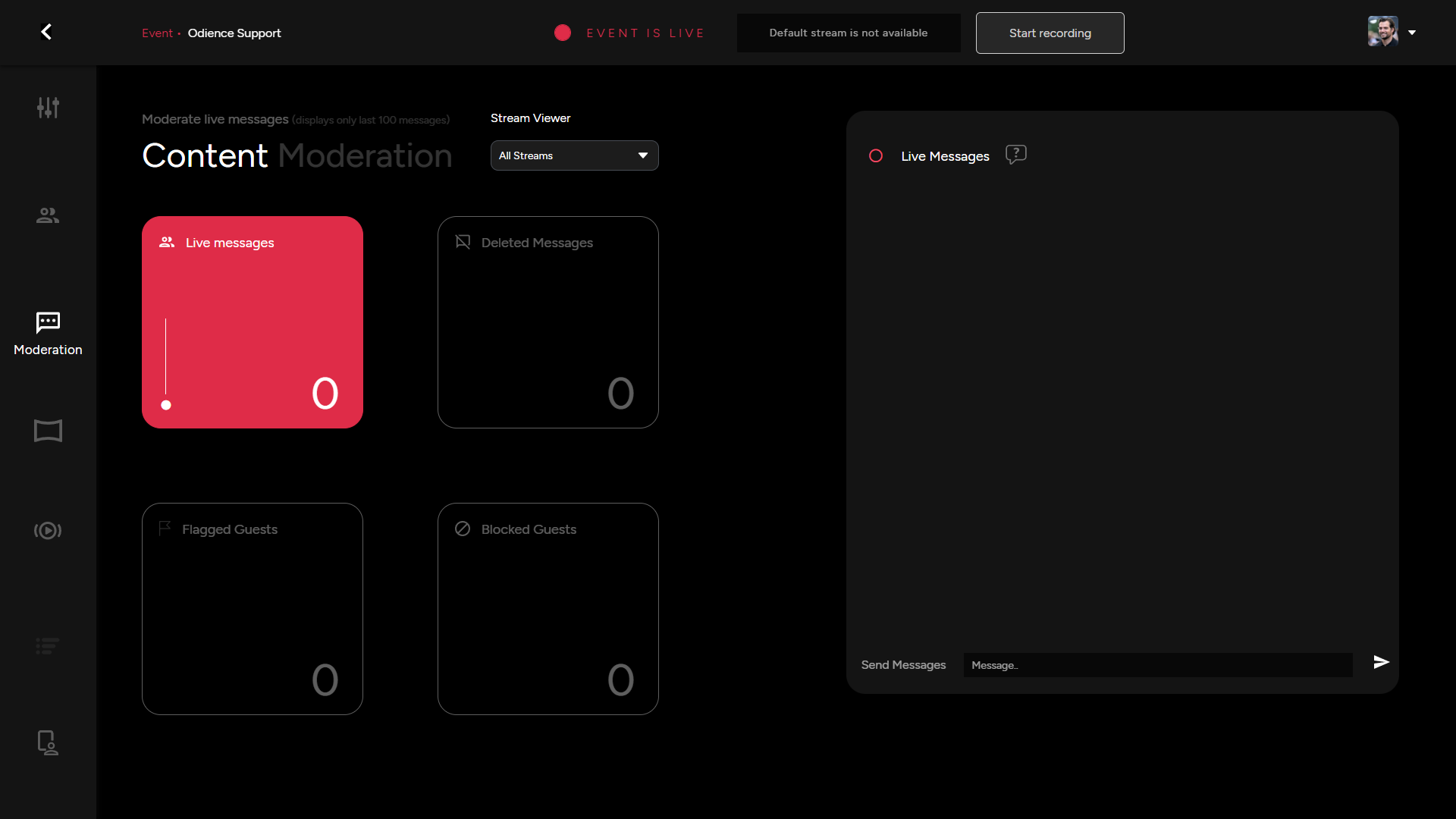
\- Moderate Live Messages circulating the chat and manage other chat as well as user related actions.

[![Moderation.png](https://support.odience.com/uploads/images/gallery/2024-03/scaled-1680-/moderation.png)](https://support.odience.com/uploads/images/gallery/2024-03/moderation.png)
- For more details, see [**Moderation**](https://support.odience.com/books/event-creation-management/page/content-moderation "Moderation") guide.

##### **Video Wall**

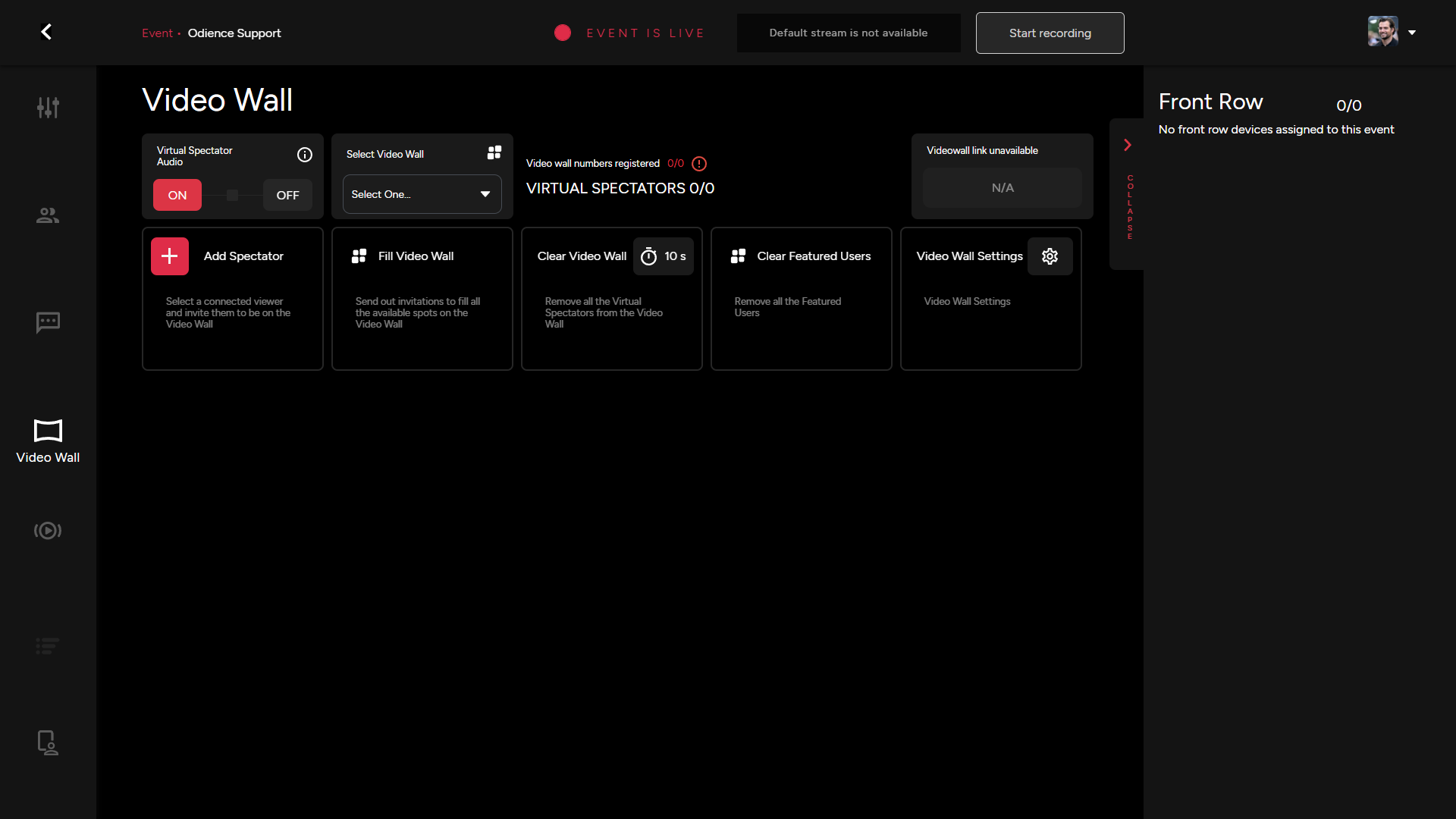
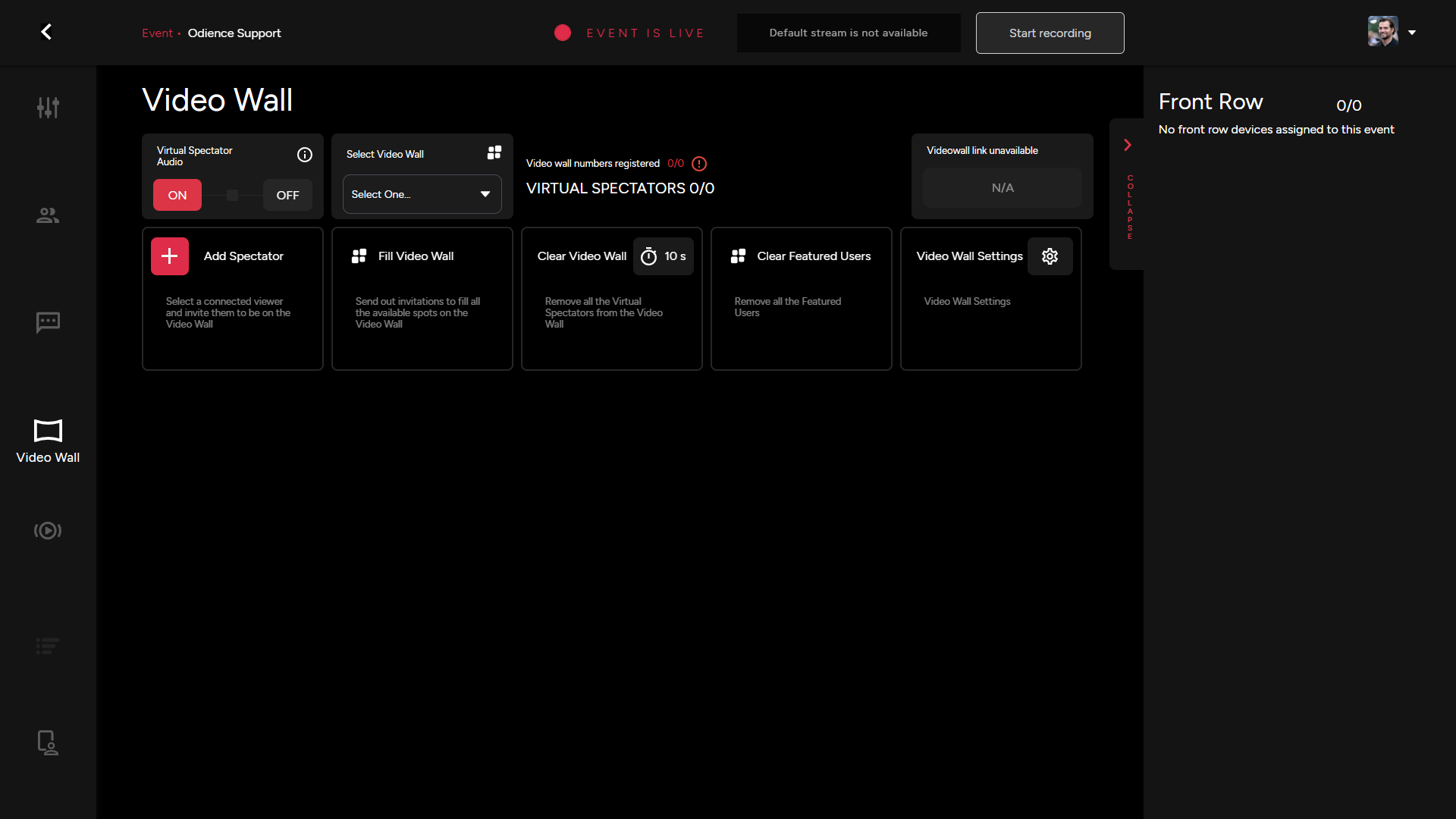
\- Manage all areas of your video wall, from Spectators, Invitations, Front Row, Settings and so forth.

[![Video Wall Moderation.png](https://support.odience.com/uploads/images/gallery/2024-03/scaled-1680-/video-wall-moderation.png)](https://support.odience.com/uploads/images/gallery/2024-03/video-wall-moderation.png)
- For more details, see [**Video Wall**](https://support.odience.com/books/event-creation-management/page/video-wall-management "Video Wall") guide.

##### **Control Room**

\- Enable Live Switching to allow users access to switch between different streams within your event.

[![Control Room.png](https://support.odience.com/uploads/images/gallery/2024-03/scaled-1680-/control-room.png)](https://support.odience.com/uploads/images/gallery/2024-03/control-room.png)
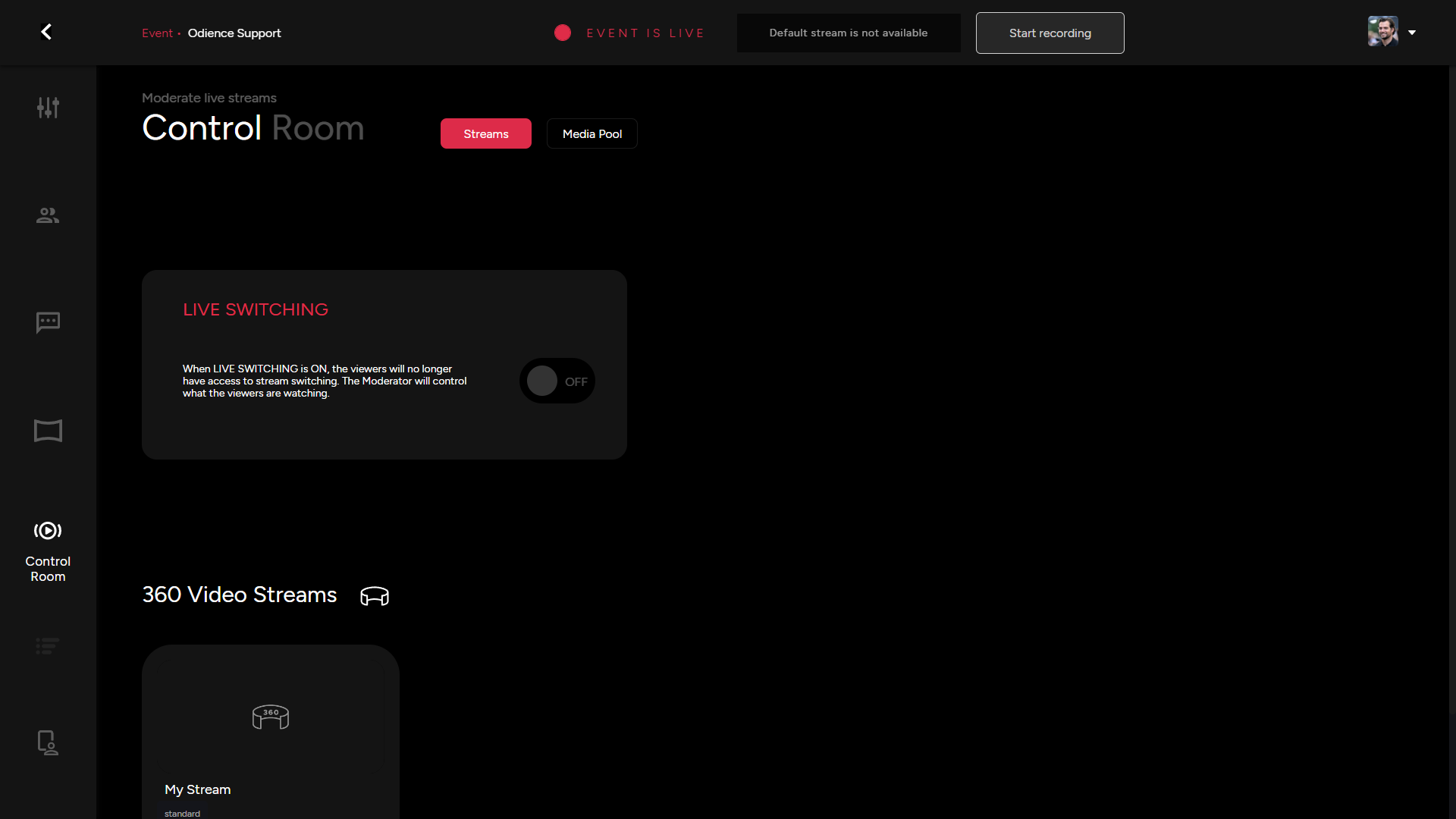
- For more details, see [**Control Room**](https://support.odience.com/books/event-creation-management/page/control-room "Control Room") guide.

##### **Media Pool**

\- Manage event and video wall content from your media control hub. Add new content or modify how it appears in your live event.

[![Media Pool.png](https://support.odience.com/uploads/images/gallery/2024-03/scaled-1680-/DMgmedia-pool.png)](https://support.odience.com/uploads/images/gallery/2024-03/DMgmedia-pool.png)
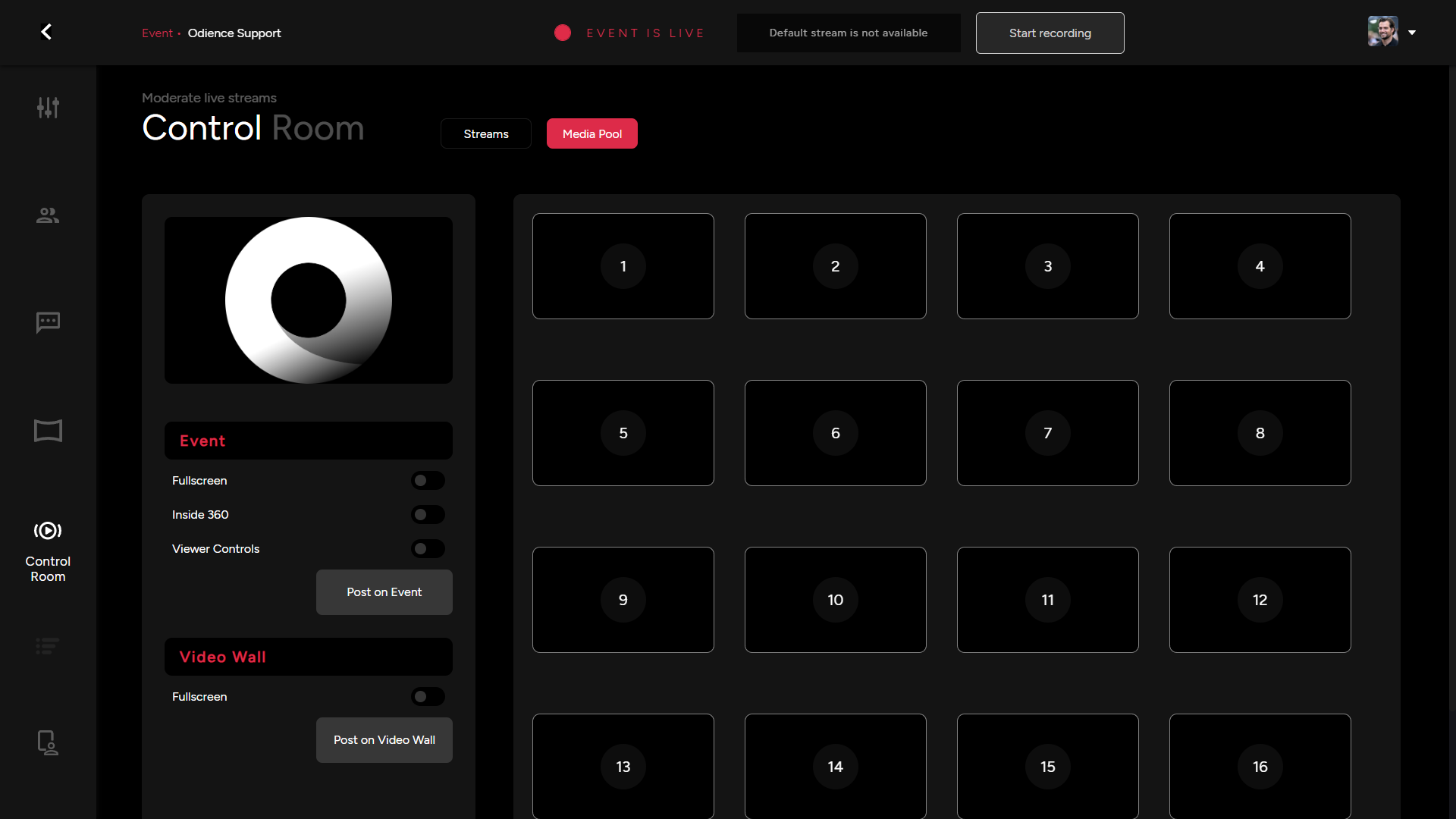
- For more details, see [**Control Room**](https://support.odience.com/books/event-creation-management/page/control-room "Control Room") guide.

##### **Poll Bot**

\- Start &amp; End Poll, the results will be displayed here.

[![Odience Poll Bot.png](https://support.odience.com/uploads/images/gallery/2024-03/scaled-1680-/odience-poll-bot.png)](https://support.odience.com/uploads/images/gallery/2024-03/odience-poll-bot.png)
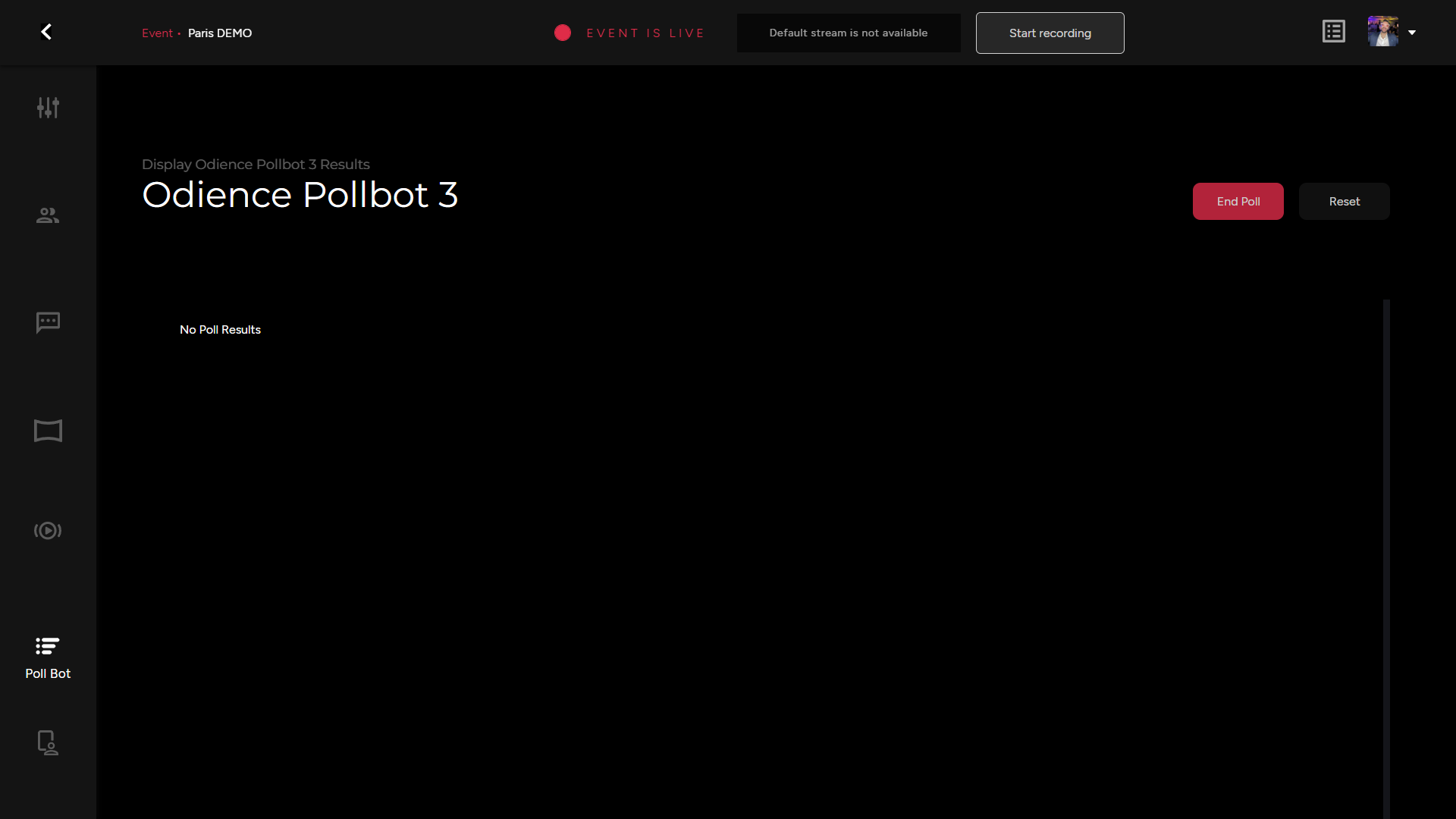
- For more details, see [**Poll Bot**](https://support.odience.com/books/event-creation-management/page/poll-bot-management "Control Room") guide.

##### **Presenter**

\- Access all presenter controls from your Moderation Dashboard. This is also where you can set-up a host tablet to manage the event.

[![Presenter.png](https://support.odience.com/uploads/images/gallery/2024-03/scaled-1680-/44Ipresenter.png)](https://support.odience.com/uploads/images/gallery/2024-03/44Ipresenter.png)
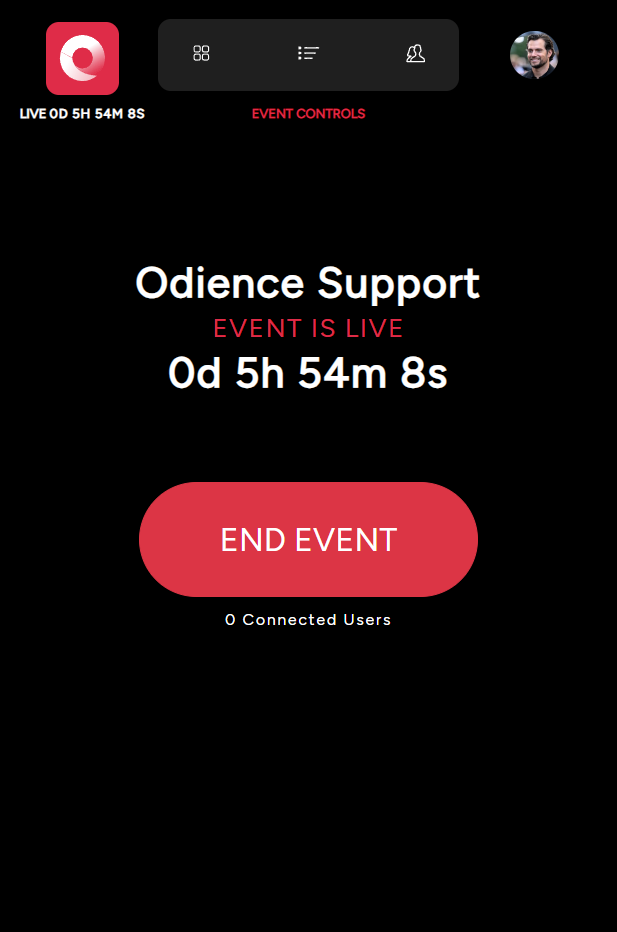
- For more details, see [**Presenter** ](https://support.odience.com/books/event-creation-management/page/presenter-control-hub "Presenter")guide.

# Dashboard Moderation

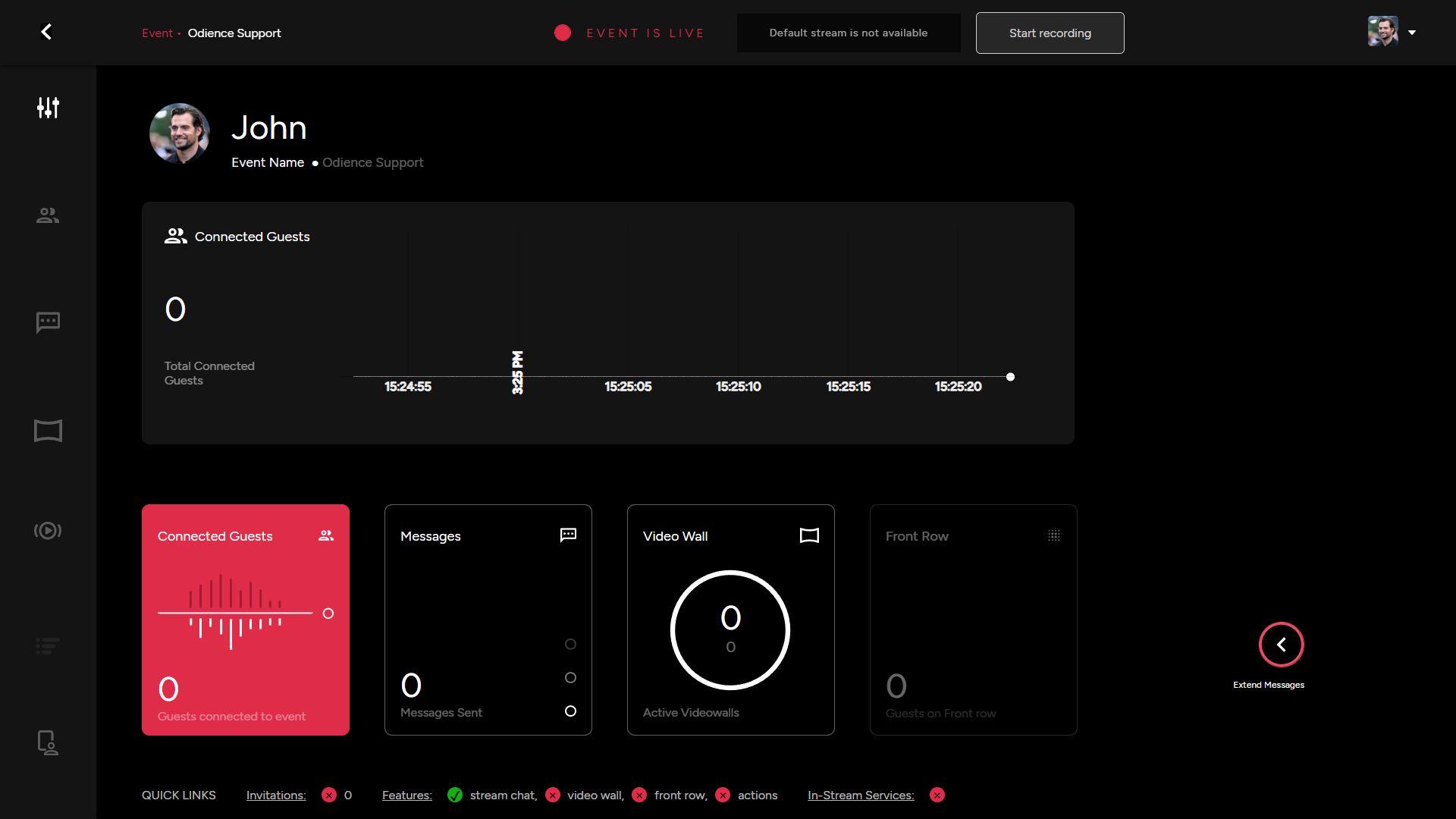
\- Manage and track the activity of several interactive components within your event in real-time. See connected guest, number of messages, video wall connections, the amount of guest in Front Row, &amp; last extend messages to see the live feed of your chat.

[![Dashboard.png](https://support.odience.com/uploads/images/gallery/2024-03/scaled-1680-/N2cdashboard.png)](https://support.odience.com/uploads/images/gallery/2024-03/N2cdashboard.png)
# Guest Management

##### **General**

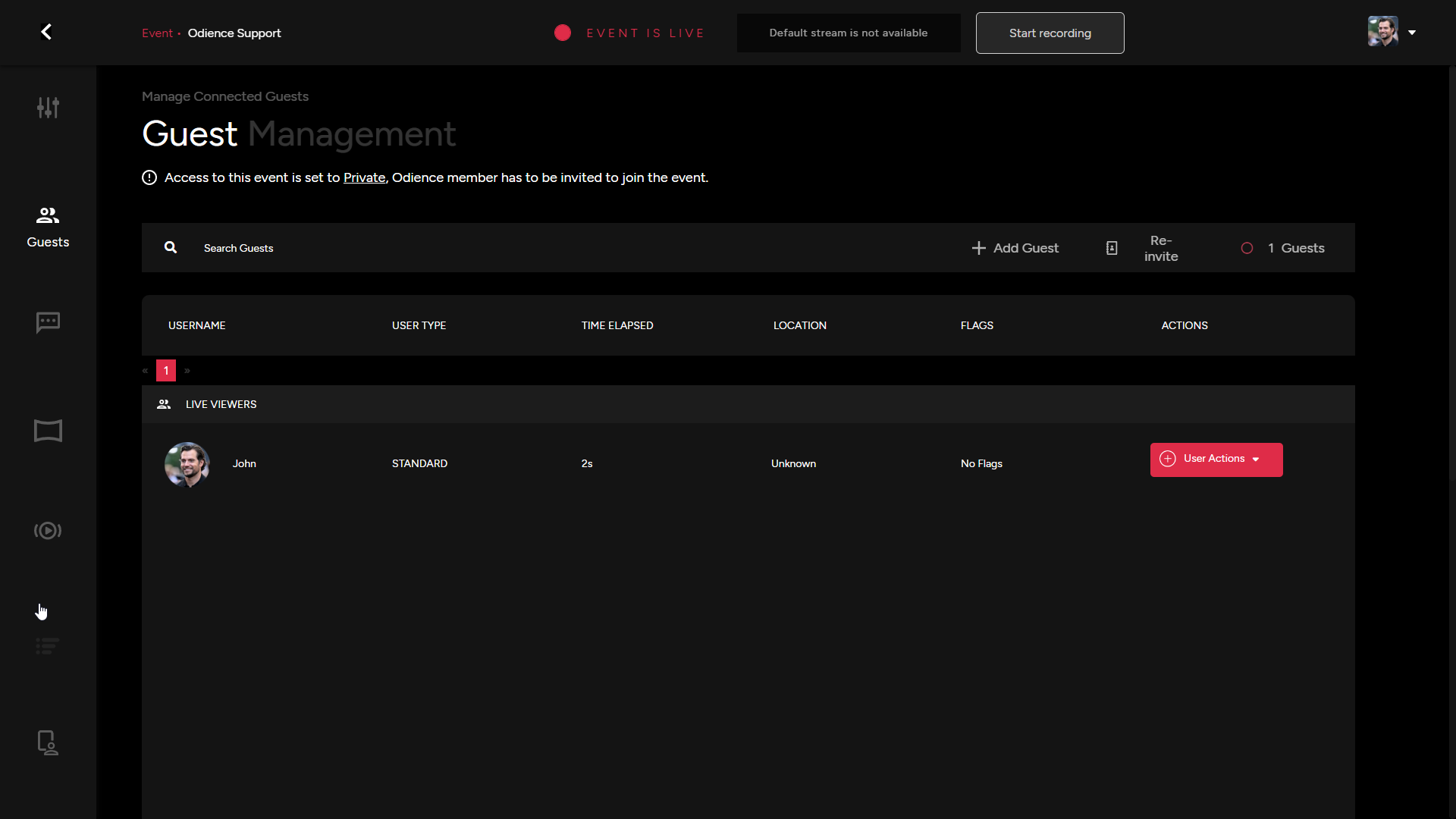
\- The guest dashboard allows you to invite new guests after the event has gone live or re-invite guests who have already been invited to your event.

[![Guest Management.png](https://support.odience.com/uploads/images/gallery/2024-03/scaled-1680-/guest-management.png)](https://support.odience.com/uploads/images/gallery/2024-03/guest-management.png)
##### **User Actions**

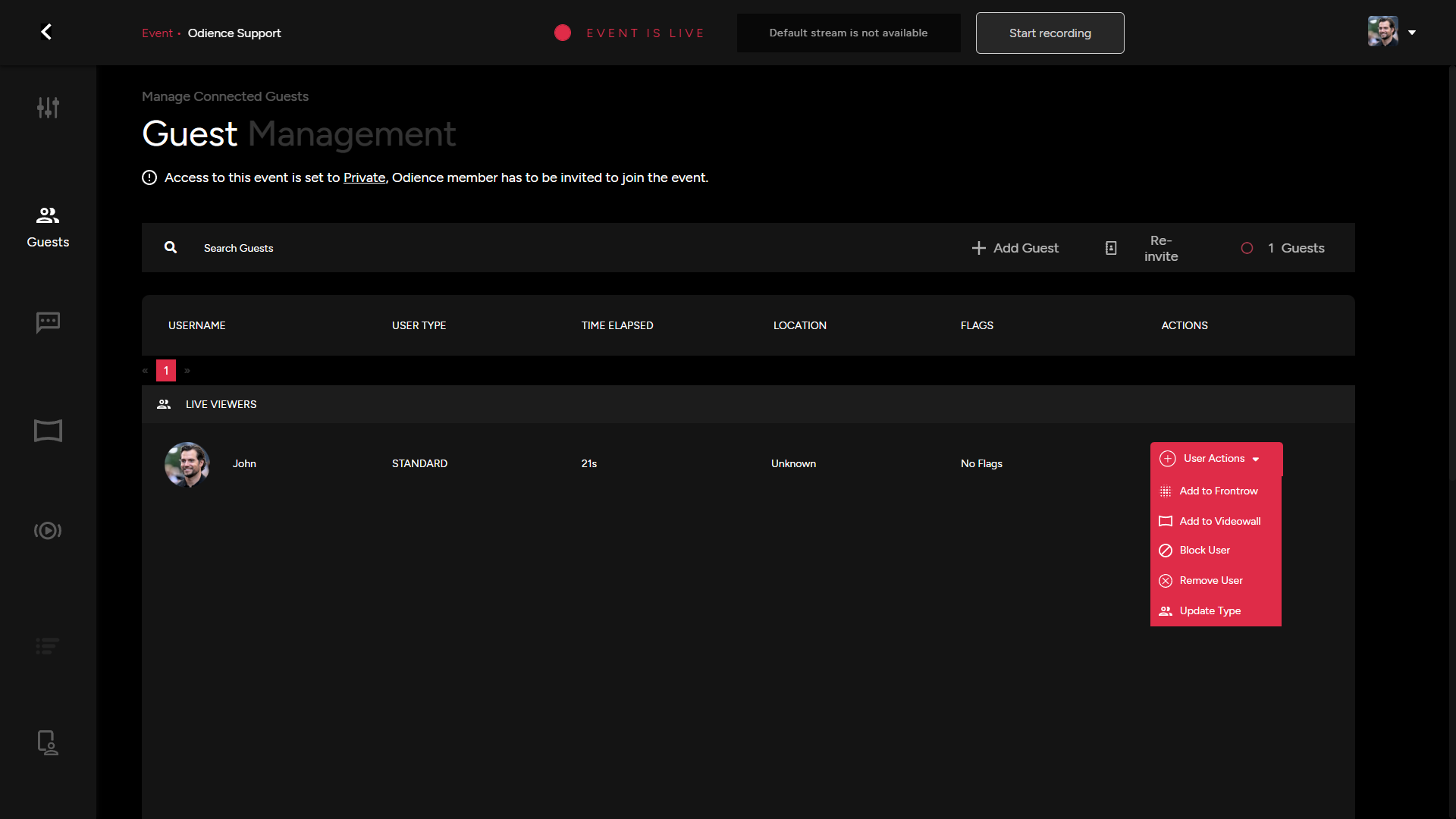
\- There are several individual actions you can utilize for individual users.

1. Add user to Front Row. This will send them an invitation to join Front Row.
2. Add user to Video Wall, this will send the user an invitation to be a featured guest on the Video Wall.
3. Blocking a user will prevent them from engaging in the stream chat
4. Removing a user will remove them from the event entirely &amp; will therefore be blocked from rejoining.
5. Updating a user type... (TBD)

[![Guests.png](https://support.odience.com/uploads/images/gallery/2024-03/scaled-1680-/kE1guests.png)](https://support.odience.com/uploads/images/gallery/2024-03/kE1guests.png)
# Content Moderation

##### **Content Moderation**

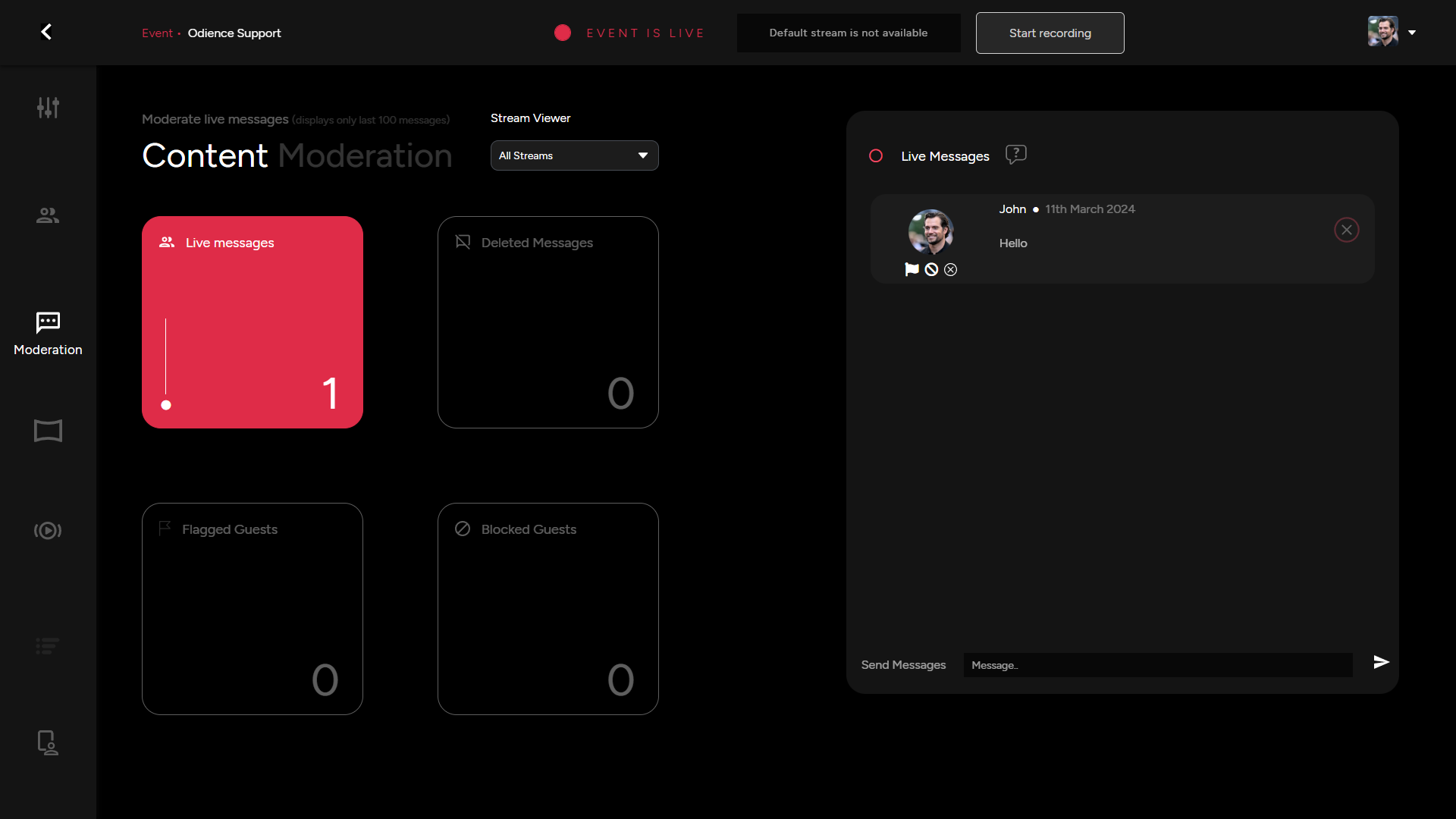
Manage the live messages running through the chat. Delete messages, flag guests, block guests or save messages to reference later in your event for a Q&amp;A session.

[![Moderation.png](https://support.odience.com/uploads/images/gallery/2024-03/scaled-1680-/gQ1moderation.png)](https://support.odience.com/uploads/images/gallery/2024-03/gQ1moderation.png)

##### **Guest Message Options**

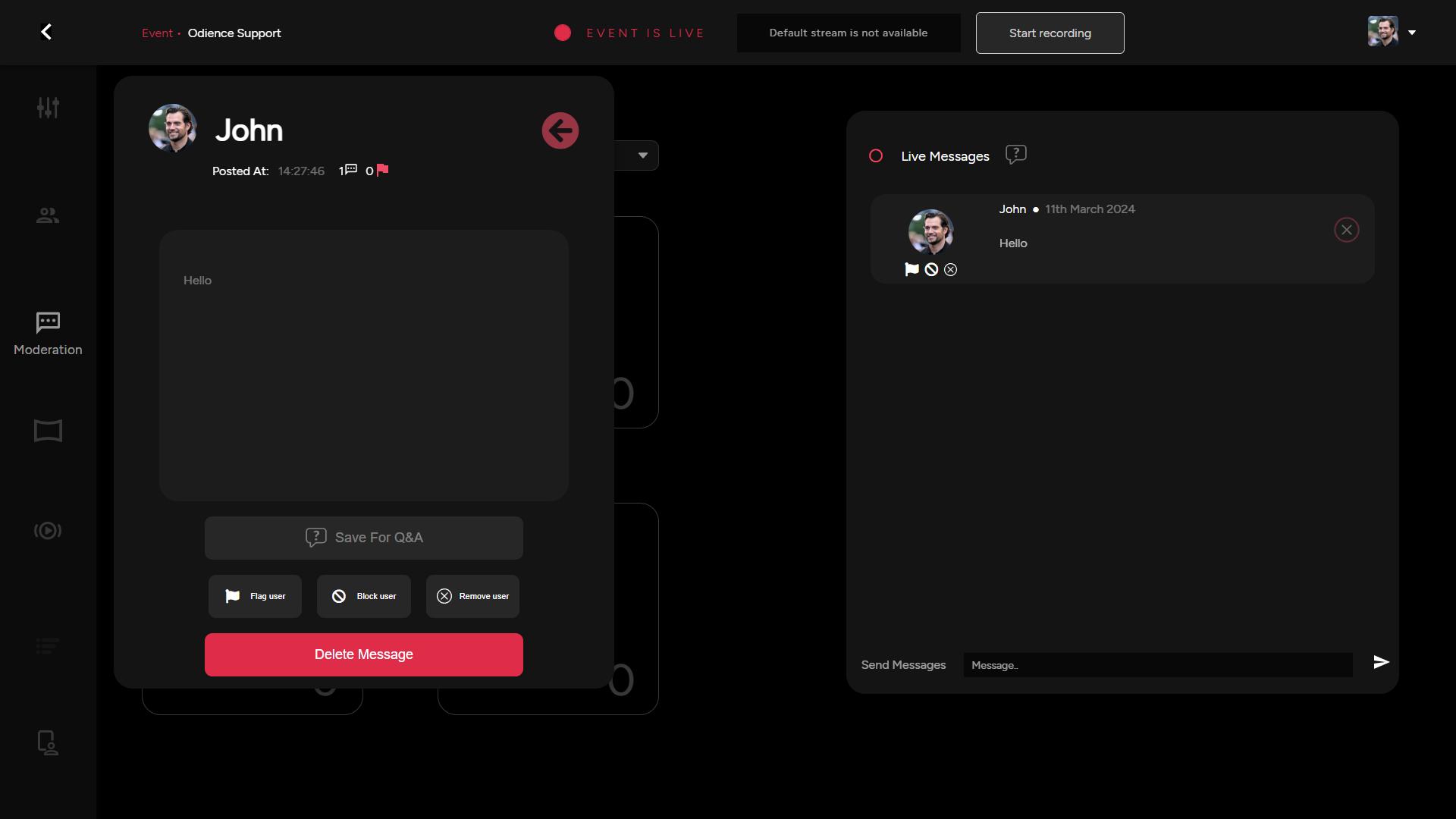
Different view to access all features outlined above, except this area has the Save for Q&amp;A option.

[![Content Moderation.png](https://support.odience.com/uploads/images/gallery/2024-03/scaled-1680-/content-moderation.png)](https://support.odience.com/uploads/images/gallery/2024-03/content-moderation.png)

# Video Wall Management

##### **Virtual Spectator Audio**

\- Turn on or off the virtual spectator audio

[![Video Wall Moderation.png](https://support.odience.com/uploads/images/gallery/2024-03/scaled-1680-/GVmvideo-wall-moderation.png)](https://support.odience.com/uploads/images/gallery/2024-03/GVmvideo-wall-moderation.png)
##### **Add Spectator**

\- Select a connected viewer and invite them to be on the Video Wall

[![Add Spectator.png](https://support.odience.com/uploads/images/gallery/2024-03/scaled-1680-/add-spectator.png)](https://support.odience.com/uploads/images/gallery/2024-03/add-spectator.png)

##### **Fill Video Wall**

\- Quick access to remove all the virtual spectators from the video wall

[![Fill Video Wall.png](https://support.odience.com/uploads/images/gallery/2024-03/scaled-1680-/fill-video-wall.png)](https://support.odience.com/uploads/images/gallery/2024-03/fill-video-wall.png)
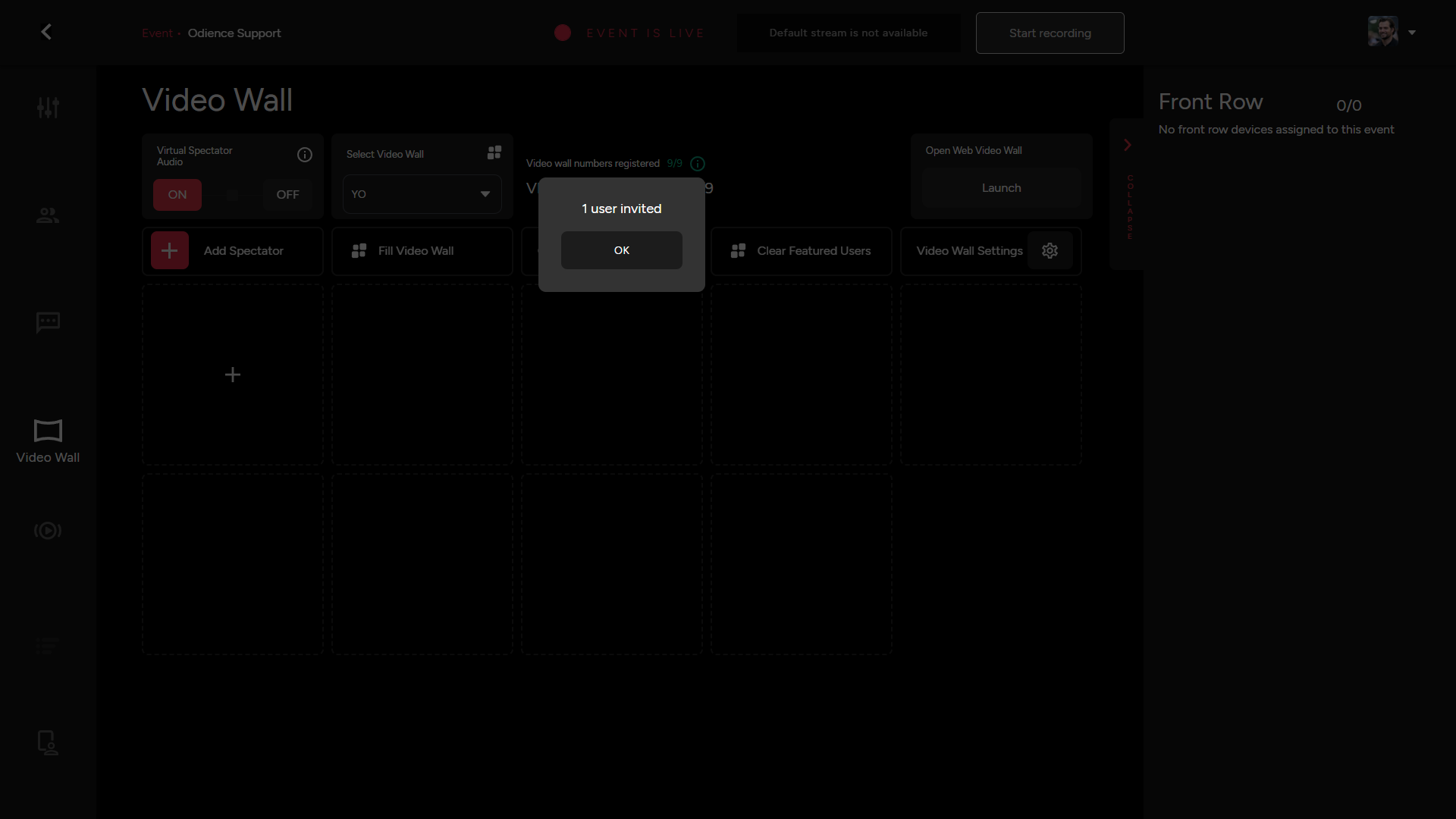
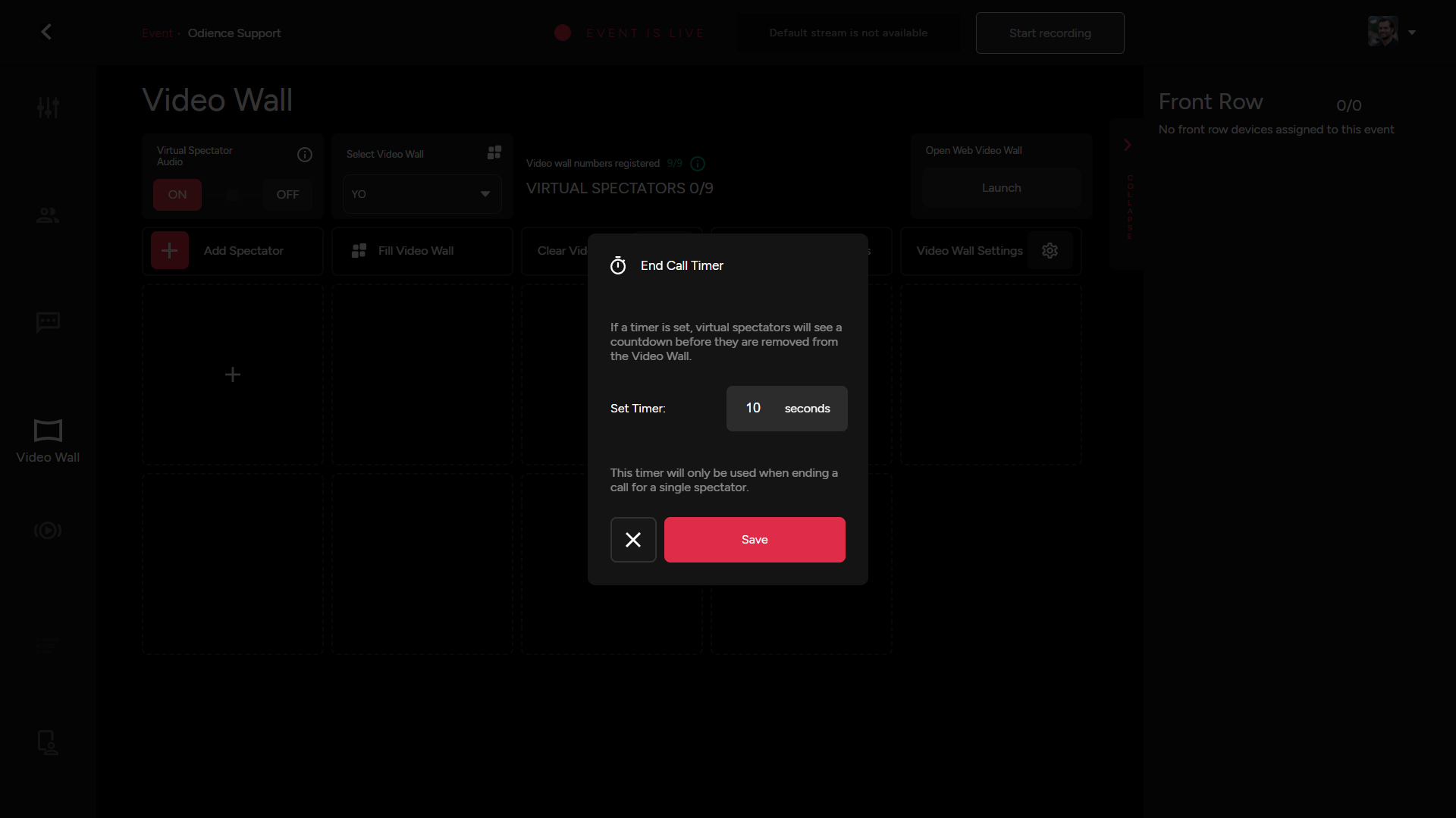
##### **Clear Video Wall &amp; Set End Call Timer**

\- Remove all the Virtual Spectators from the video with the click of a button. Set a Call Time, this will only be used when ending a call for a single spectator.

[![Clear Video Wall.png](https://support.odience.com/uploads/images/gallery/2024-03/scaled-1680-/clear-video-wall.png)](https://support.odience.com/uploads/images/gallery/2024-03/clear-video-wall.png)
##### **Clear Featured Users**

\- Remove all the Featured Users with the click of a button

[![Clear Featured Users.png](https://support.odience.com/uploads/images/gallery/2024-03/scaled-1680-/clear-featured-users.png)](https://support.odience.com/uploads/images/gallery/2024-03/clear-featured-users.png)

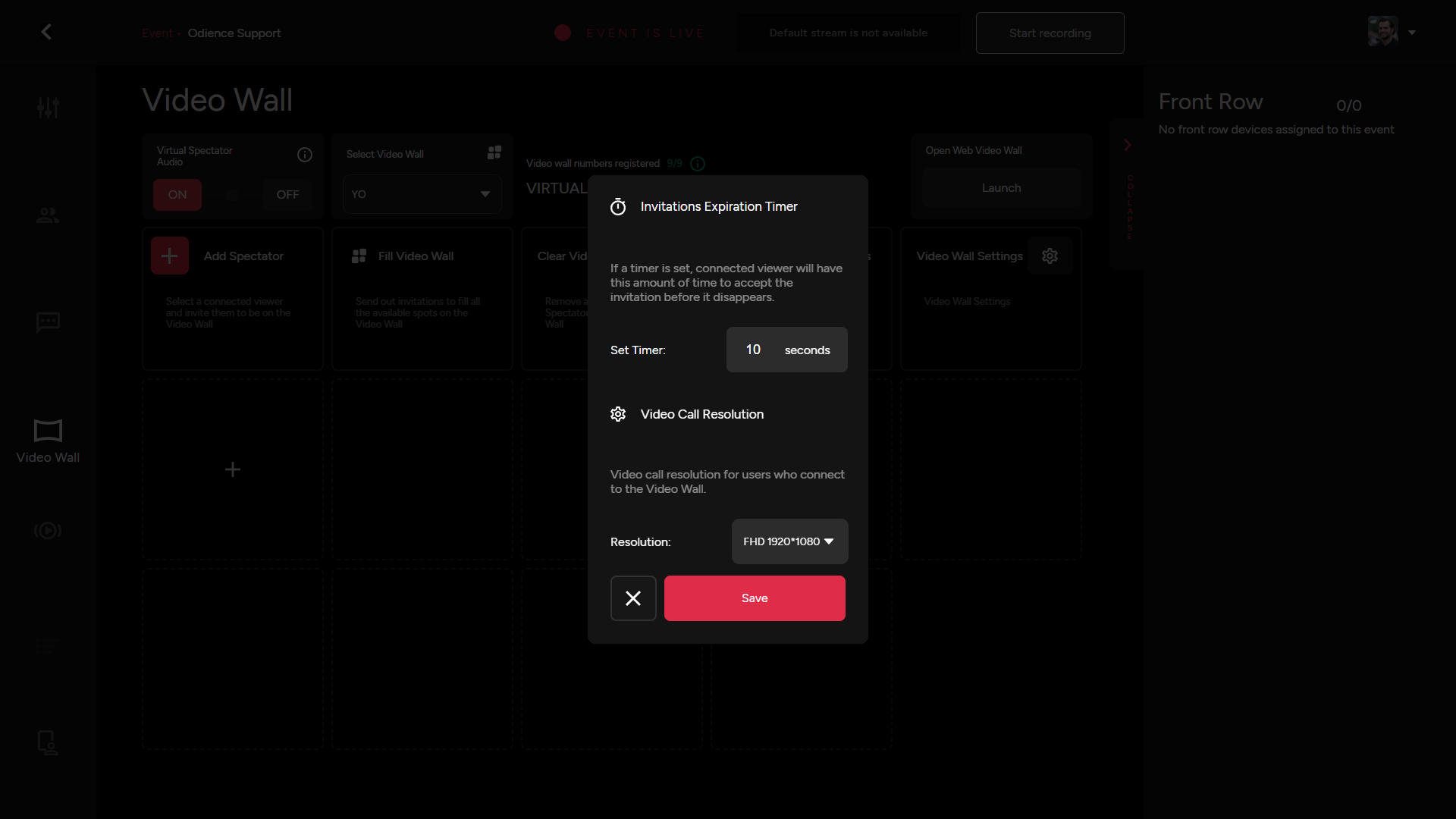
##### **Video Wall Settings**

\- Set the amount of time a connected viewer will have to accept an invitation before it disappears. Set video resolution, we support from SD 640x480 all the way to FHD 1920x1080.

[![Video Wall Settings.png](https://support.odience.com/uploads/images/gallery/2024-03/scaled-1680-/video-wall-settings.png)](https://support.odience.com/uploads/images/gallery/2024-03/video-wall-settings.png)
##### **Video Wall Link**

\- Launch Web Video Wall from this section.

Note: Will include sample of Web Video Wall when it starts working.

##### **Front Row**

**- TBA**

# Control Room

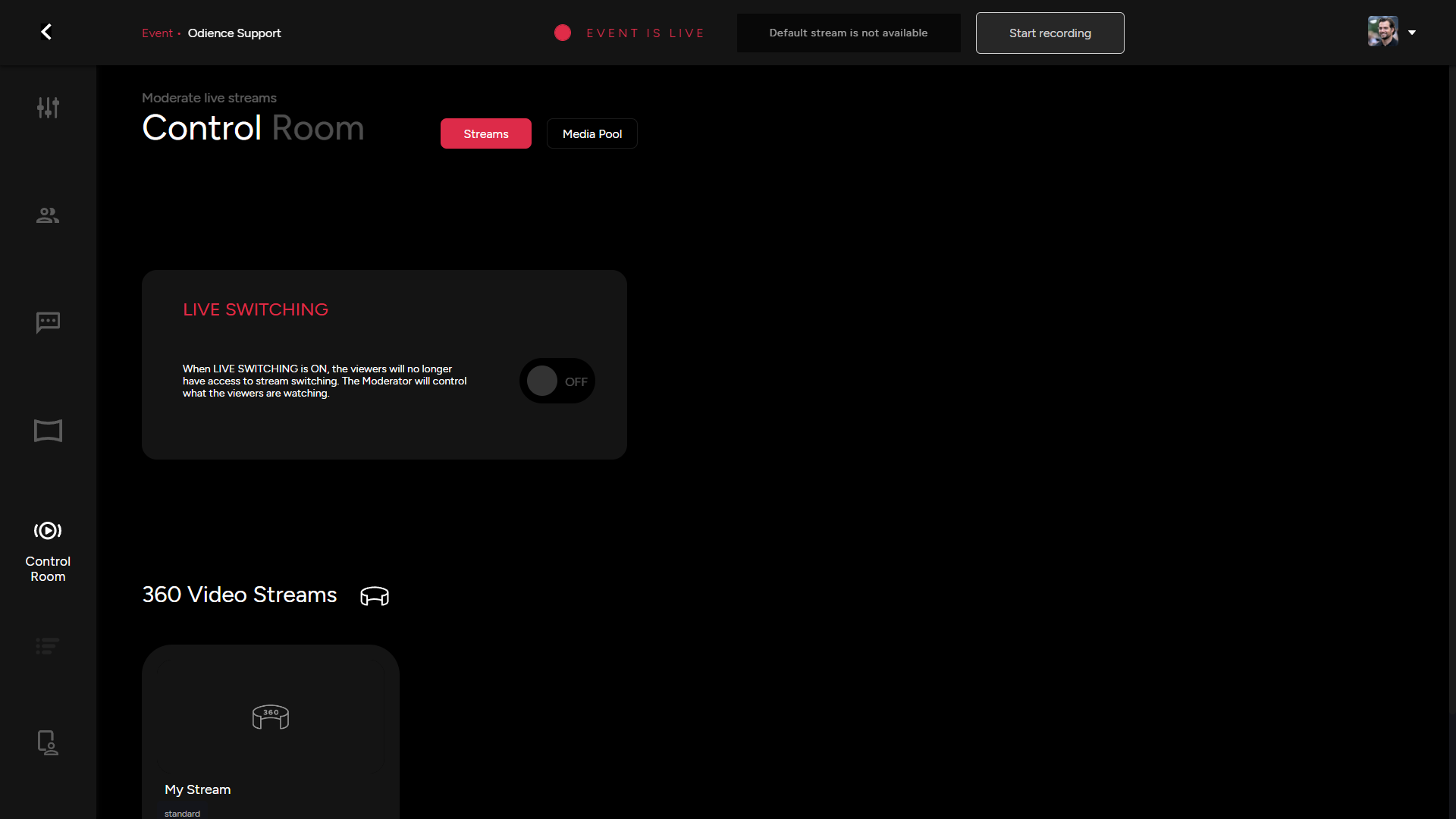
##### **Control Streams** 

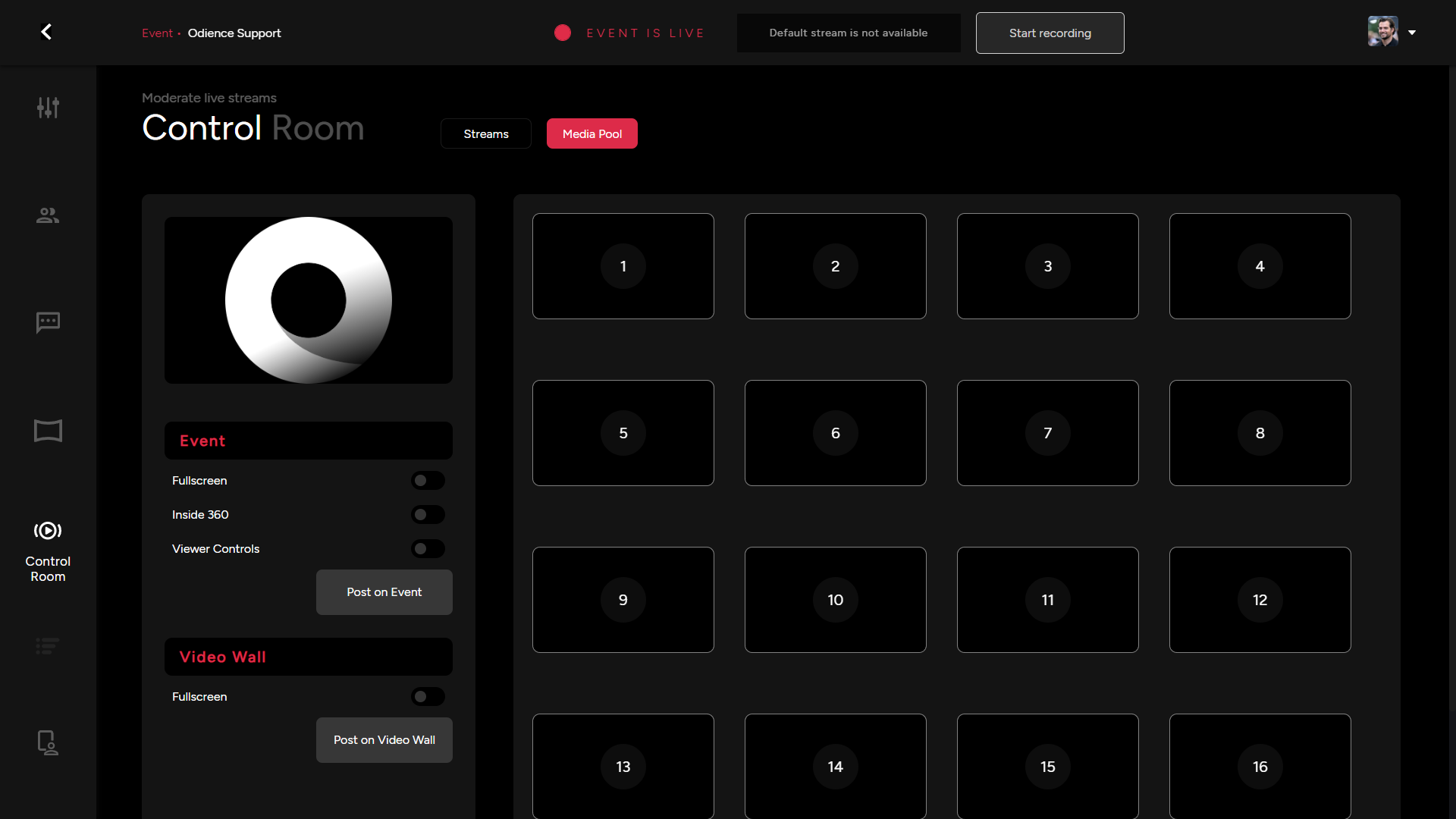
\- Live Switching is a feature that allows viewers to switch between different streams assigned to an event. Note, if Live Switching is ON, the Moderator will control what the viewers are watching. In the section right below, you may activate or deactivate streams assigned to your event.

[![Control Room.png](https://support.odience.com/uploads/images/gallery/2024-03/scaled-1680-/nSjcontrol-room.png)](https://support.odience.com/uploads/images/gallery/2024-03/nSjcontrol-room.png)
##### **Media Pool**

\- Manage all media elements attached to your event or video wall. Feel free to import new media from your PC or via a URL.

[![Media Pool.png](https://support.odience.com/uploads/images/gallery/2024-03/scaled-1680-/media-pool.png)](https://support.odience.com/uploads/images/gallery/2024-03/media-pool.png)
# Poll Bot Management

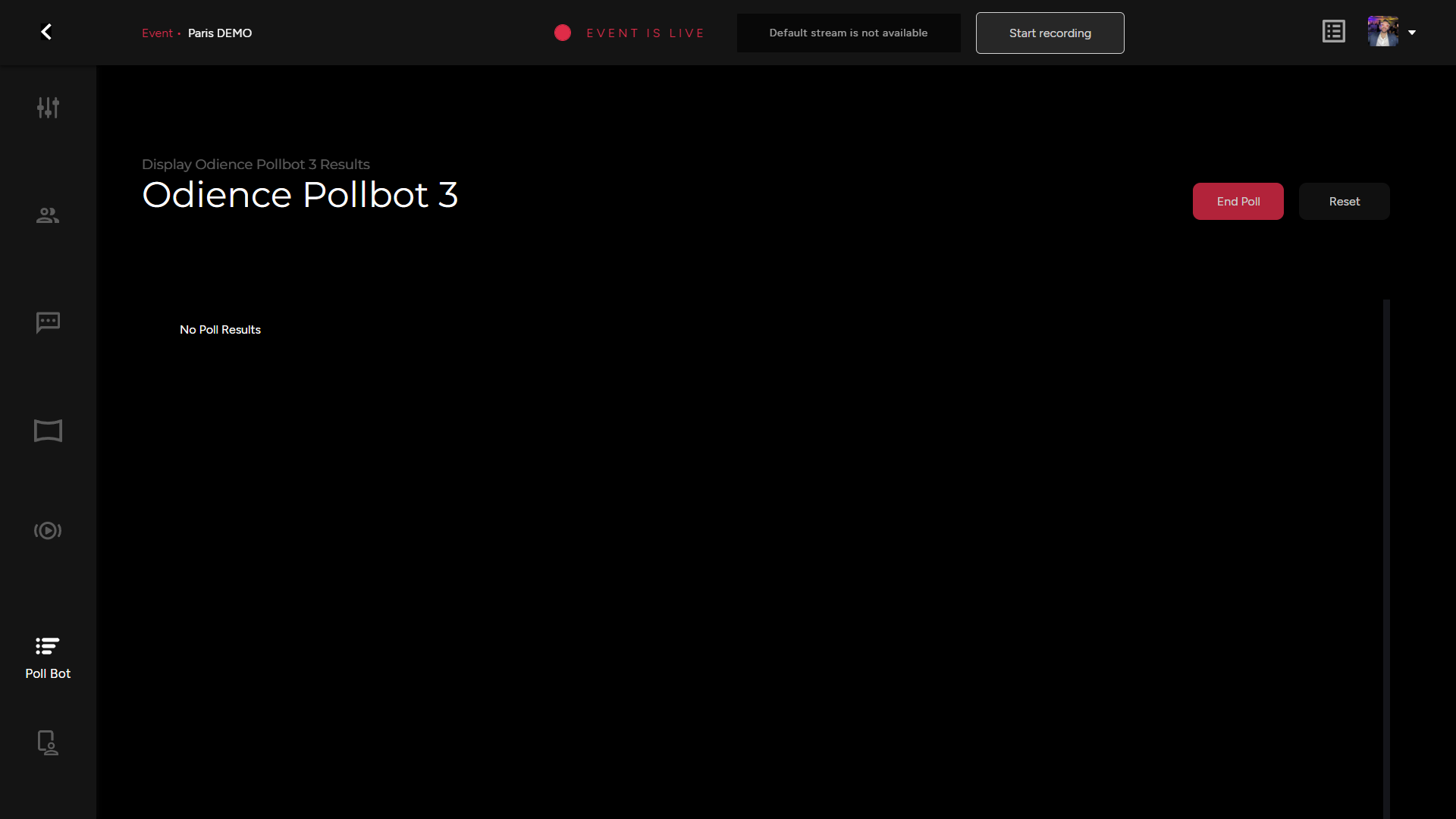
\- Start and end your event poll from this section. This is also where Poll results will appear before being featured to the audience. This will only be available for events that have a Poll bot assigned to them.

[![Odience Poll Bot.png](https://support.odience.com/uploads/images/gallery/2024-03/scaled-1680-/SEXodience-poll-bot.png)](https://support.odience.com/uploads/images/gallery/2024-03/SEXodience-poll-bot.png)
# Presenter Control Hub

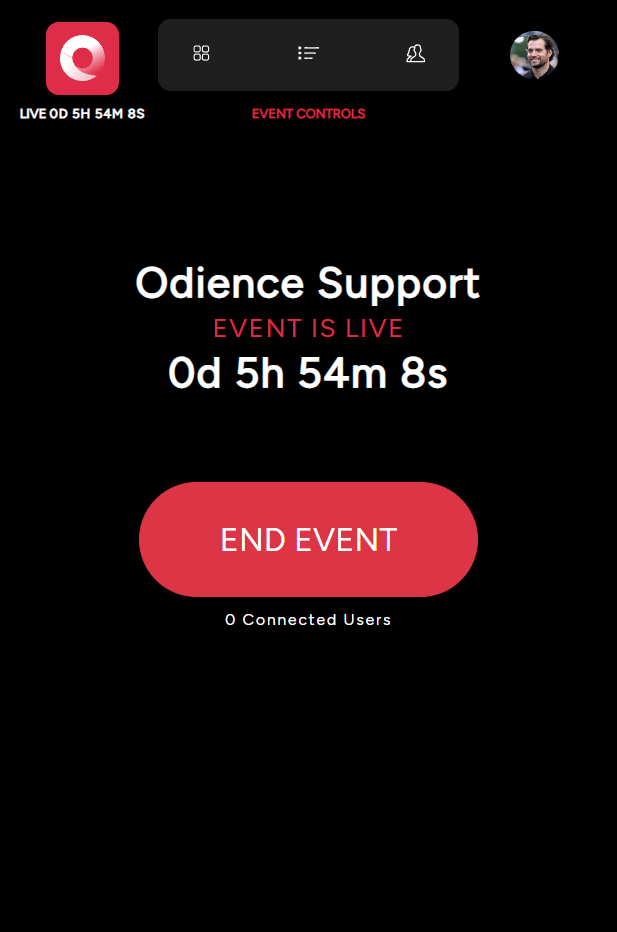
The Presenter tab is the control hub for the event host. The host can start &amp; end the event, Control product carousel appearance, Start poll, manage participants and a variety of interactions associated the participants such as Featured Message, Front Row, Featured Spectator and much more.

[![Presenter.png](https://support.odience.com/uploads/images/gallery/2024-03/scaled-1680-/oGEpresenter.png)](https://support.odience.com/uploads/images/gallery/2024-03/oGEpresenter.png)
# Event Settings


# Modify Event Settings

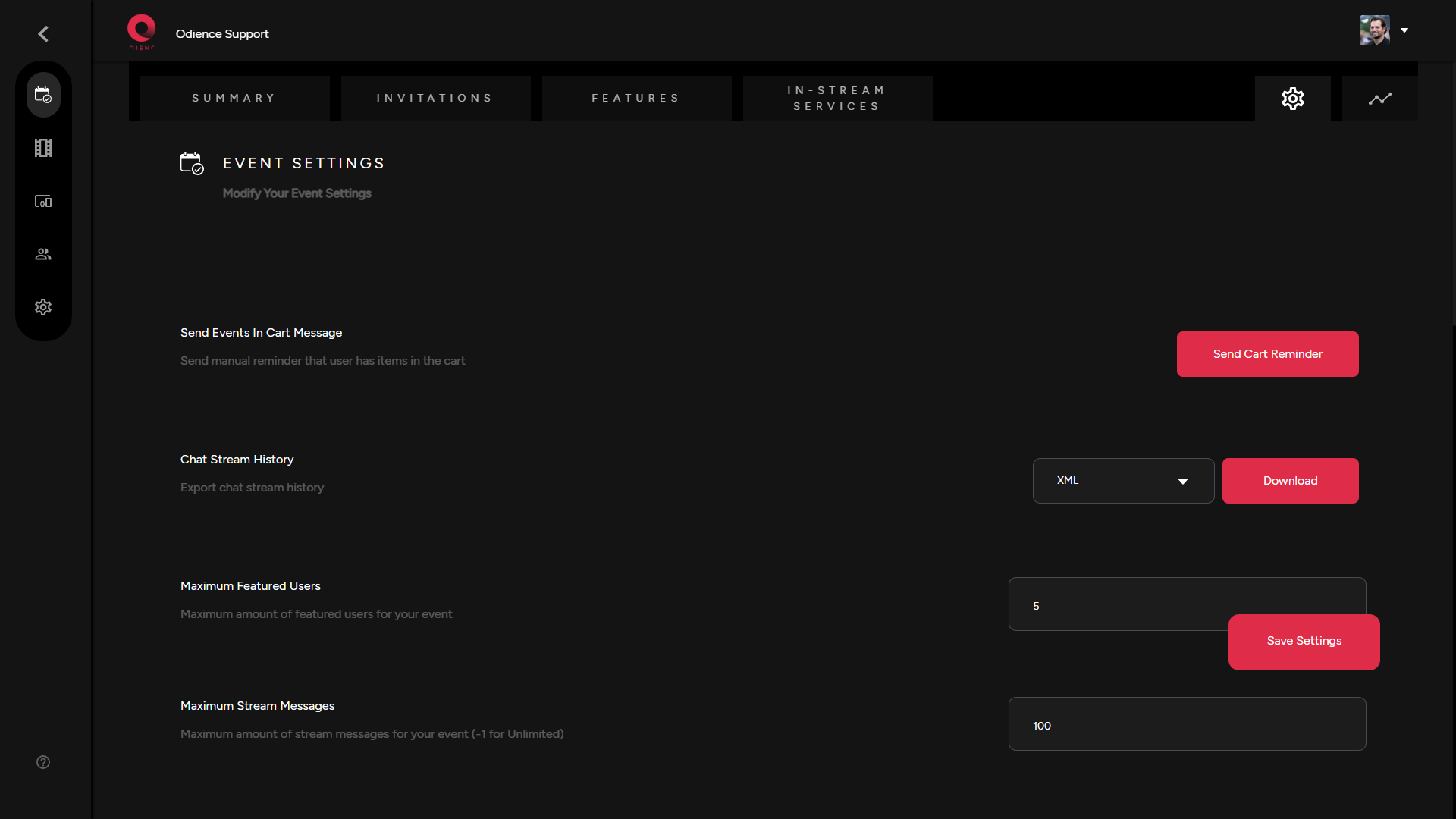
\- Modify a plethora of Event Settings

[![Event Settings.png](https://support.odience.com/uploads/images/gallery/2024-03/scaled-1680-/event-settings.png)](https://support.odience.com/uploads/images/gallery/2024-03/event-settings.png)
# Event Statistics & KPI's


# Event Statistics

##### <span class="TextRun SCXW106708050 BCX0" data-contrast="auto" lang="EN-US" xml:lang="EN-US"><span class="NormalTextRun SCXW106708050 BCX0"> </span></span>**<span class="TextRun SCXW106708050 BCX0" data-contrast="auto" lang="EN-US" xml:lang="EN-US"><span class="NormalTextRun SCXW106708050 BCX0">Statistics Overview</span></span><span class="EOP SCXW106708050 BCX0" data-ccp-props="{"201341983":0,"335559739":160,"335559740":259}"> </span>**

\- Get a high level view of your Event Statistics, such as Users Invited, Users Attended, Users Items Purchased, etc.

<span class="SCXW198514190 BCX0"><span class="WACImageContainer NoPadding DragDrop BlobObject SCXW198514190 BCX0" role="presentation">![](http://support.odience.com/uploads/images/gallery/2024-01/embedded-image-kdla8qon.png)</span></span>

##### **<span class="EOP SCXW104010333 BCX0" data-ccp-props="{"201341983":0,"335559739":160,"335559740":259}">Export Stream History</span>**

<span class="EOP SCXW104010333 BCX0" data-ccp-props="{"201341983":0,"335559739":160,"335559740":259}">- Export Stream Chat History, select from three options including XML, RTF &amp; CSV format. </span>

<span class="SCXW104010333 BCX0"><span class="WACImageContainer NoPadding DragDrop BlobObject SCXW104010333 BCX0" role="presentation">![](http://support.odience.com/uploads/images/gallery/2024-01/embedded-image-kkteh4vc.png)</span></span>


##### **<span class="TextRun SCXW106708050 BCX0" data-contrast="auto" lang="EN-US" xml:lang="EN-US"><span class="NormalTextRun SCXW106708050 BCX0">Individual Statistics</span></span>**

<span class="TextRun SCXW106708050 BCX0" data-contrast="auto" lang="EN-US" xml:lang="EN-US"><span class="NormalTextRun SCXW106708050 BCX0">- Access a plethora of event statistics to gain insight on a specific aspects of your event such number of chatbot messages, user device traffic, user purchases and cart information, chatbot purchase, etc.</span></span>

**<span class="TextRun SCXW106708050 BCX0" data-contrast="auto" lang="EN-US" xml:lang="EN-US"><span class="NormalTextRun SCXW106708050 BCX0"><span class="SCXW265565030 BCX0"><span class="WACImageContainer NoPadding DragDrop BlobObject SCXW265565030 BCX0" role="presentation">![](http://support.odience.com/uploads/images/gallery/2024-01/embedded-image-tkbovyhe.png)</span></span></span></span>**

- <span class="EOP SCXW104010333 BCX0" data-ccp-props="{"201341983":0,"335559739":160,"335559740":259}">**Note:** </span>To export a PDF document of an individual statistic, click the icon in the bottom right corner.


<div class="SCXW106708050 BCX0" id="bkmrk--3"></div>

# KPI Export

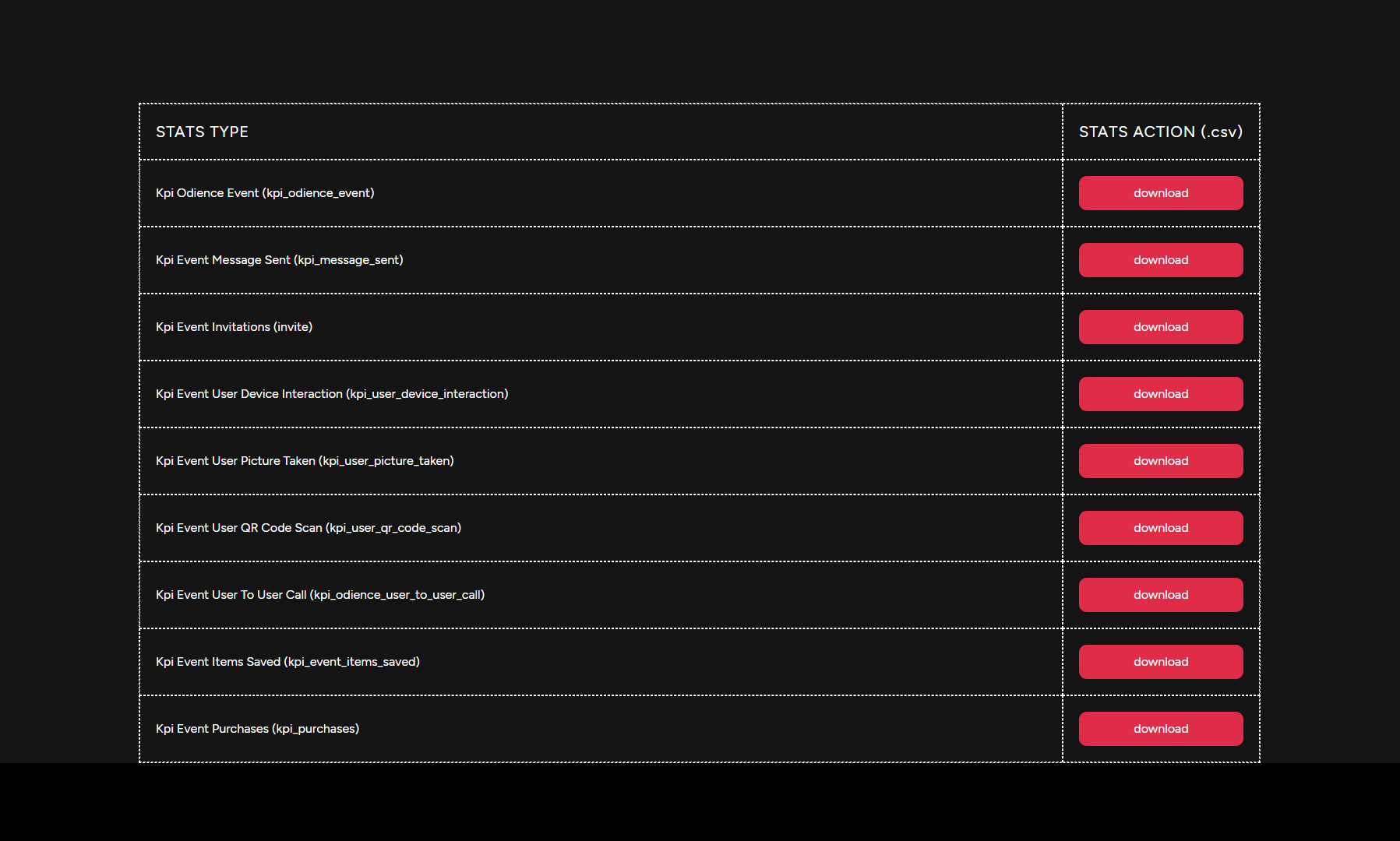
\- The KPI report section provides access to more statistics that primarily focuses on the performance of user driven engagement features.

[![Event KPI.png](https://support.odience.com/uploads/images/gallery/2024-03/scaled-1680-/event-kpi.png)](https://support.odience.com/uploads/images/gallery/2024-03/event-kpi.png)
**Note:** KPI Export is only available for Pro and Enterprise accounts. For more information on different accounts, see our guide on [**Account Types**](https://support.odience.com/books/account-types "Account Types").