# Actionable Items

##### **<span class="TextRun SCXW16777320 BCX0" data-contrast="auto" lang="EN-US" xml:lang="EN-US"><span class="NormalTextRun SCXW16777320 BCX0">Create QR Codes Interactions</span></span>**

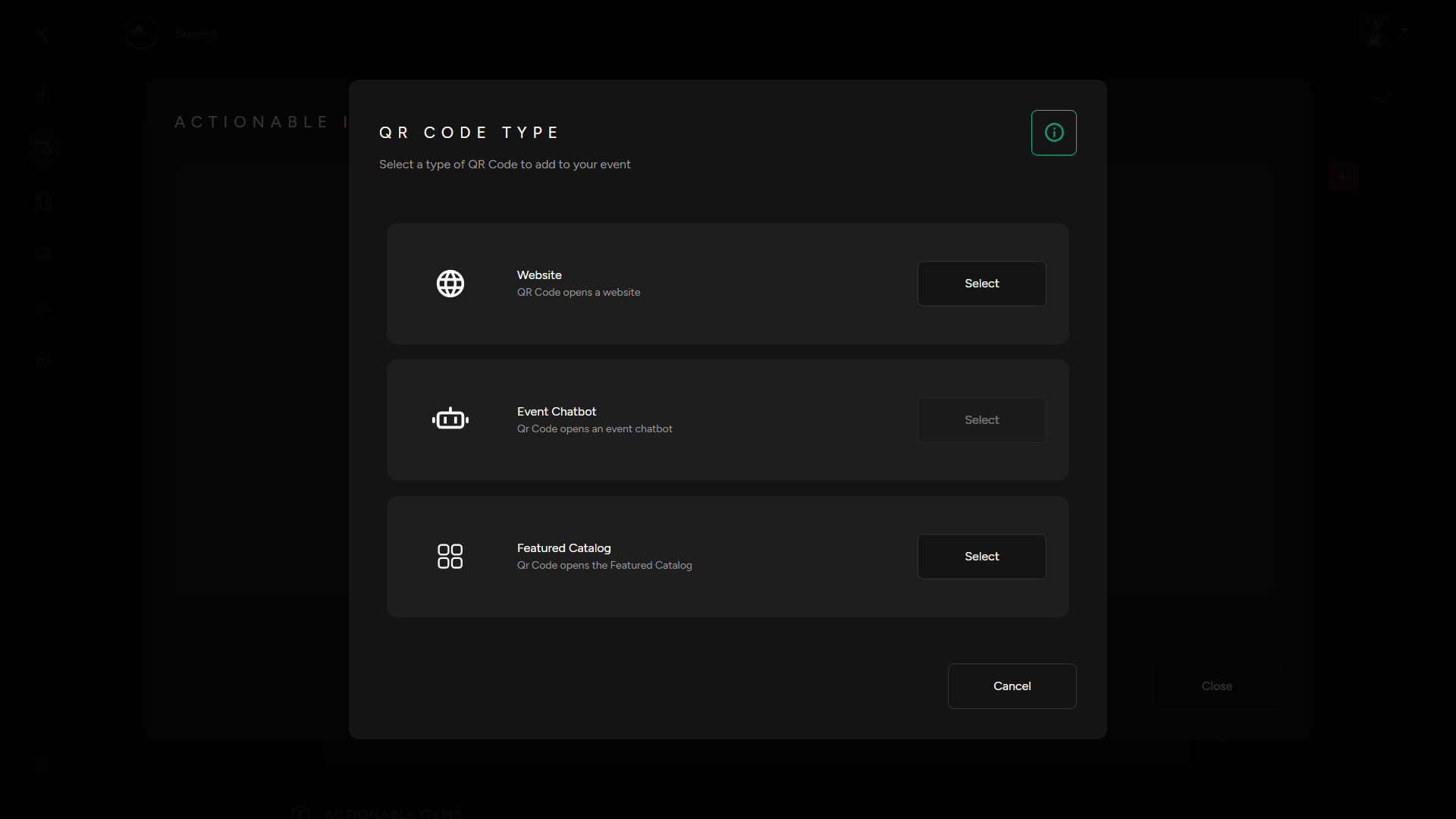
<span class="TextRun SCXW16777320 BCX0" data-contrast="auto" lang="EN-US" xml:lang="EN-US"><span class="NormalTextRun SCXW16777320 BCX0">1. Select "Actionable Items" in your Micro Services drop down. Then Select the QR code type you would like to generate from the three options below. </span></span>

- <span class="TextRun SCXW16777320 BCX0" data-contrast="auto" lang="EN-US" xml:lang="EN-US"><span class="NormalTextRun SCXW16777320 BCX0">QR Code that opens a website </span></span>
- <span class="TextRun SCXW16777320 BCX0" data-contrast="auto" lang="EN-US" xml:lang="EN-US"><span class="NormalTextRun SCXW16777320 BCX0">QR code that opens up an Event Chatbot. See our guide on to create your own [**Event Chatbots**](https://support.odience.com/books/event-creation-management/chapter/shopping-other-in-stream-services "Shopping & Other In-Stream Services").</span></span>
- <span class="TextRun SCXW16777320 BCX0" data-contrast="auto" lang="EN-US" xml:lang="EN-US"><span class="NormalTextRun SCXW16777320 BCX0">Connect a QR code to a Feature Catalog. See our guide on how to create your own [**Featured Catalog**](https://support.odience.com/books/web-portal/page/featured-catalog "Featured Catalog"). </span></span>

[![QR Code Type.png](https://support.odience.com/uploads/images/gallery/2024-03/scaled-1680-/qr-code-type.png)](https://support.odience.com/uploads/images/gallery/2024-03/qr-code-type.png)

##### **Add QR Code Tablets**

<span class="TextRun SCXW16777320 BCX0" data-contrast="auto" lang="EN-US" xml:lang="EN-US"><span class="NormalTextRun SCXW16777320 BCX0">1. From your instrea</span><span class="NormalTextRun SCXW16777320 BCX0">m </span><span class="NormalTextRun SCXW16777320 BCX0">services </span><span class="NormalTextRun SCXW16777320 BCX0">section, scroll to</span> </span><span class="TextRun SCXW16777320 BCX0" data-contrast="auto" lang="EN-US" xml:lang="EN-US"><span class="NormalTextRun SCXW16777320 BCX0">“Actionable Items</span></span><span class="TextRun SCXW16777320 BCX0" data-contrast="auto" lang="EN-US" xml:lang="EN-US"><span class="NormalTextRun SCXW16777320 BCX0">”</span><span class="NormalTextRun SCXW16777320 BCX0"> then click the QR code icon corresponding to the item you want to set-up a QR code for.</span></span><span class="EOP SCXW16777320 BCX0" data-ccp-props="{"134233117":false,"134233118":false,"201341983":0,"335551550":1,"335551620":1,"335559737":0,"335559738":0,"335559739":160,"335559740":259}"> </span>

<span class="EOP SCXW16777320 BCX0" data-ccp-props="{"134233117":false,"134233118":false,"201341983":0,"335551550":1,"335551620":1,"335559737":0,"335559738":0,"335559739":160,"335559740":259}">[![Qr Codes.png](http://support.odience.com/uploads/images/gallery/2023-12/scaled-1680-/aOAqr-codes.png)](http://support.odience.com/uploads/images/gallery/2023-12/aOAqr-codes.png)</span>

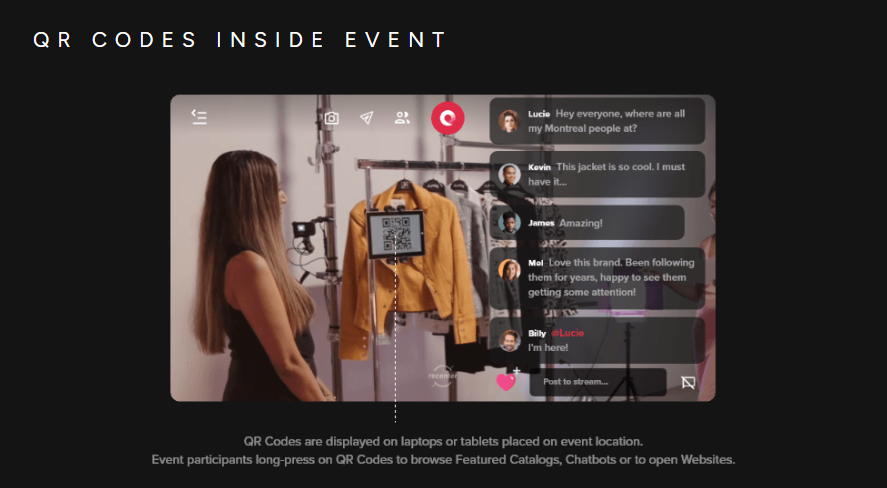
<span class="TextRun SCXW16777320 BCX0" data-contrast="auto" lang="EN-US" xml:lang="EN-US"><span class="NormalTextRun SCXW16777320 BCX0">2. You will now have the QR code open in its own tab, ready to be used and placed within your event environment for viewers to interact with. </span></span><span class="EOP SCXW16777320 BCX0" data-ccp-props="{"134233117":false,"134233118":false,"201341983":0,"335551550":1,"335551620":1,"335559737":0,"335559738":0,"335559739":160,"335559740":259}"> </span>