# Featured Catalog

##### **<span class="TextRun SCXW128034242 BCX0" data-contrast="auto" lang="EN-US" xml:lang="EN-US"><span class="NormalTextRun SCXW128034242 BCX0">Create Featured Catalog</span></span>**

**<span class="TextRun SCXW128034242 BCX0" data-contrast="auto" lang="EN-US" xml:lang="EN-US"><span class="NormalTextRun SCXW128034242 BCX0">Note: </span></span>**<span class="TextRun SCXW128034242 BCX0" data-contrast="auto" lang="EN-US" xml:lang="EN-US"><span class="NormalTextRun SCXW128034242 BCX0">If you don't have a shopping chatbot, you will need to create one first. Refer to our step-by-step guide on how to a</span></span><span class="TextRun SCXW128034242 BCX0" data-contrast="auto" lang="EN-US" xml:lang="EN-US"><span class="NormalTextRun SCXW128034242 BCX0"> **[Create a shopping chatbot.](http://support.odience.com/books/odience-director/page/shopping-chatbot)** </span></span>
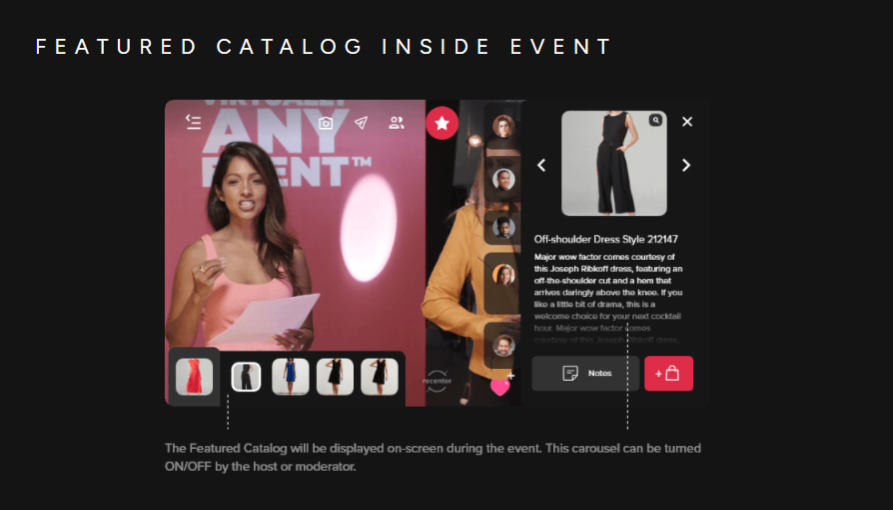
<span class="SCXW128034242 BCX0"><span class="WACImageContainer NoPadding DragDrop BlobObject SCXW128034242 BCX0" role="presentation">![](http://support.odience.com/uploads/images/gallery/2023-12/embedded-image-o2dyqemq.png)</span></span>

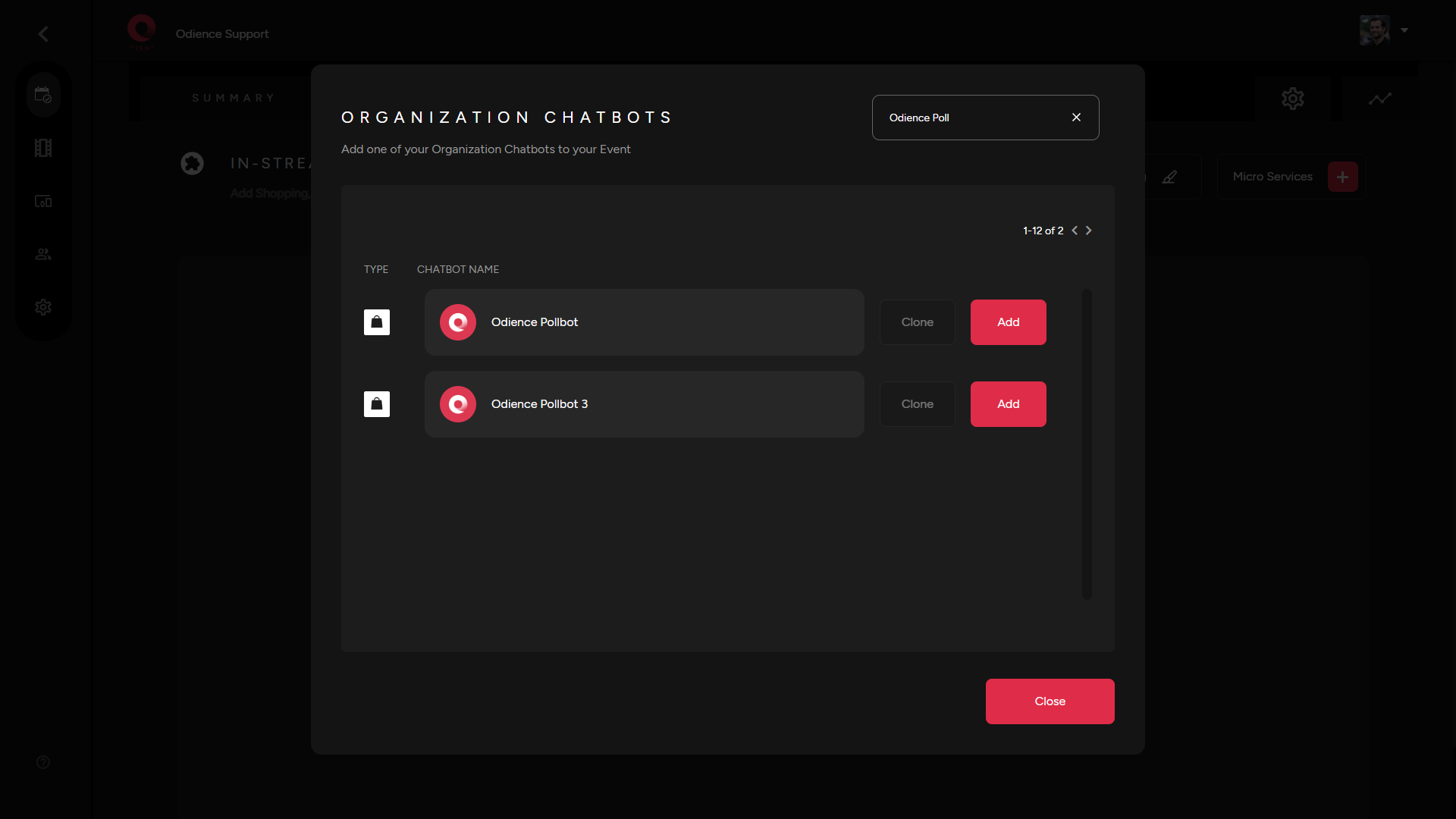
1\. In the "Micro Services" drop down, select "Featured Catalog". Add a shopping chatbot from the Directory as the source.

[![Organization Chatbots.png](https://support.odience.com/uploads/images/gallery/2024-03/scaled-1680-/organization-chatbots.png)](https://support.odience.com/uploads/images/gallery/2024-03/organization-chatbots.png)
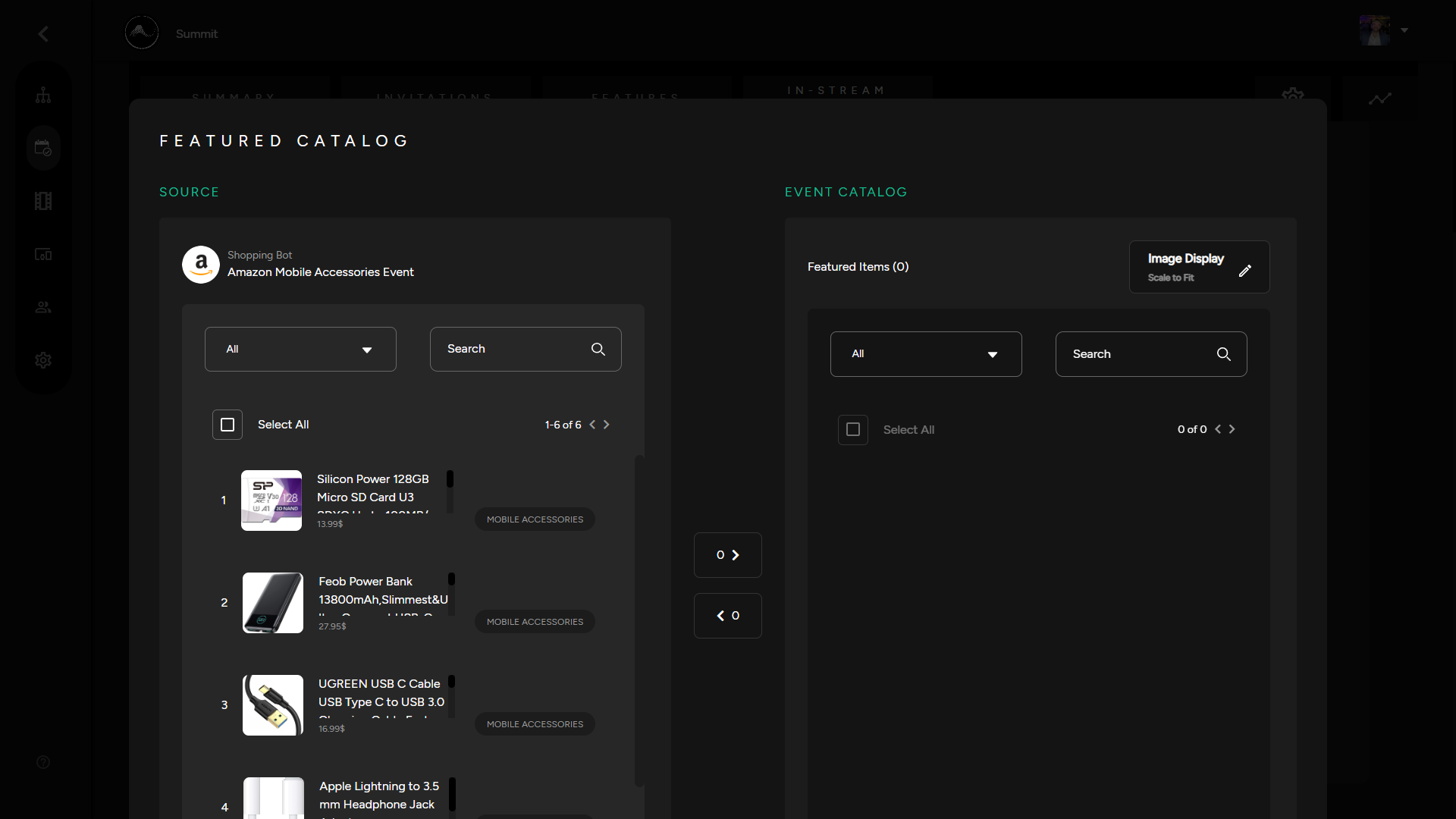
2\. Edit Poll Feed to select which products you would like to be featured in your event catalog.

[![Featured Catalog.png](https://support.odience.com/uploads/images/gallery/2024-03/scaled-1680-/featured-catalog.png)](https://support.odience.com/uploads/images/gallery/2024-03/featured-catalog.png)
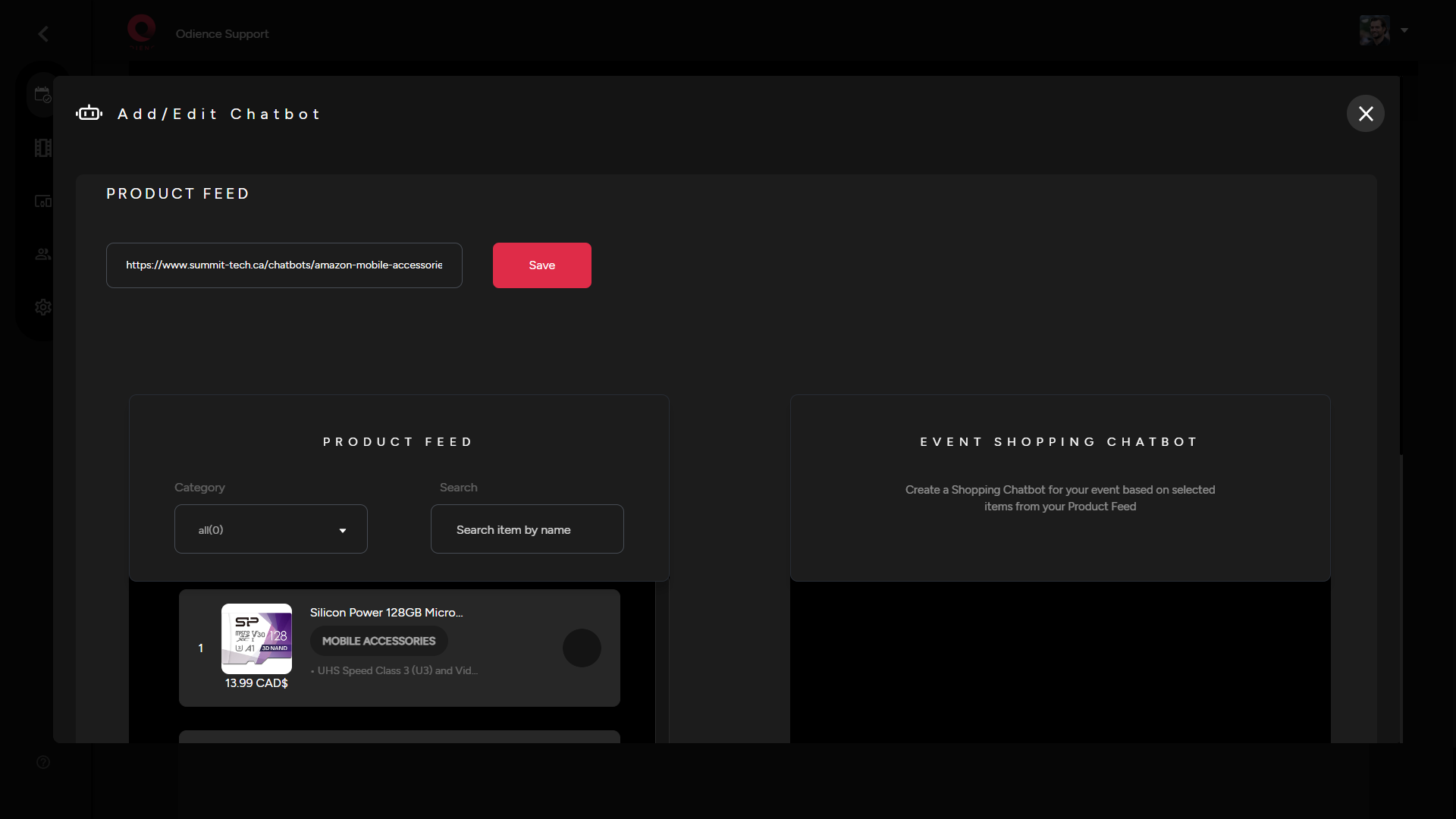
##### **<span class="TextRun SCXW128034242 BCX0" data-contrast="auto" lang="EN-US" xml:lang="EN-US"><span class="NormalTextRun SCXW128034242 BCX0">Custom</span></span><span class="EOP SCXW128034242 BCX0" data-ccp-props="{"134233117":false,"134233118":false,"201341983":0,"335551550":1,"335551620":1,"335559737":0,"335559738":0,"335559739":160,"335559740":259}"> Featured Catalog</span>**

<span class="TextRun SCXW128034242 BCX0" data-contrast="auto" lang="EN-US" xml:lang="EN-US"><span class="NormalTextRun SCXW128034242 BCX0">- You can create a custom Featured Catalog by adding an XML product feed as the source of your Custom Featured Catalog.</span></span>

<span class="TextRun SCXW128034242 BCX0" data-contrast="auto" lang="EN-US" xml:lang="EN-US"><span class="NormalTextRun SCXW128034242 BCX0">1. Add your Product Feed URL, Click Save to add products, then choose which products you would like to include in your catalog. </span></span>

[![Custom Featured Catalog.png](https://support.odience.com/uploads/images/gallery/2024-03/scaled-1680-/custom-featured-catalog.png)](https://support.odience.com/uploads/images/gallery/2024-03/custom-featured-catalog.png)

<span class="TextRun SCXW128034242 BCX0" data-contrast="auto" lang="EN-US" xml:lang="EN-US"><span class="NormalTextRun SCXW128034242 BCX0">2. Click Save to apply your custom Featured Catalog.</span></span>