# Poll Bot
##### **Create Poll Bot**
1. Start by selecting Poll in your Quick Start or by selecting Add Chatbot in your Micro Services dropdown.
[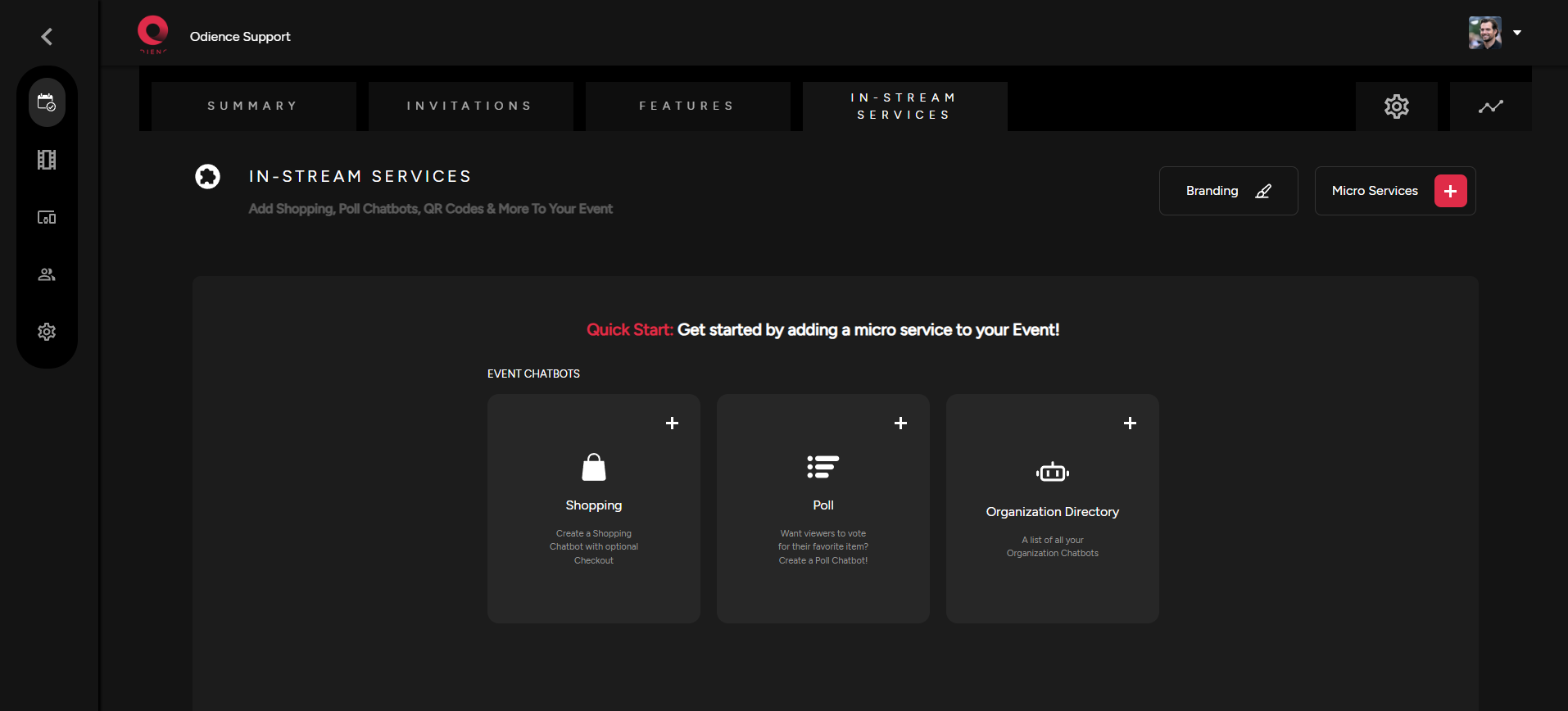](https://support.odience.com/uploads/images/gallery/2024-03/huxshopping-quick-start.png)
2\. Add a chatbot from your Organization.
[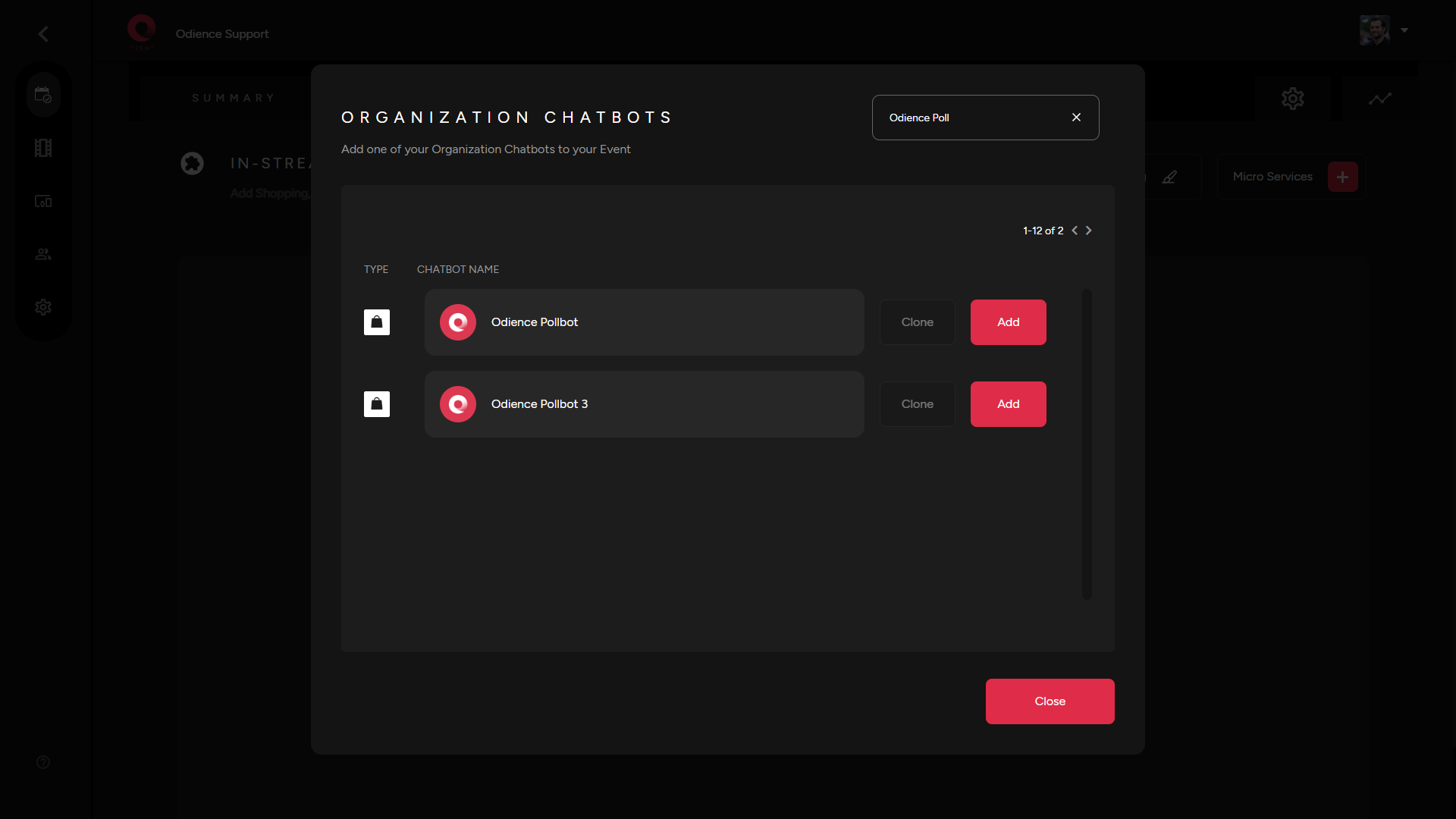](https://support.odience.com/uploads/images/gallery/2024-03/Rqqadd-poll-bot.png)
3\. Add or edit Poll Feed by selecting the extra options right beside your Poll Bot. Select which products you want to include & then click Save
[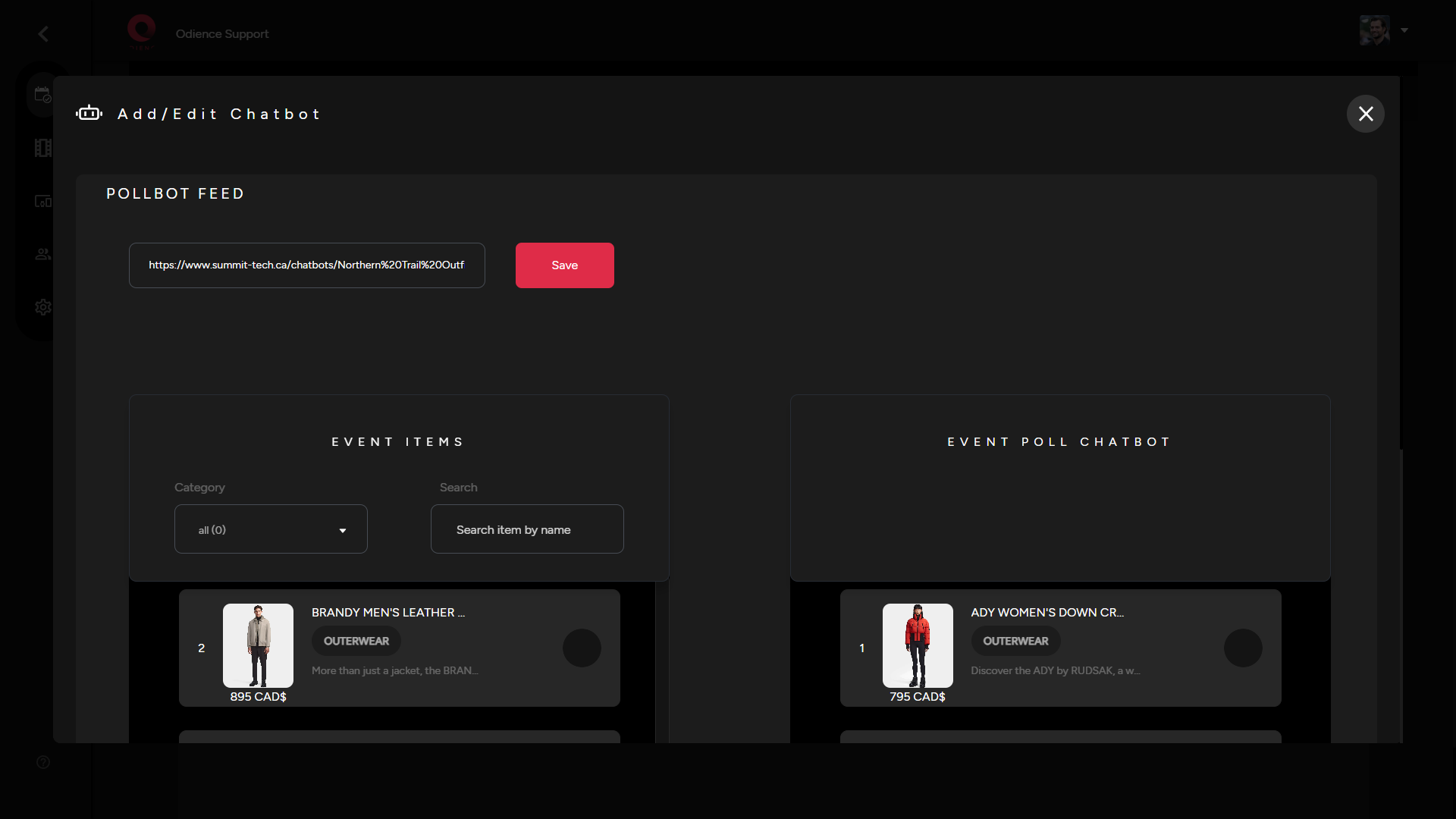](https://support.odience.com/uploads/images/gallery/2024-03/add-or-edit-pollbot-feed.png)
##### **Customize Appearance**
- Select the three stacked bullets toward the right side to customize the appearance of your chatbot. Click Save to confirm changes.
[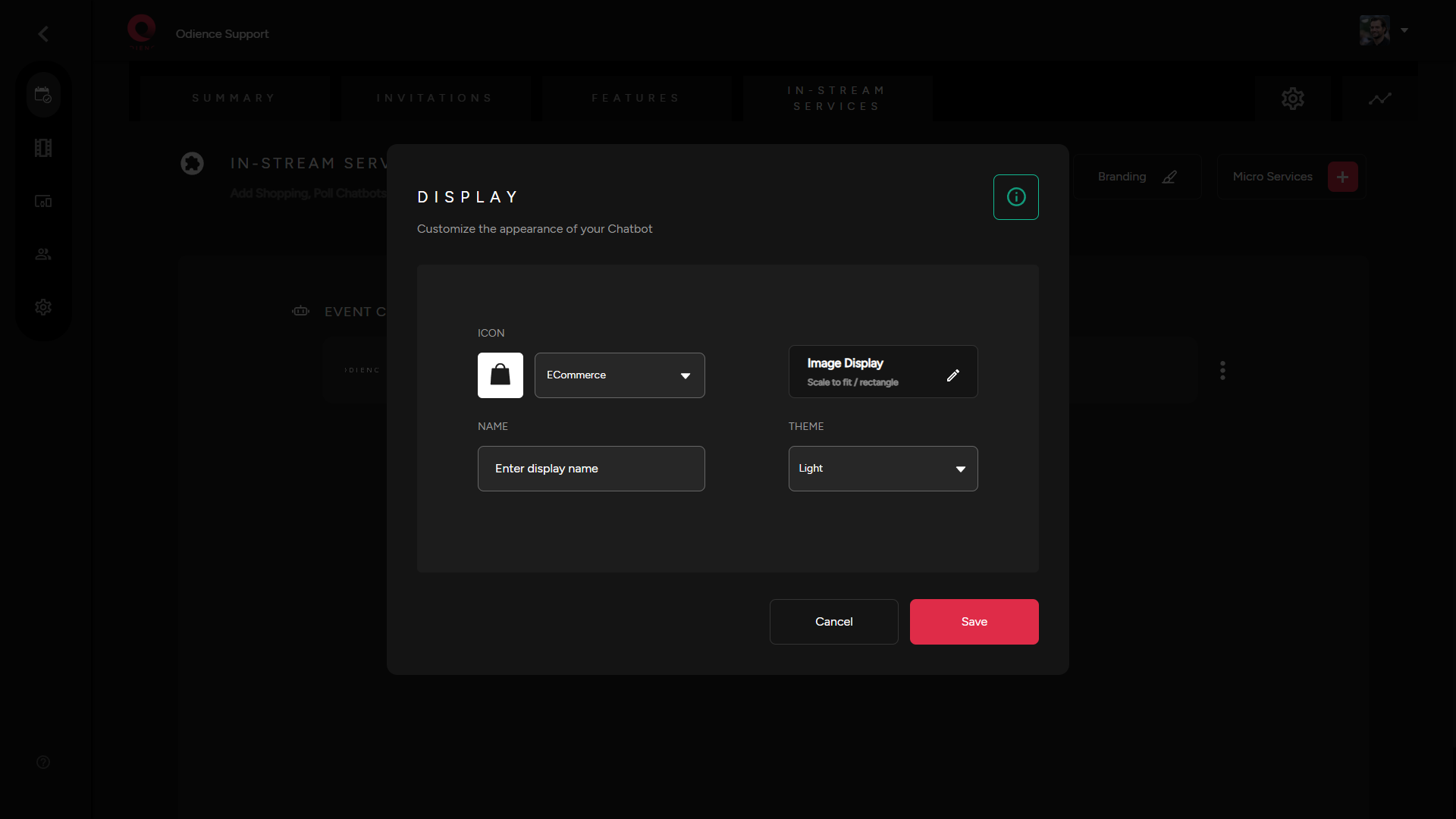](https://support.odience.com/uploads/images/gallery/2024-03/ffIchatbot-apperance.png)