Create Event & Start Streaming
Event Details
Details
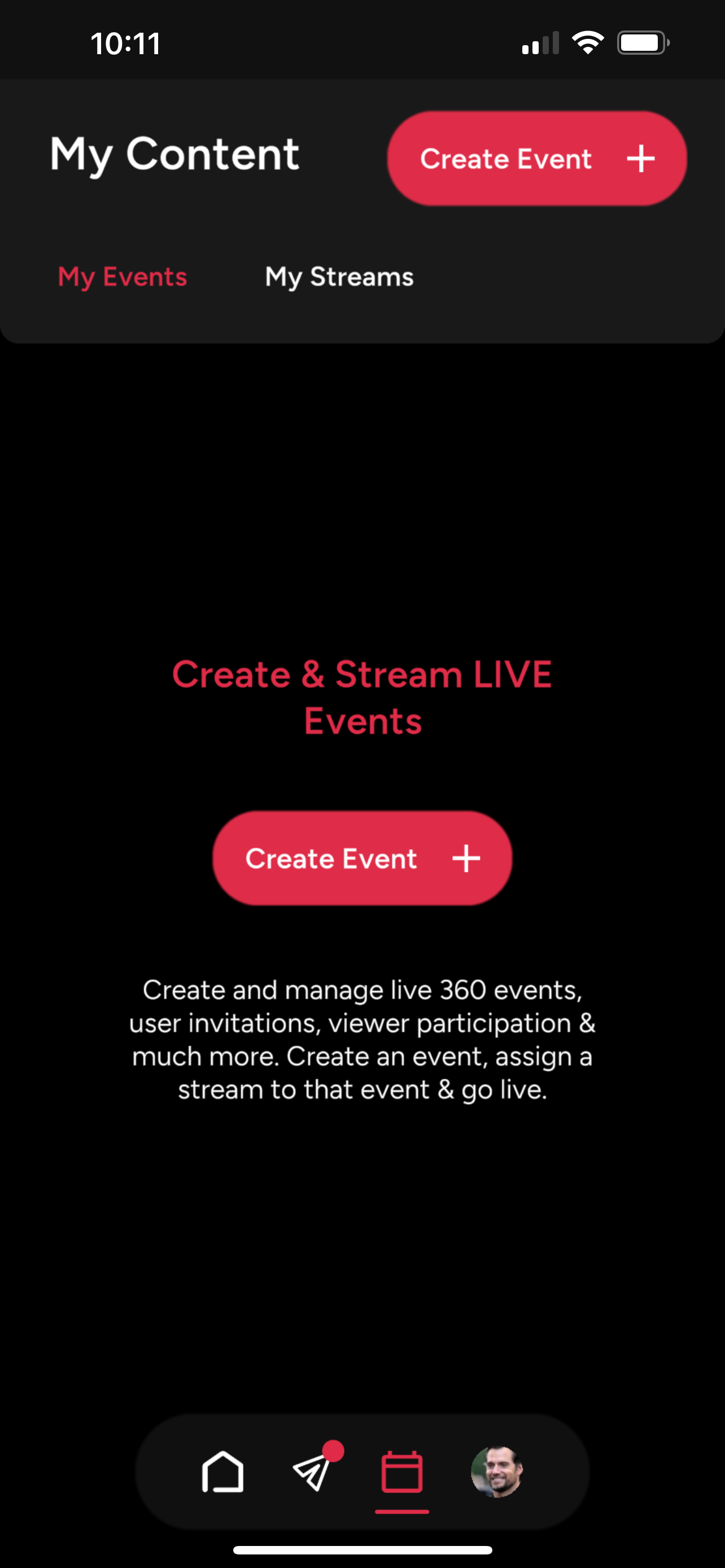
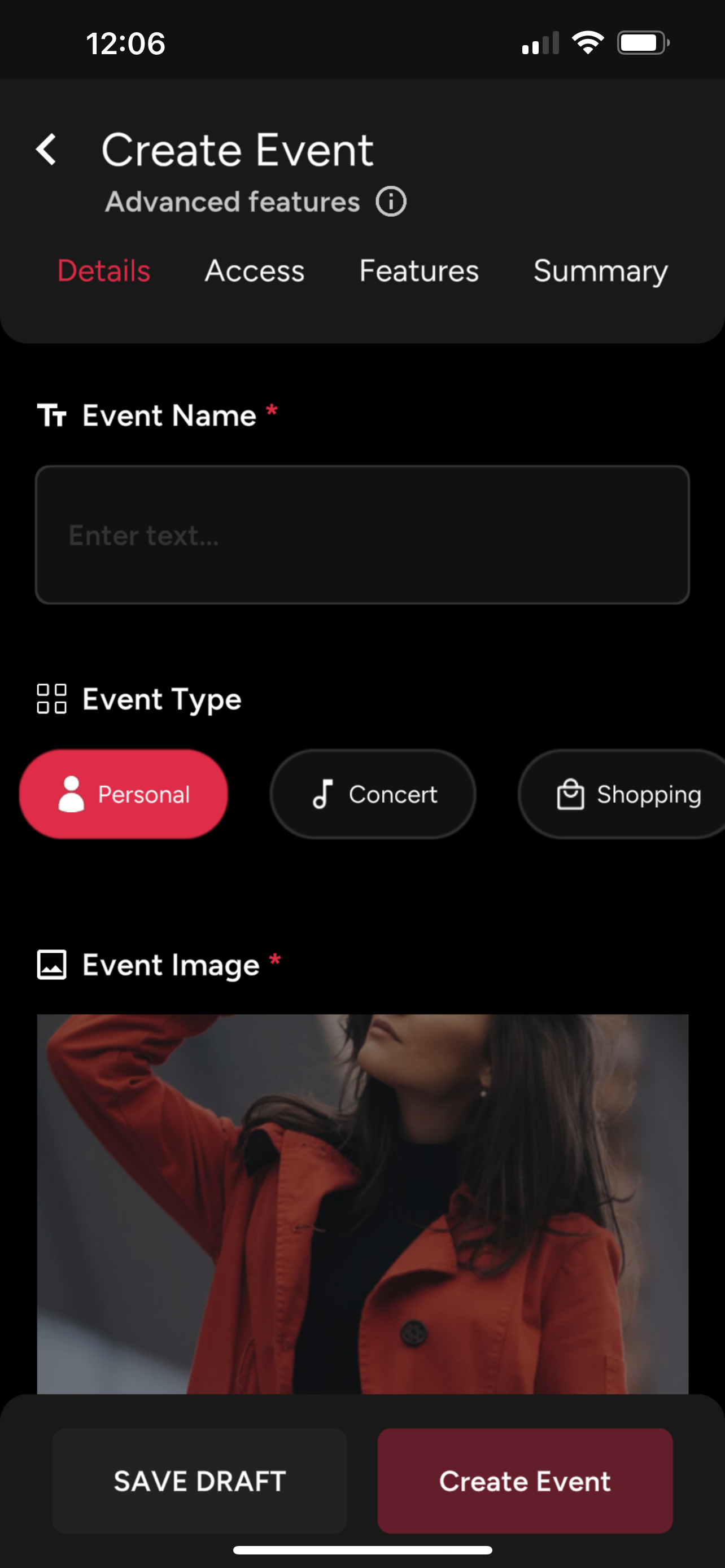
1. Enter your event details, Name, Image, Date/Time.
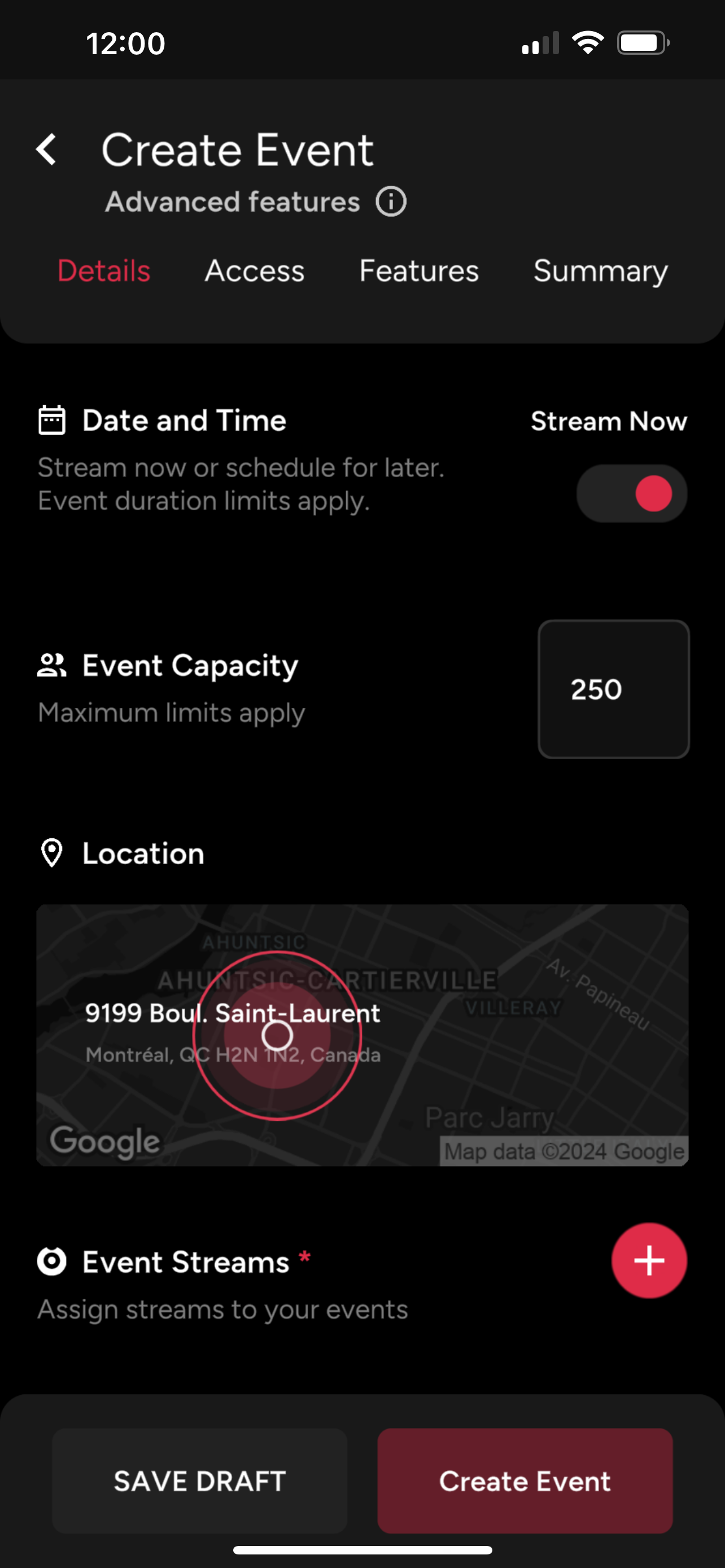
Assign a Stream
2. Select a stream from the dropdown and click assign.
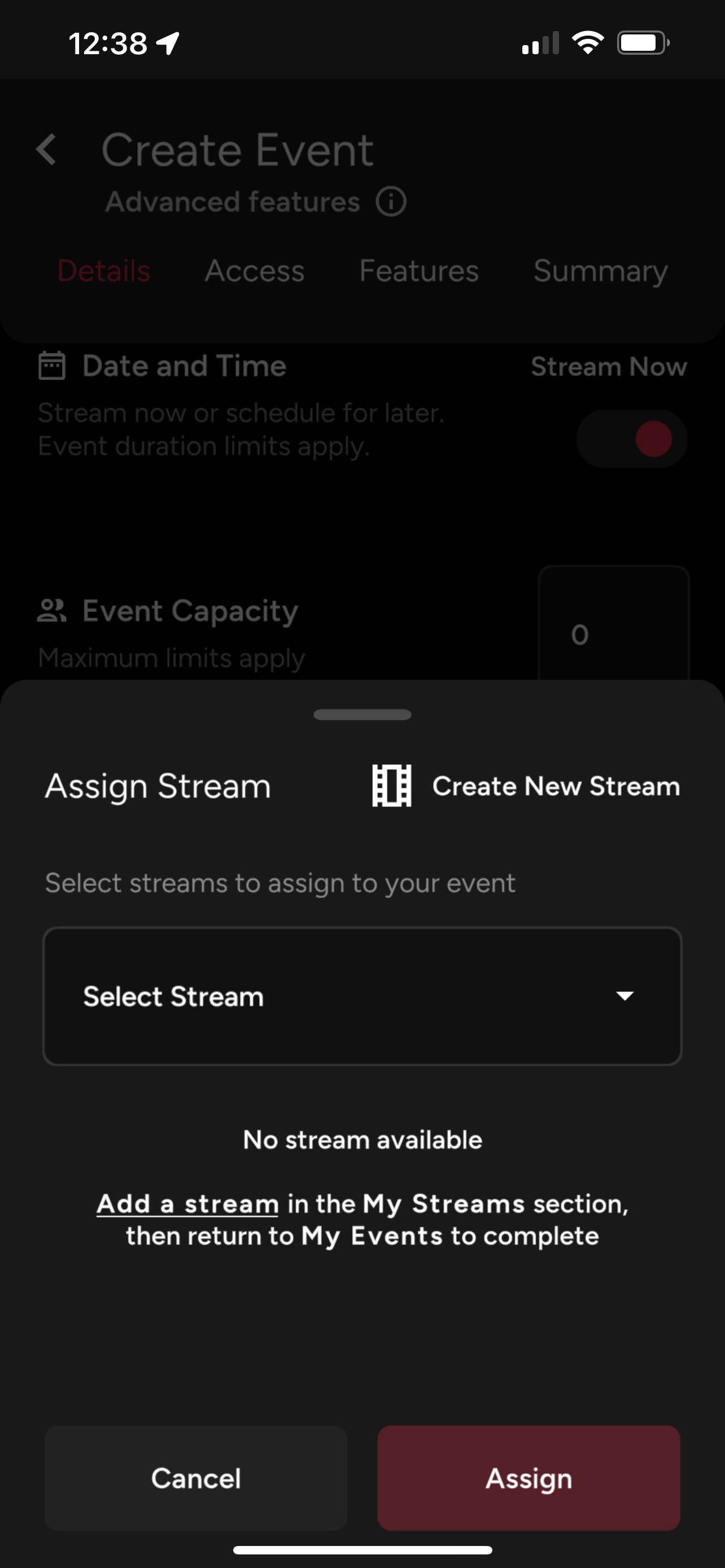
- If you don't have any streams created yet, see how to Create a Stream.
Access
3. Choose your event access type. A public event is listed in the public events directory and available for anyone to join. A private event will not be listed in the public events directory, only invited users will be able to access it.
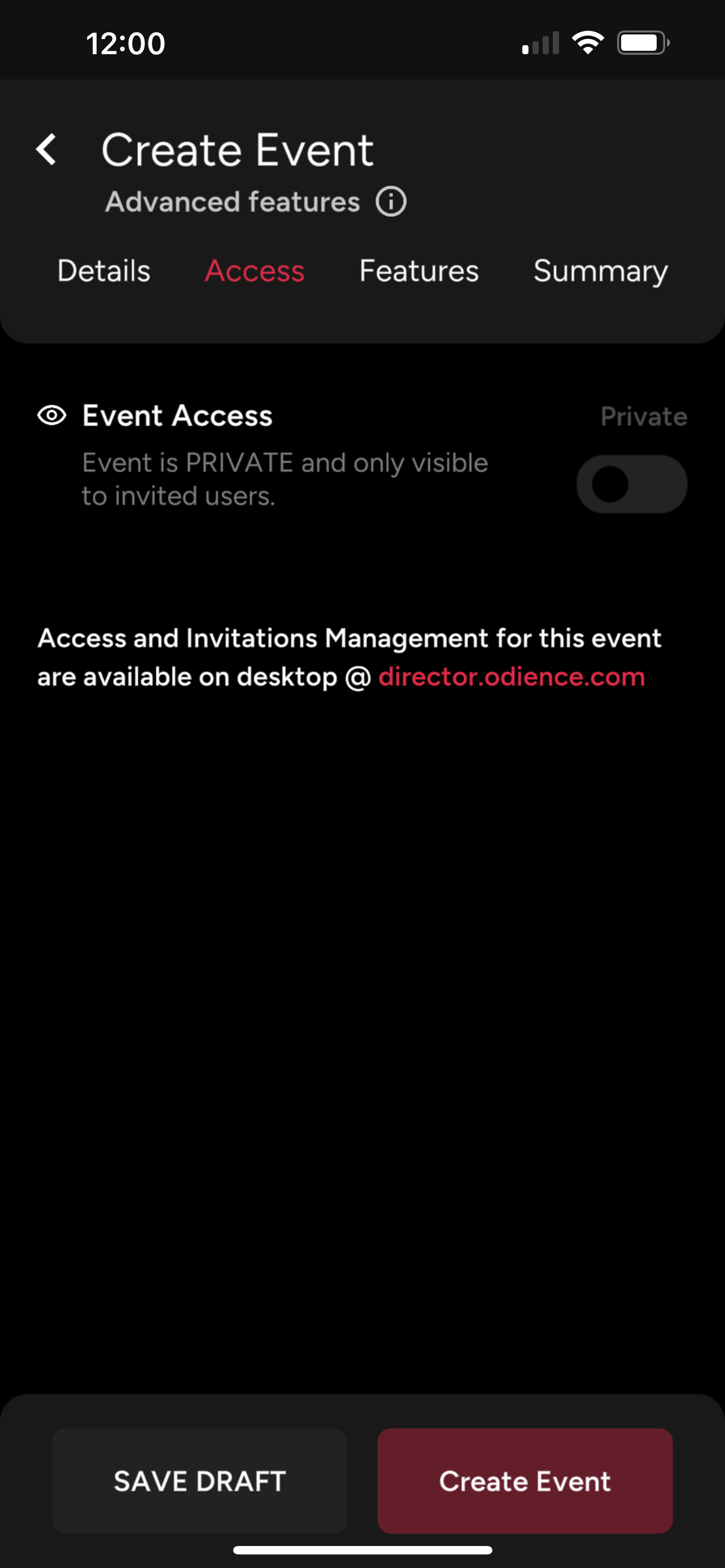
Features
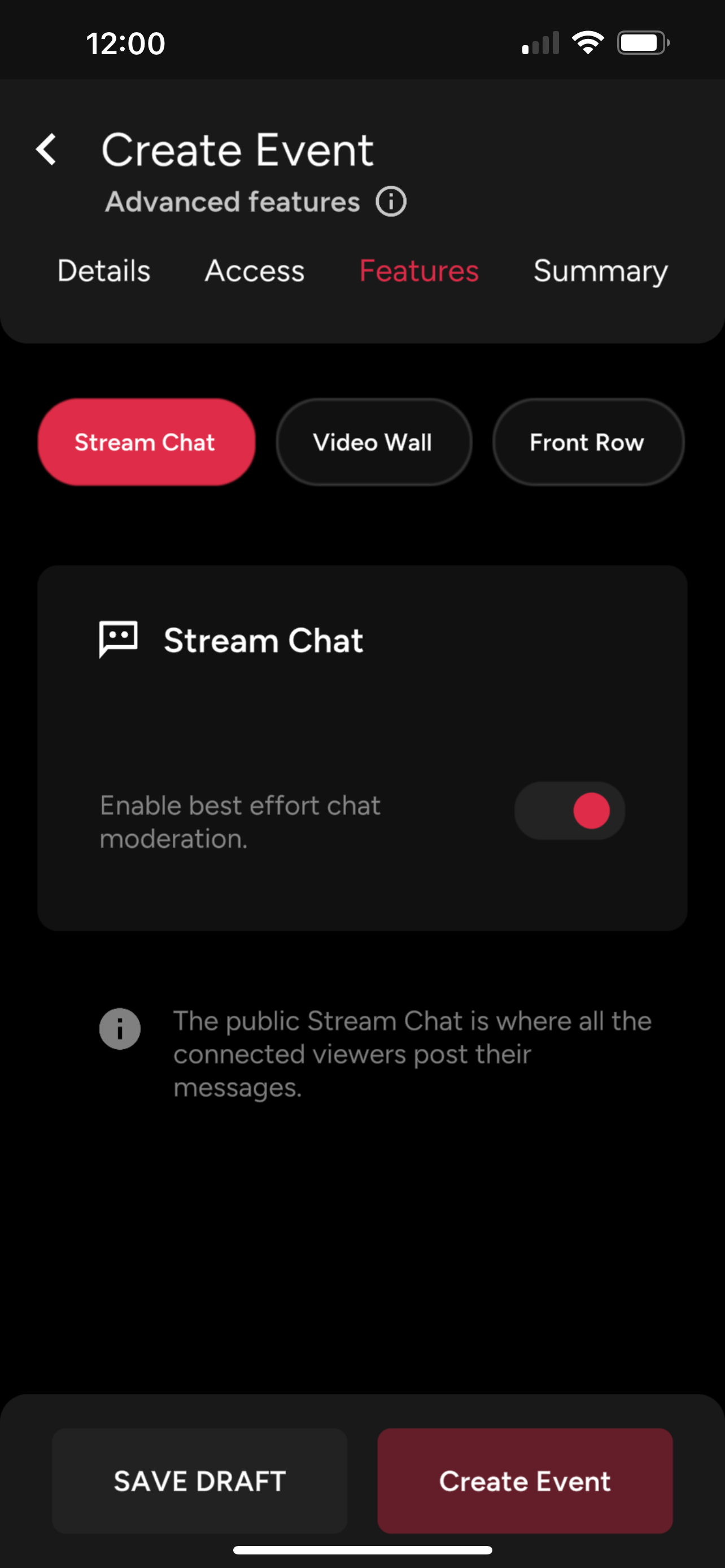
4. Event Features are optional. Through the app you can enable or disable the Stream Chat for your event. If the Stream Chat is enabled, participants can post messages during your event.
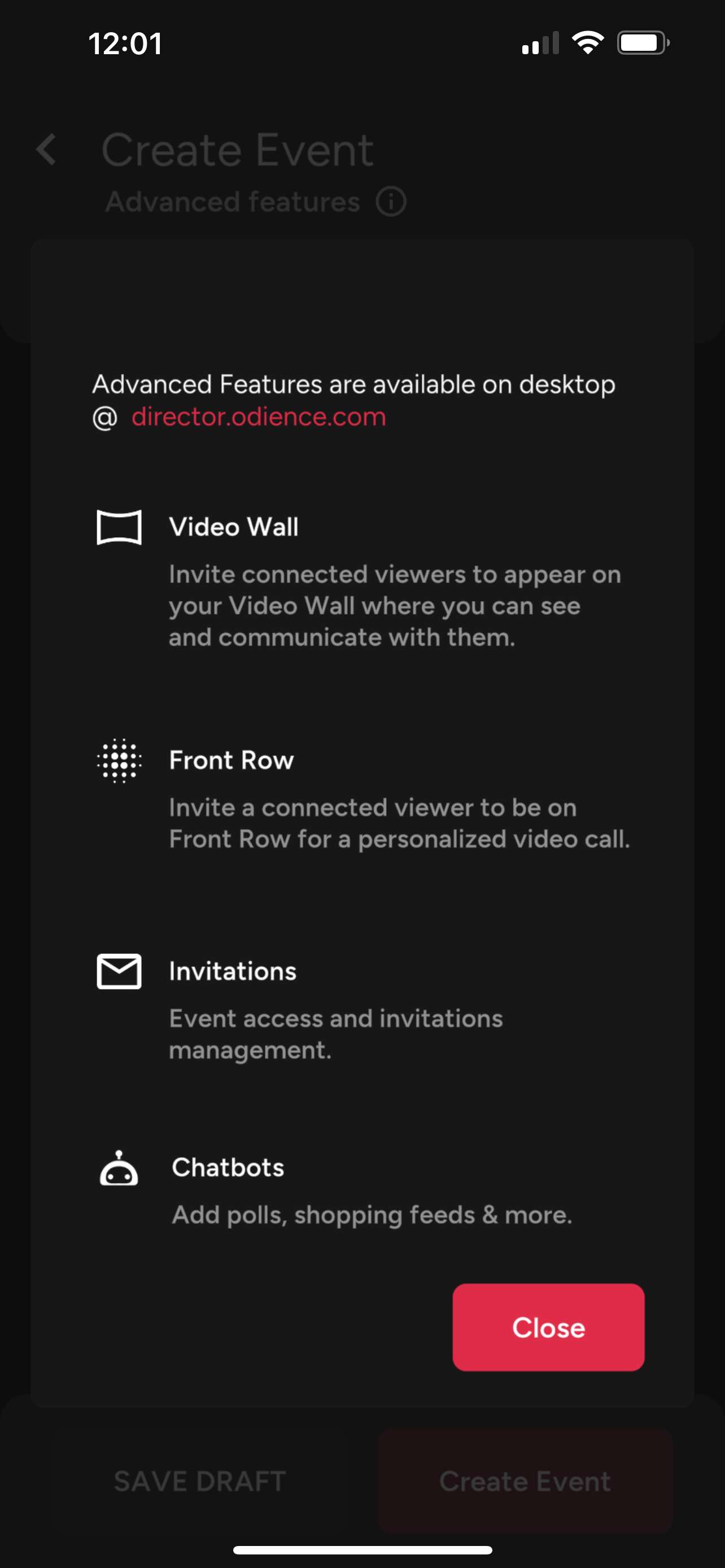
- Advanced features such as Video Walls, Front Row, Invitation Management, Chatbots, etc.; are only available on desktop at director.odience.com
5. Save as Draft to edit later or "Publish" event.
Connect a 360 Camera
Note: Only select cameras are currently supported through Bluetooth pairing. For all other cameras, see our Generate RTMP URL section.
Pair with Bluetooth
1. Connect Odience to your 360 camera by pairing with Bluetooth.
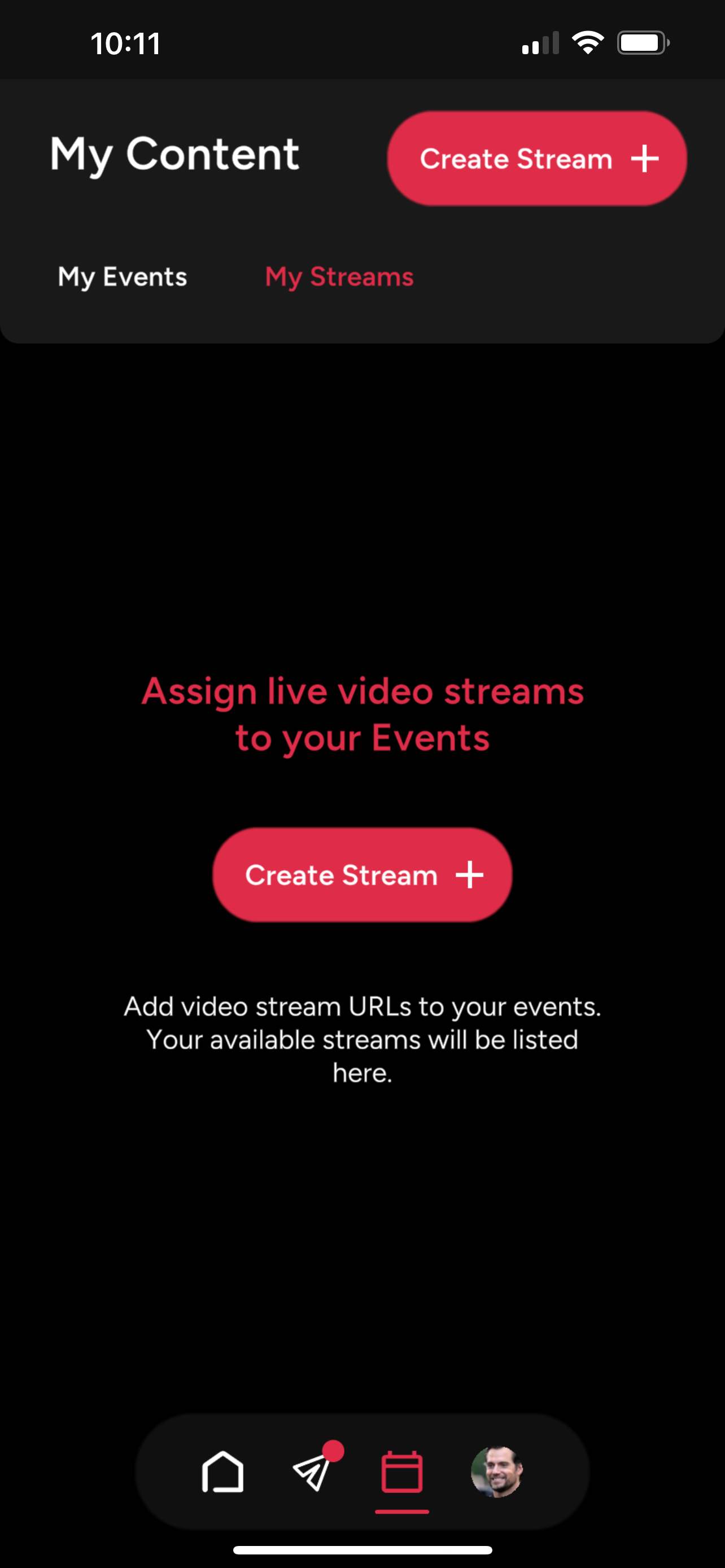
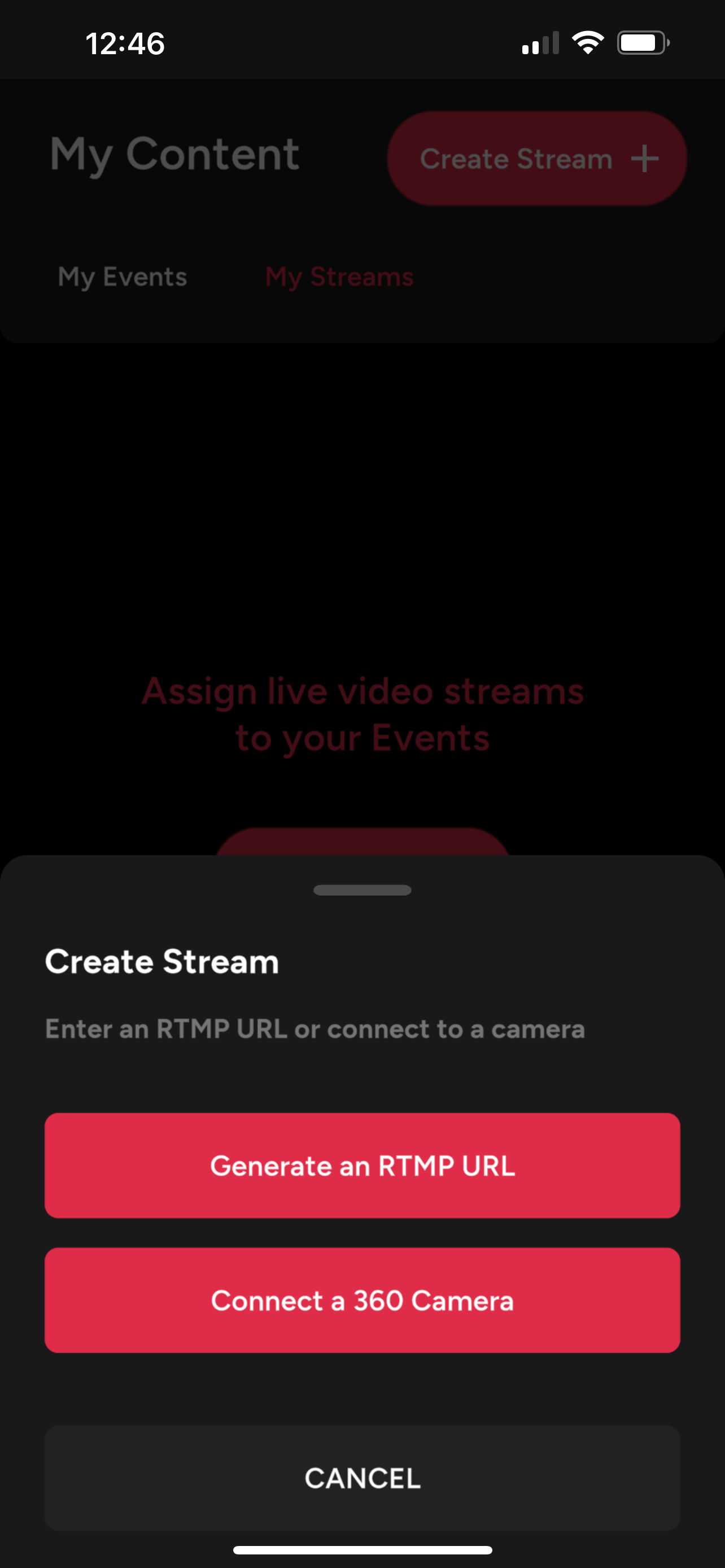
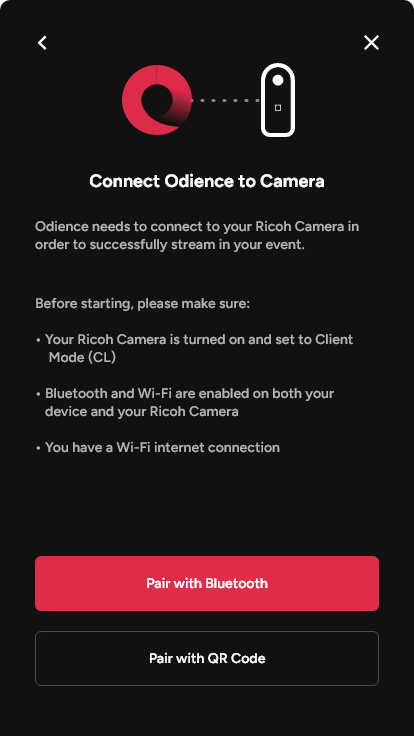
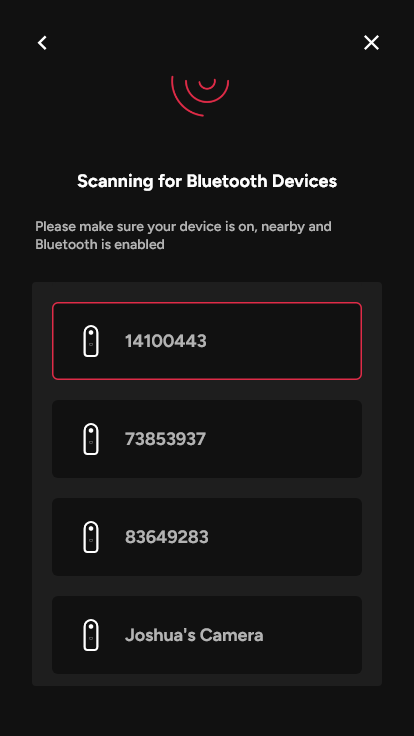
2. Select your camera from the list of available devices then follow the on-screen instructions to continue the pairing process.
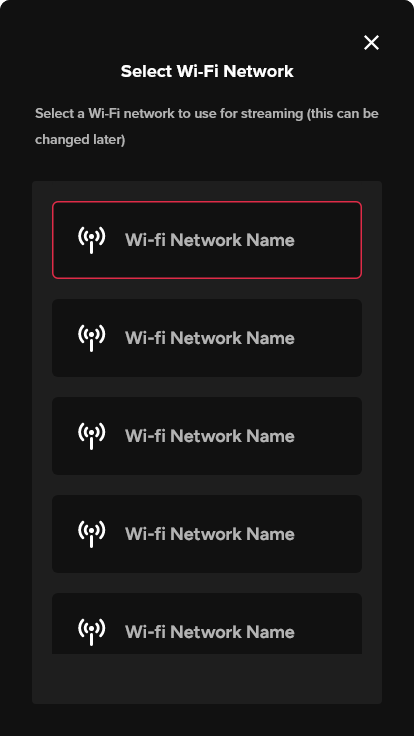
3. Your camera will need a hotspot to stream. Select a WiFi network and follow the steps to finalize.
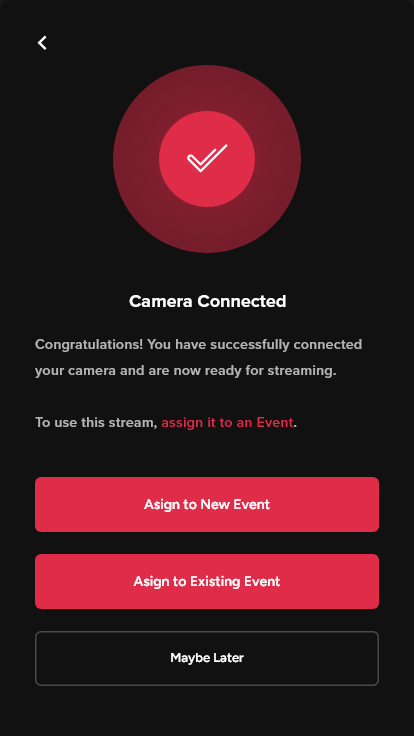
4. Just like that, you have successfully connected your camera.
Pair with QR code
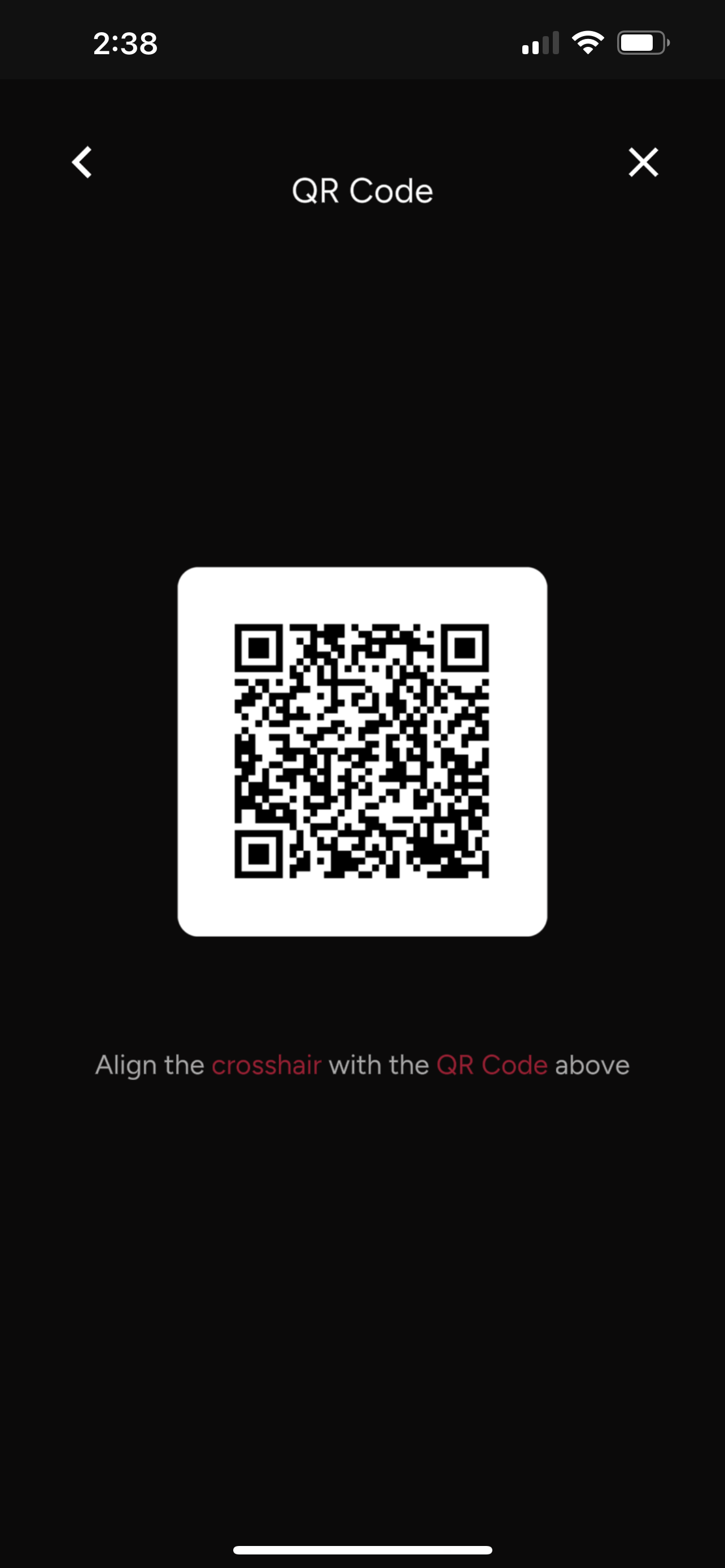
- If you already have the Odience plugin installed on your Ricoh X, you can pair via QR code. If not you'll need to Pair with Bluetooth.
Create RTMP Stream
Generate RTMP URL
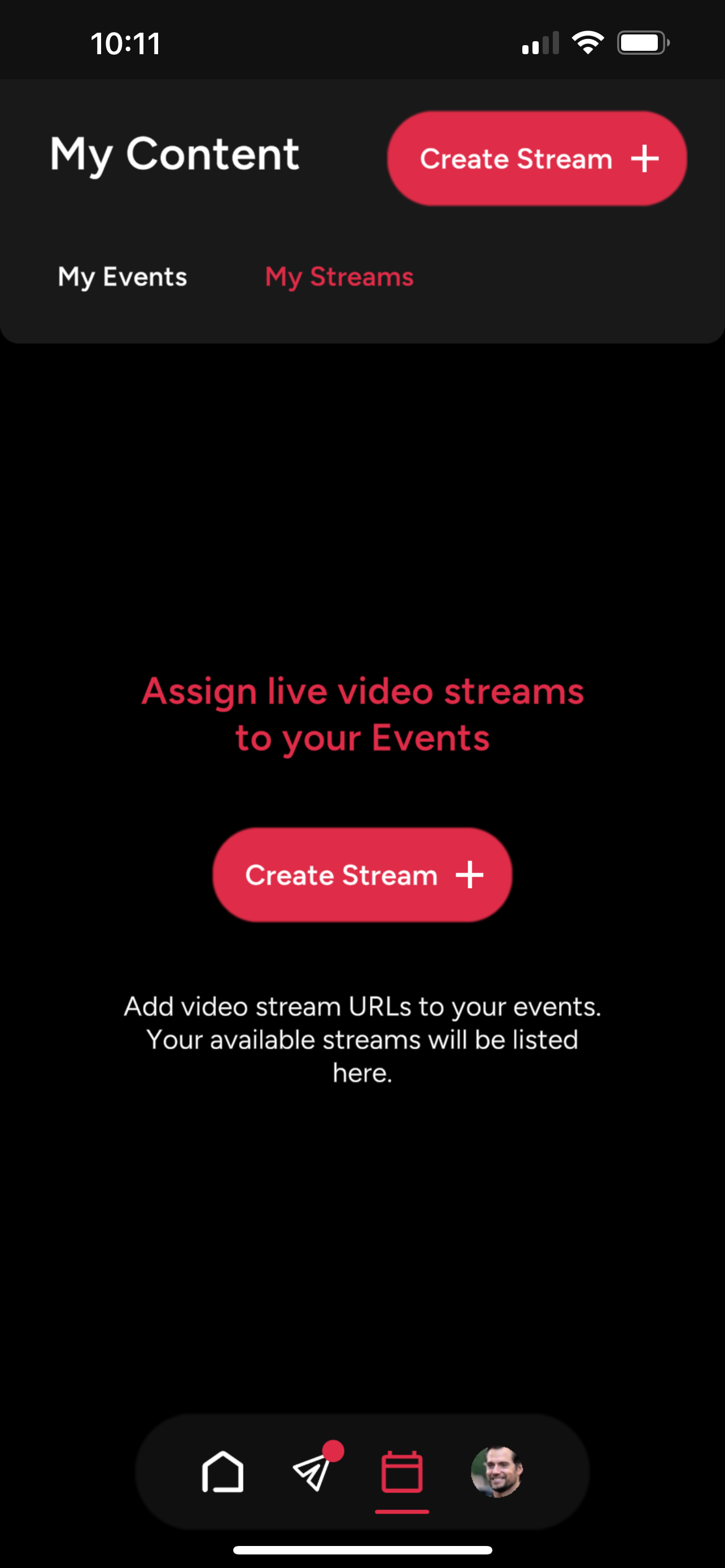
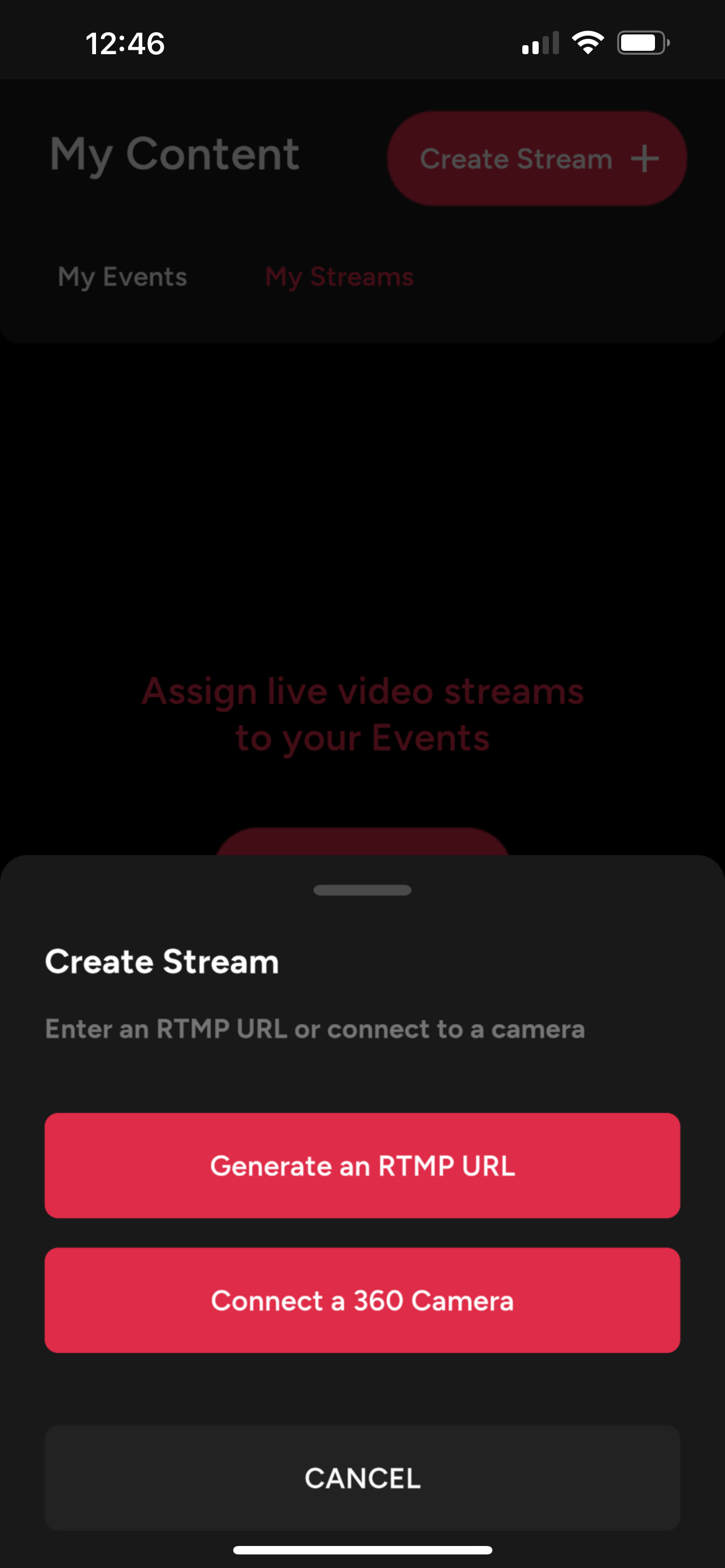
1. Generate a RTMP URL by giving your stream a Name and selecting a Preset.
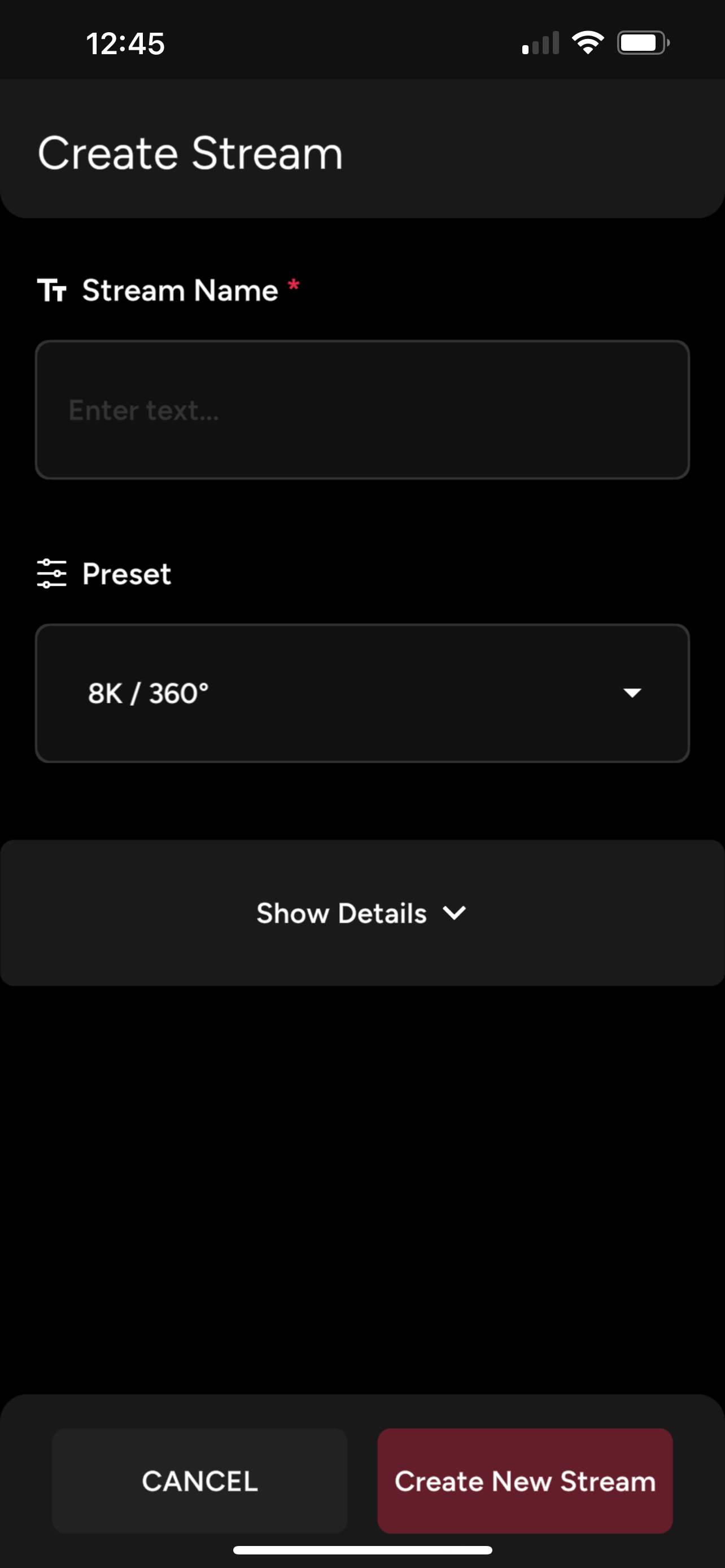
2. For more advanced users, press Show Details to adjust settings such as resolution, video format and stream type.
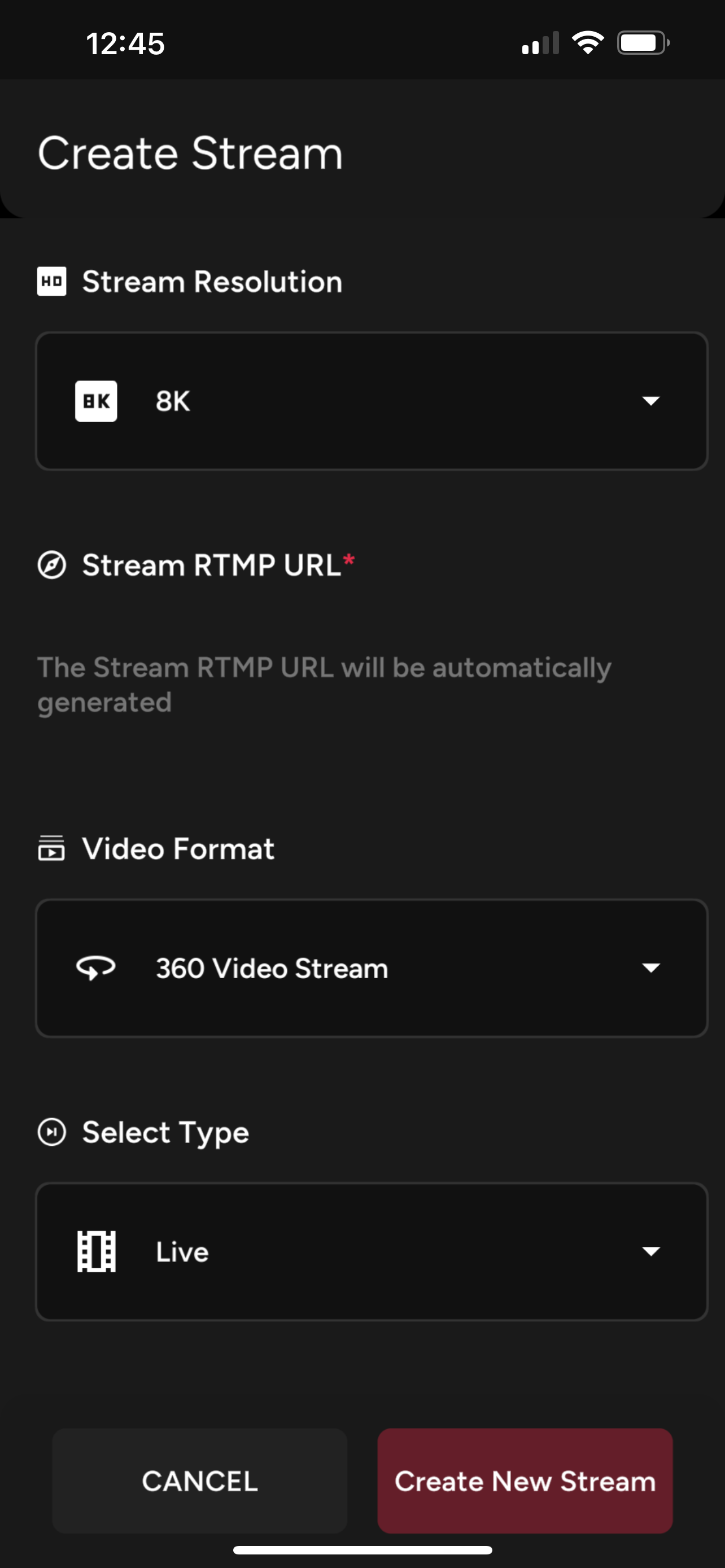
3. Press "Create New Stream" to confirm. Once the stream is created, the RTMP URL will be automatically generated. If you need to paste this RTMP URL on your streaming device, simply open the Stream details to copy it.
Connect a 360 Camera
1. See our guide on how to Connect a 360 Camera.