Video Wall
App Video Wall
Create App Video Wall
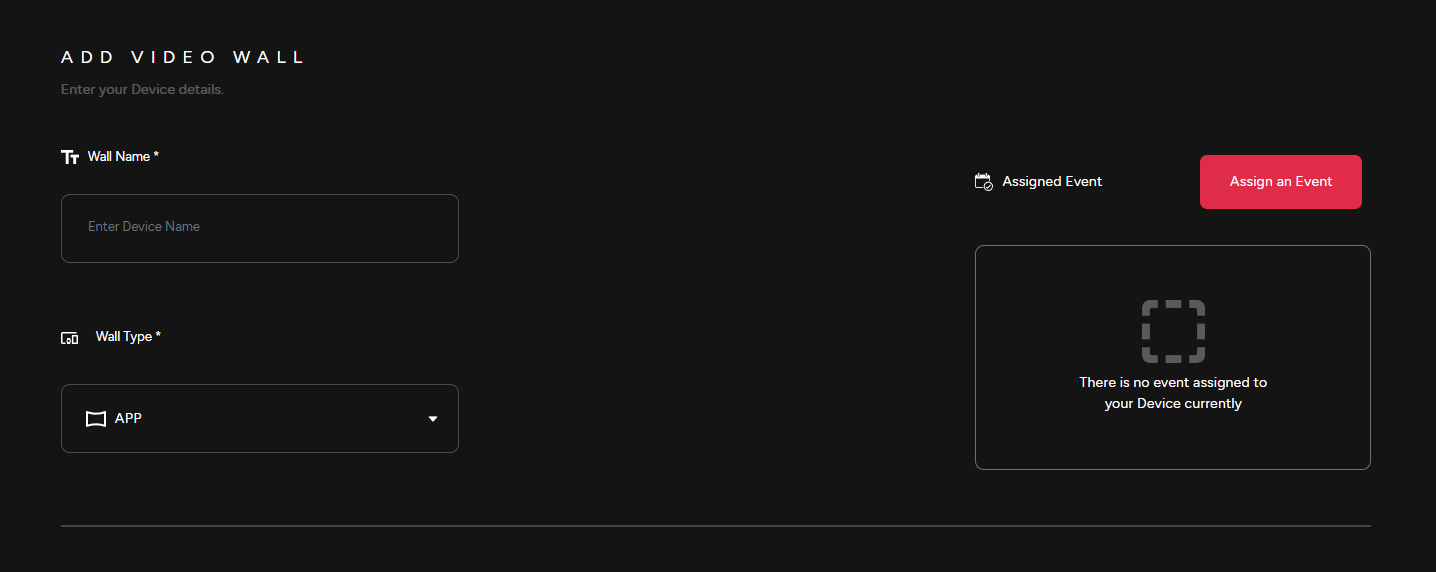
- Whether you are setting up a Web or App Video Wall, the configuration process is identical. Here's how to create your very own App Video Wall
1) Provide a Wall Name, select the Wall Type & then Assign it to an event.
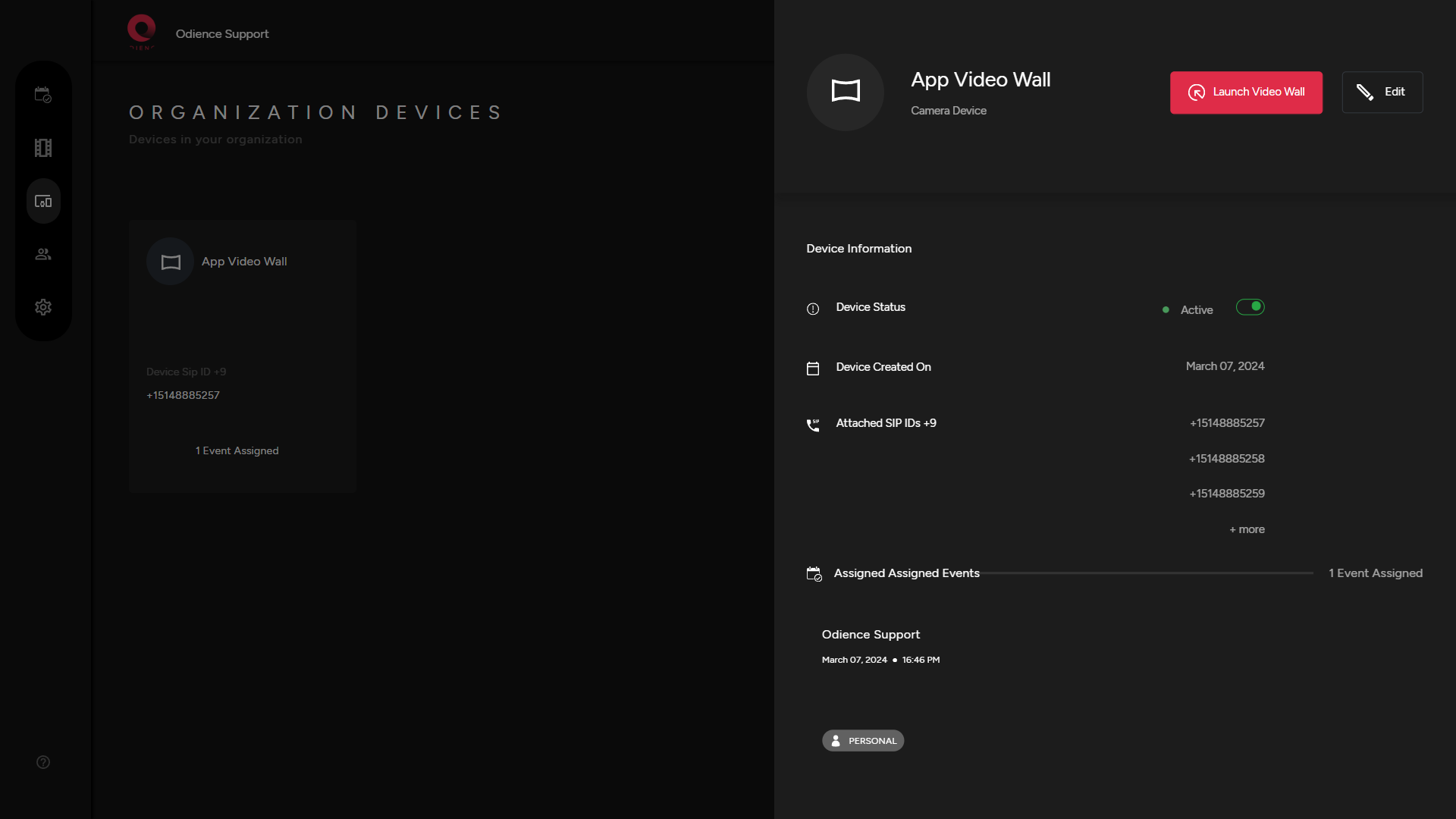
Launch
2) Launch App Video Wall and go through installation process.
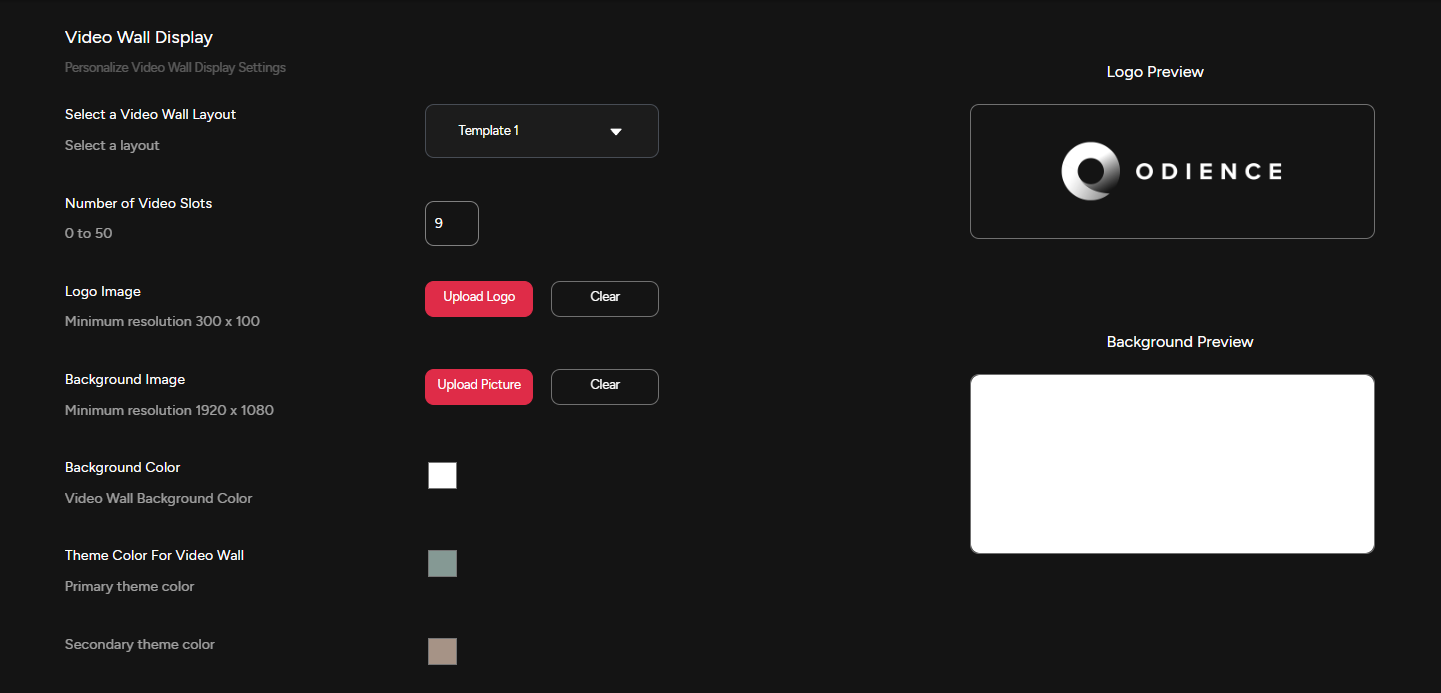
Customize
3) Customize Video Wall display settings to fit your style.
4) If Stream Chat is included, personalize stream message settings to fit your style.
5) If Poll Bot is included, personalize Poll Bot Display Settings
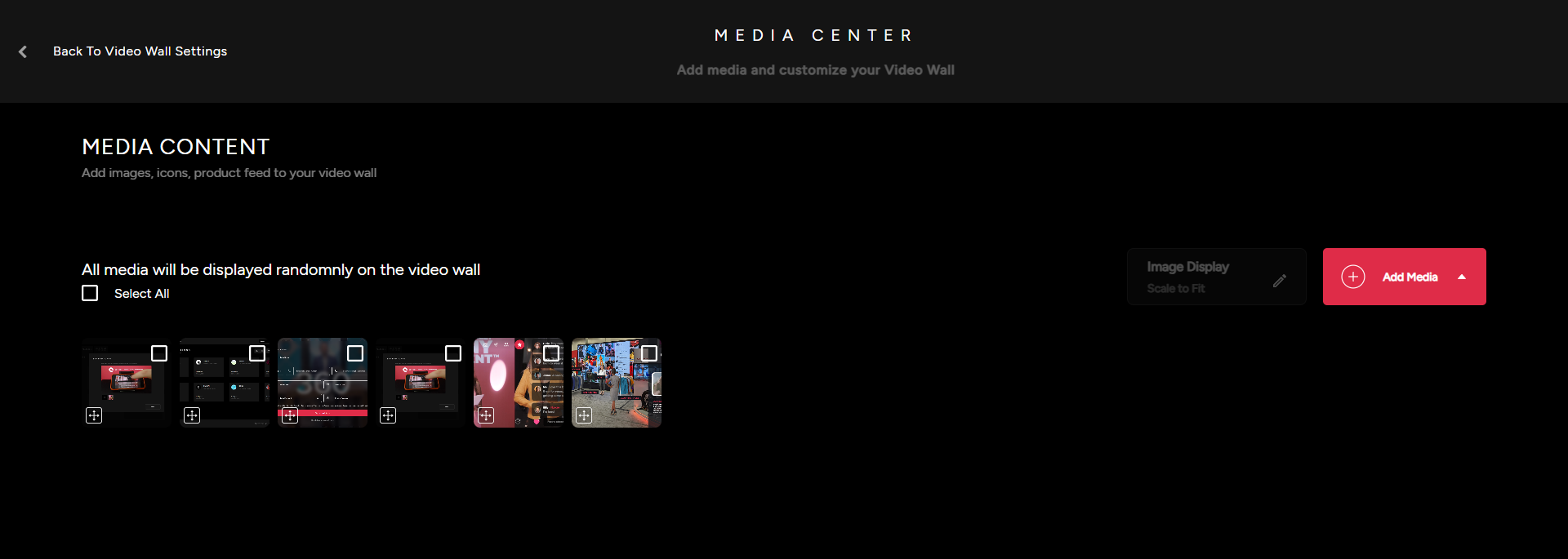
Media Content
5) Personalize and manage the content the that will appear on the Video Wall. Upload images, videos, import items from Event Product Feed or add icons from our Icon Packs.
Web Video Wall
Create Web Video Wall
- Whether you are setting up a Web or App Video Wall, the configuration process is identical. Here's how you can create your very own Web Video Wall.
1) Provide a Wall Name, select the Wall Type & then Assign video wall to an event.
Launch
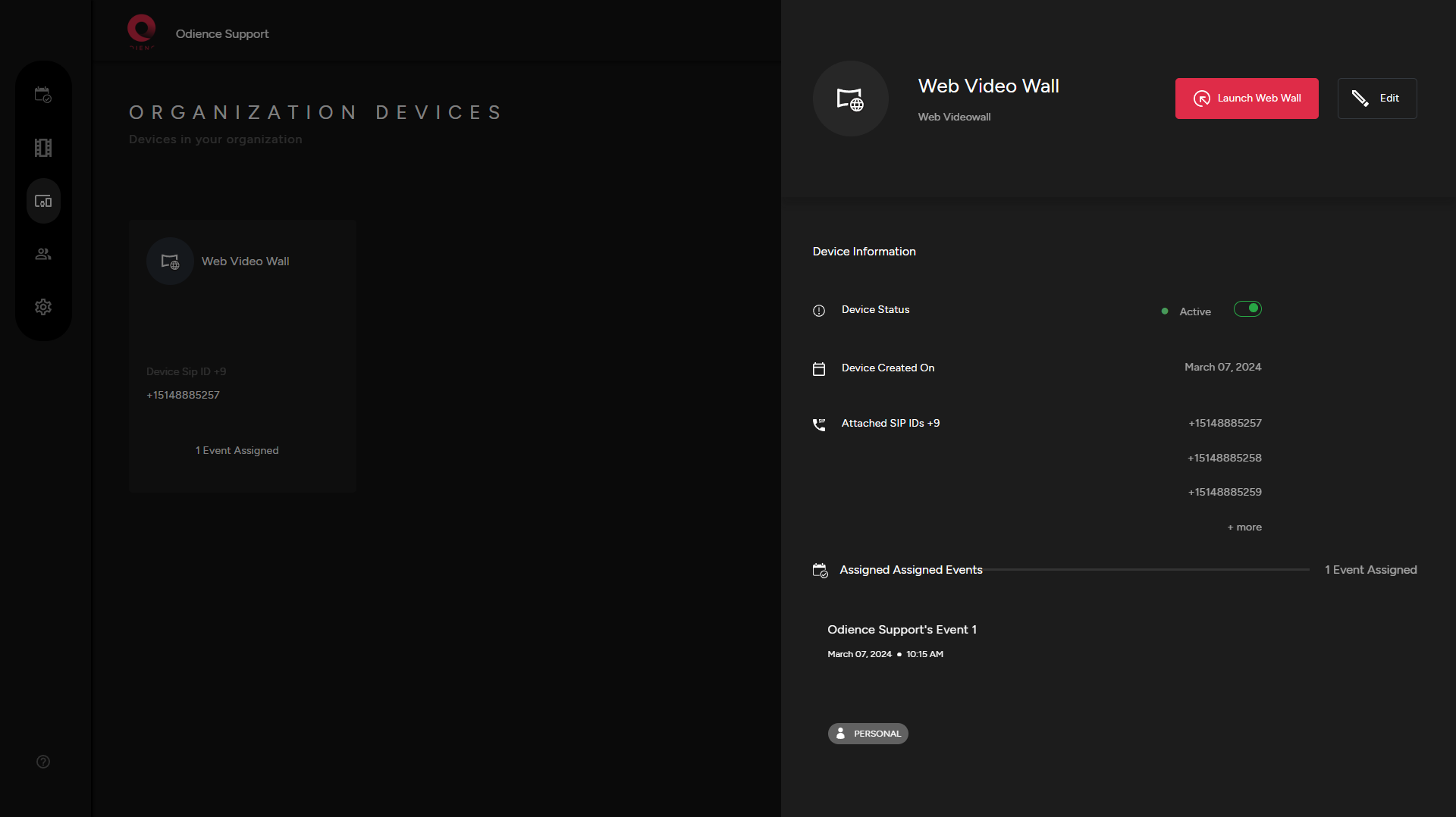
2) After creating your Video Wall, click on your newly created device & launch Web Video Wall.
Customize
2) Customize Video Wall display settings to fit your style.
3) Personalize Stream Message Settings.
4) Personalize Poll Bot Display Settings.
Media Content
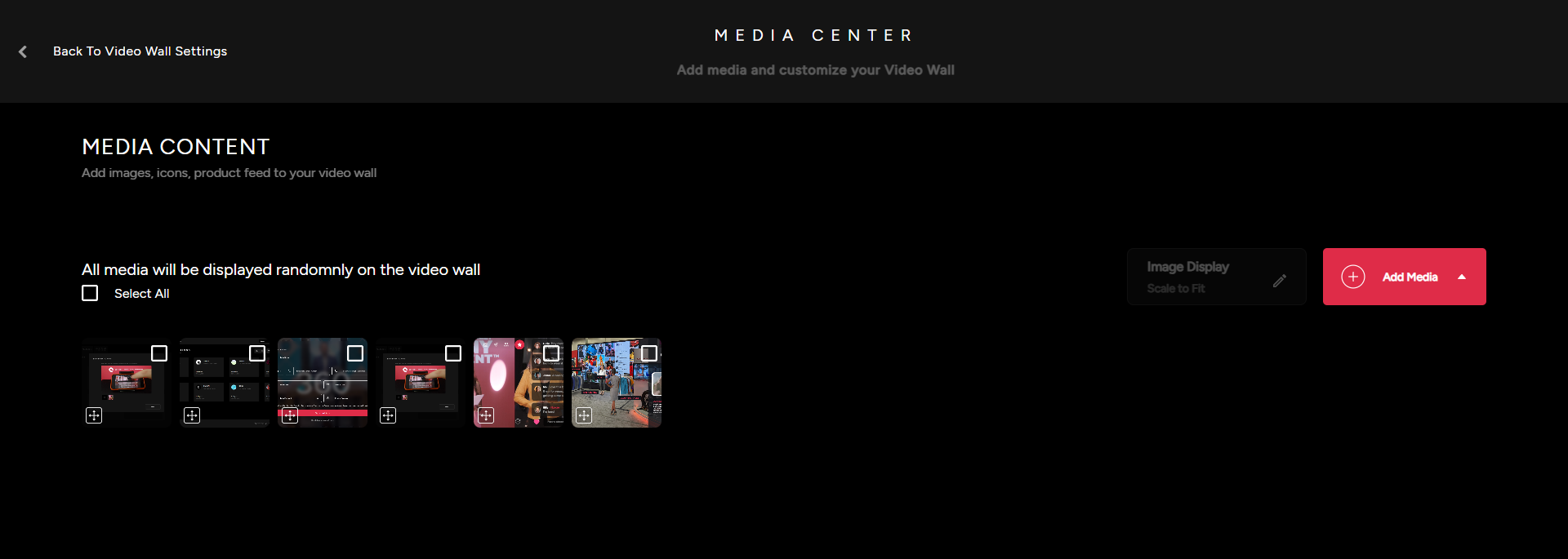
5) Customize & manage the content the that will appear on the Video Wall. Upload images, videos, import items from Event Product Feed or add icons from our icon packs.
Resolume Video Wall
Contact customer service for more information about Odience Resolume Plugins.
Note: Resolume Video Walls is only available for Pro and Enterprise accounts. For more information on different accounts, see our guide on Account Types.