
Actionable Items
Add QR Codes
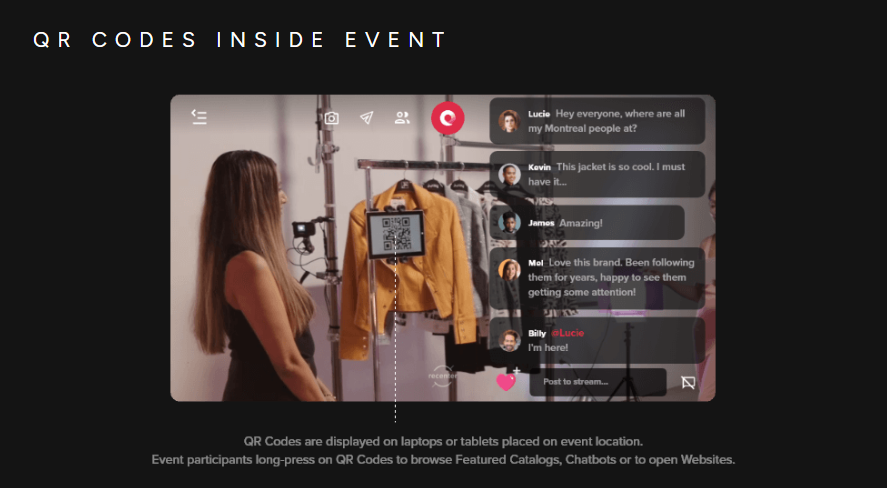
Including QR codes adds another level of interactivity to your event, as you can include websites, social media links, featured catalogs, etc.
- Click “Micro services”
-
Select "Actionable Items"
-
Click “QR Code”
-
Select what you would like to attach to your QR code.
Website
- This QR code set up opens up a website
- Enter a URL
-
Click “Generate QR Code”
-
Click Save
Event Chatbot
- This QR code set up opens up a chatbot
-
Select “Event Chatbot”
-
TBC
Featured Catalog
Assuming shopping chatbot has already been created and applied to your event:
-
Select “+Group” in the right side of the featured catalog section
-
Enter a group name
-
Select which items you would like to include in that group then click “Save” to finalize selections
-
You will now have a new group of items with its own unique QR code.
How to set-up QR codes in your event space
- From your instream services section, scroll to “Actionable Items” then click the QR code icon corresponding to the item you want to set-up a QR code for.
-
You will now have the QR code open in its own tab, ready to be used on a tablet and placed within your event for viewers to interact with.
Content below to be revised
Shopping Chatbot
- Select “Shopping chatbot”
-
Select the chatbot that will act as the source of your featured catalog
-
Select which items you would like to use for your featured catalog.
-
Transfer items to your catalog by clicking the arrow point to your event catalog between the two columns
-
Edit image display alignment
-
Click “Save” to create your new QR code
Custom