
Actionable Items
Add QR Codes
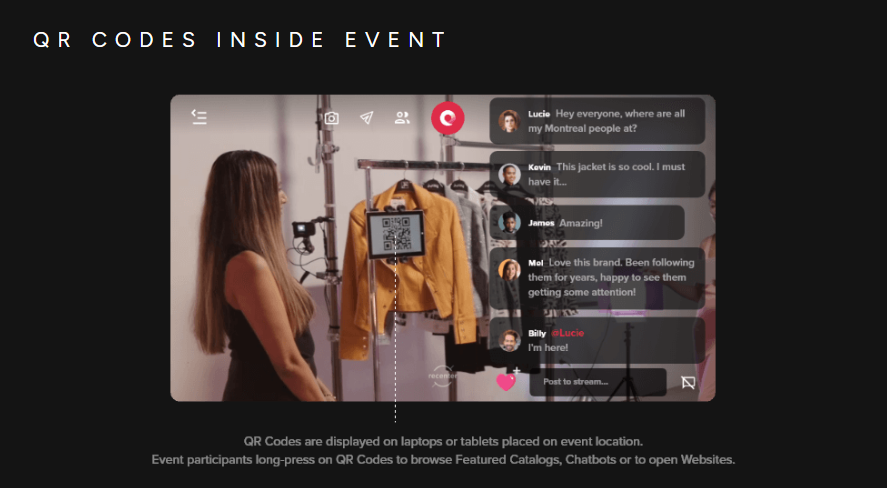
Including1. QR codes adds another level of interactivity to your event, as you can include websites, social media links, featured catalogs, etc.
Click “Micro services”
Select "Actionable Items"
in your
- down.
- Then
Click “QR Code”
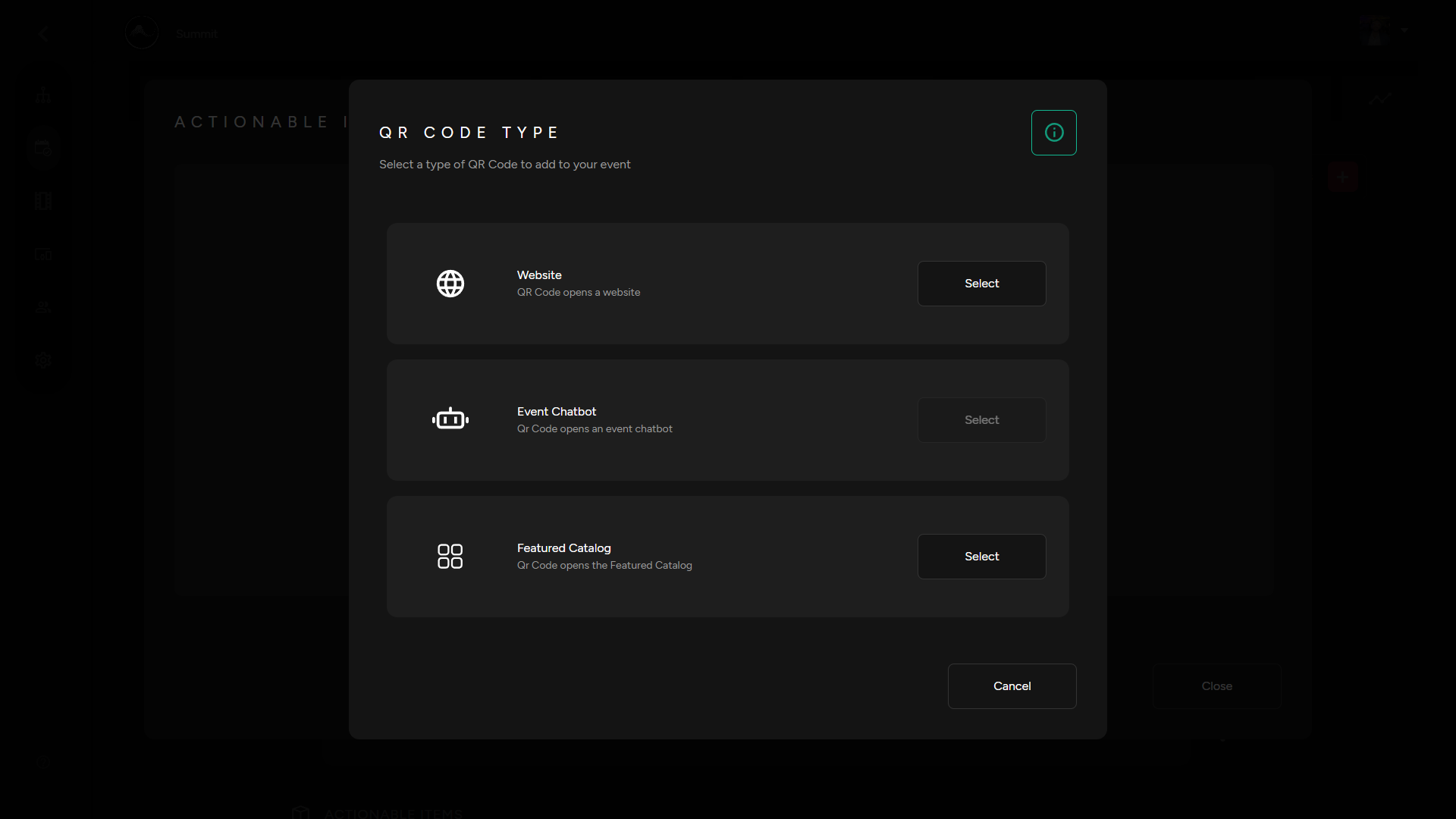
Select what
youtypewould like to attach toyourQR code.
Website
- Thisof QR code set up opens up a website
Enter a URL
Click “Generate QR Code”
Click Save
Event Chatbot
- This QR code set up opens up a chatbot
Select “Event Chatbot”
TBC
Featured Catalog
Assuming shopping chatbot has already been created and applied to your event:
Select “+Group” in the rightsideof the featured catalog section
Enter a group name
Select which itemsyou would like toincludegenerate.inYou can have one thatgroupopenthenupclicka“Save”website, another QR code that opens up an event chatbot or connect a QR code to a Feature Catalog.finalizeselections
Add
- Tablets
You1.will now have a new group of items withitsown unique QR code.
How to set-up QR codes in your event space
- From your instream services section, scroll to “Actionable Items” then click the QR code icon corresponding to the item you want to set-up a QR code for.
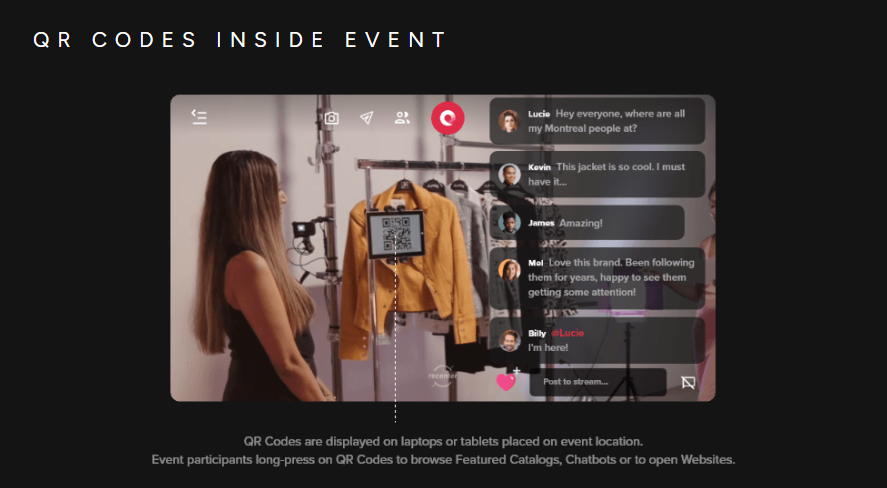
2. You will now have the QR code open in its own tab, ready to be used on a tablet and placed within your event for viewers to interact with.
Content below to be revised
Shopping Chatbot
Select “Shopping chatbot”
Select the chatbot that will act as the source of your featured catalog
Select which items you would like to use for your featured catalog.
Transfer items to your catalog by clicking the arrow point to your event catalog between the two columns
Edit image display alignment
Click “Save” tocreate your new QR code
Custom