
Invitations
Design Template
1. To add a design template, click “edit”.
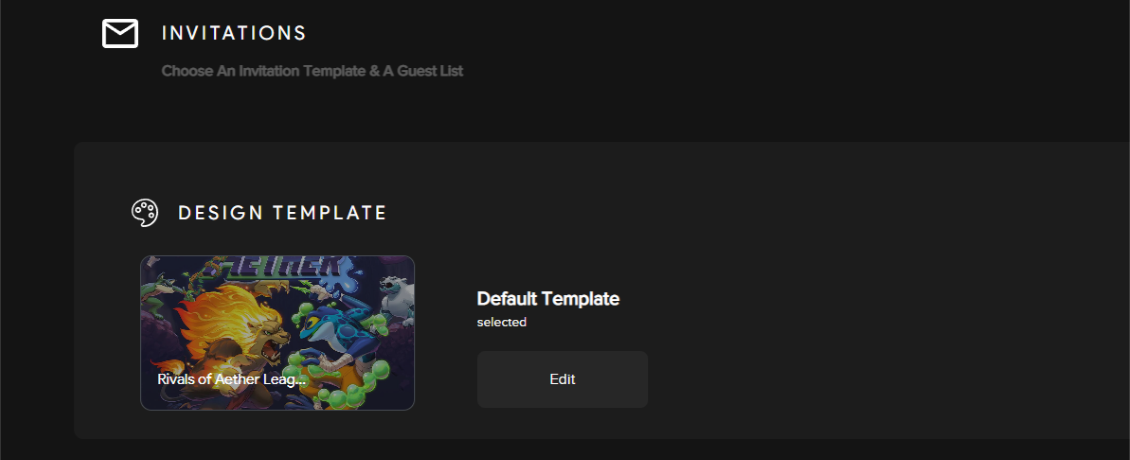
2. You can use an invitation template that has already been created by selecting one of the options in the drop-down menu.
3. A preview of your invitation design will be displayed to the left.
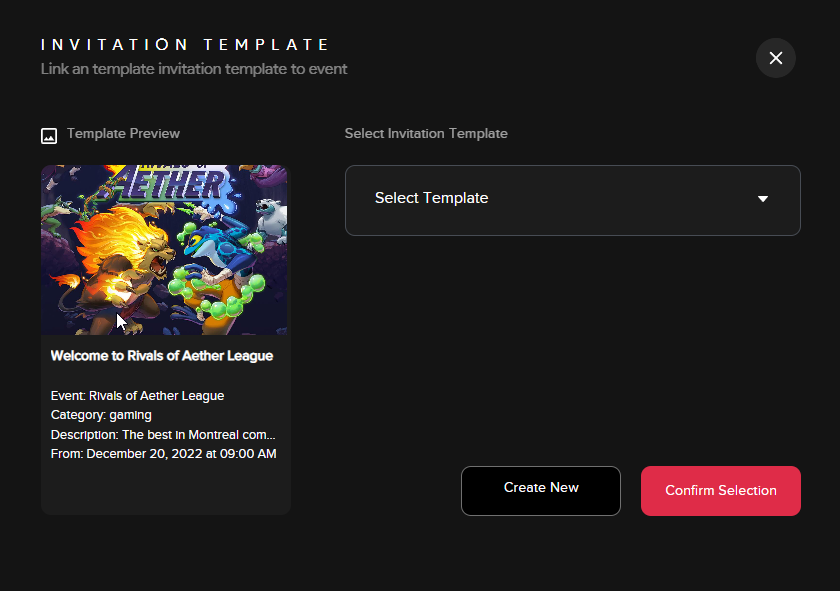
4. Click “Confirm Selection” to apply selected template.
Creating a New Design Template
To create a new design template, click “Create New” & you will be directed to the invitations template section.
1. Click Create New & you will be sent to the guest
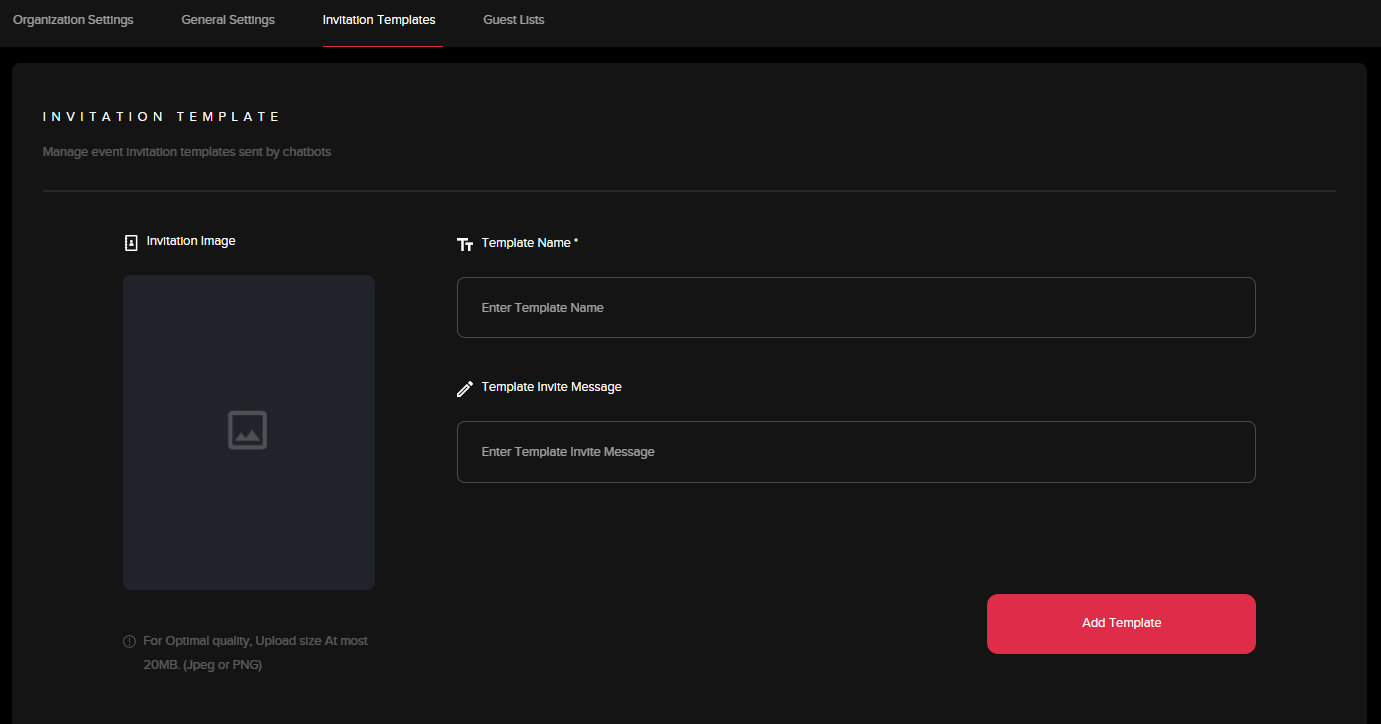
2. Choose a template name
3. Select a JPEG or PNG invitation image (No greater than 20MB for optimal quality)
4. Enter a template invite message that your invitees will presented with
5. To complete, click “Add Template”
Guest List
1. To add an existing guest list, click “Add Guest List”
2. Select an option on the drop options available to you
3. Click “Confirm Selection”
4. Click “Send Invites”
5. In the new window, click “Send New Invites”
6. Click “Yes” to initiate invitations.
7. You can manage invites to send individual invitations
Creating a New Guest List
1. Click “Create New” within the guest list window
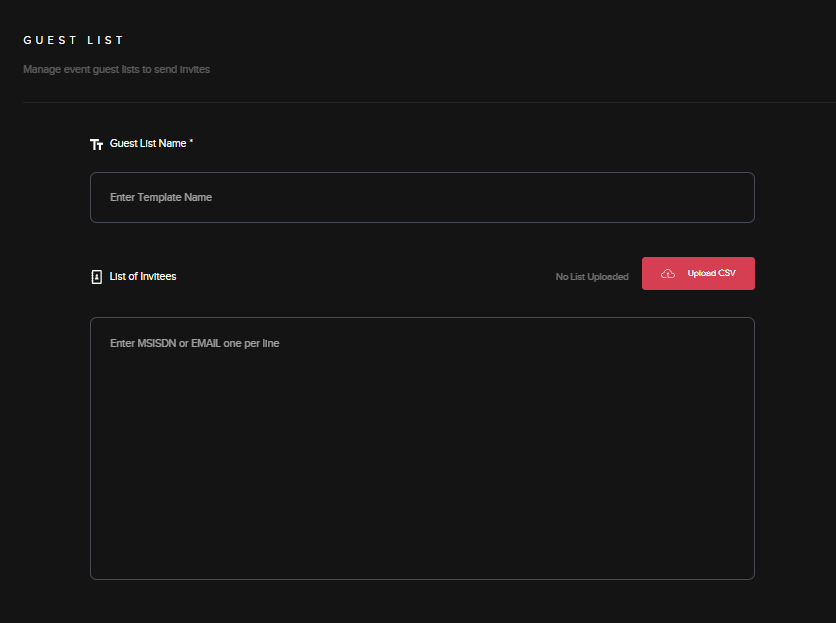
2. Give your guest list a name
3. Enter a list of invitees using all phone numbers available to you. You have the option to also upload a CSV file with all the phone numbers rather than having to enter them one by one.
4. Click “Add Guest List”
5. Click “Send Invites”
6. In the new window, click “Send New Invites”
7. Click “Yes” to initiate invitations.
8. You can “Click Individual Guest” to send individual invitations
Share via Social Media
1. Odience can be directly shared to platforms such as Facebook or X where invitations can be publicized.
2. Select which platform you would like to share your event by selecting of the platform's icon