
Create Invitation
Note: Custom invitation templates and Guest Lists are only available for Pro and Enterprise accounts. For more information on different accounts, see our guide on Account Types.
Create Guest List
1. Select create Guest List, then click Create New within the guest list window.
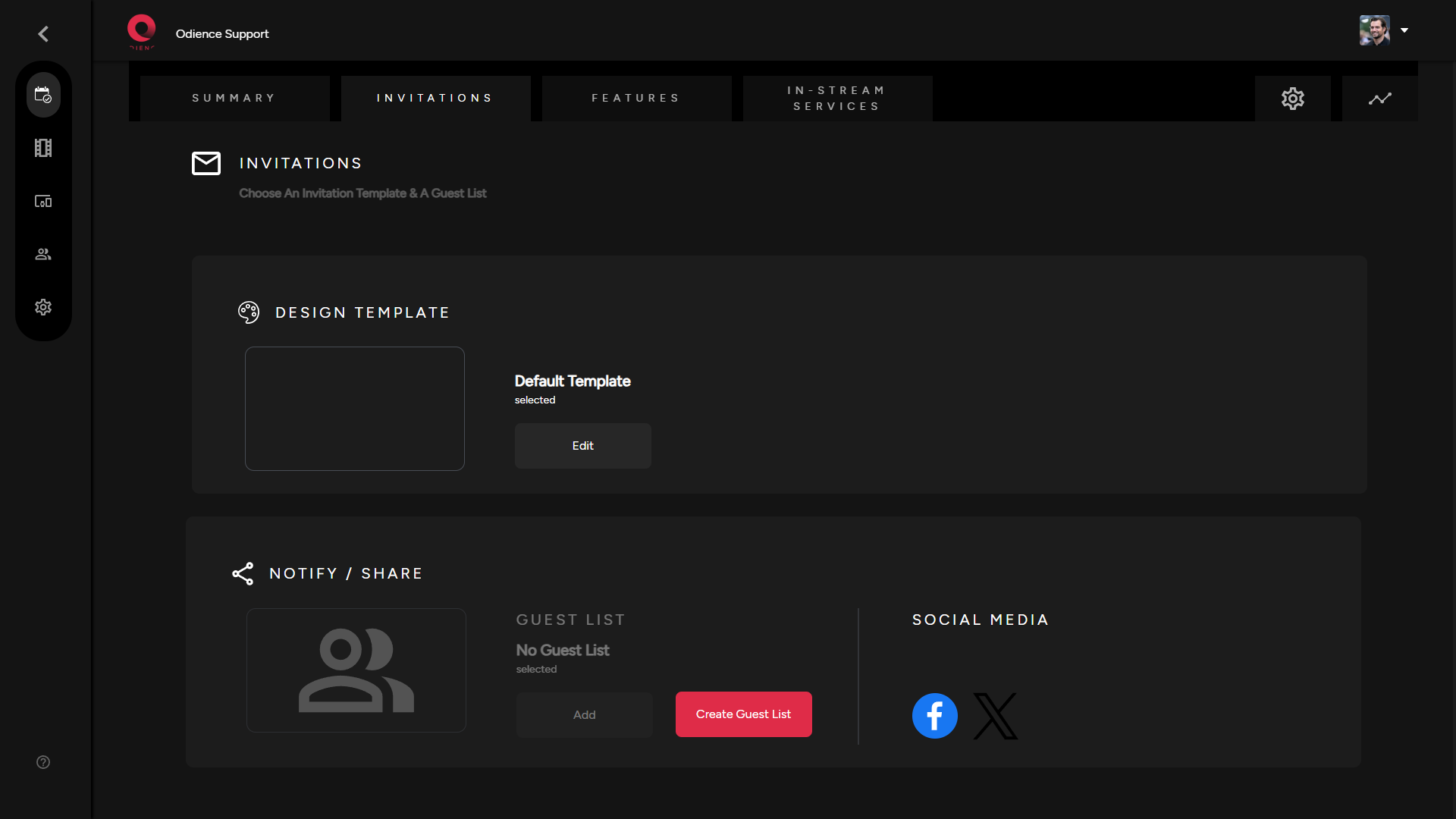
2. Fill out the information to create your guest list. Send invitation using phone numbers or send via email. Click Add Guest List to confirm.
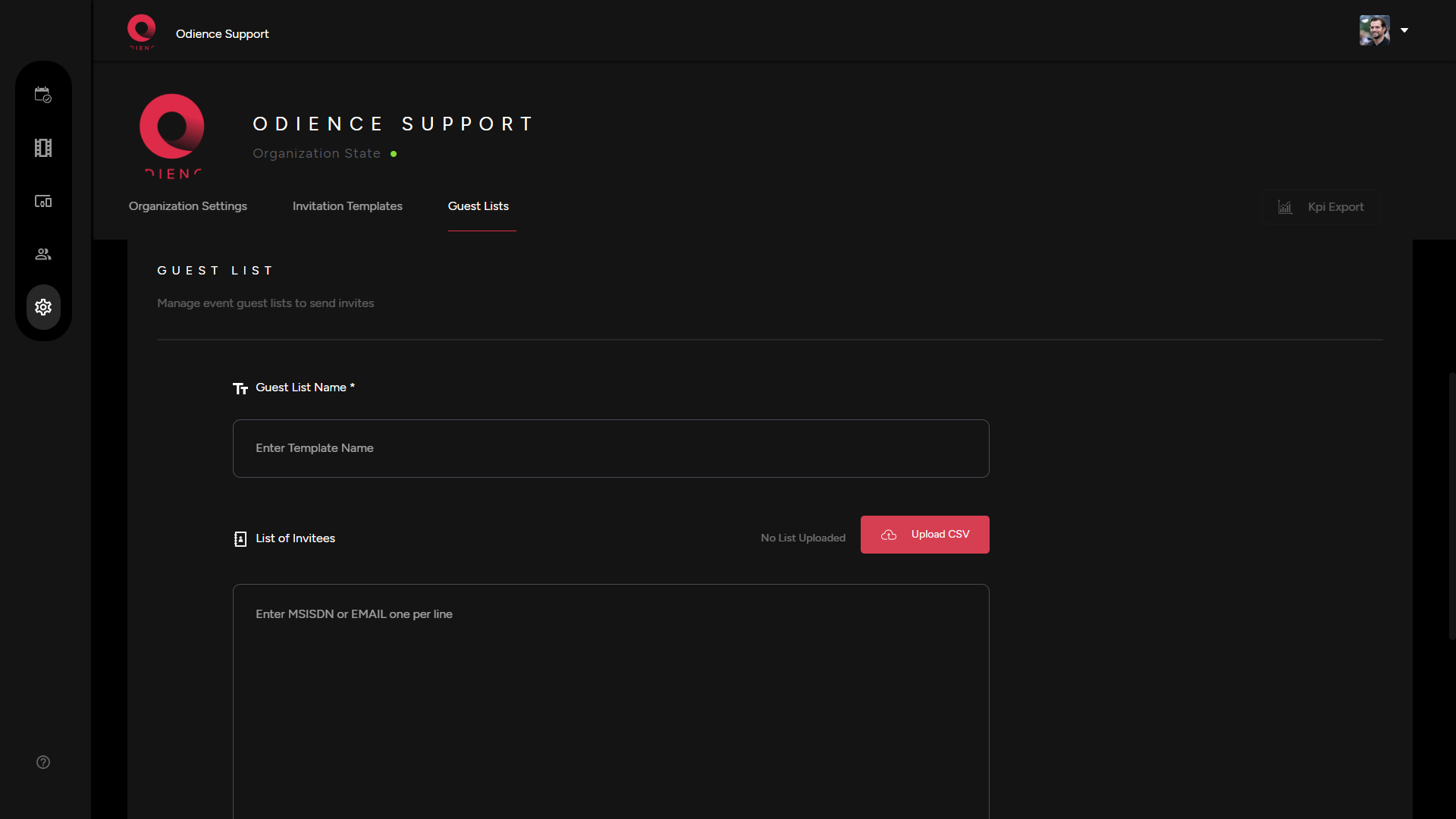
3. Go back to your event to apply your new guest list.
Create New Design Template
Your invitation design template allows you to edit the appearance and presentation of your invitations.
1. To create a new design template, click Edit to get directed to the invitations creation page.
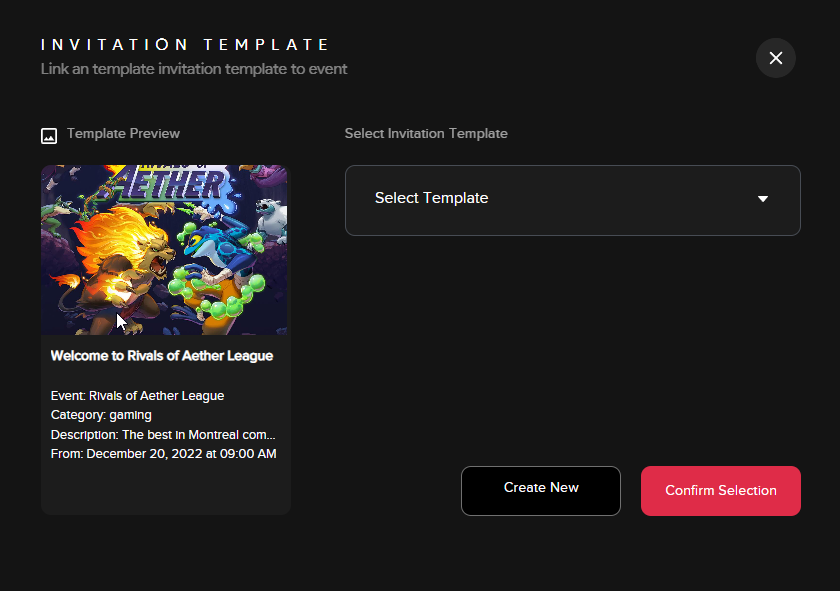
- Note: If you have templates already created, a small window will open (see below) providing the option to add an existing template or to create a new one.
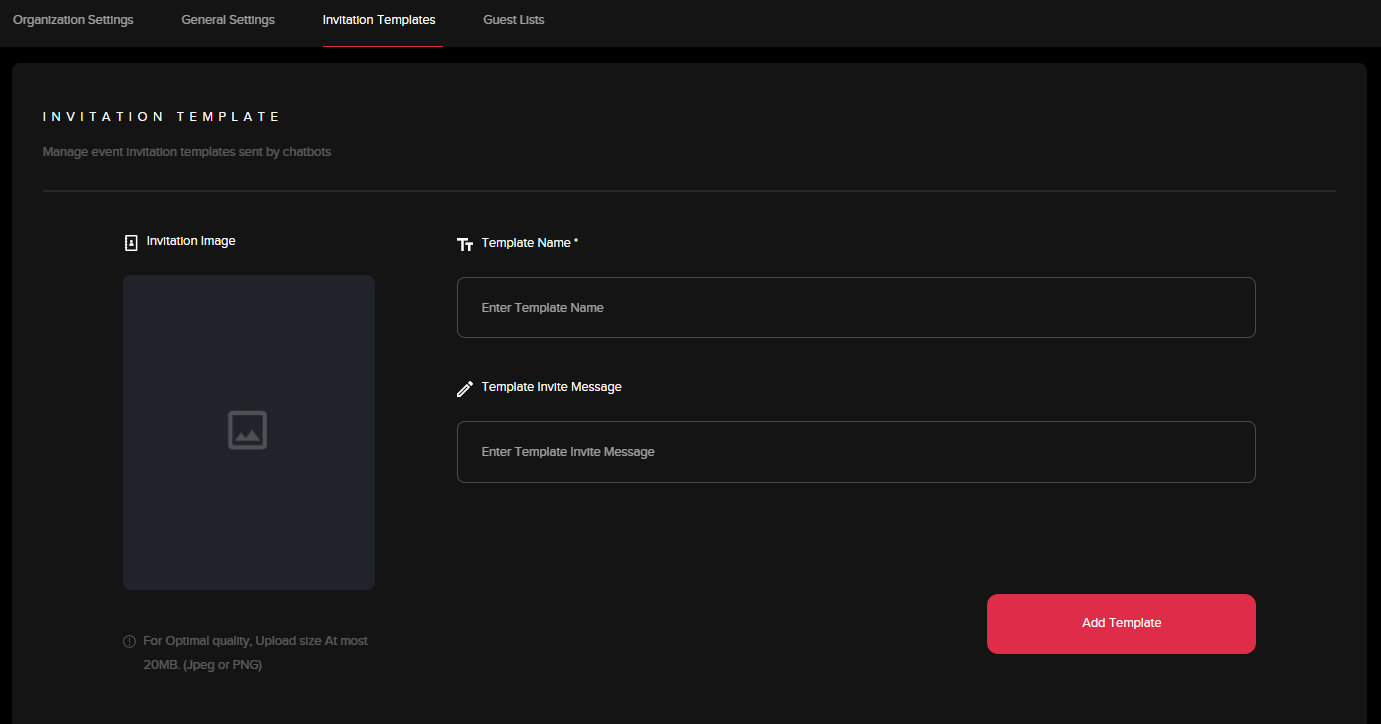
2. In the creation page, fill out the information to create your invitation template. Click "Add Template" to apply template.
Share via Social Media
1. Odience can be publicized to platforms like Facebook, Instagram and X. Simply select the social media platform & go through the steps to publish.