
Invitations
Create New Design Template
1. To create a new design template, Click Edit to be directed to the invitations creation section.
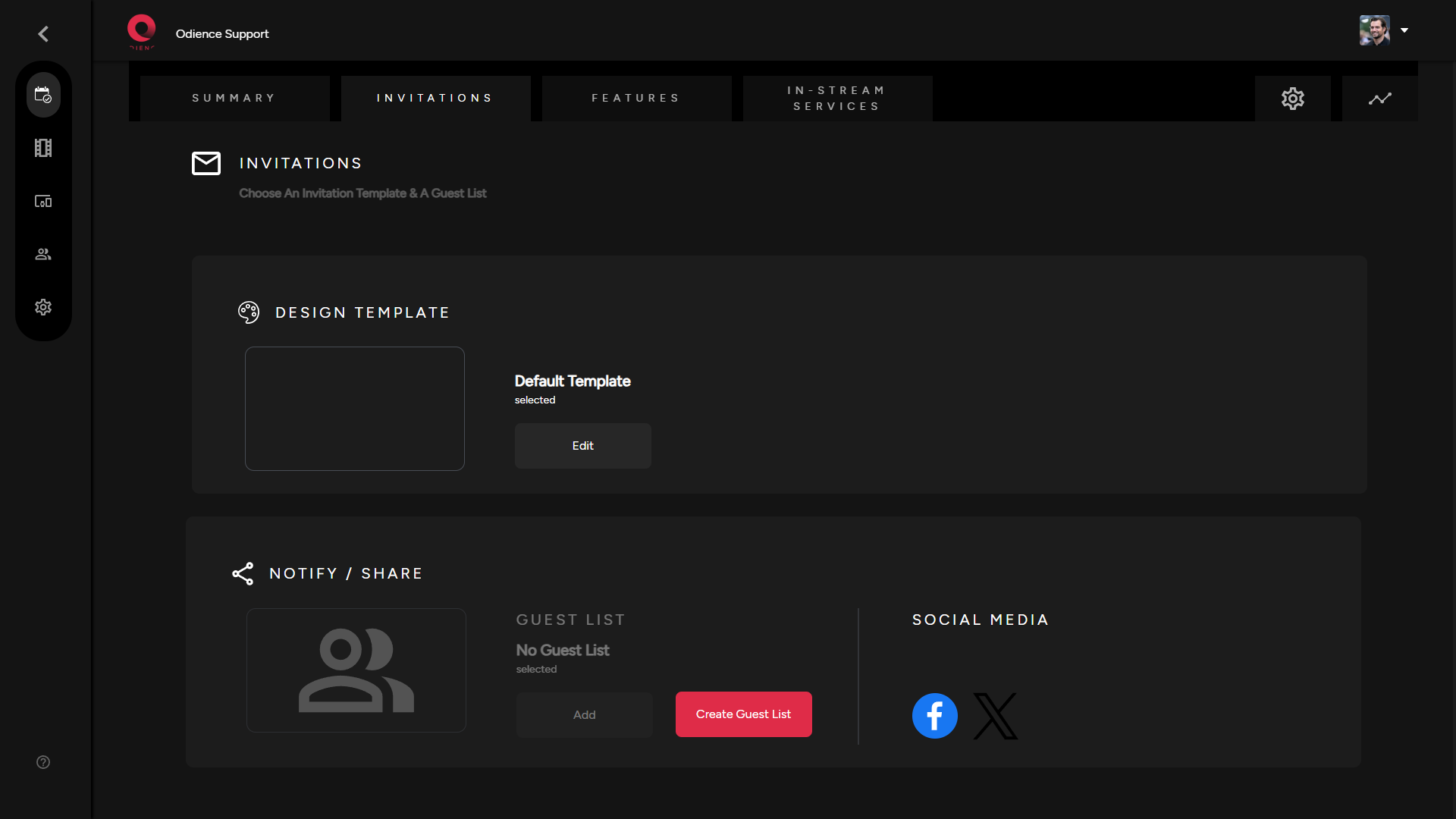
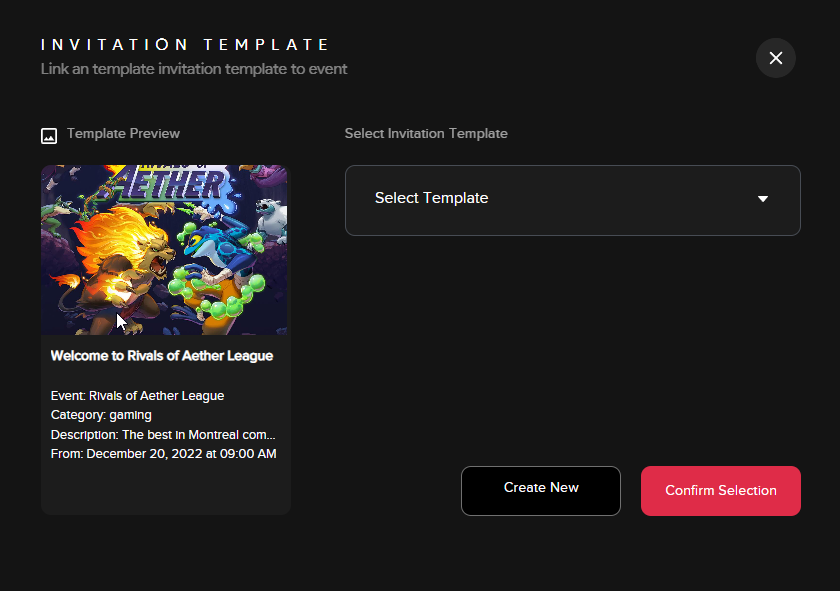
- Note: If you have templates already created, a small window will open (see below) giving you the option to add an existing template or to create a new one.
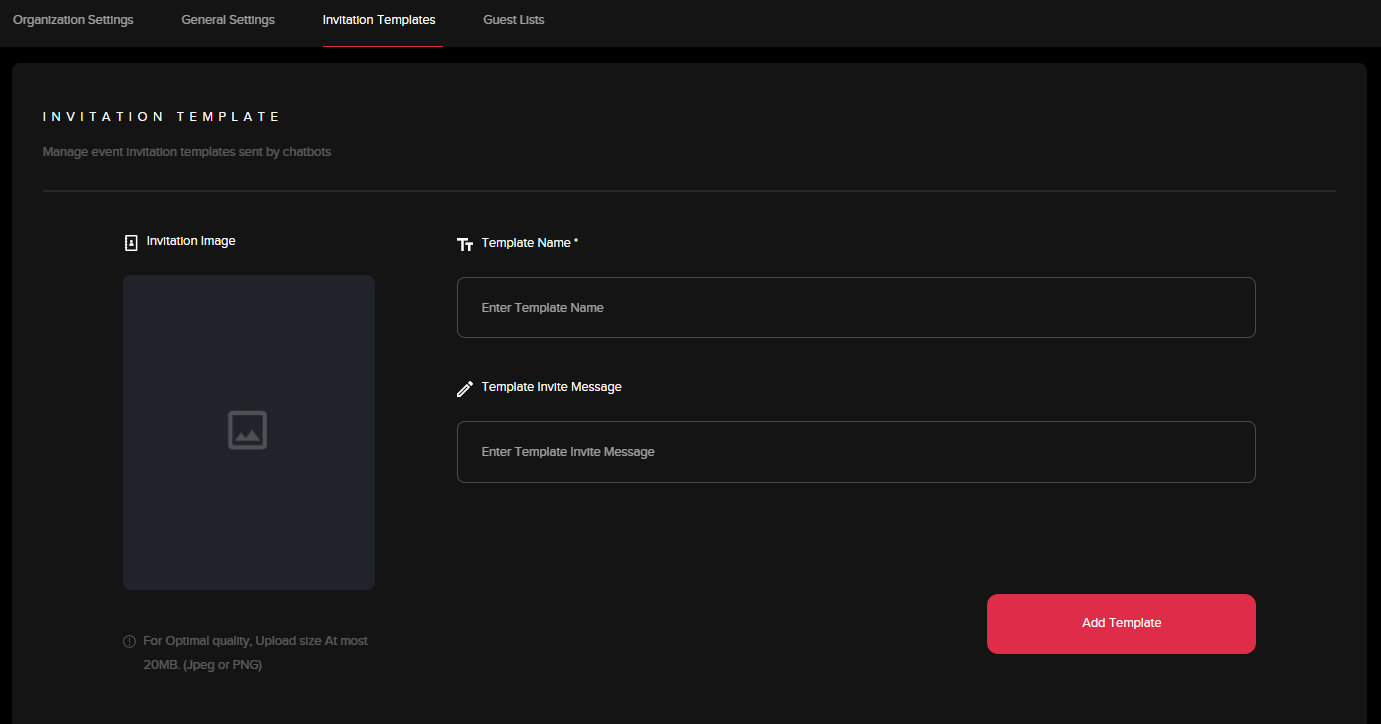
2. AddFill Invitationout Image,the Templateinformation Nameto &create Templateyour Inviteinvitation Message.template. Click "Add Template" to finalize.
Guest List
1. To add an existing guest list, click “Add Guest List”
2. Select an option on the drop options available to you
3. Click “Confirm Selection”
4. Click “Send Invites”
5. In the new window, click “Send New Invites”
6. Click “Yes” to initiate invitations.
7. You can manage invites to send individual invitations
Creating a New Guest List
1. Click “Create New” within the guest list window
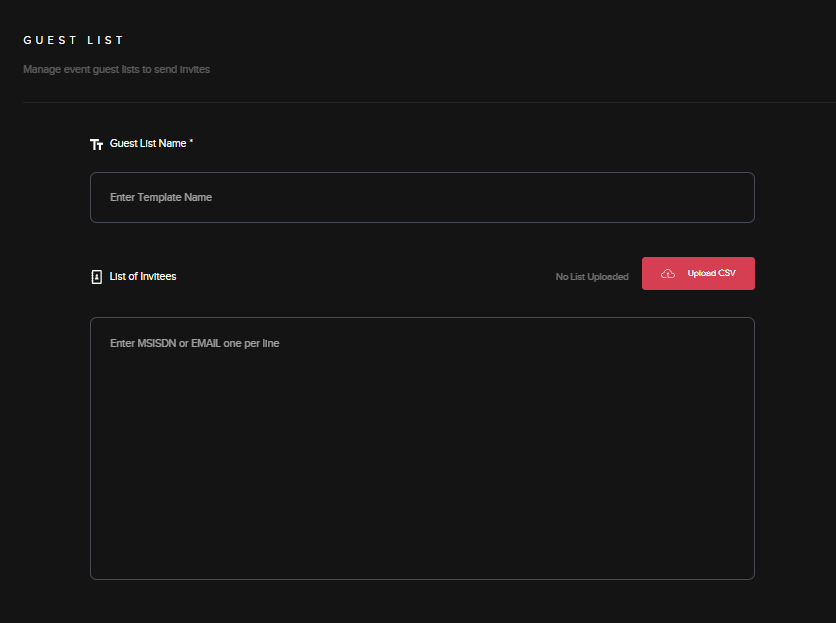
2. GiveFill out the information to create your guest listlist. aClick nameAdd Guest List to confirm.
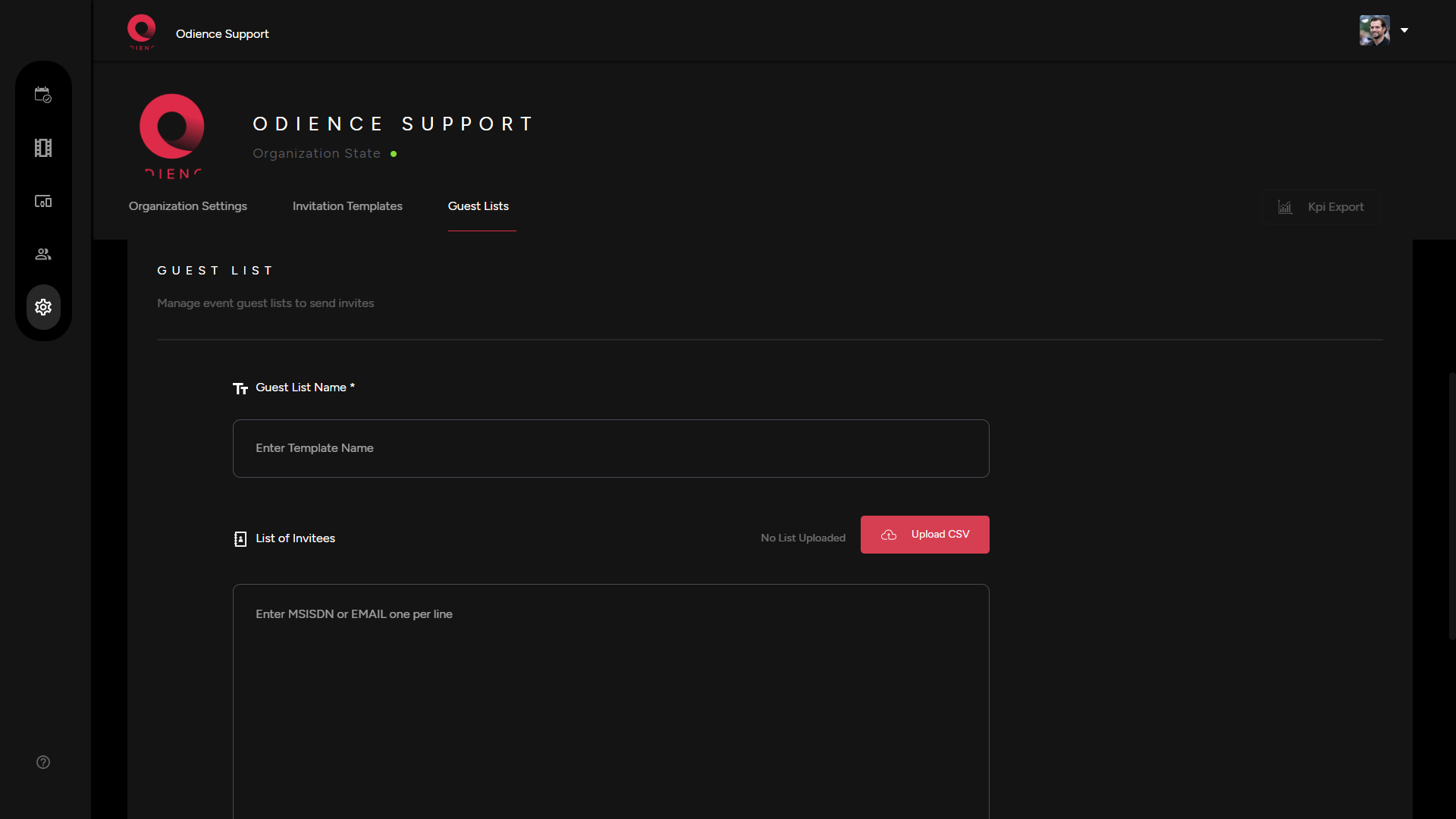
3. Enter a list of invitees using all phone numbers available to you. You have the option to also upload a CSV file with all the phone numbers rather than having to enter them one by one.
4. Click “Add Guest List”
5. Click “Send Invites”
6. In the new window, click “Send New Invites”
7. Click “Yes” to initiate invitations.
8. You can “Clickgo Individual Guest”back to your event to apply your new guest list. From where you can send individualout the invites and manage your invitations as well.
Share via Social Media
1. Odience can be directly sharedpublicized to platforms such as Facebook or X where invitations can be publicized..
2.select Selectthe whichsocial media platform you& wouldgo likethrough the steps to share your event by selecting of the platform's iconpublish.