
Featured Catalog
Create Featured Catalog
Note: If you don't have a shopping chatbot, you will need to create one first. Refer to our step-by-step guide on how to a Create a shopping chatbot.
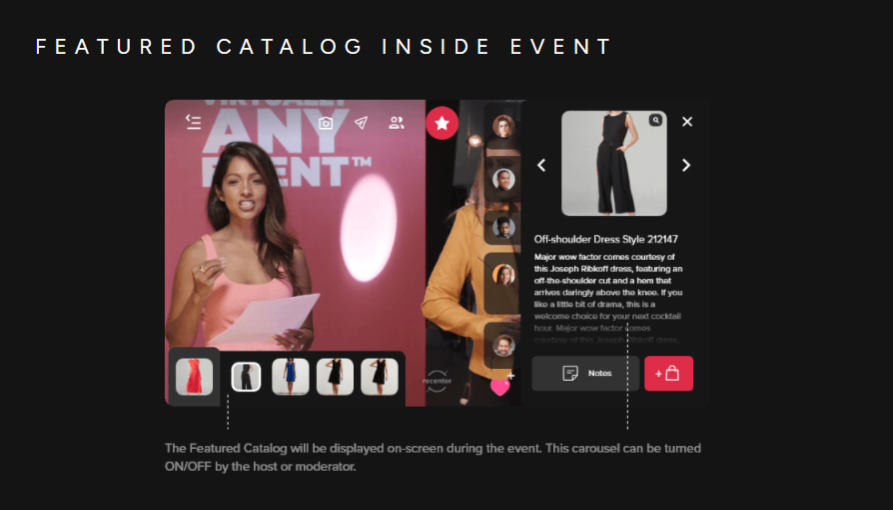
Set-Up Featured Catalog
- In the "Micro Services" drop down, select "Featured Catalog".
- Select the first box to assign a shopping chatbot as the source.
- You will have a list of chatbots that have that have been assigned to your event that you can select to be featured in your featured catalog.
- You will be directed to a section where you can select exactly which products you would like to be featured in your event catalog. Simply select the items you would like to assign then hit the arrow pointing to the event catalog to apply.
- Click save to apply your changes.
Custom Featured Catalog
The next option would allow you to create a custom featured catalog that does not link to an existing chatbot in your event.
- Select "custom" to create custom items.
- You will need to onboard a supported XML product feed.
- Select the items you would like to transfer to your event catalog.
- Click save to apply your custom featured catalog.