
Shopping Chatbot
Create Shopping Chatbot
Connect to a Shopify, Magento & other stores or to a Merchant Product Feed.
Note: Creating a Shopping Chabot with an Ecommerce platform is identical to creating a chatbot a Merchant Product Feed. Only difference is instead of linking an ecommerce platform, you will need to link your XML product feed URL in the Shopping Bot Source section. See below for more details...
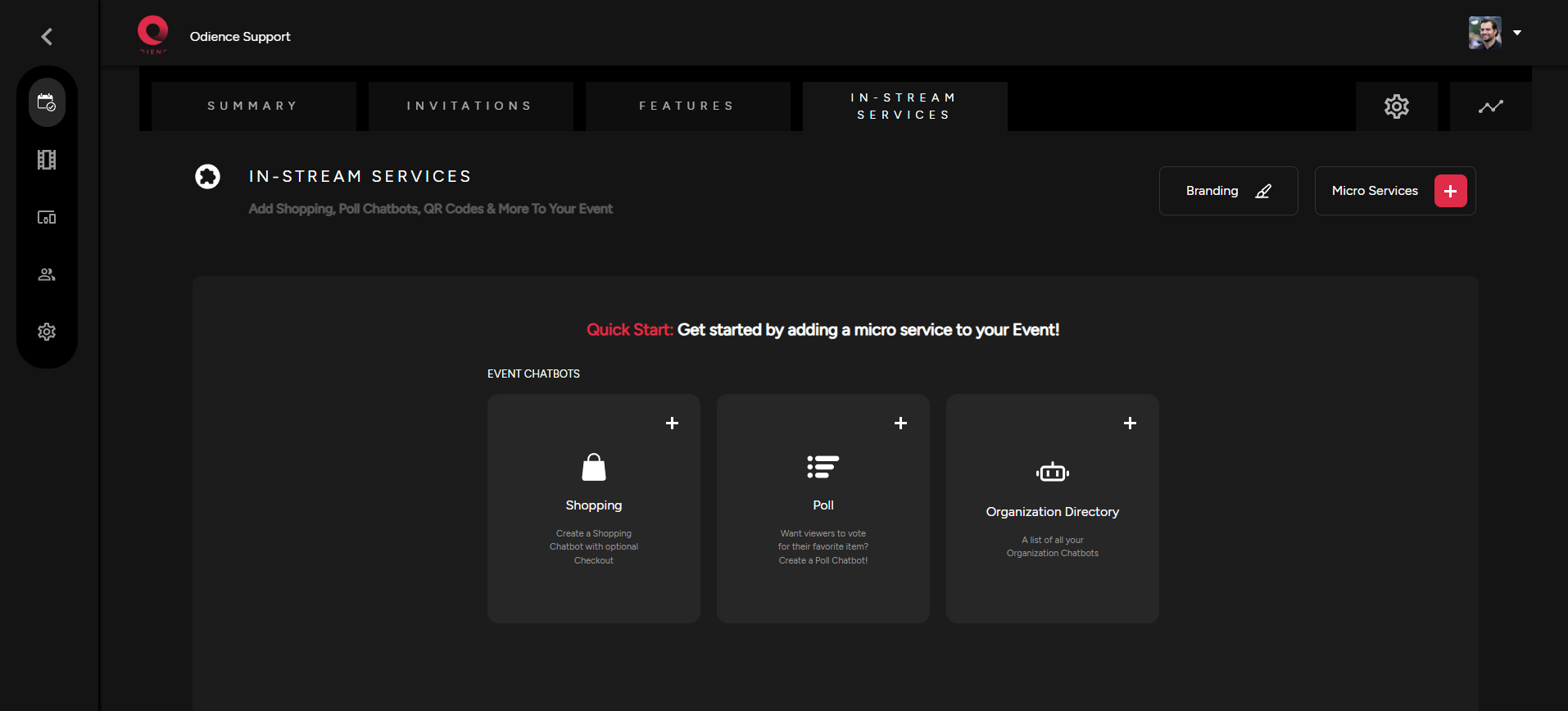
1. Start by selecting Shopping in your Quick Start or by selecting Add Chatbot in your Micro Services dropdown.
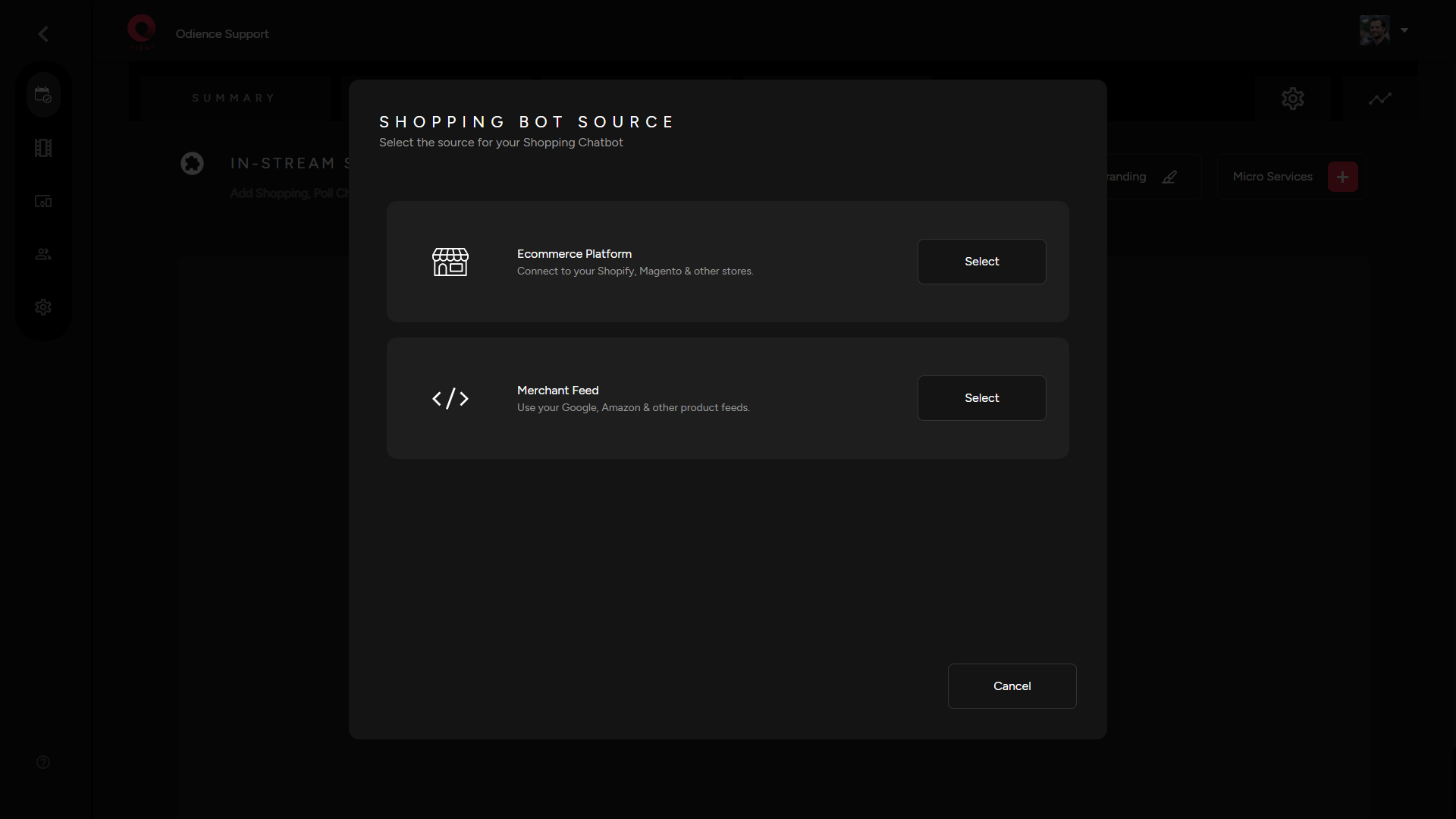
2. Select “Ecommerce platform”. Odience supports Shopify, Magento & other stores.
Note: Odience supports ecommerce platforms such as Shopify, Magento and others. We also the support the use of Google, Amazon & other XML merchant feeds.
3. Select the platform you will be transferring your items from.
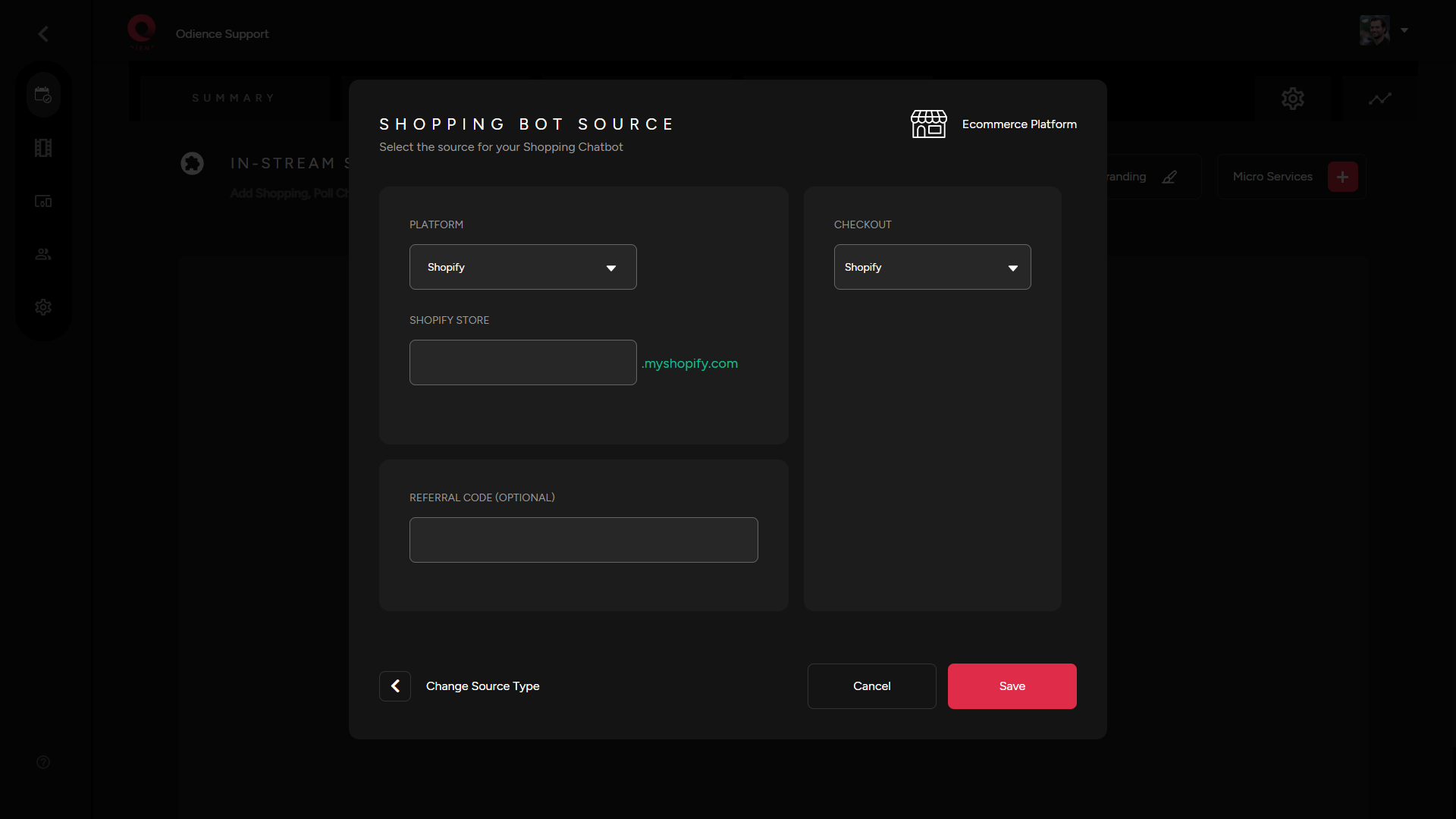
4. Link your store to connect products to your chatbot. Referral Codes can also be created but it is optional.
- Note: If Merchant Feed was selected over the ecommerce option, the only difference is that you will need to enter a XML product feed URL (see below for reference). All steps before and after stay the same regardless of the shopping source.
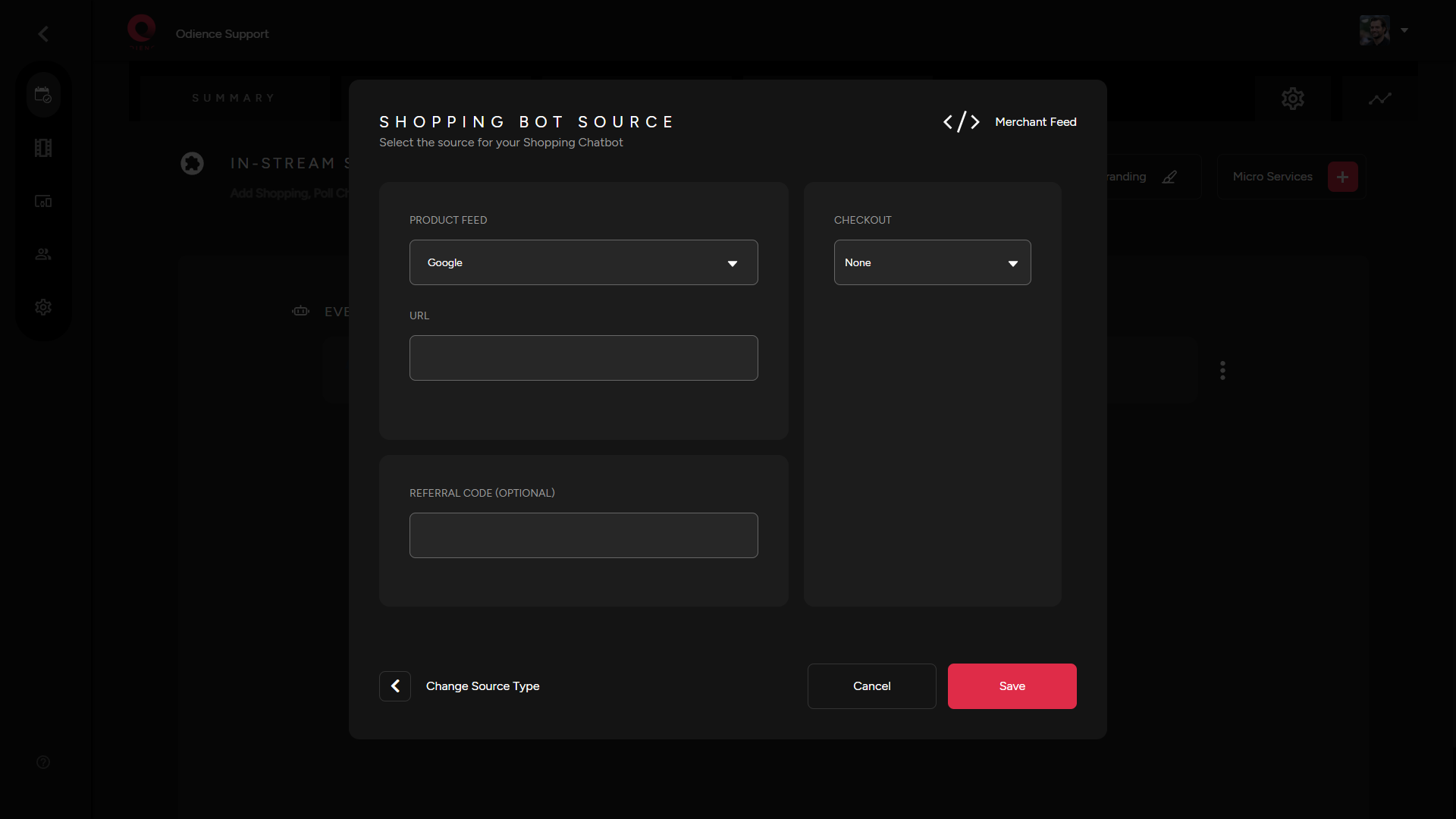
6. Select checkout platform & then Click Save.
7. Add a Chatbot Logo, Name, Description (optional) & then select which products from your store you want to include in your shopping chatbot.
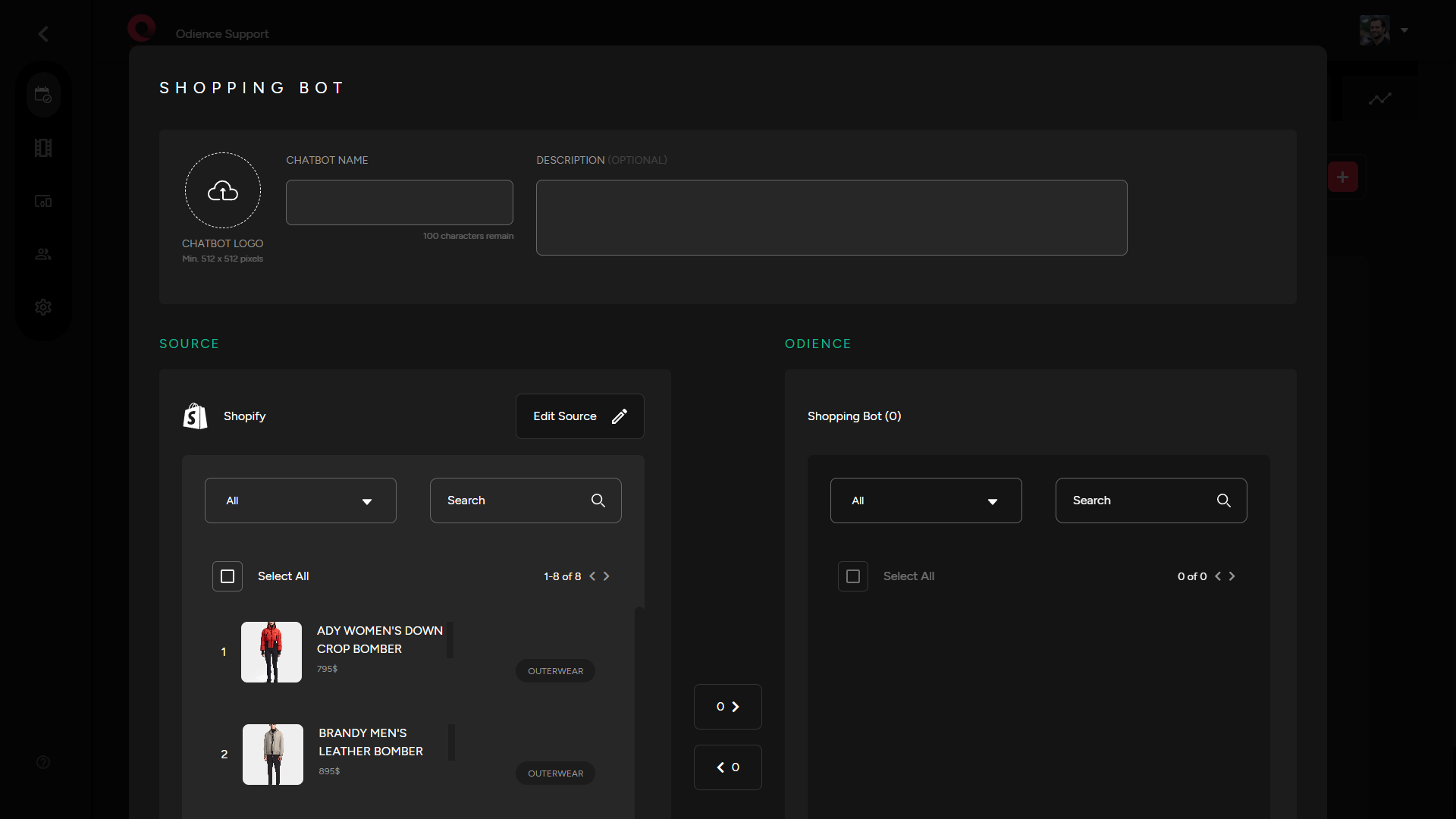
8. Click save to add Chabot to your event.
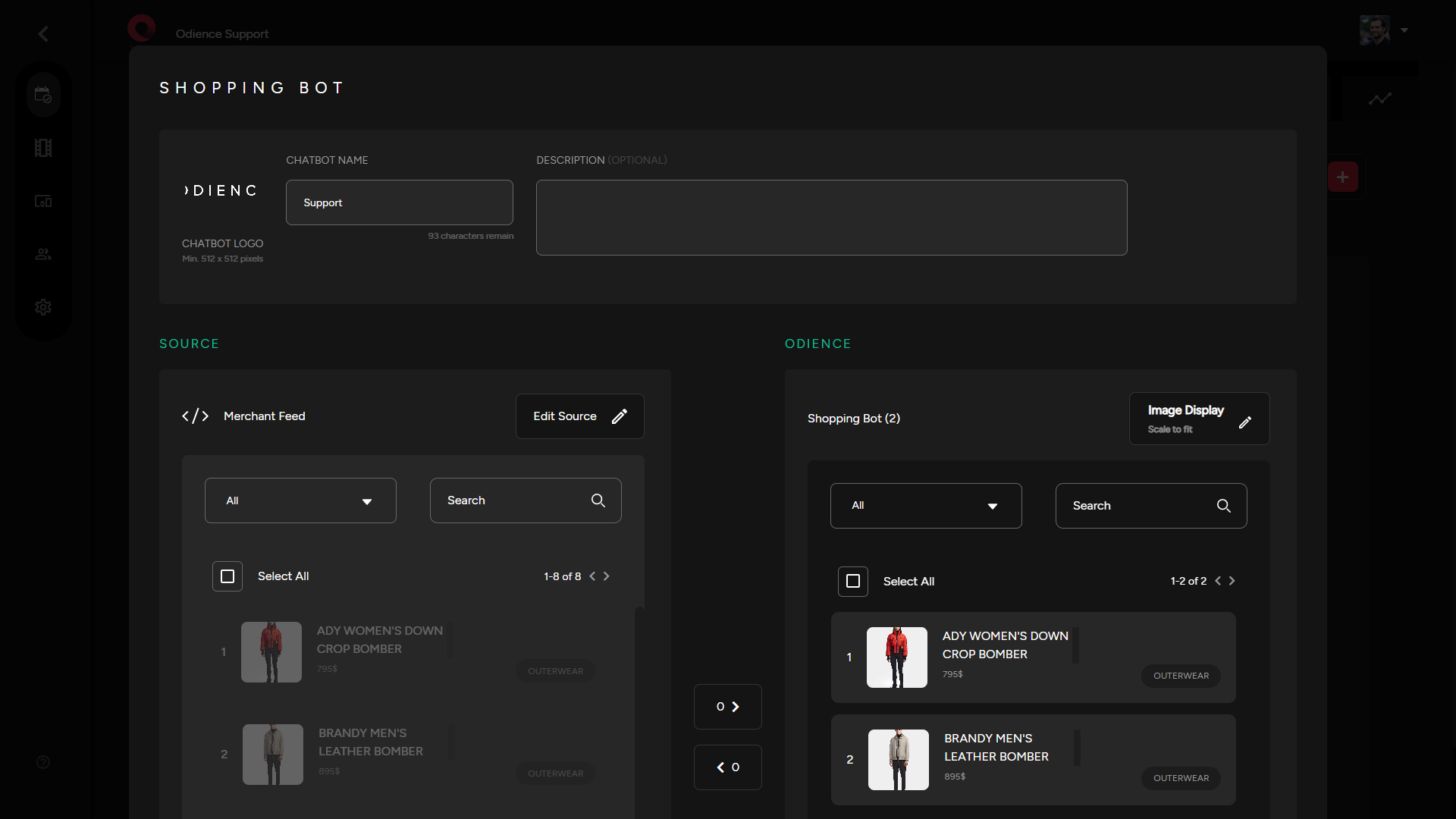
Edit Chatbot
- Edit your Chatbot Logo, Name, Description & Products by selecting the three stacked bullets to the left for more options.
Customize Appearance
- Select the three stacked bullets toward the right side to customize the appearance of your chatbot.
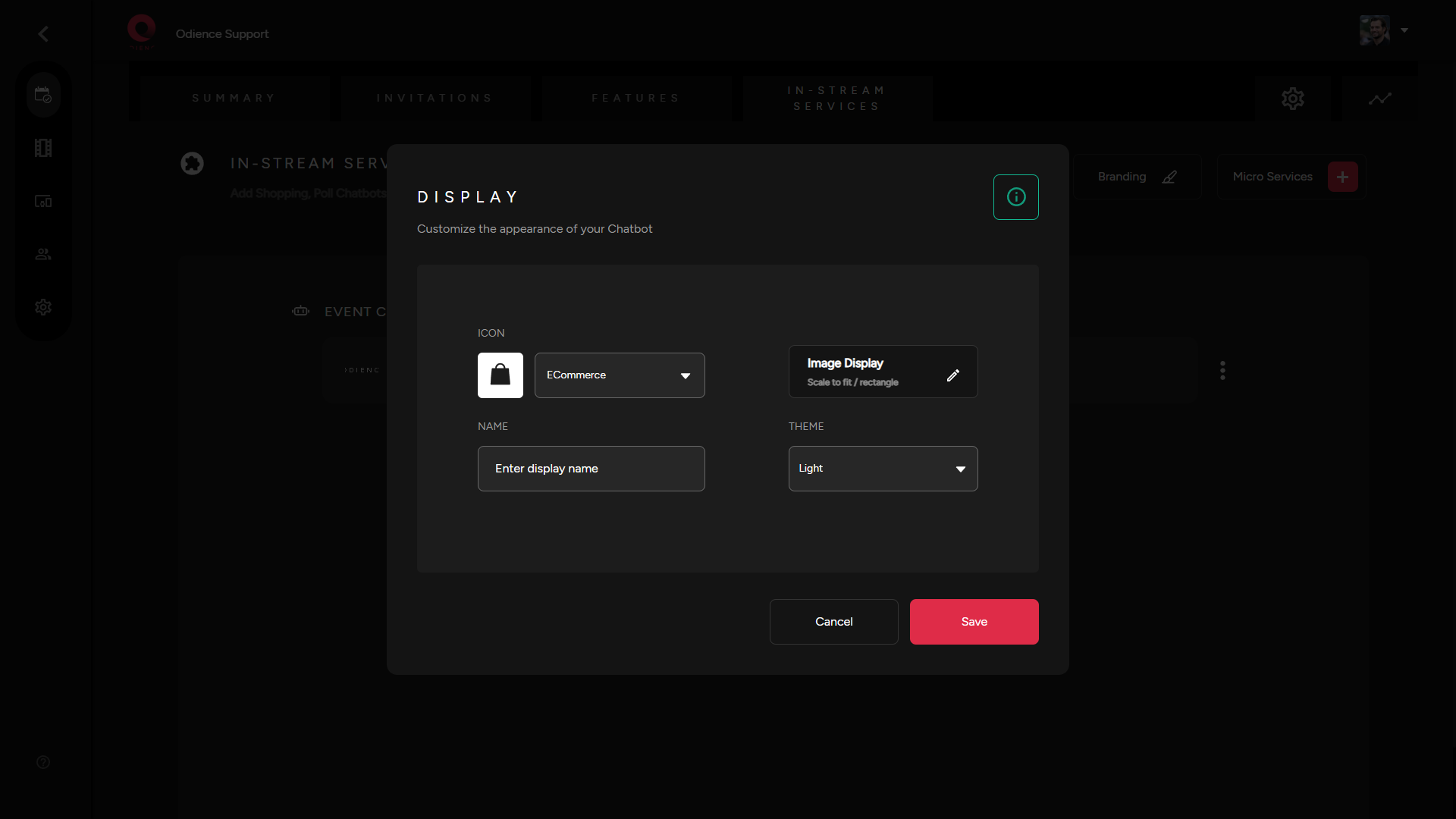
- Click Save to confirm changes.